How to Upload Artifacts to a Project
Last updated: October 17, 2026
This article walks through adding supporting files to a marketing project in Hadrius — the reference material a review team can use alongside the piece itself, such as background documents, source data, or supporting correspondence. Use this workflow any time you need to give reviewers extra context without altering the document under review.
Before you start
Artifacts are kept separate from the actual piece being reviewed, and they are not read or analyzed by Hadrius AI. Treat them purely as reference material for human reviewers — if a file needs to be part of the compliance review itself, it should be added as a document, not an artifact.
Steps
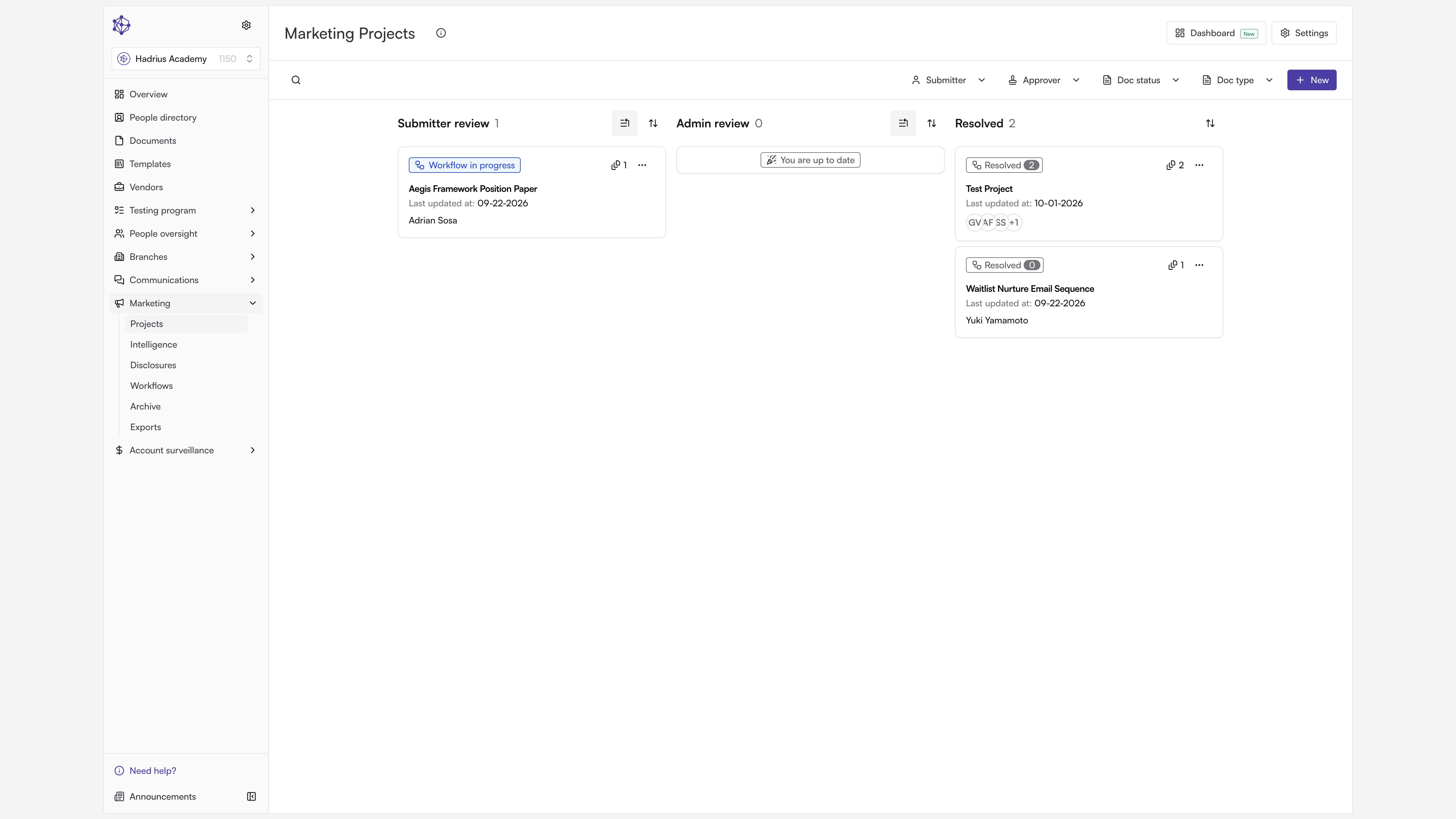
From the Projects dashboard, open the project you want to add artifacts to. This dashboard lists every ongoing or draft marketing project, so you can pick up a project at any stage — including one that's already partway through its approval workflow.
On the project's Overview page, scroll down to the Documents & artifacts section near the bottom of the page.
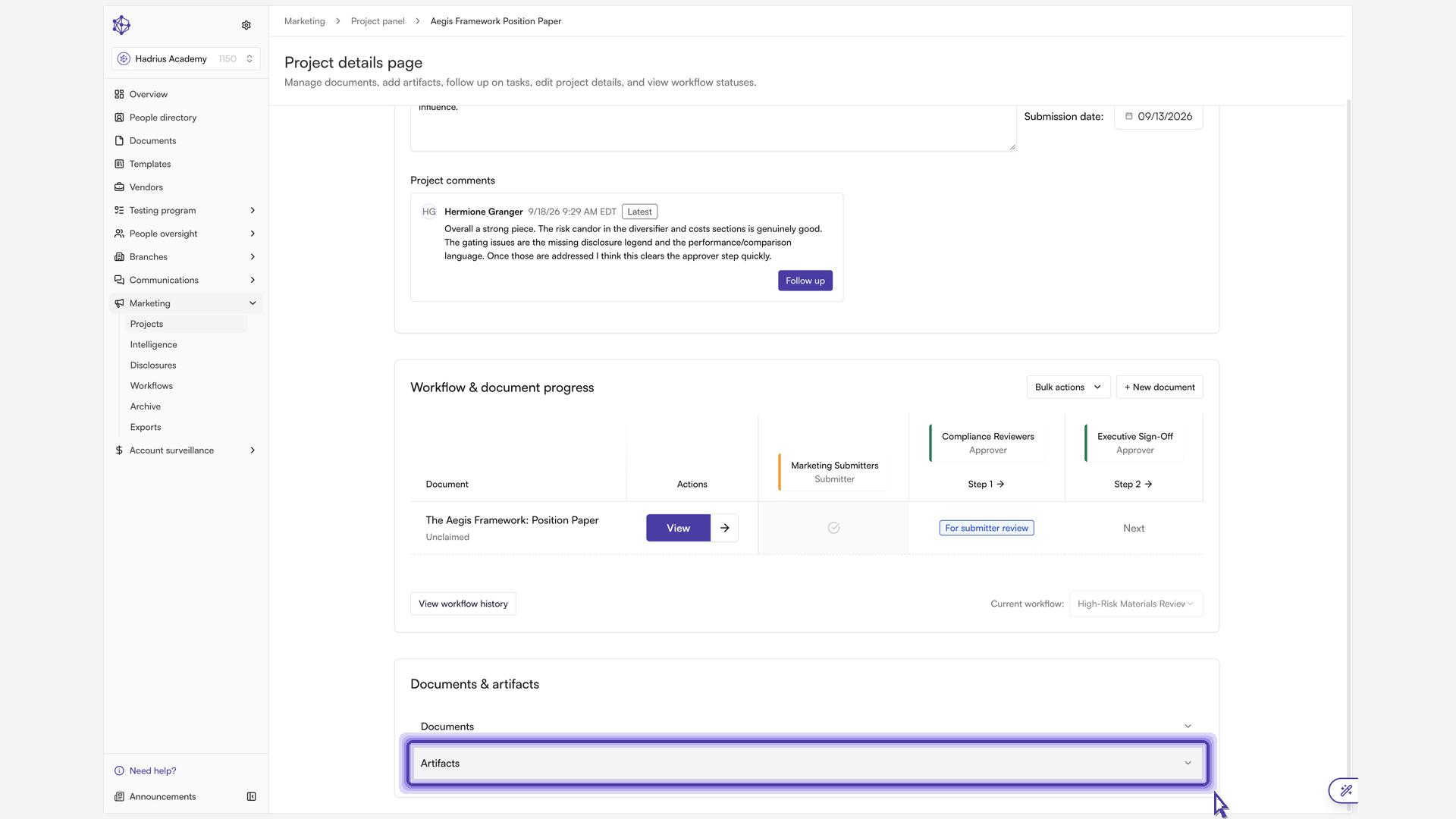
Open the Artifacts section. This is where supporting material lives, separate from the piece itself.
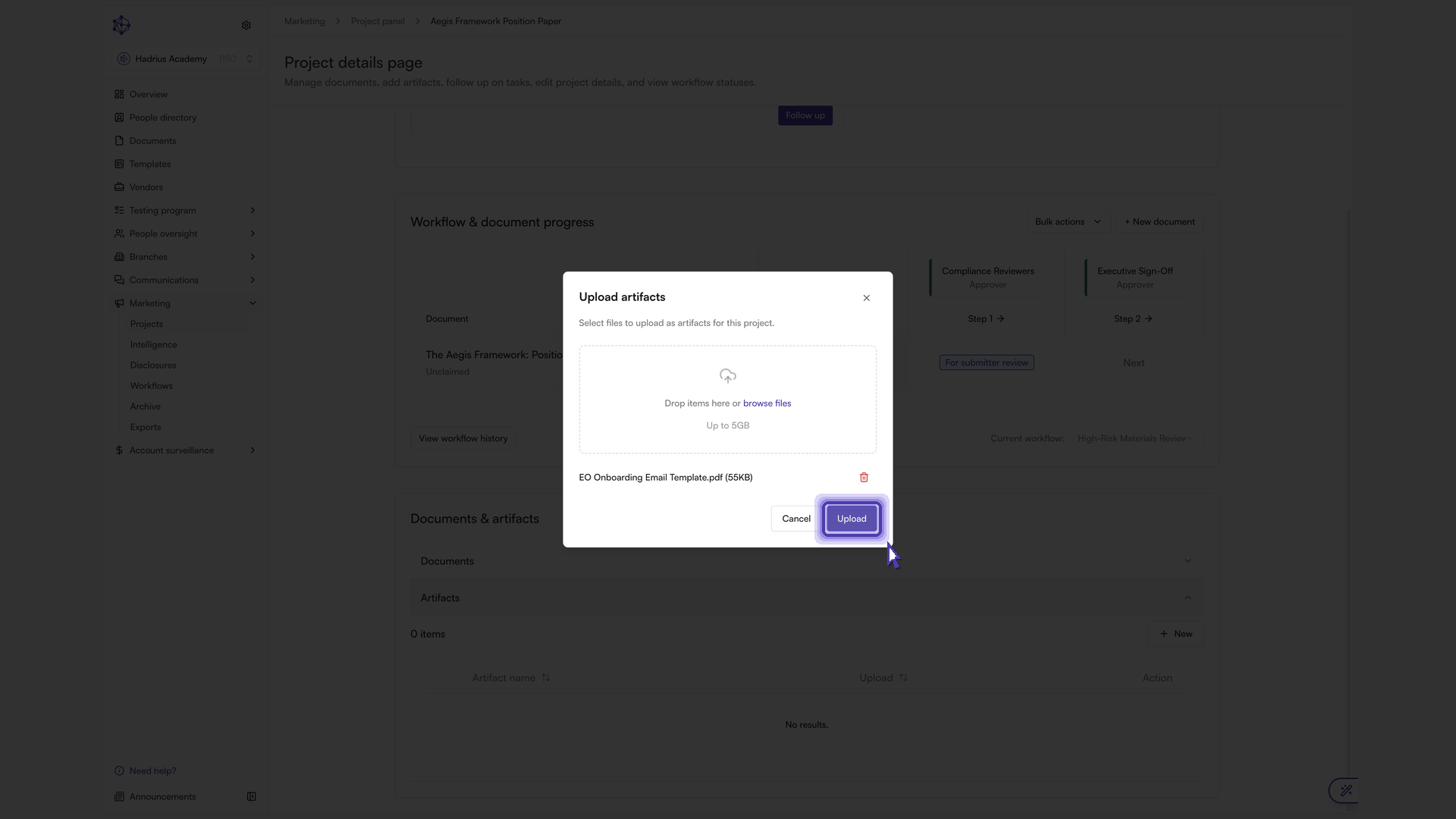
Click New to open the "Upload artifacts" dialog.
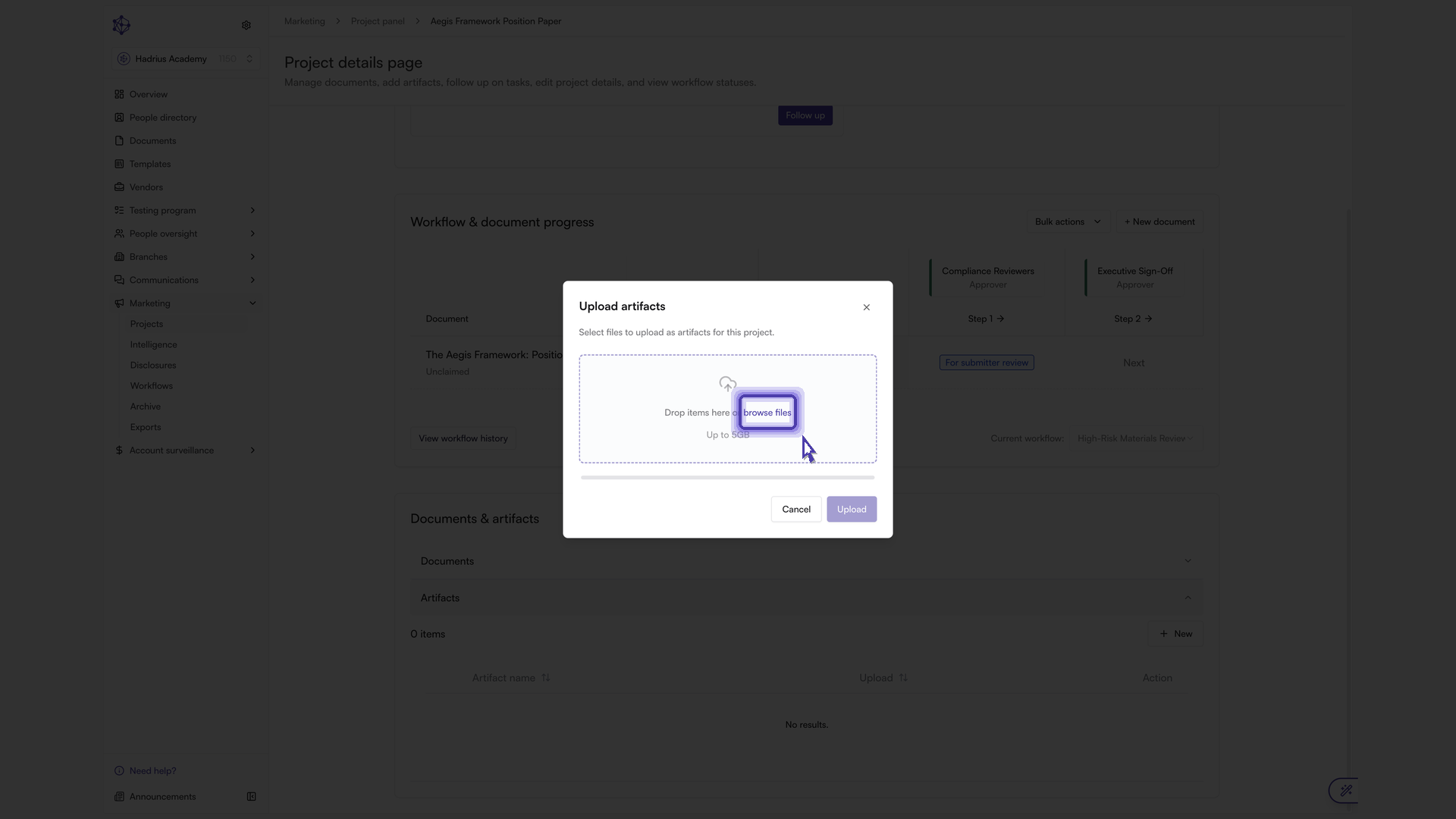
Use the file picker to browse for the file you want to upload.
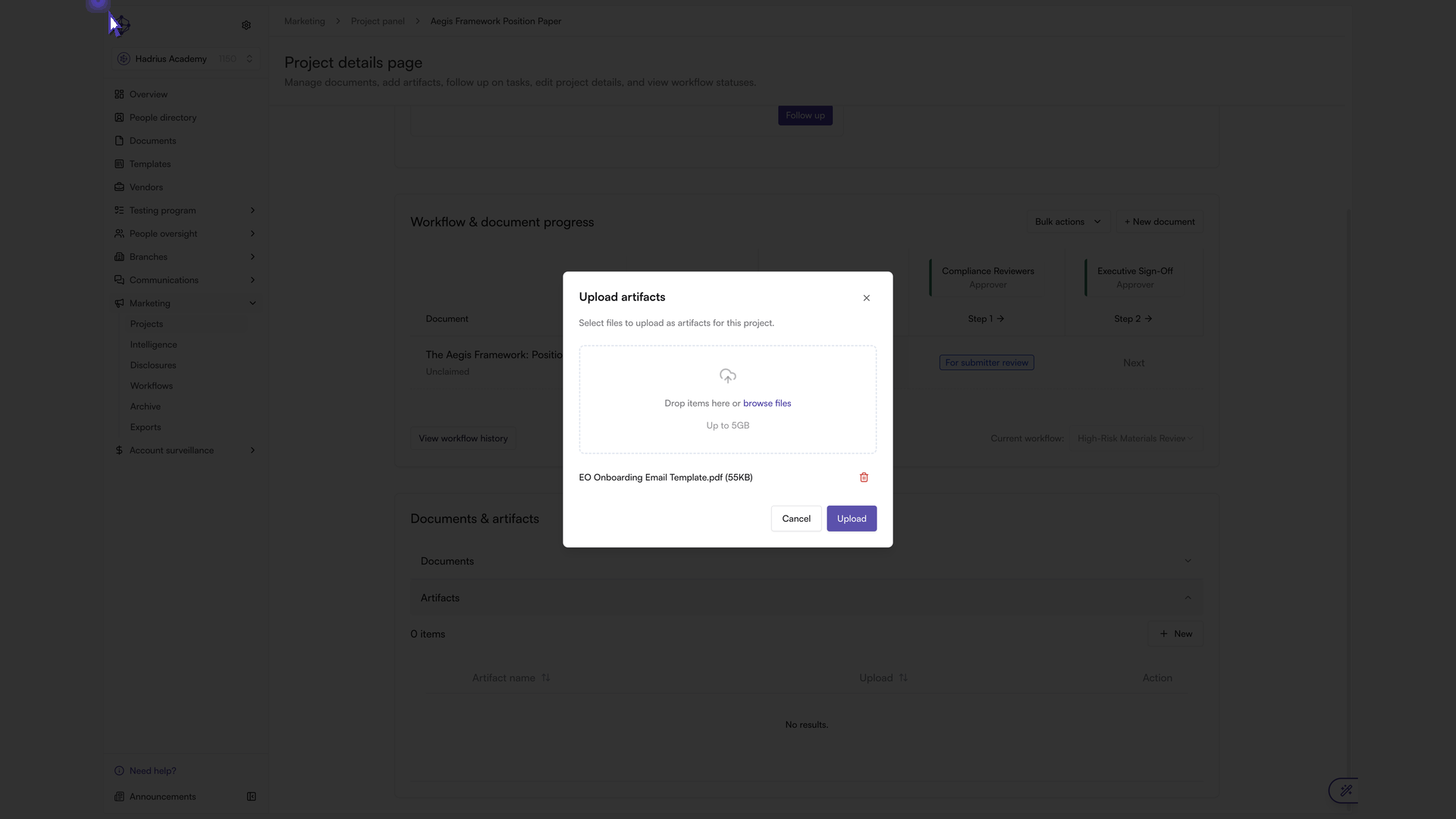
Select the file and click Upload. Once the upload finishes, the file appears in the Artifacts list for that project (or document, if you added it from a specific document's artifacts), where reviewers can preview, download, or remove it as needed.
What happens next
The uploaded file is immediately available to anyone working on the project as reference material. Since artifacts aren't included in Hadrius AI's review of the piece, you can add or remove them at any point in the approval workflow without affecting the review itself.