How to export all of an entity's testing data
Last updated: October 17, 2026
Use this workflow when you need a complete, exportable record of an entity's risks, controls, and tests — for example, to hand a regulator or internal auditor a snapshot of testing activity over a given period. The export covers your entire testing program company-wide, not just the entity you launch it from, so you only need to run it once regardless of how many entities you're tracking.
Starting the export
Open the testing program and select the entity you want to view. This brings up that entity's oversight page, where its risks, controls, and tests are listed together.
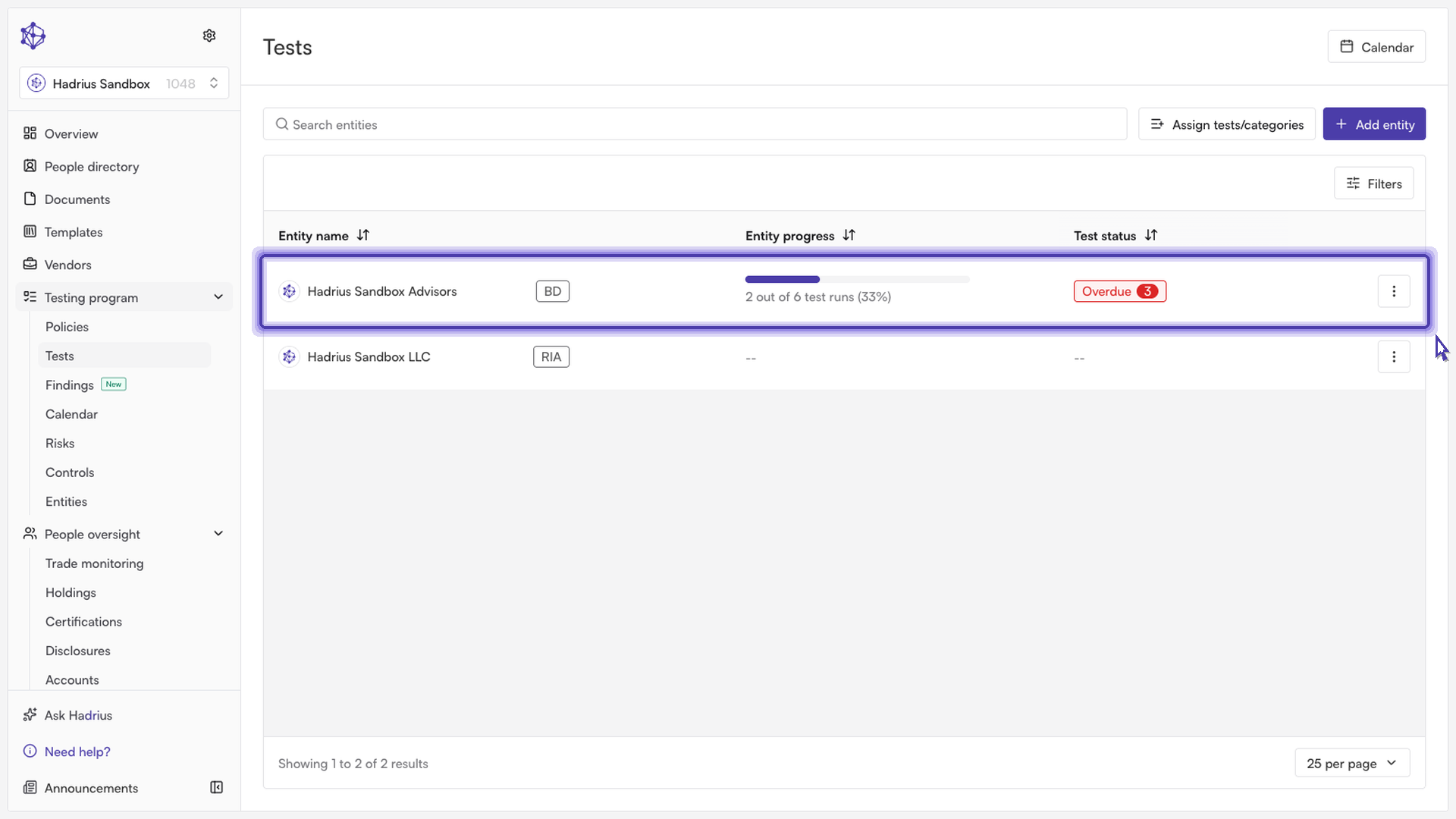
From the entity's oversight page, click Export in the page header (next to Calendar). This opens the "Export testing program" dialog.
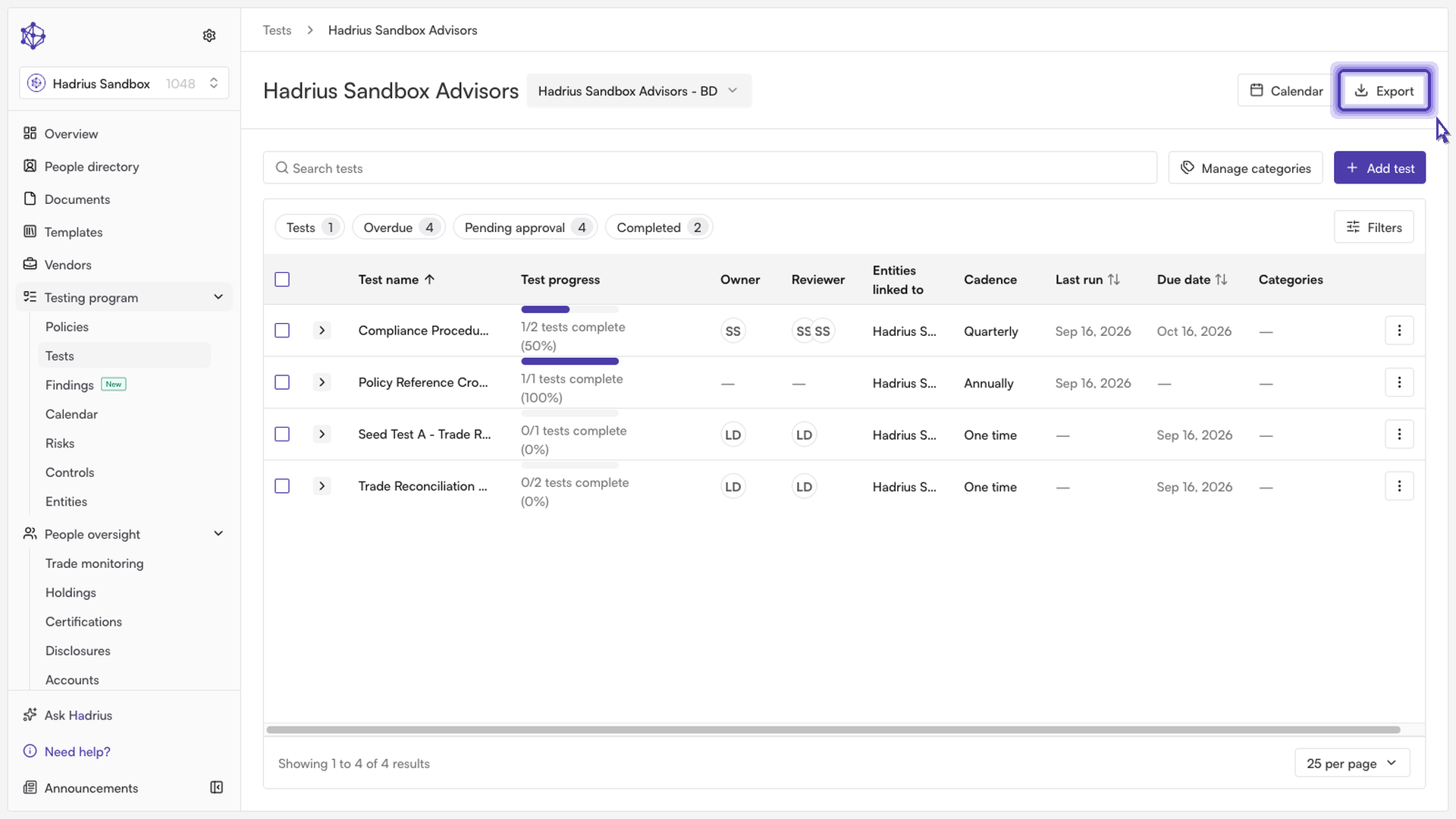
Choose the date range you want the export to cover. By default the dialog is set to YTD (year-to-date), and you can switch to Last quarter or Last month with the preset buttons, or set custom start and end dates directly. Since the export always spans the whole company's testing program, narrowing the range — YTD is a reasonable default — keeps the resulting bundle focused rather than pulling in your entire history.
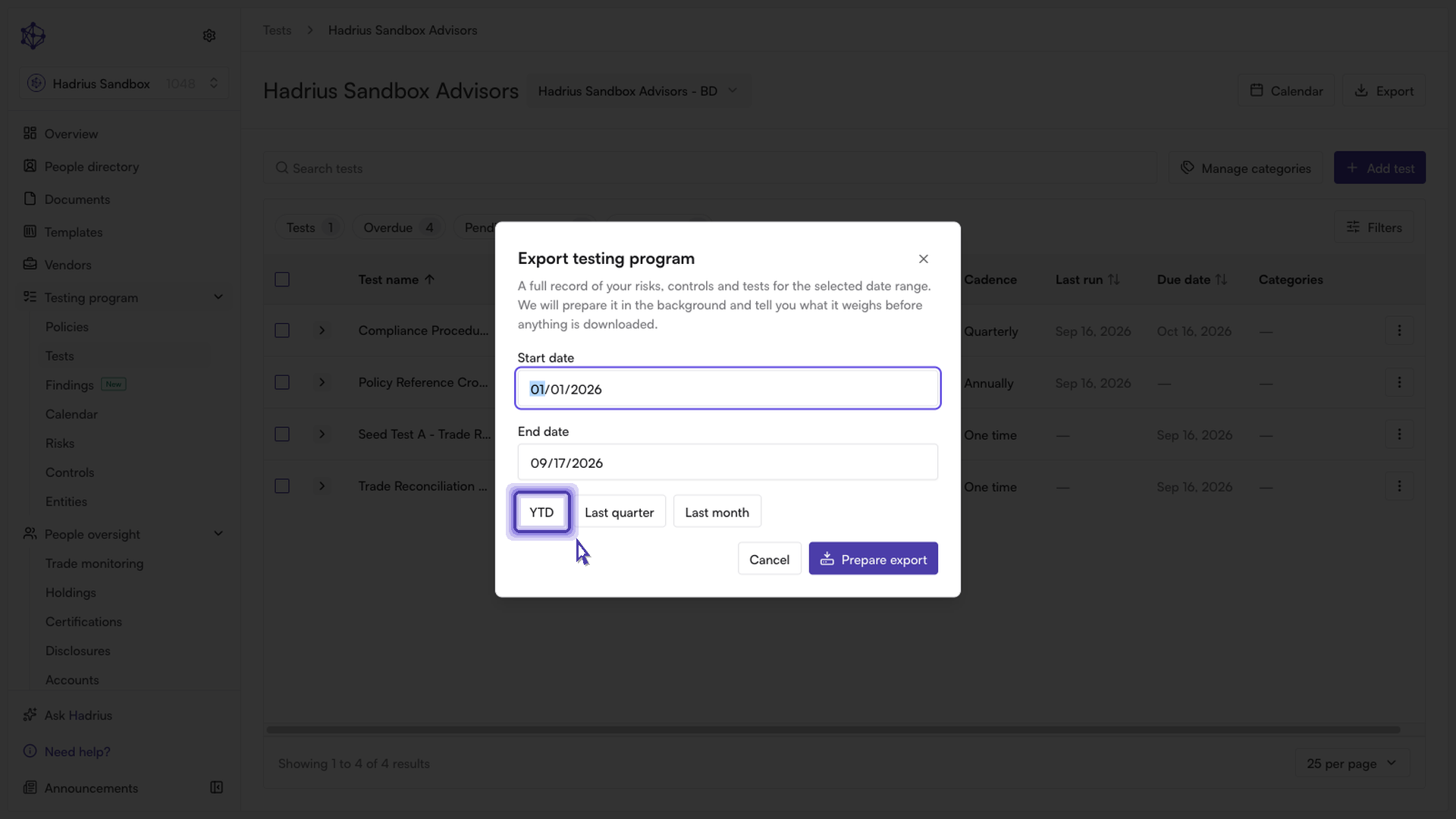
Click Prepare export to submit the request.
What happens next
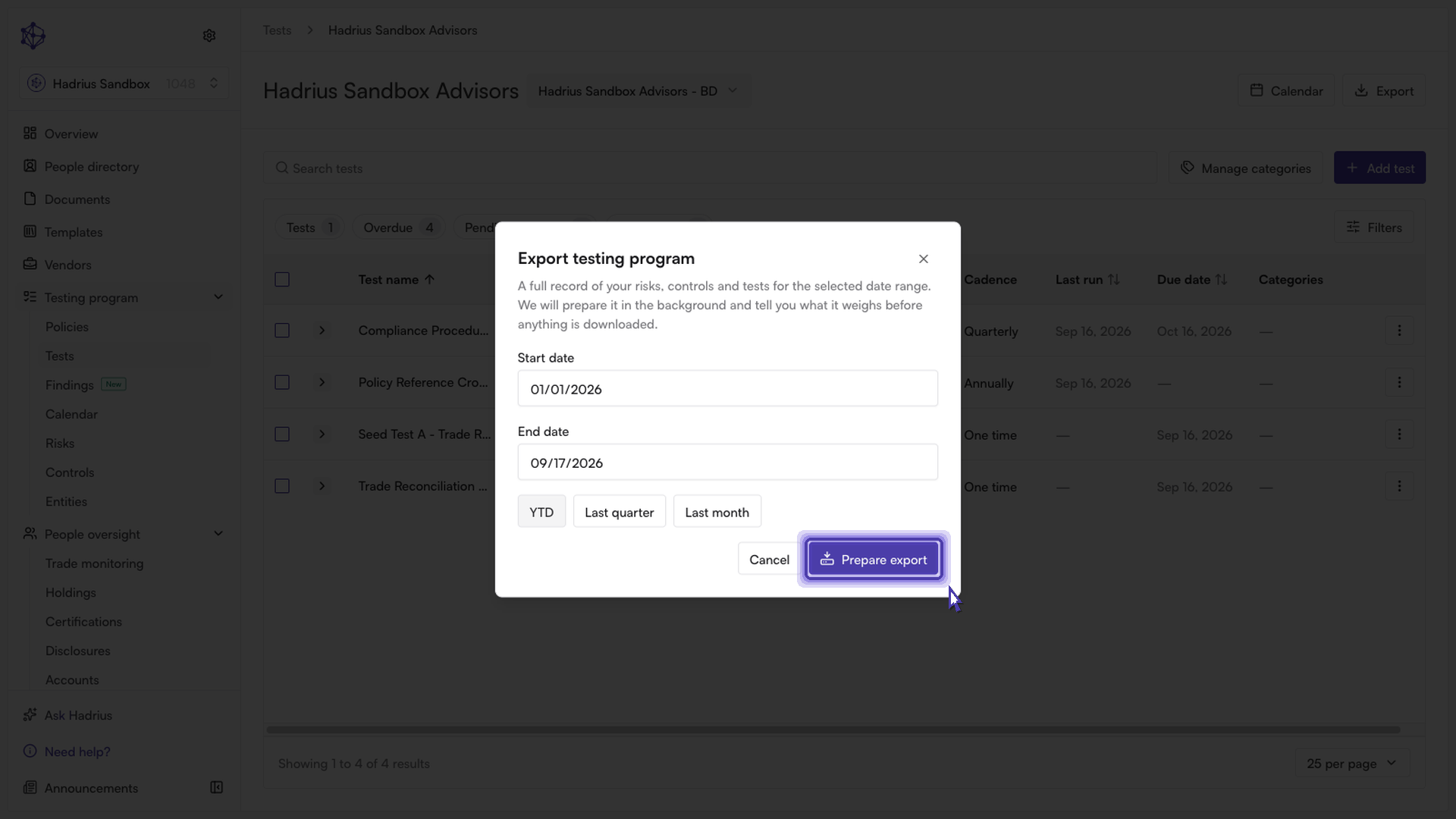
The export isn't generated instantly or downloaded directly from this dialog. Because a full company bundle can run well over a gigabyte for a larger firm, it's built in the background by a worker process. Once you click "Prepare export," a confirmation appears letting you know the export is being measured, along with a button to open it directly.
From there, you can check its size once it's finished being prepared and download it when it's ready. If you navigate away, you can always find the export later from Settings → Exports.