How to reopen a resolved finding
Last updated: October 17, 2026
Findings raised during compliance testing don't disappear once they're marked resolved — if a corrective action turns out to be incomplete, or an old issue resurfaces, you can reopen a resolved finding directly from its entity's findings register. This puts the finding back on the team's radar without needing to reference or restart the test that originally raised it.
Locate the finding
Start from the testing program's Findings view, which lists every finding tied to that entity's compliance testing along with its current status. Select the entity whose findings you want to review — each entity keeps its own register showing every issue raised against it, including its severity, owner, due date, and status.
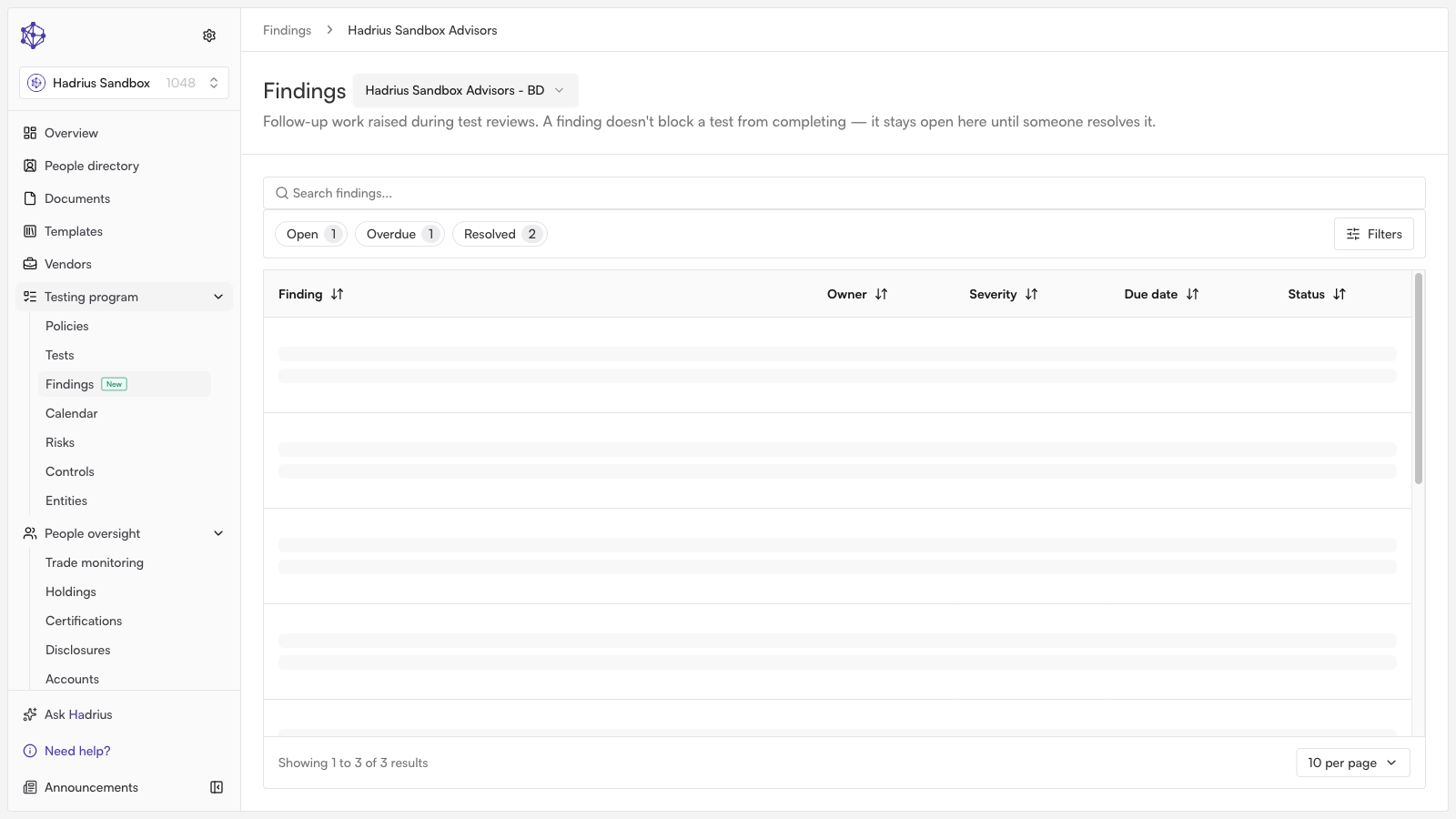
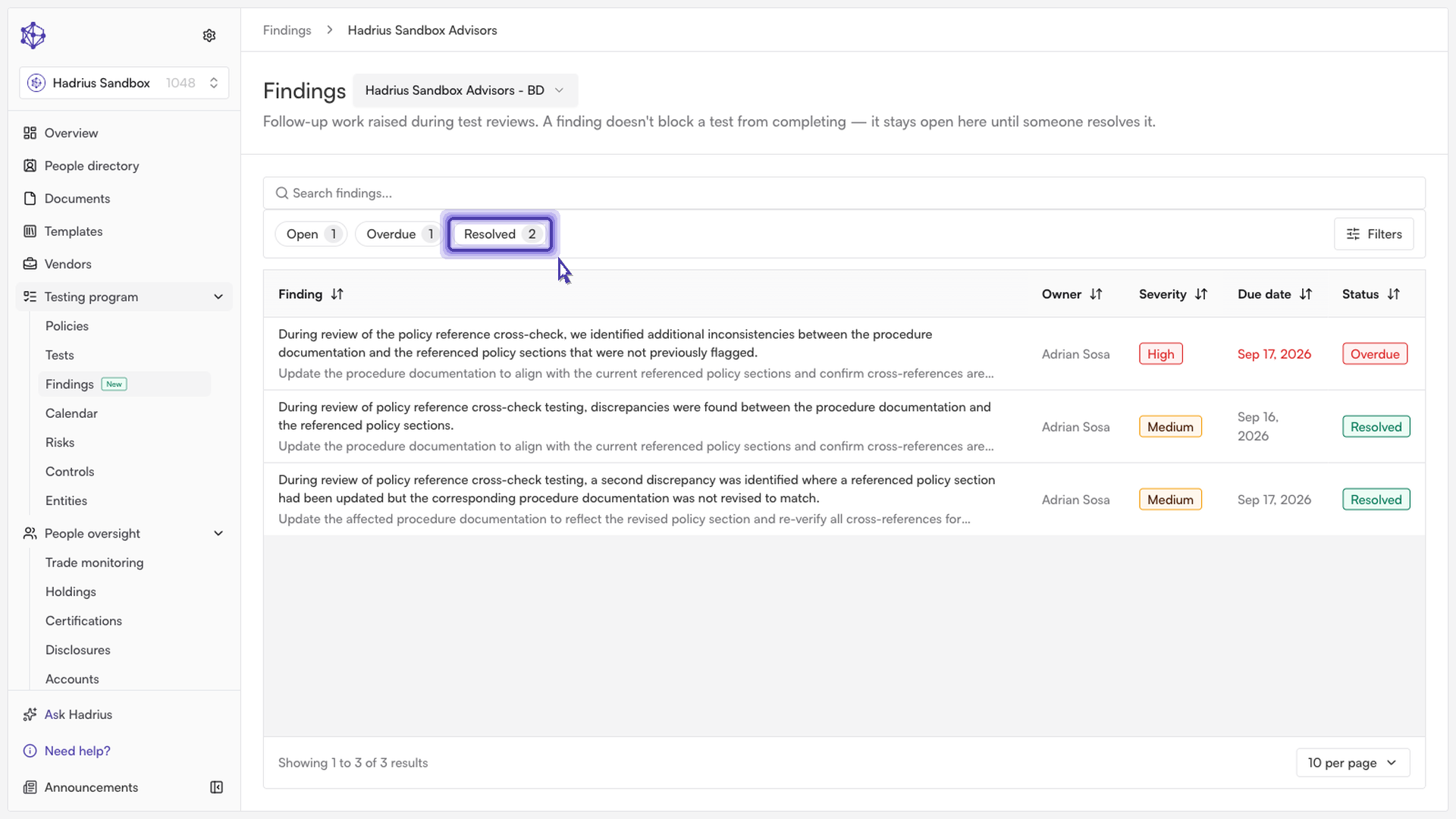
To narrow the list down to closed-out items, use the "Resolved" filter chip at the top of the table. This surfaces only findings whose status is Resolved, alongside the counts for Open and Overdue findings if any exist.
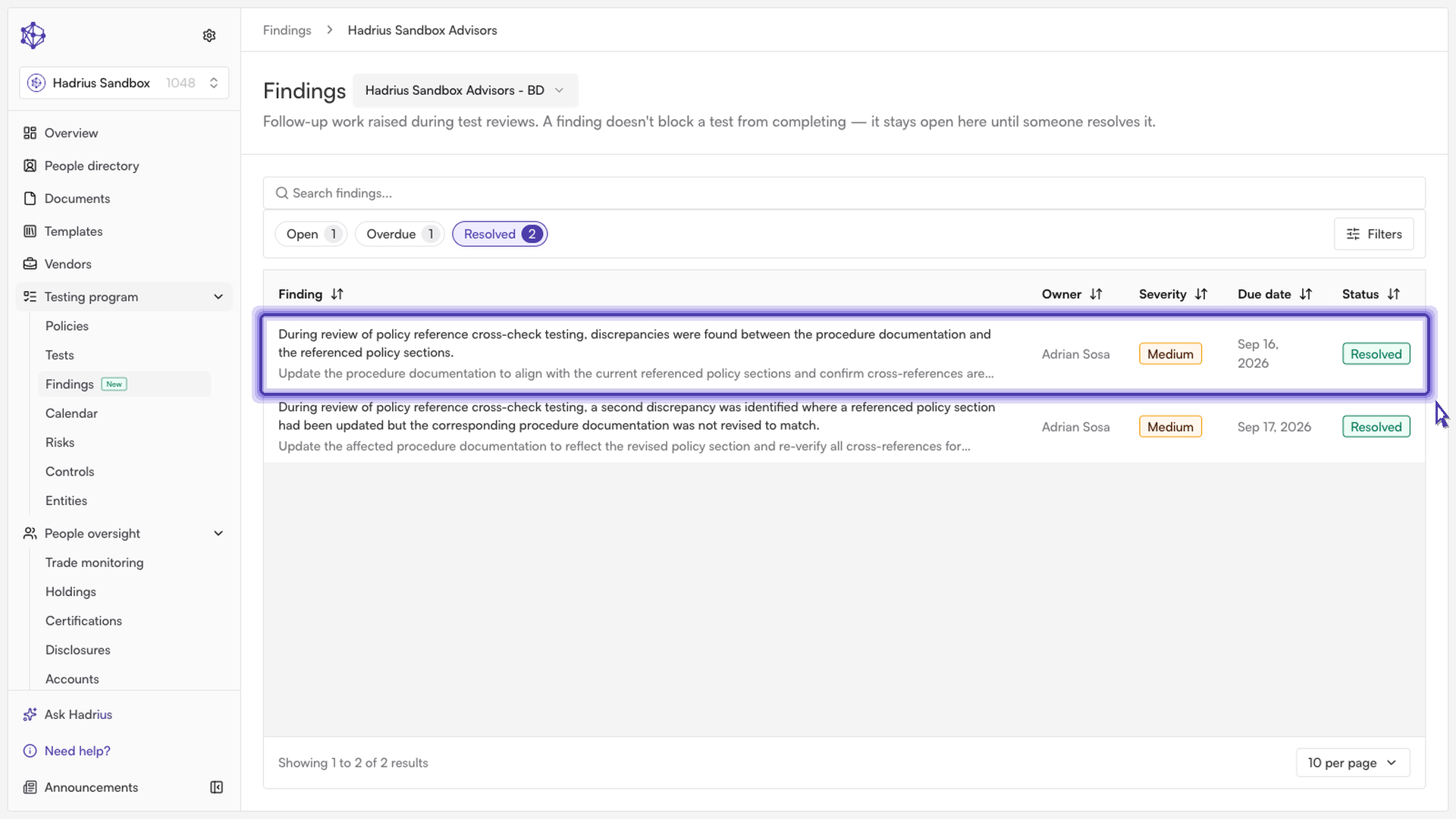
Open and reopen the finding
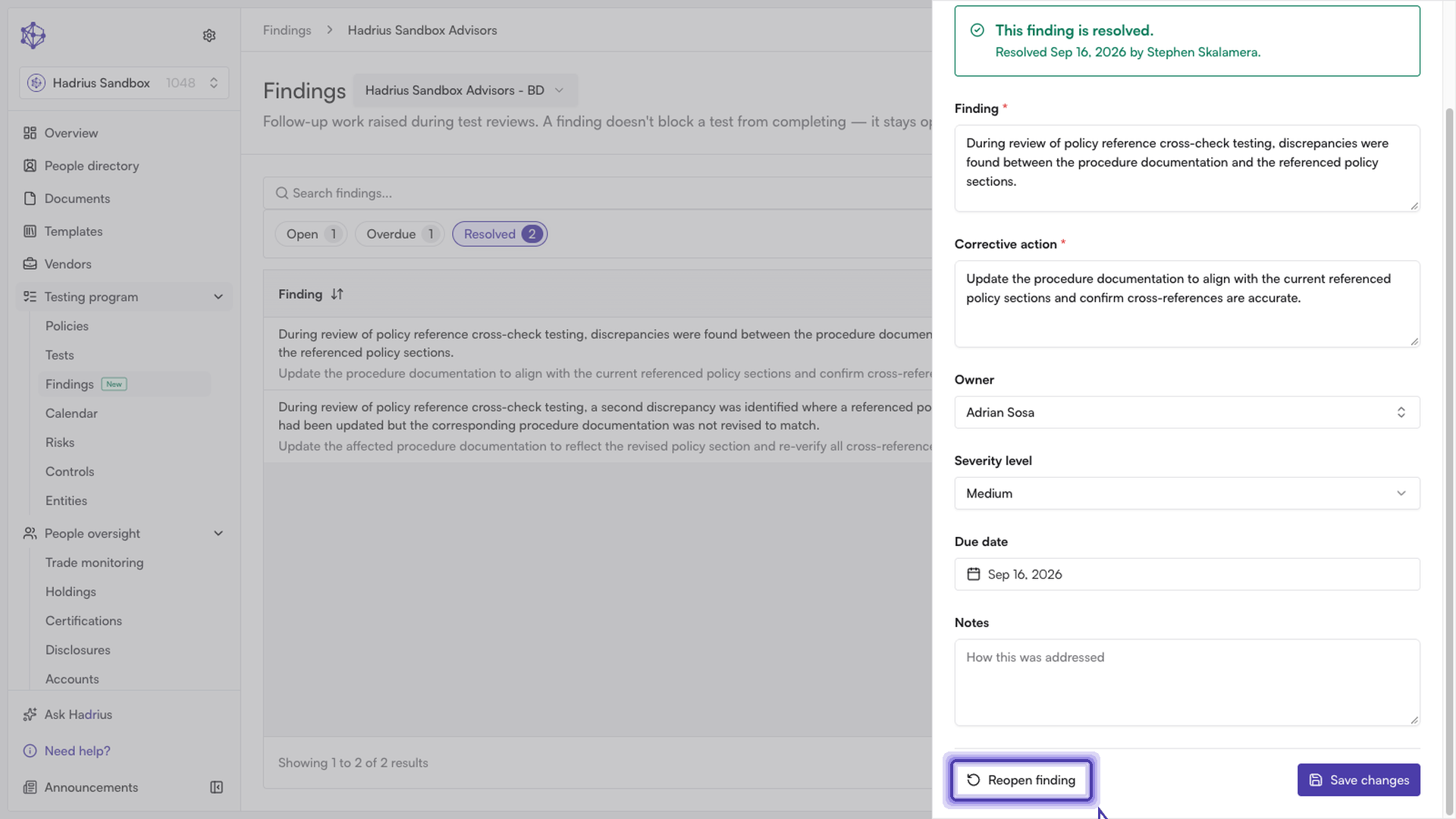
Click the resolved finding you want to revisit to open its detail panel. The panel shows the original finding description, the corrective action, owner, severity, due date, notes, any attached evidence, and a summary of when (and by whom) it was resolved.
To reopen it, click Reopen finding at the bottom of the panel. This immediately changes the finding's status back to Open — there's no confirmation step, so the change takes effect as soon as you click it. The status badge updates right away, and if the finding also has a due date that's already passed, it will show as Overdue instead of Open.
What happens next
Reopening a finding only changes the finding's own status — it does not affect the test run it was originally raised on, which keeps whatever progress state it already had (for example, still showing as completed or approved). The finding simply goes back into the Open (or Overdue) bucket in the entity's register until someone resolves it again.