How to schedule a calendar task
Last updated: October 17, 2026
The Calendar gives your firm a single view of everything scheduled — test runs due for completion and any ad-hoc tasks your team has added. Use this workflow whenever you need to put a one-off or recurring compliance task on the calendar, such as a review, filing, or check-in that isn't already generated by a testing program.
Adding a task to the calendar
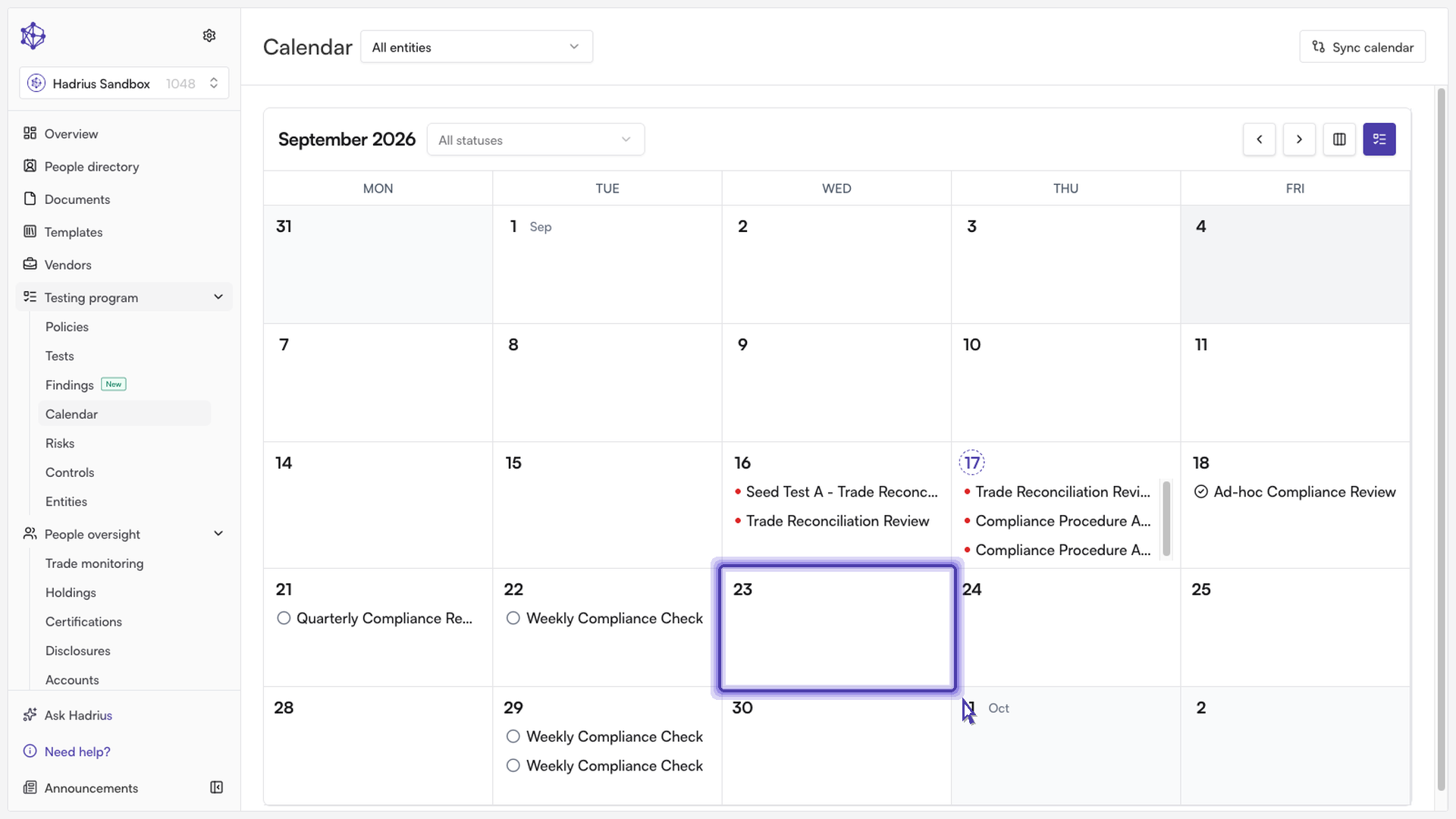
Start by clicking on the date you want the task to be due. Selecting a day opens a details panel on the right side of the calendar showing everything scheduled for that date — this is also where the new task form gets its default due date from.
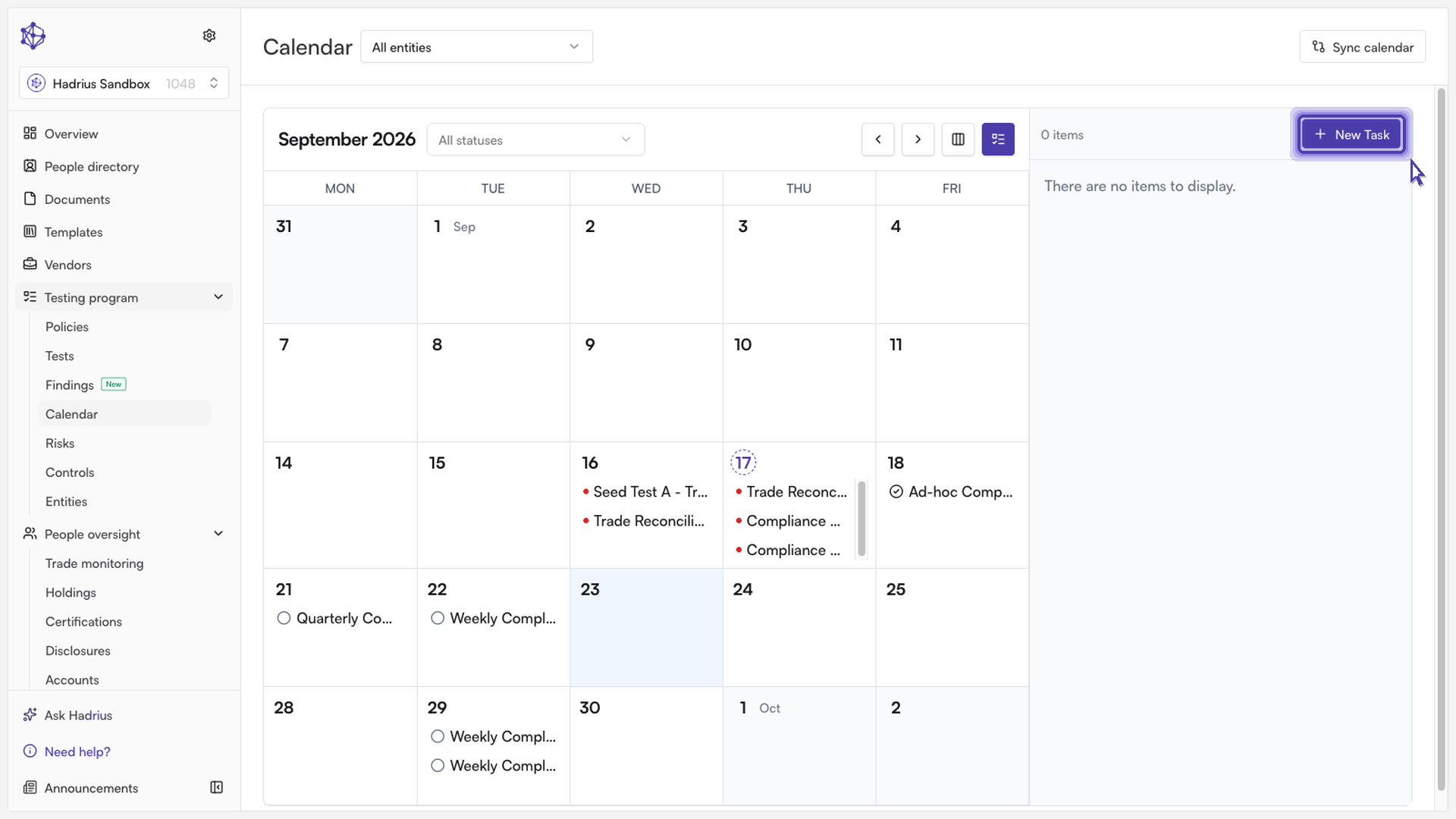
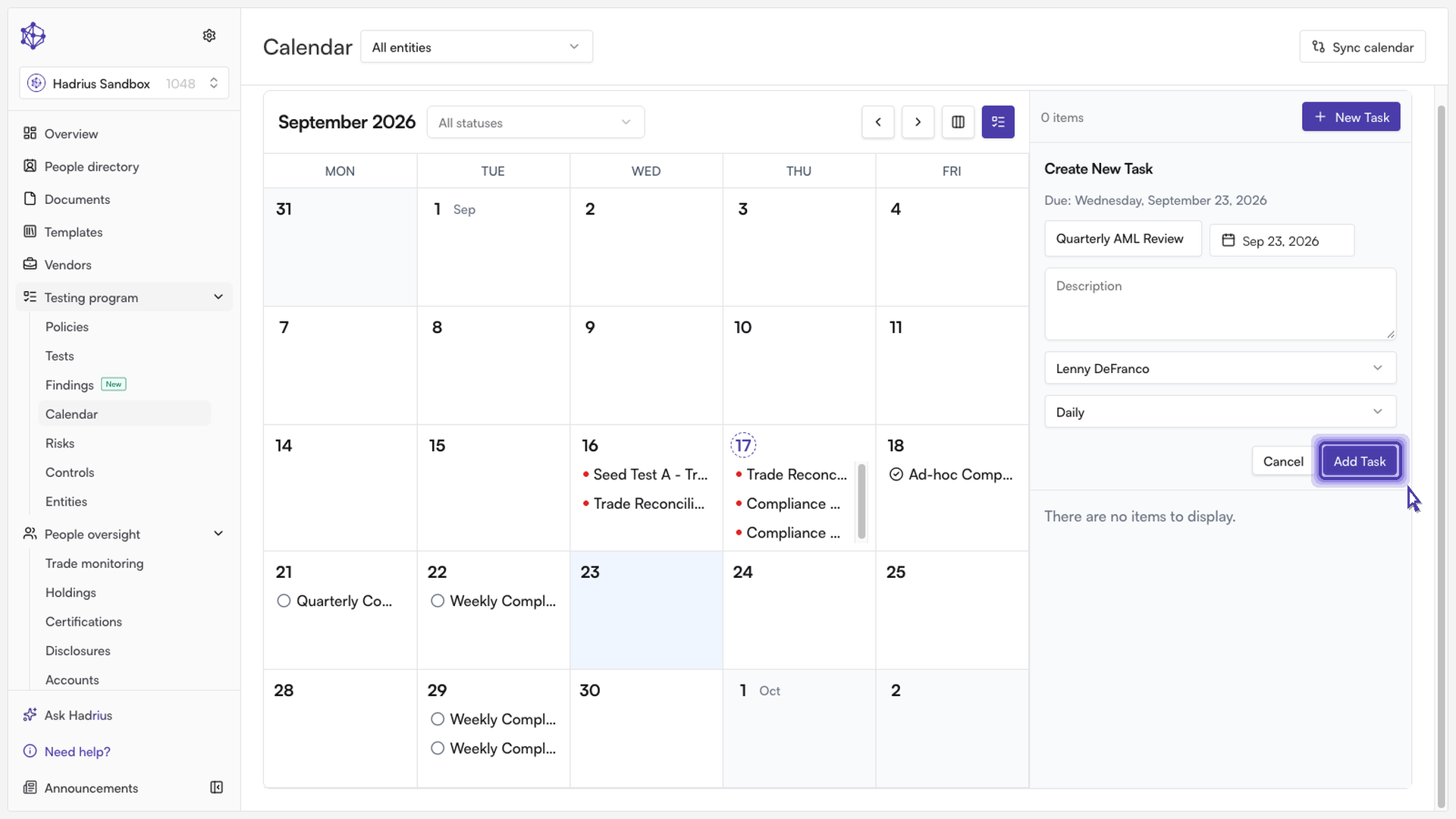
In the details panel, click New Task to open the task creation form. A "Create New Task" section expands below the panel header, showing the due date it will use by default (the date you clicked on the calendar).
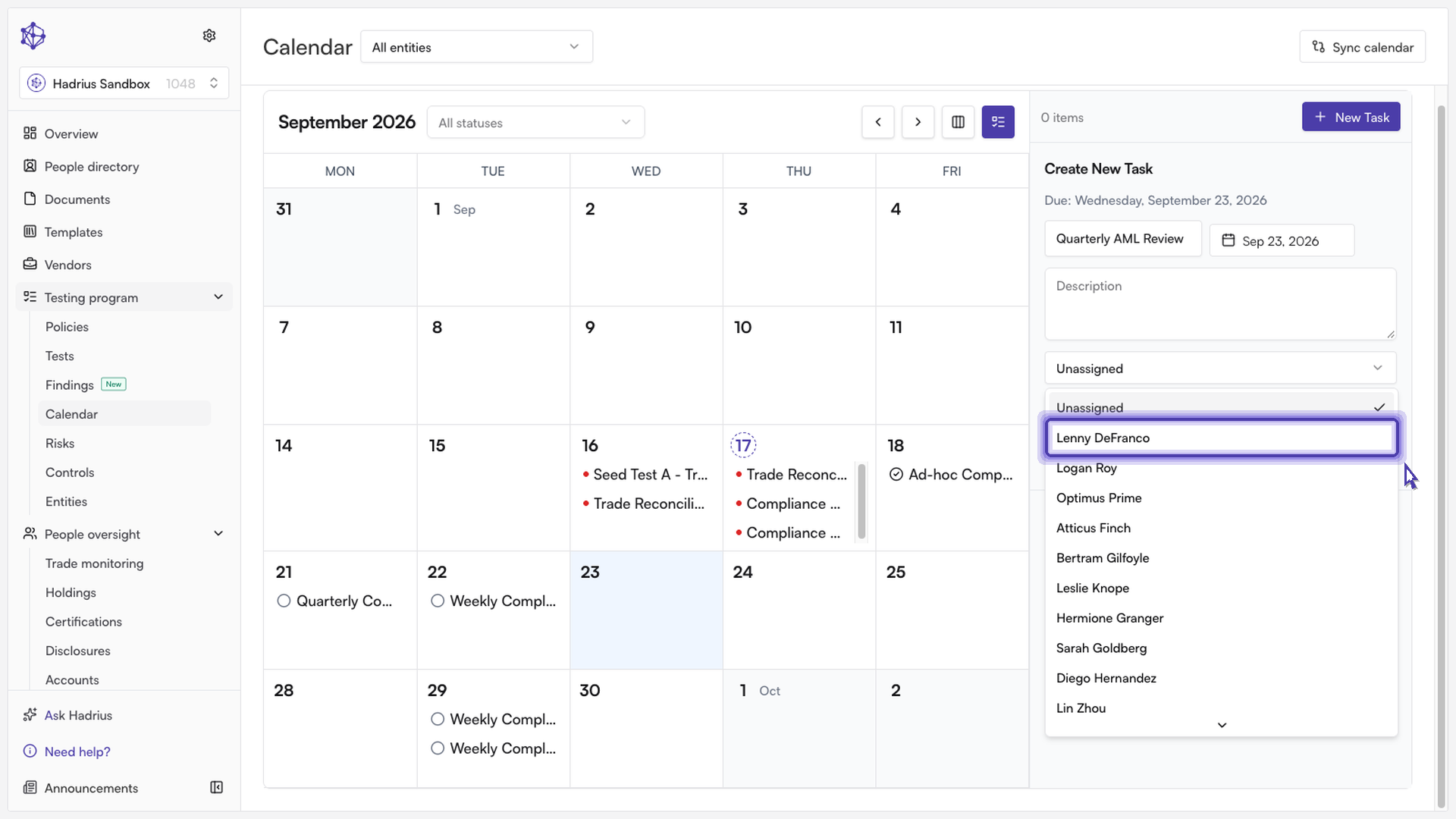
Fill in the task details:
Title — required. This is the only field you must fill in before the task can be saved; the platform will show an error if you try to add a task without one.
Due date — defaults to the day you selected, but can be changed using the date picker next to the title field.
Description — optional. Use this to add any additional detail or context someone reviewing the calendar would need.
Assignee — optional. Select a specific team member from the dropdown to make ownership clear, or leave it as "Unassigned."
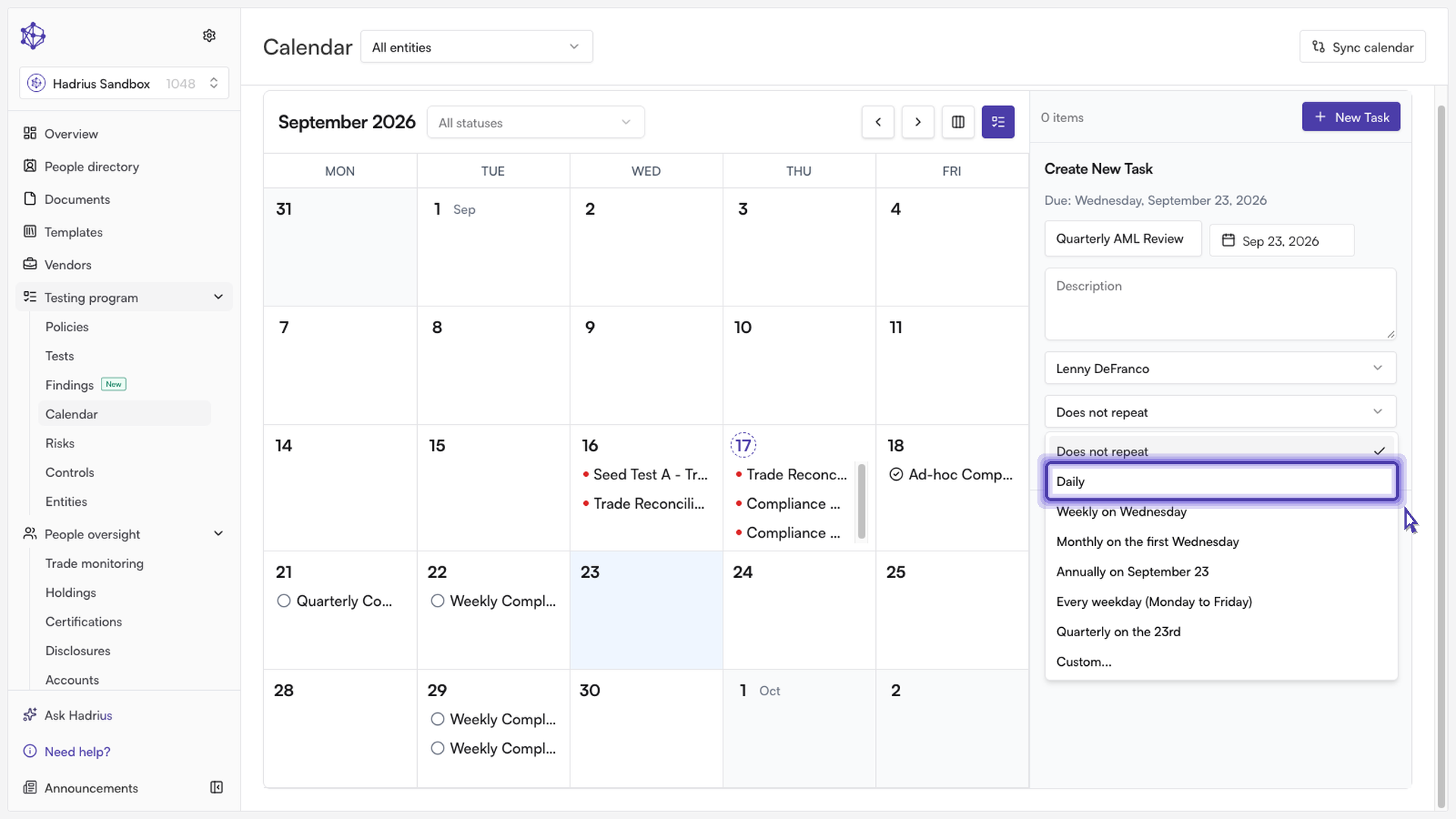
If the task needs to happen on an ongoing basis rather than once, use the recurrence dropdown to set a cadence — options include Daily, Weekly, Monthly, Annually, every weekday, Quarterly, or a custom schedule you define yourself. Choosing a cadence other than "Does not repeat" means the task will automatically reappear on the calendar according to that schedule going forward, so a recurring responsibility doesn't need to be re-created each time it comes due.
Once everything is filled in, click Add Task to save it. The task is created and immediately appears on the calendar on its due date (and on every future date matching its recurrence, if one was set), ready to be tracked, reassigned, or marked complete from the same details panel.
What's next
Once a task is on the calendar, you can click it to expand its details and mark it complete, edit its title, description, due date, or assignee, or cancel it — either a single occurrence or the entire recurring series.