Customizing Document Visibility in the Library
Last updated: October 17, 2026
Not everyone in your organization needs to see every document in the Document Library. This article shows how to change who can access a single file, so sensitive documents stay protected and the right people can still reach them. Use it when a document needs different visibility from the folder it sits in.
Before you begin
By default, a document inherits its access from the folder that contains it. Changing a document's permissions overrides that default for that file only. The folder and the other files in it are not affected.
Change a document's permissions
Open the file actions. In the Document Library, find the document and open its file actions menu.
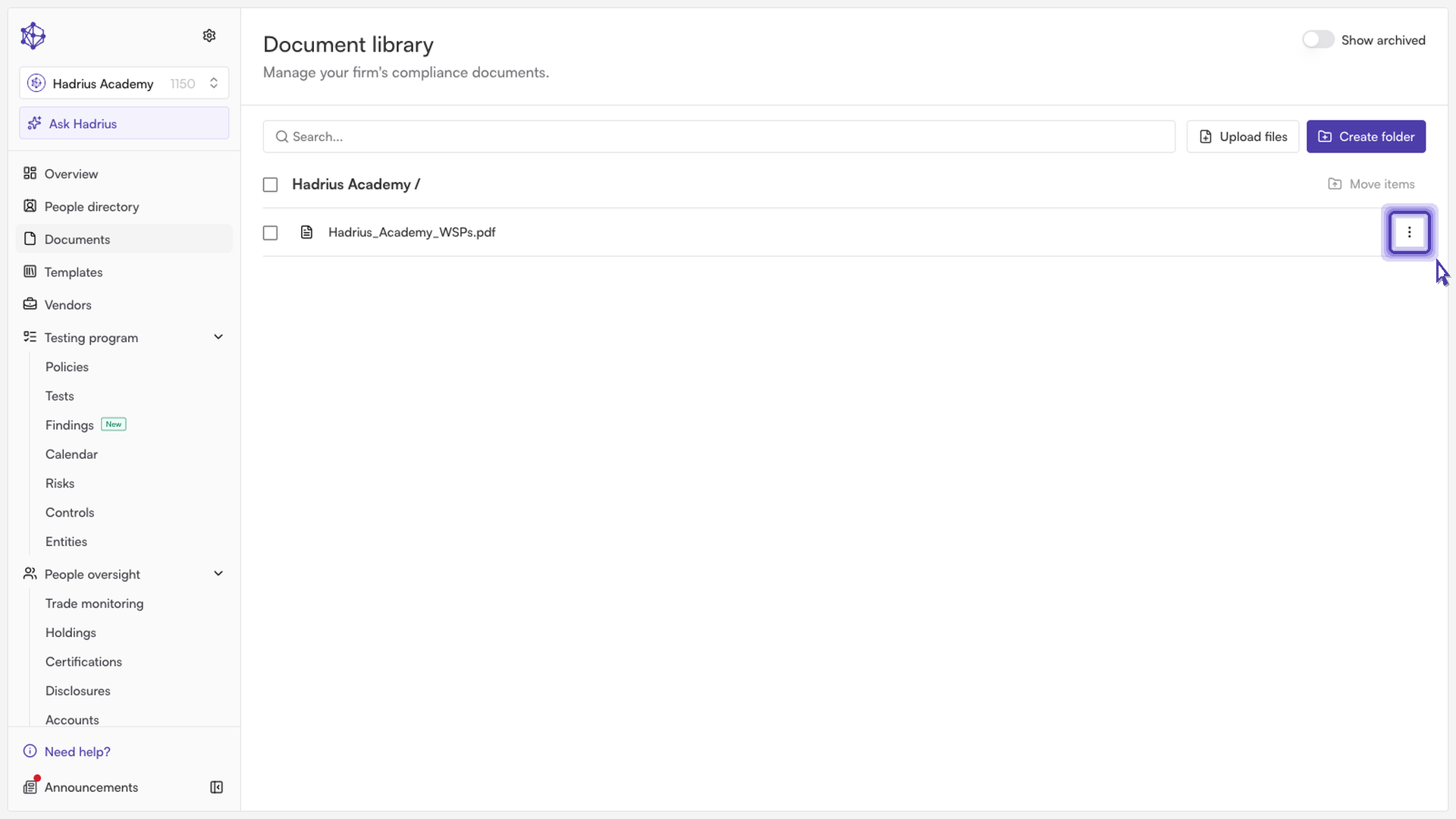
Choose to change permissions. A "Change permissions for" dialog opens, named for the document. It has two tabs, Groups and Employees. Use whichever matches how you want to grant access. The Search field narrows the list by name.
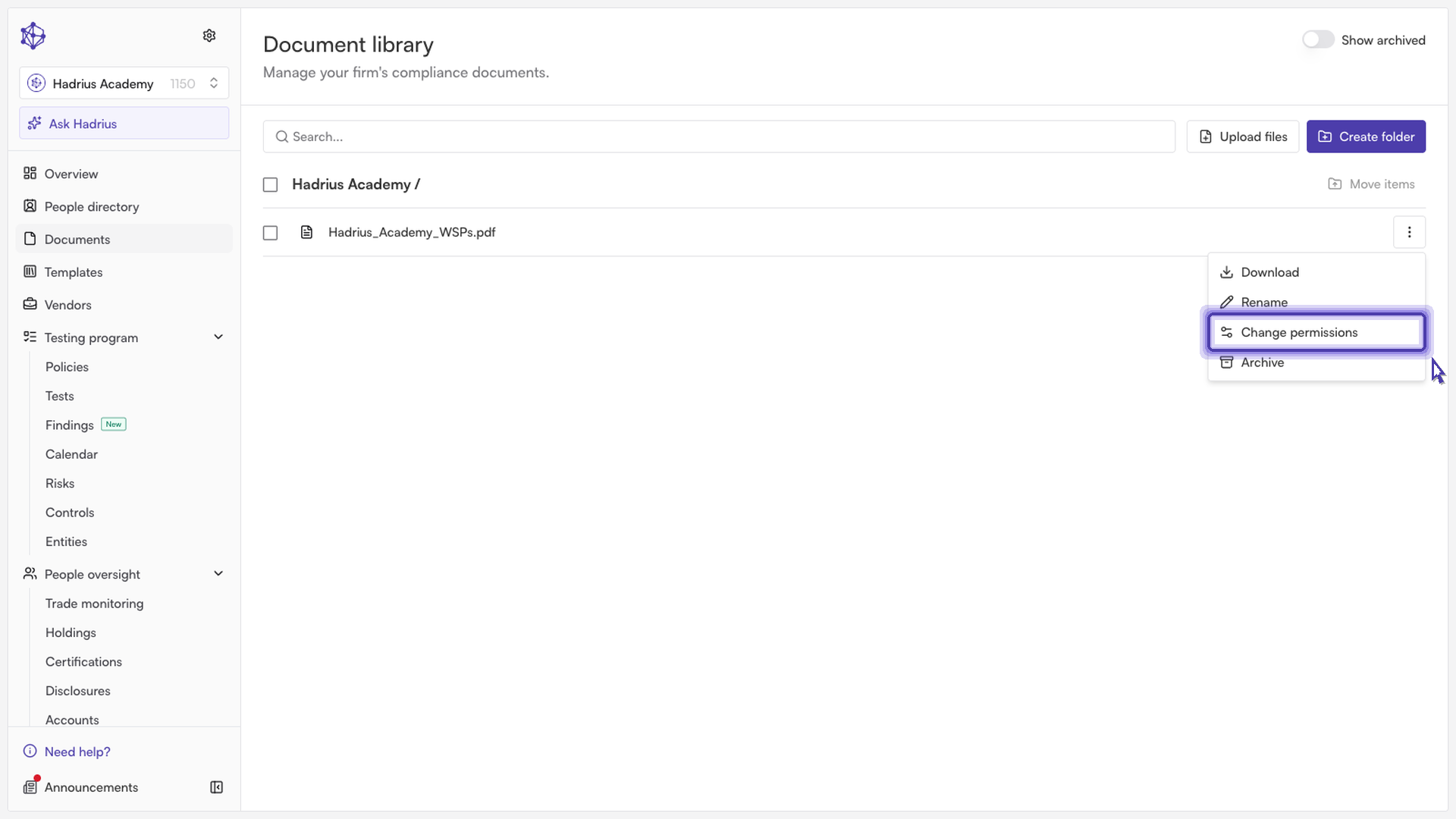
Review the current access. Each row shows the group or employee, an Actual column and a Permissions setting. "Actual" is the access the person effectively has today. "Permissions" is the setting you are editing. Every row starts at Inherit, which means access comes from the folder.
Set the permission. Change the setting on each row. The options are:
- Inherit: follow the folder's access (the default).
- Read: the person can view the document but cannot change it.
- Write: the person can view and edit the document.
- Deny: the person is blocked from the document.

To set many rows at once, pick a value in Bulk change and select the button next to it. This applies the value to the rows in the list you are currently viewing, so check which tab (Groups or Employees) is active first.
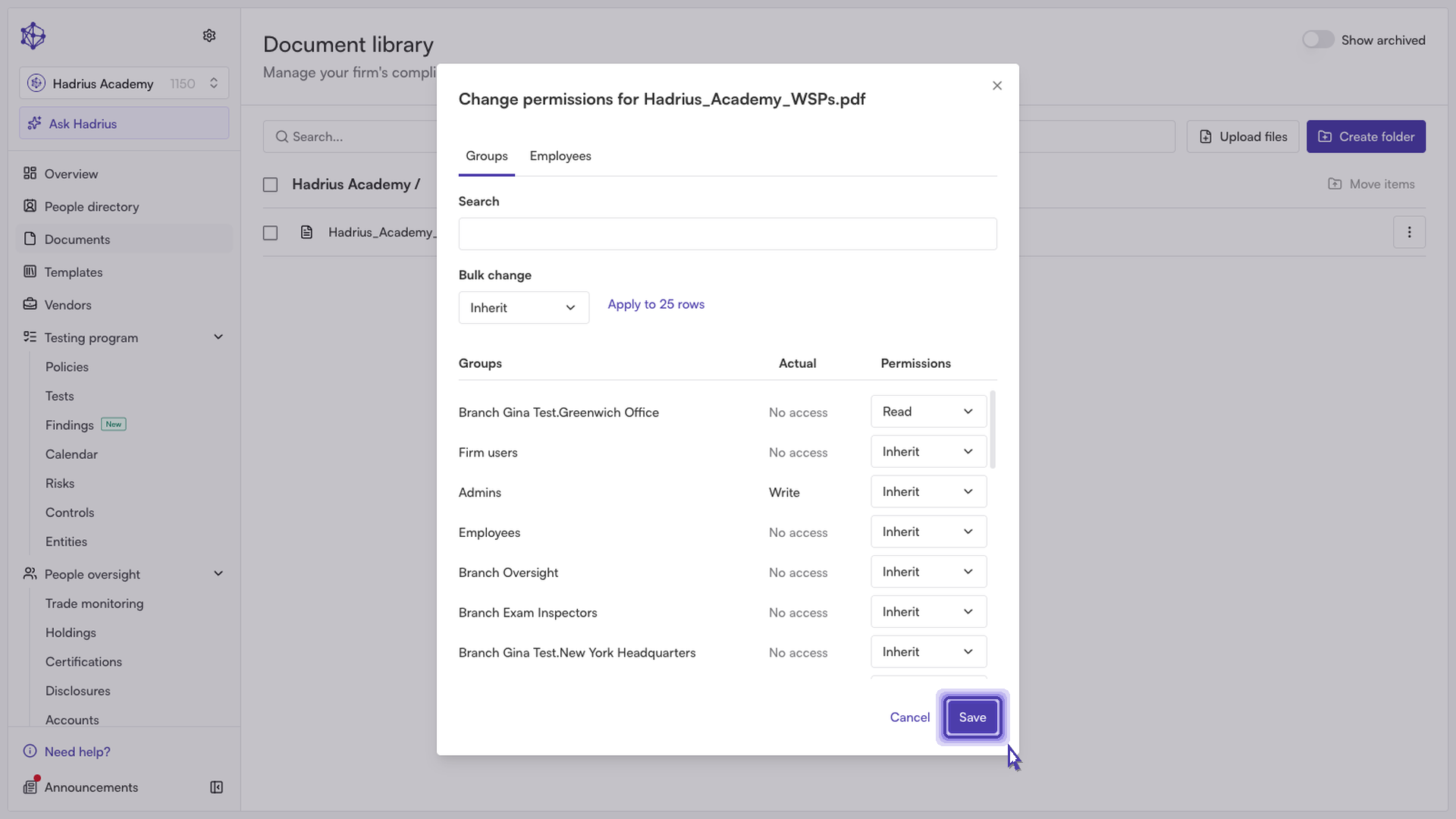
Save. Select Save. The new visibility takes effect right away. Select Cancel to close the dialog without changing anything.
Good to know
If you save without changing anything, the dialog simply closes. If a save fails, an error message appears in the dialog and your edits stay in place so you can try again. To return a person or group to the folder's access, set them back to Inherit and save.