Launching a Certification Campaign
Last updated: October 19, 2026
Certification campaigns collect attestations from employees on a set schedule, such as an annual compliance questionnaire. This article walks through launching a new campaign from People Oversight. You'll choose its questions, pick who receives it, set the timing and reminders, and launch it. Do this whenever you need a new attestation round or want to set up a recurring one.
The campaign builder is a four-step wizard: Campaign details, Campaign audience, Schedule campaign and Review campaign. Each step's button takes you to the next one, and the last step's button is "Launch campaign".
Start a new campaign
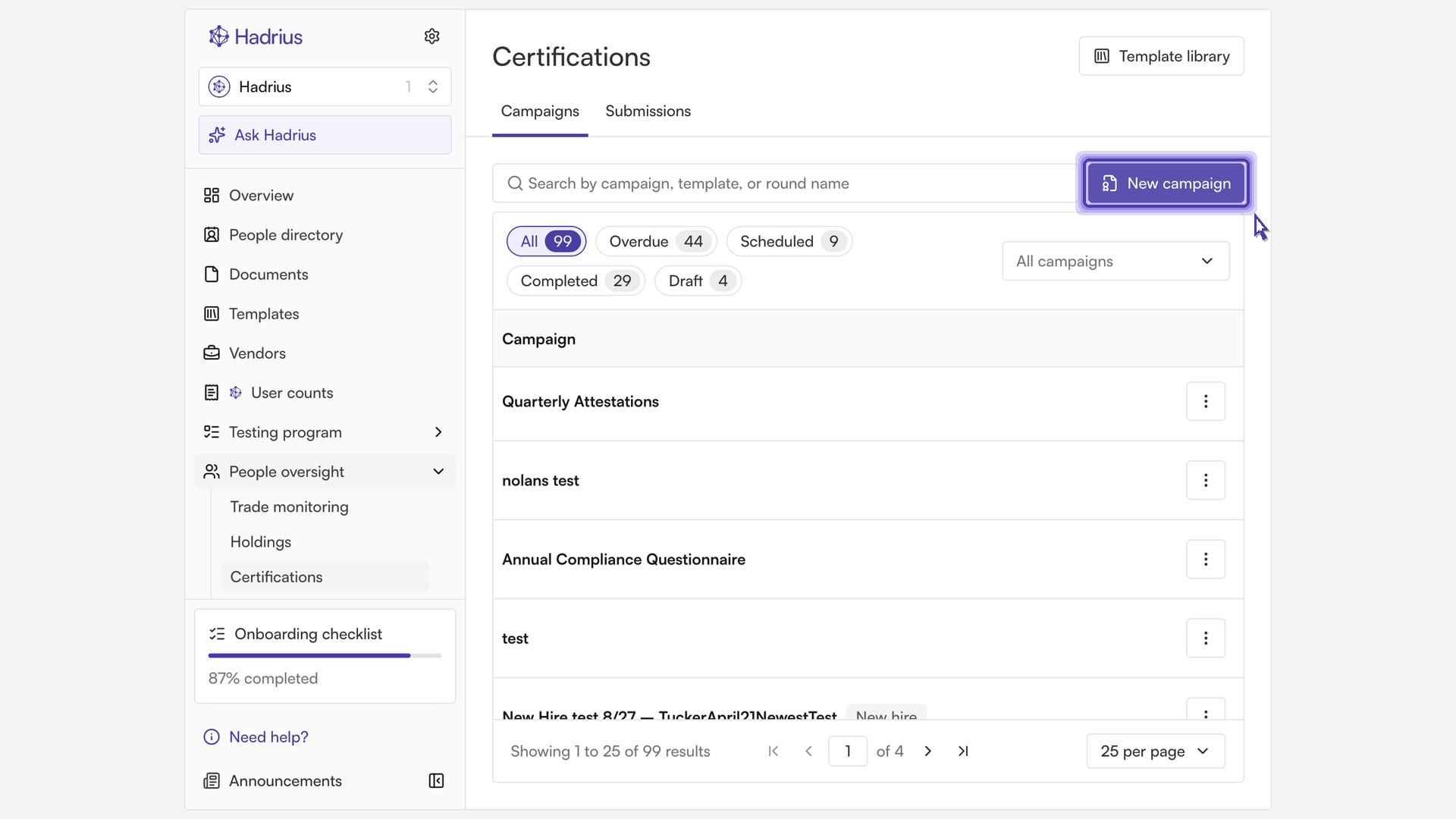
Open People Oversight and go to the certifications page, where your campaigns are managed and tracked. Choose the option to create a new campaign to open the builder.
Step 1: Campaign details
Give the campaign a clear, recognizable name so you and your team can find it later. Then choose the template or templates for the campaign. Templates define the questions employees will answer, and you can attach more than one. For an annual review, choose a template that fits an annual attestation.
Step 2: Campaign audience
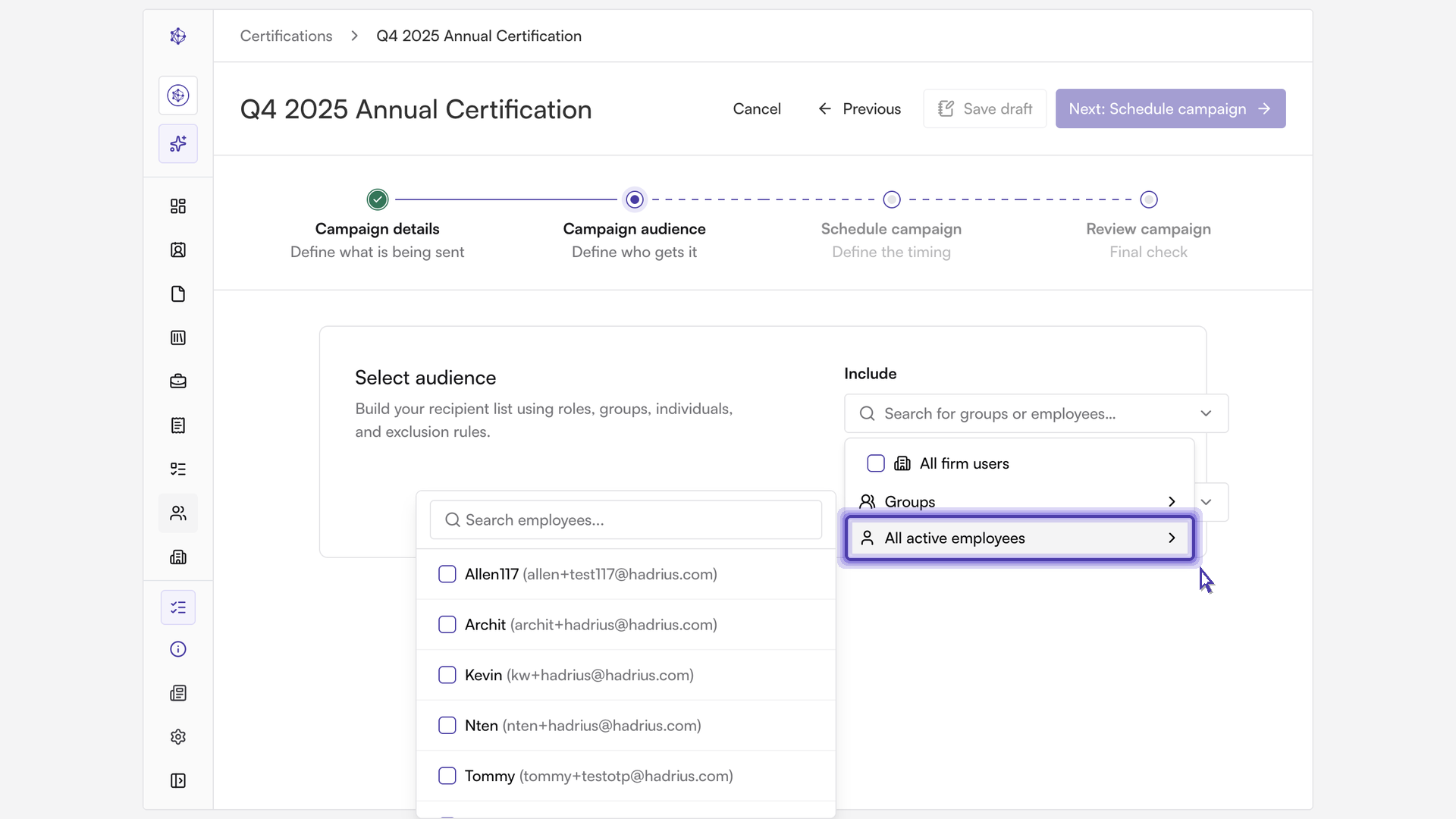
Decide who receives the campaign. You can add recipients by role, by group, or as individuals.
Broad coverage: Add all active employees to include everyone across the firm.
Exceptions: Search for specific people and select them to add them directly to the recipient list.
Exclusions: Use exclusions to remove anyone who shouldn't be part of this round.
Step 3: Schedule campaign
This step sets the timing, reminders and review behavior.
Recurrence and timing
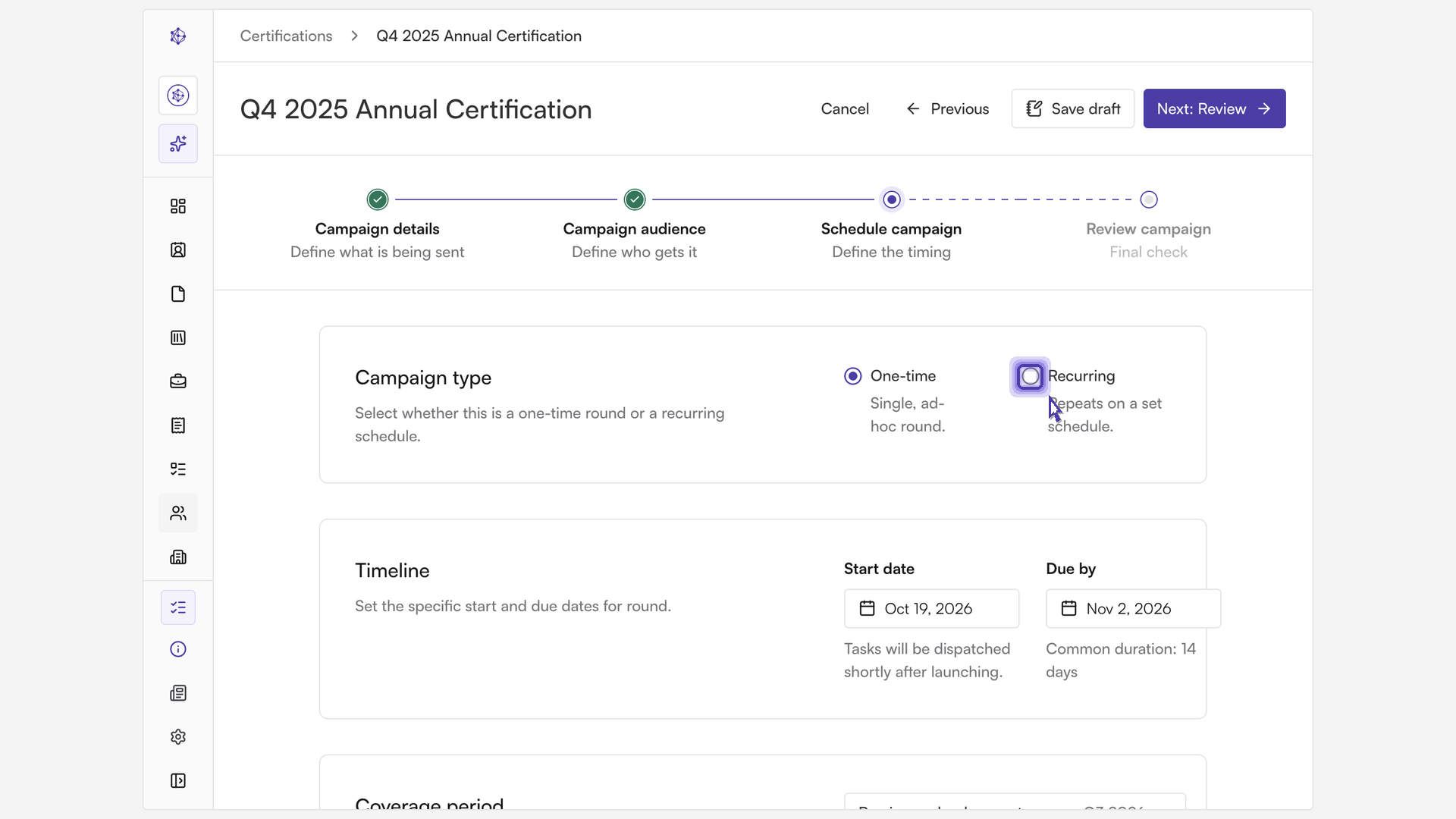
Recurring: Turn this on if you want the campaign to repeat automatically so no round is missed. Frequency controls how often a new round goes out. For an annual certification, choose yearly.
Start date: The date the first round begins. Pick a date that gives your team some lead time.
Submission window: The number of days employees have to complete their attestation.
Coverage period: The stretch of time employees are attesting about. For an annual review, this is typically the previous calendar year.
Reminders and approval
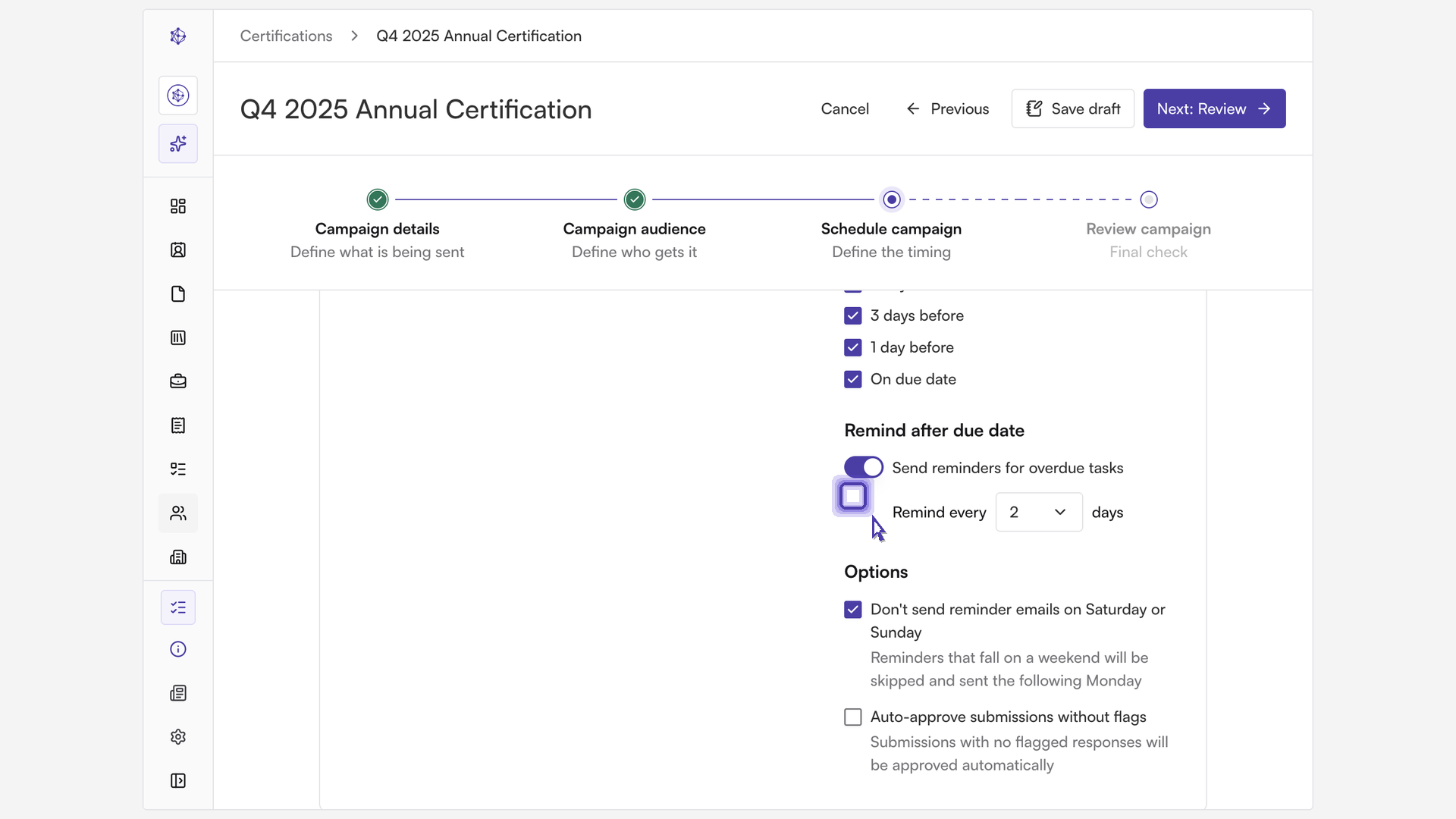
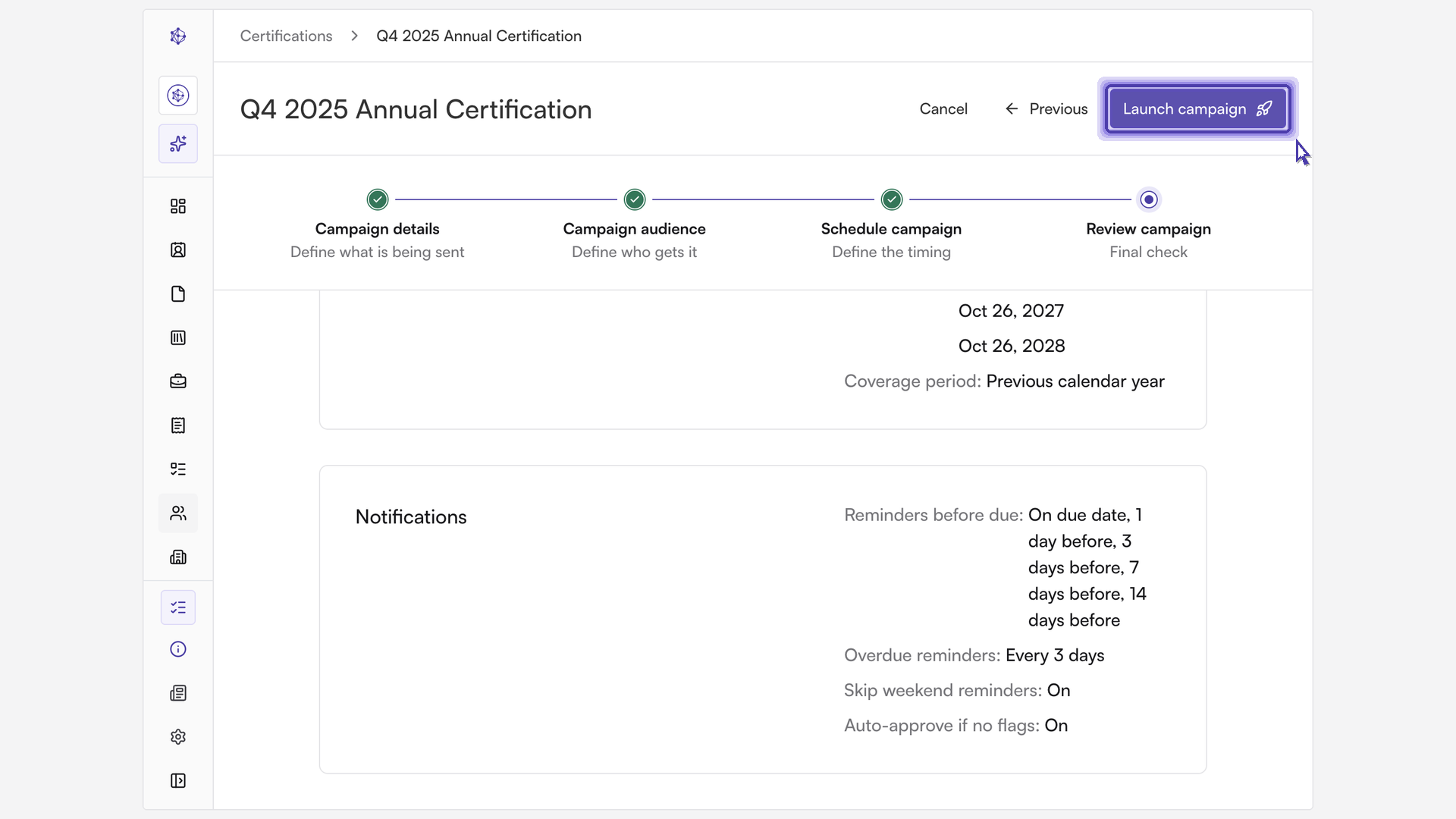
Remind before due date: Check the boxes for the days before the due date when a reminder email should go out. The options are 14 days before, 7 days before, 3 days before, 1 day before, and on the due date.
Remind after due date: Turn on "Send reminders for overdue tasks" to keep following up with anyone who hasn't submitted. Use "Remind every" to choose an interval of 1, 2, 3, 5 or 7 days. A longer interval keeps follow-ups from feeling like spam.
Don't send reminder emails on Saturday or Sunday: Optional. Reminders that fall on a weekend are skipped and sent the following Monday.
Auto-approve submissions without flags: Optional. Submissions with no flagged responses are approved automatically, so reviewers only need to look at flagged responses.
Step 4: Review and launch
The review step summarizes the campaign details, audience and schedule. Check each section, and go back to an earlier step if anything needs to change. When everything looks right, select "Launch campaign" and confirm.
What happens next
After you confirm, you return to the certifications page, where the new campaign appears and is ready to track. Recipients are notified according to the schedule you set. If you chose a future start date, the first round begins on that date. Reminders then follow the settings you configured, and a recurring campaign starts new rounds automatically at the frequency you selected.