How to change which entities a policy covers
Last updated: October 17, 2026
Every policy in Hadrius applies to a specific set of entities within your firm — the business units, branches, or legal entities it governs. Use this workflow whenever your firm's structure changes, a new entity comes online, or you need to correct which parts of the firm a policy's risks, controls, and tests actually apply to.
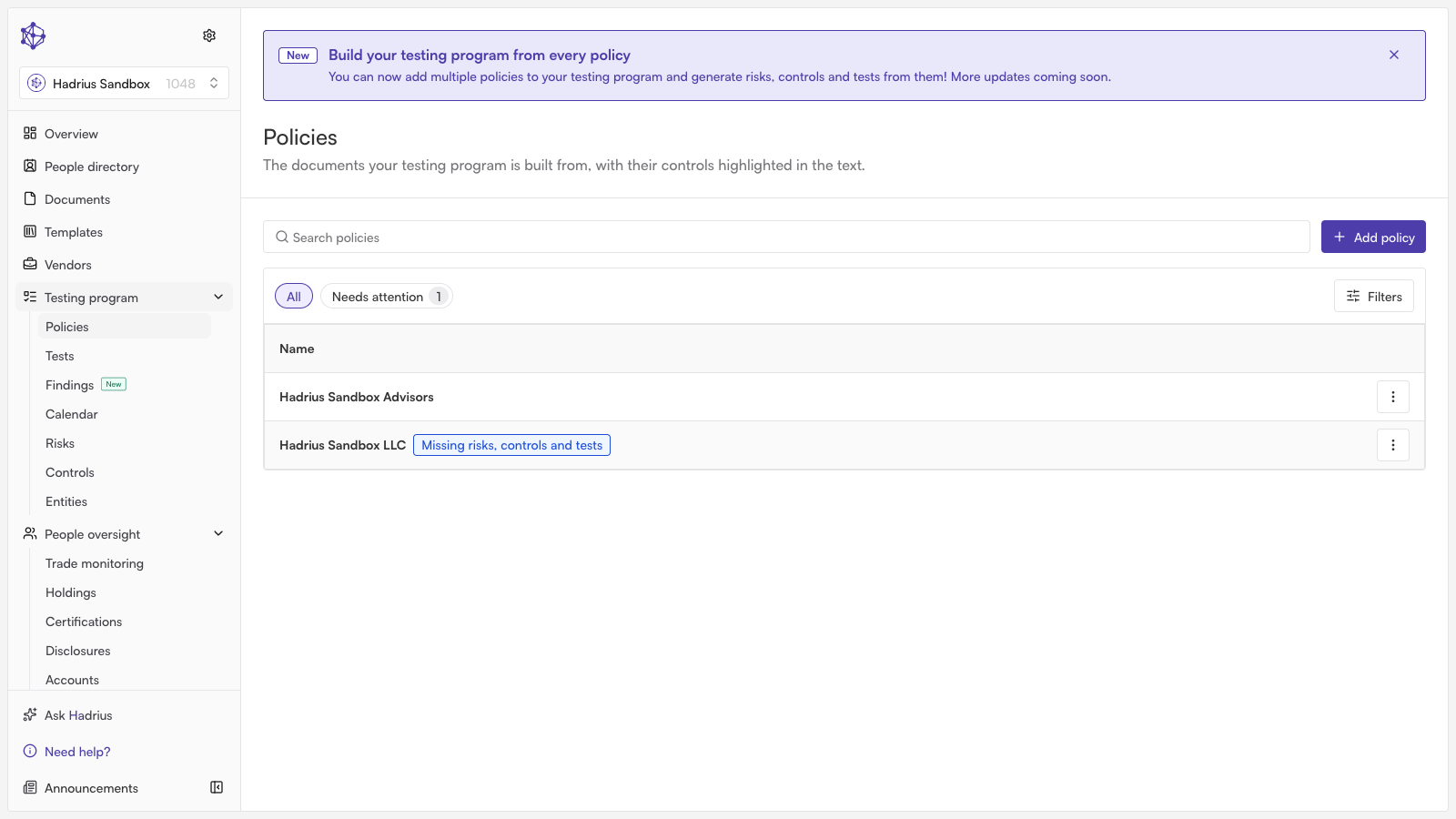
Changing a policy's coverage
From the policies view, find the policy you want to update and open its actions menu (the kebab icon on the policy's row or header).
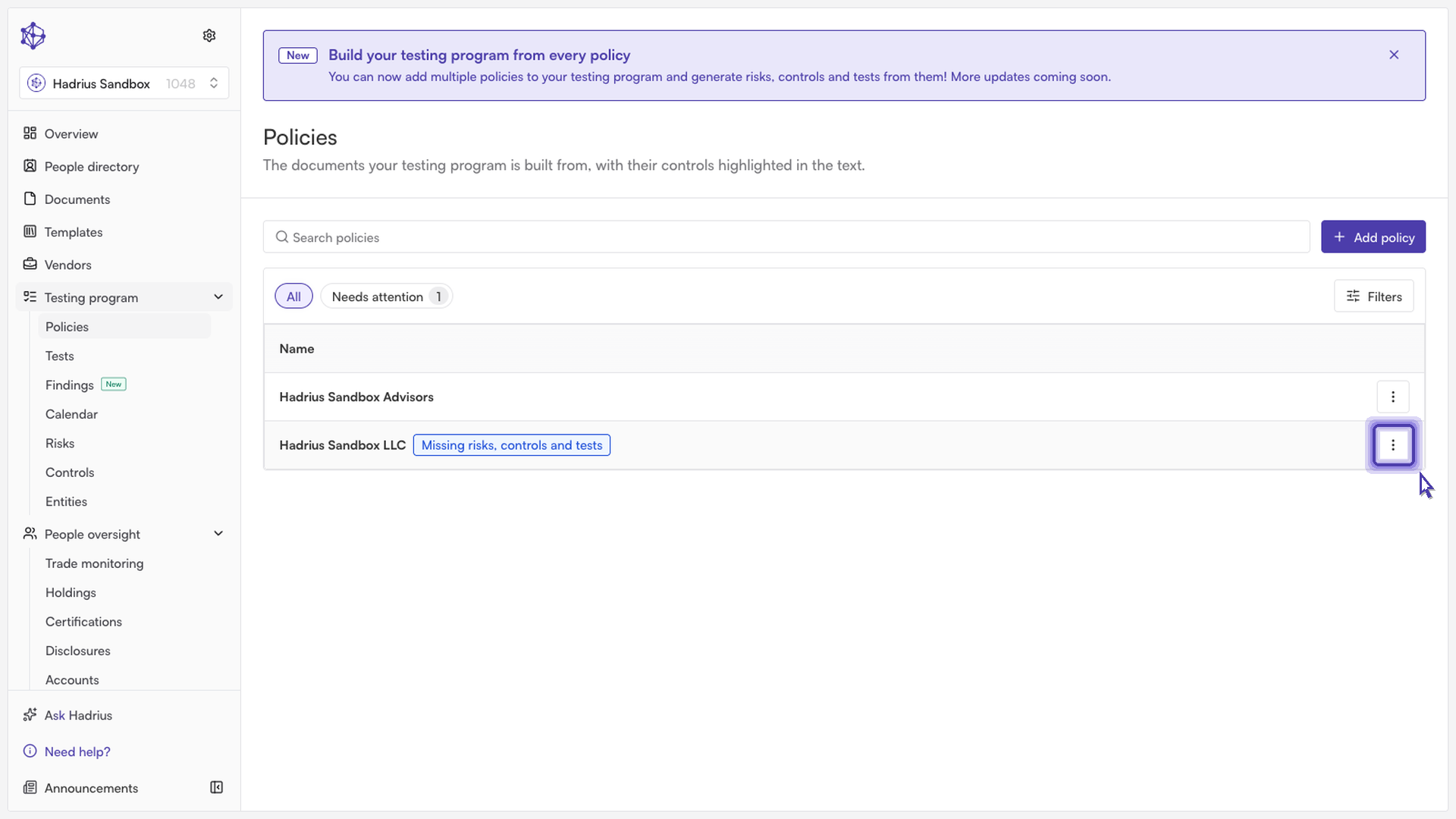
Select "Edit entities". This option is only available for active (non-archived) policies — an archived policy's menu only lets you reopen it, since nothing about it can be changed anymore.
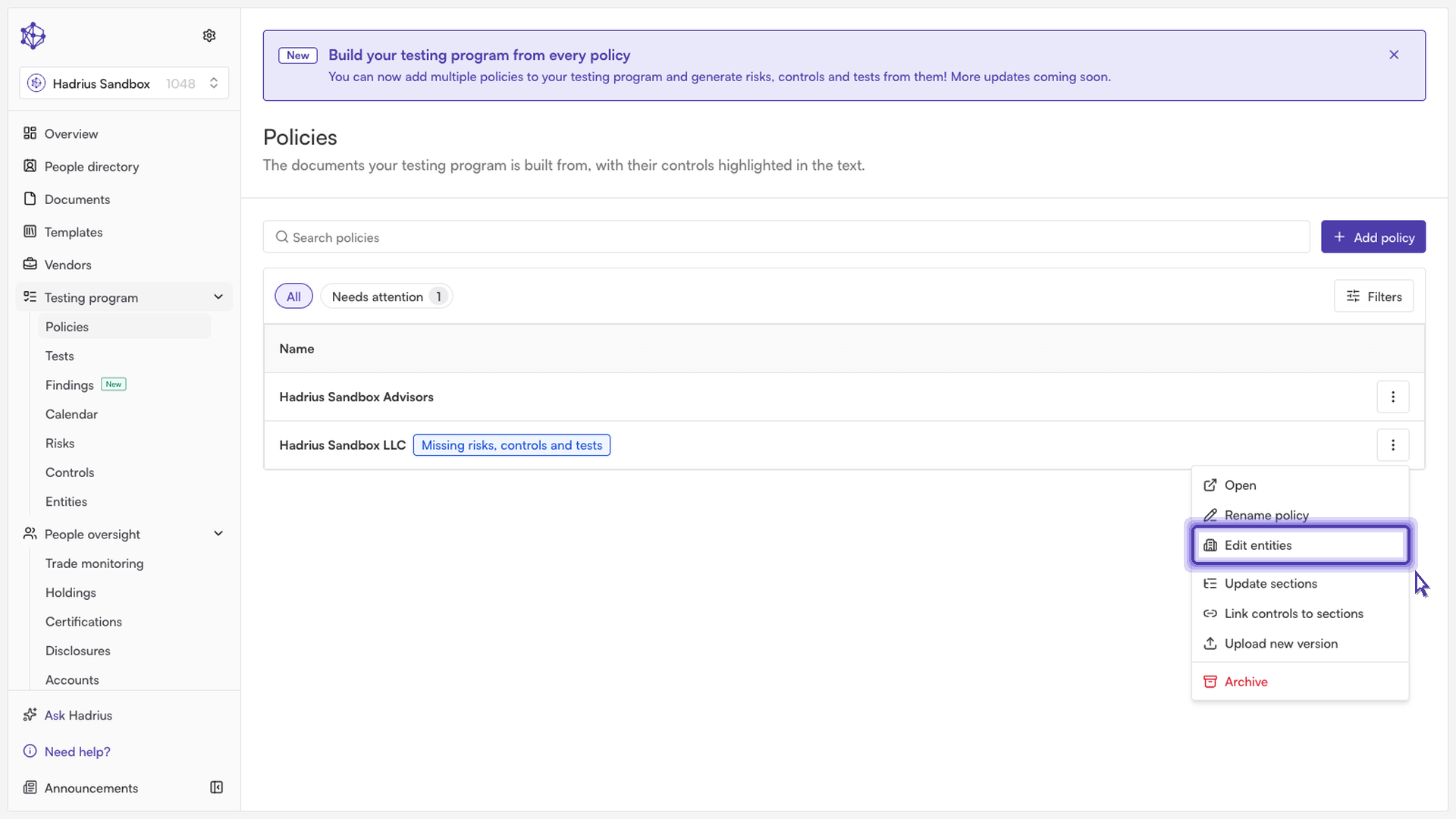
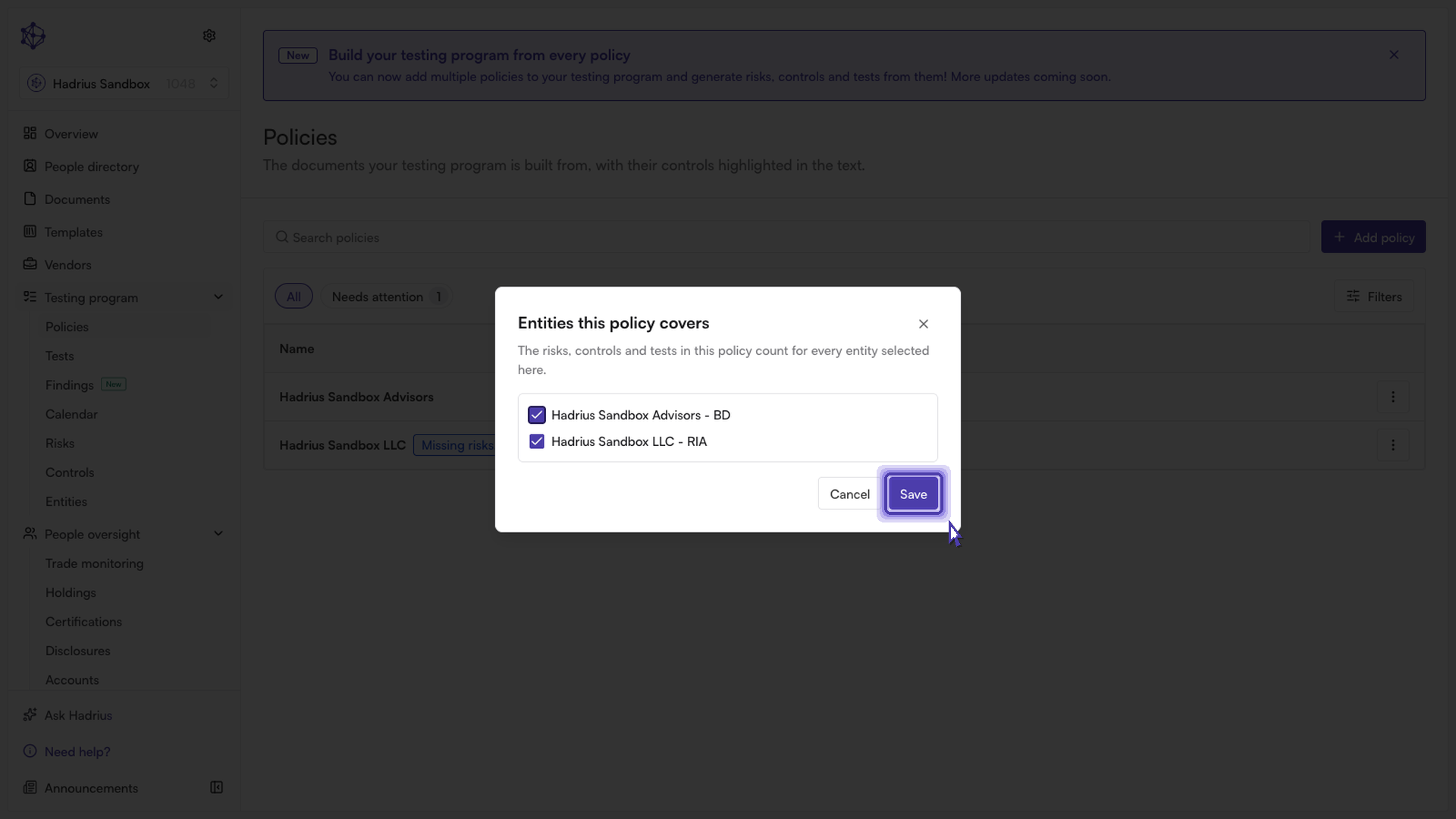
In the "Entities this policy covers" dialog, check or uncheck entities from the list to bring them into, or take them out of, this policy's scope. Keep in mind that this policy's risks, controls, and tests count toward every entity you leave selected — so unchecking an entity removes this policy's coverage from that entity's compliance program as well.
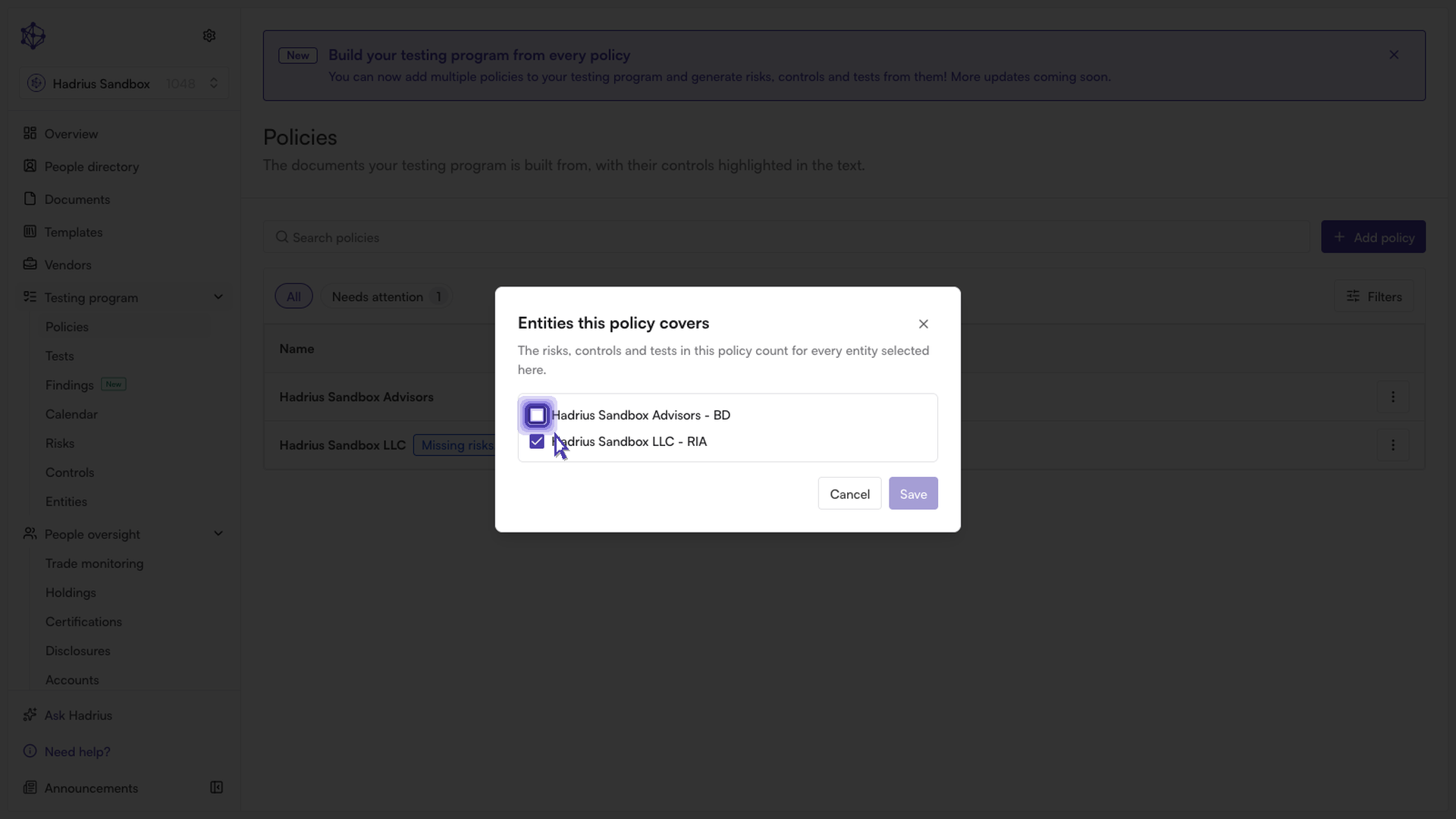
A policy must always cover at least one entity. If you uncheck everything, a warning appears and the "Save" button is disabled until at least one entity is selected again. The button also stays disabled if you haven't actually changed the selection.
Click "Save" to confirm. You'll see a confirmation toast noting the updated entity count, and the change takes effect immediately.
What happens next
Coverage changes apply right away — the policy's reporting and reviews reflect the new set of entities as soon as you save. There's no separate publish step, so double-check your selection before confirming, particularly when removing an entity, since that also removes any associated tests from that entity's program.