How to upload a new version of a policy document
Last updated: October 17, 2026
Policies in Hadrius keep a complete version history, so when a document changes — a new draft, an updated procedure, a scheduled annual revision — you don't have to create a new policy or lose the old one. Instead, you upload the new file as the next version of the existing policy. This article walks through that process, including what happens to the risks, controls, and tests already tied to the policy.
Before you start
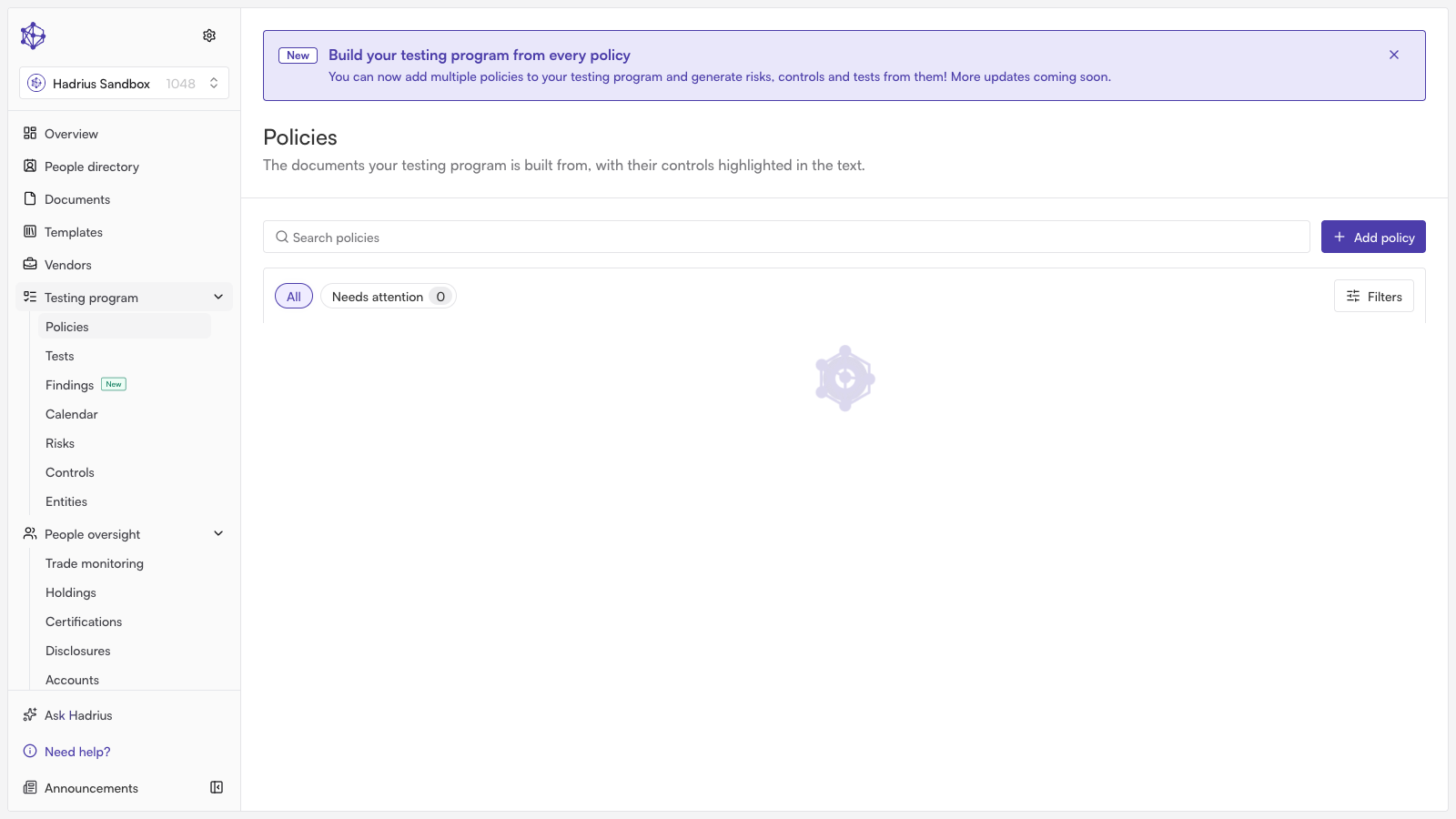
Uploading a new version is only available on a policy's current version, from either the policy library or the policy's own page. Older, archived versions are read-only and don't offer this option.
Steps
From the policy library, open the actions menu (the "⋮" icon) for the policy you want to update.
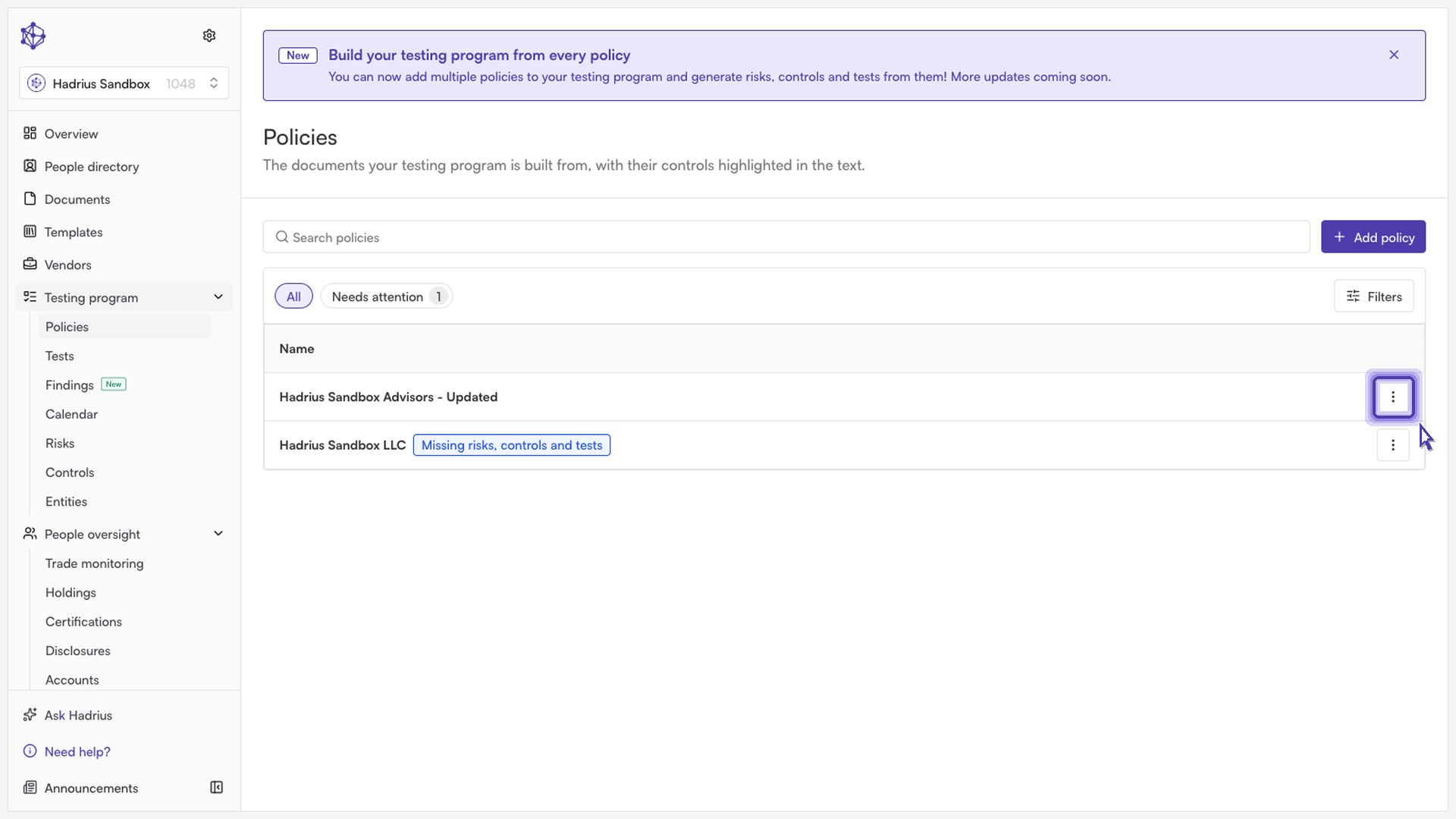
Select Upload new version. (If the policy doesn't have a document attached yet, this same menu instead shows Upload document for the first upload.)
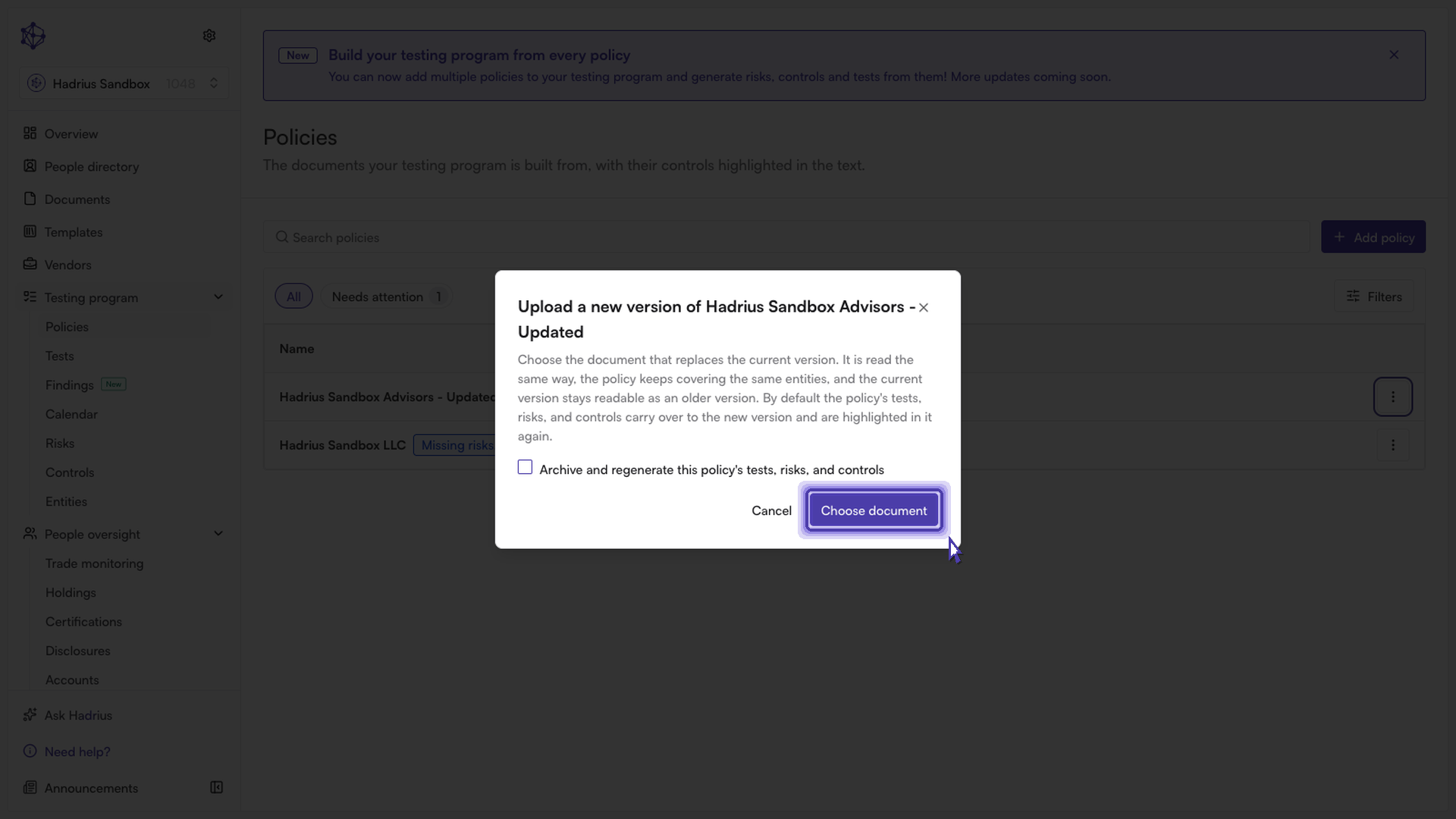
A dialog titled "Upload a new version of [policy name]" explains what the upload does: the new file is read the same way as the current one, the policy keeps covering the same entities, and the version you're replacing isn't deleted — it becomes an older version you can still open and read. By default, the tests, risks, and controls already linked to the policy carry over to the new version and are re-highlighted in its text.
If you'd rather start fresh instead of carrying the existing program over, check Archive and regenerate this policy's tests, risks, and controls. This is optional and off by default. Checking it shows exactly what will be archived — the number of tests, scheduled or in-progress test runs, risks, and controls tied to this policy — with a warning that the action can't be undone. Any work already completed is kept, and findings are never archived, only the catalog items that would be replaced by a fresh analysis of the new document.
Click Choose document to open the document picker.
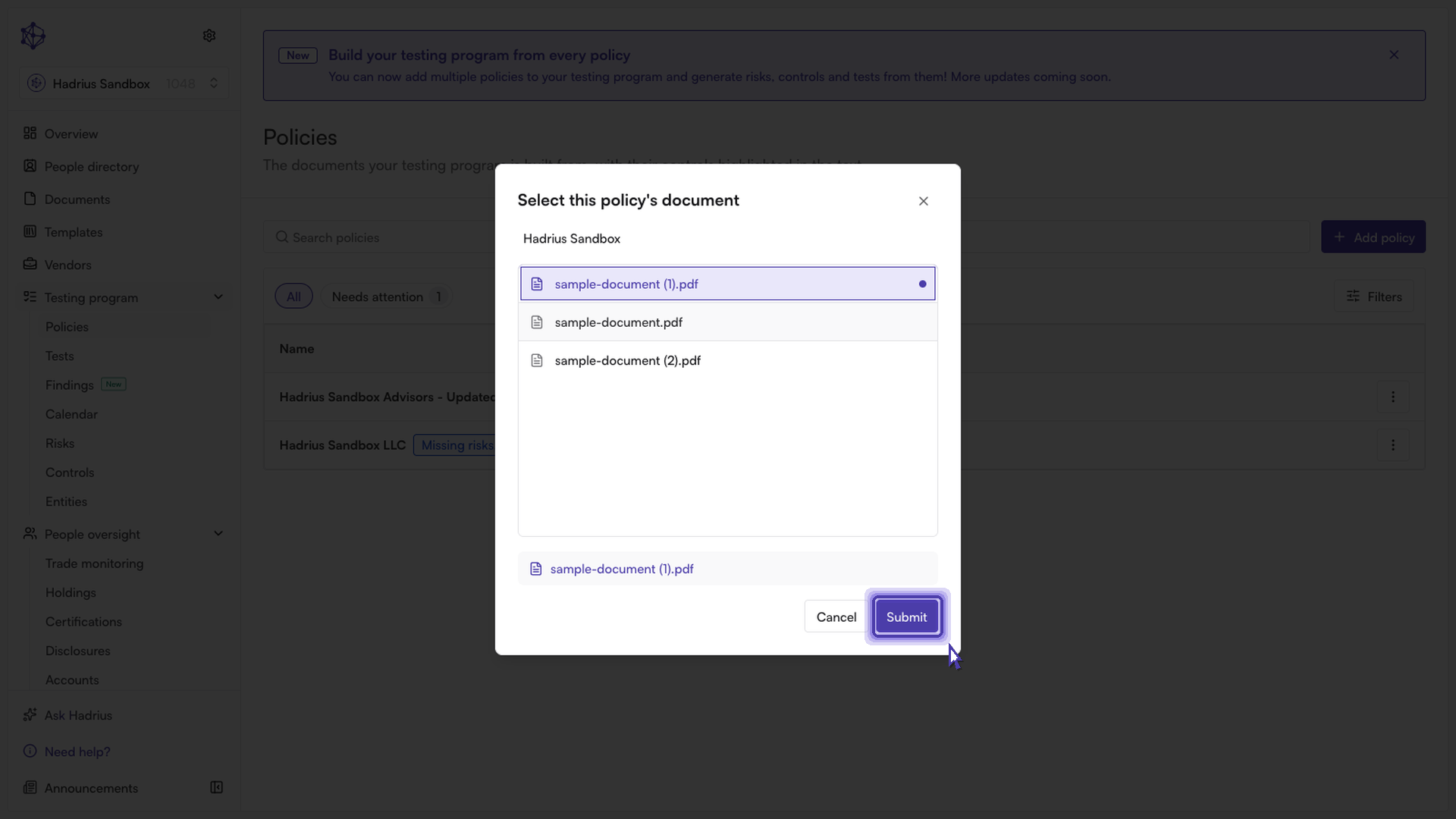
Browse your company's document library — using the folder breadcrumbs at the top if the file isn't in the root — and select the updated file.
As soon as you pick the file, the upload starts automatically; there's no separate submit step. A confirmation appears letting you know the new version is being read, and it will replace the current version once processing finishes.
What happens next
While Hadrius reads the new document, the policy page shows a banner letting you know a new version is being processed. Once it completes, the page updates automatically: the new file becomes the current version, the previous version moves into the policy's version history, and — unless you chose to archive and regenerate — the existing tests, risks, and controls are carried over and highlighted again in the new text.