How to bulk assign tests and categories to an entity
Last updated: October 17, 2026
Use this workflow when you need to give a client environment a set of tests to run, without adding them one at a time. From the entities overview, you can open a single assignment dialog, pick the tests or an entire category of tests, and push them onto one client environment in a single confirmed action.
Step 1: Open the assignment dialog from Entities
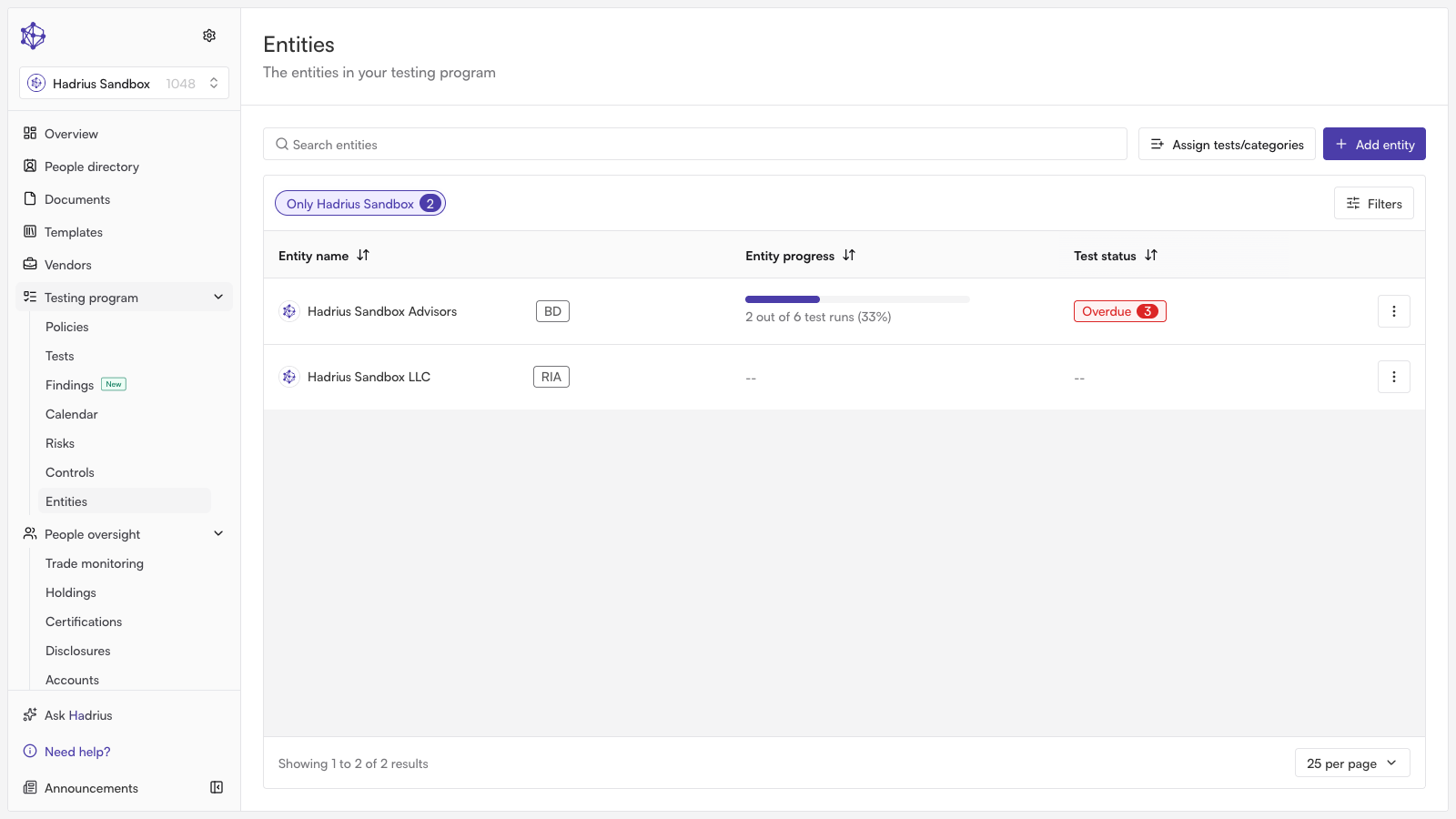
Go to the entities overview, where every client environment you oversee is listed. Click Assign tests/categories to open the assignment dialog.
Step 2: Choose the client environment
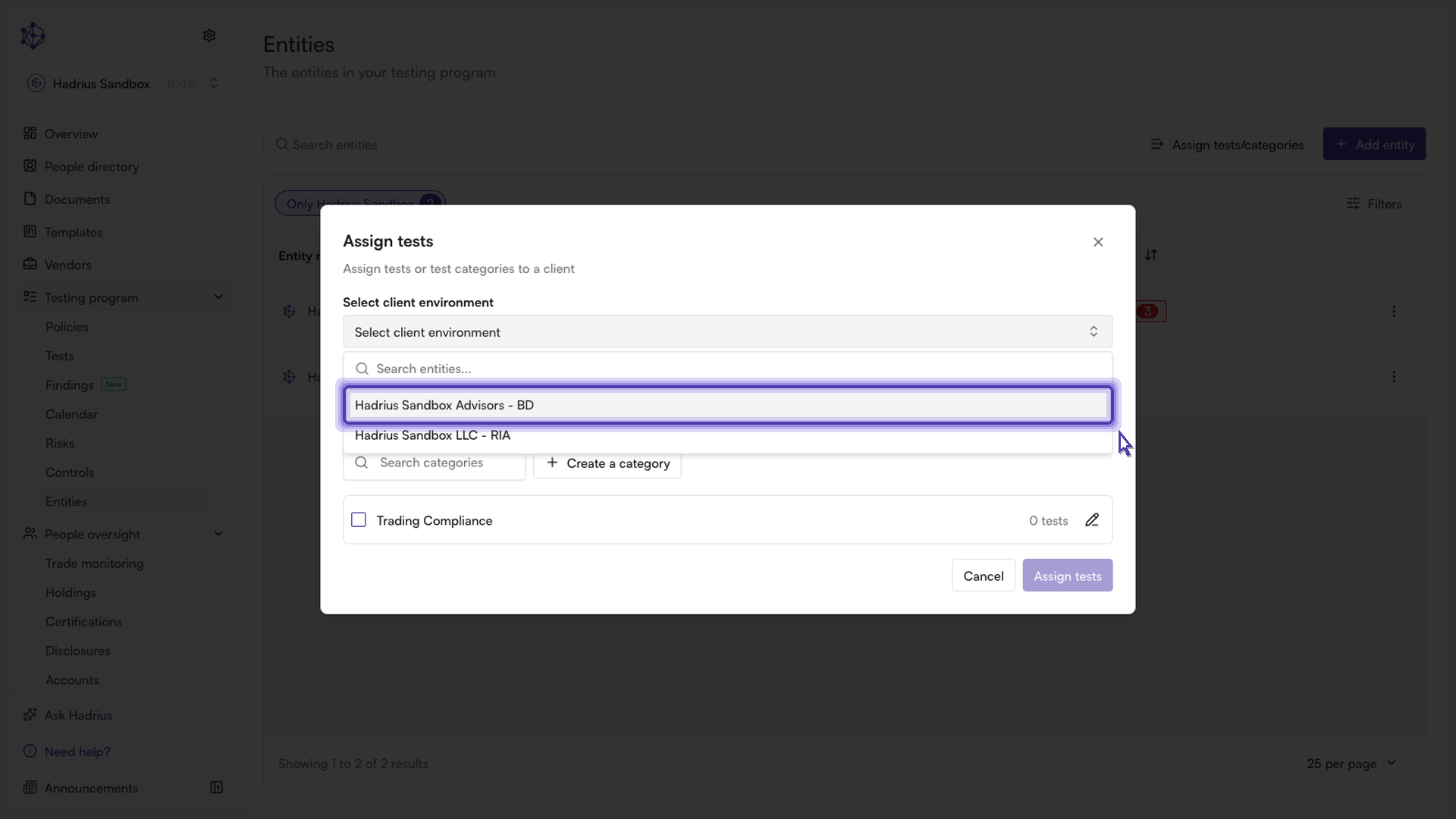
At the top of the dialog, use the Select client environment field to search for and choose the environment you're rolling coverage out to. You can only target one environment per assignment, so if you need to apply the same tests to several environments, repeat the assignment for each one.
Step 3: Pick a category or individual tests
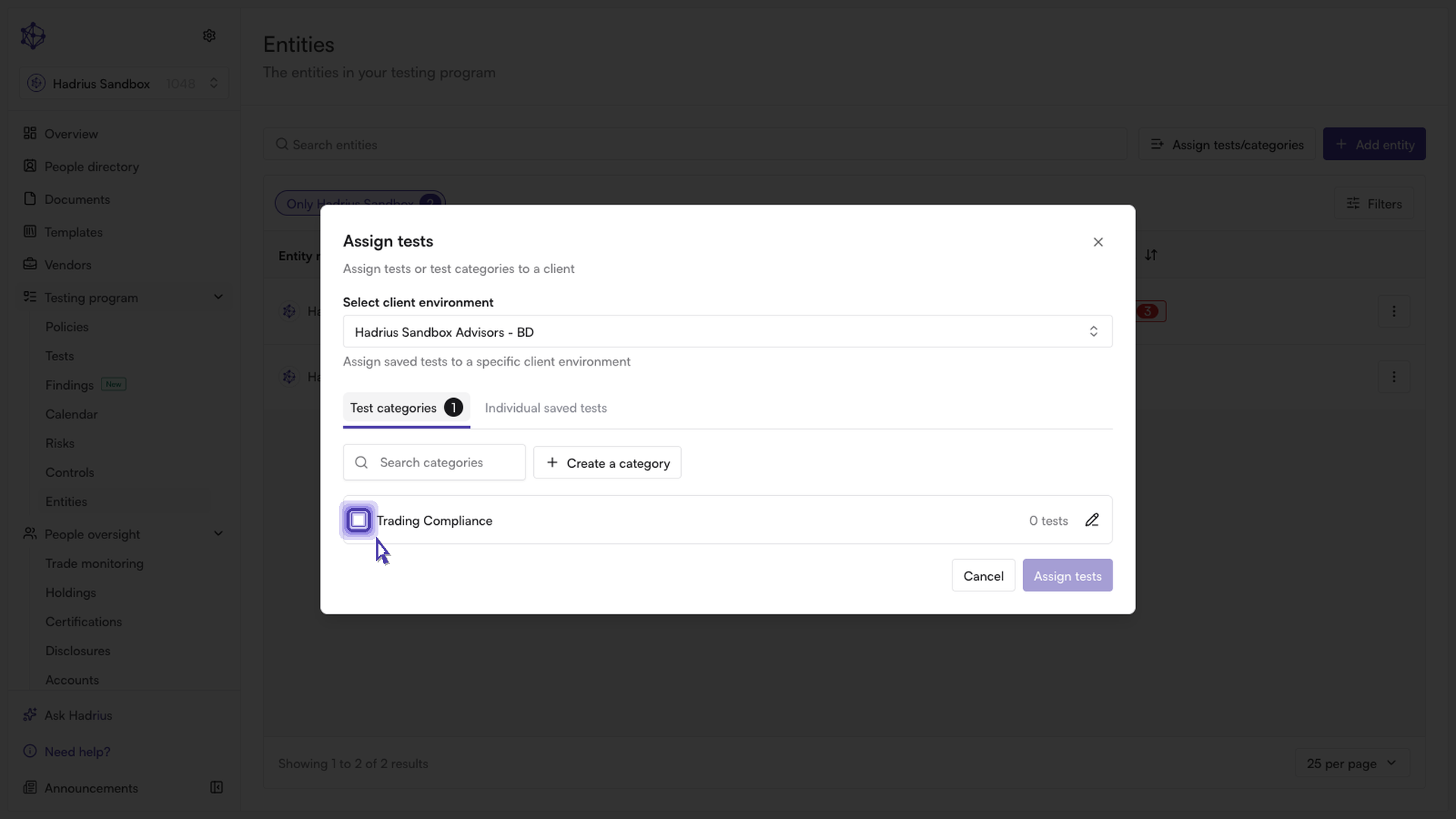
The dialog has two tabs:
Test categories — check one or more categories to assign every test bundled in them. This is the fastest option when a category already covers what you need, since you don't have to select each test inside it.
Individual saved tests — search or filter the full test list and check specific tests instead of an entire category.
You can only work within one tab at a time — selections are either by category or by individual test, not both in the same assignment. The "Assign tests" button stays disabled until you've chosen a client environment and at least one category or test.
Step 4: Review and confirm
Click Assign tests to open a confirmation screen. It lists the client environment and exactly what will be applied — each selected category with its test count, or the number of individual tests selected — so you can double-check the assignment before it takes effect.
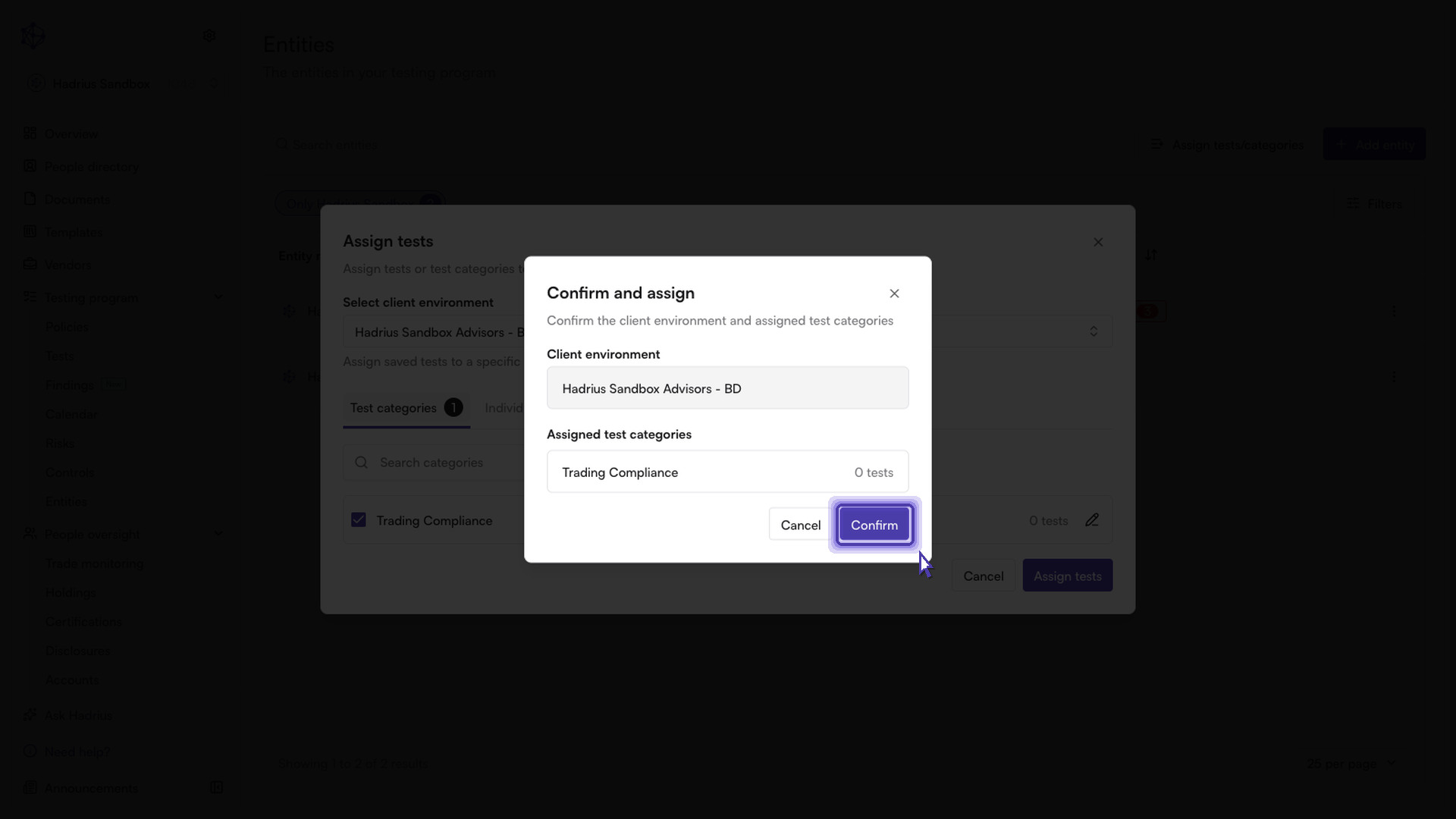
Click Confirm to complete the assignment. You'll see a confirmation toast, and every test in the categories (or the individual tests) you selected will now run on that client environment.
What's next
To adjust an assignment later, reopen the same dialog for that environment, or edit the underlying category itself using the edit icon next to it in the Test categories tab — changes made there apply anywhere that category is already assigned.