How to re-analyze a policy to regenerate its risks and controls catalog
Last updated: October 17, 2026
Use this workflow when a policy's text has changed enough that its existing risks, controls, and tests no longer reflect what the document actually says — for example after a substantial edit or a new upload that was analyzed incorrectly the first time. Re-analyzing tells Hadrius to read the policy again from scratch and rebuild its entire testing program, so it's a good fit for a meaningful correction, not something to run routinely.
Before you start
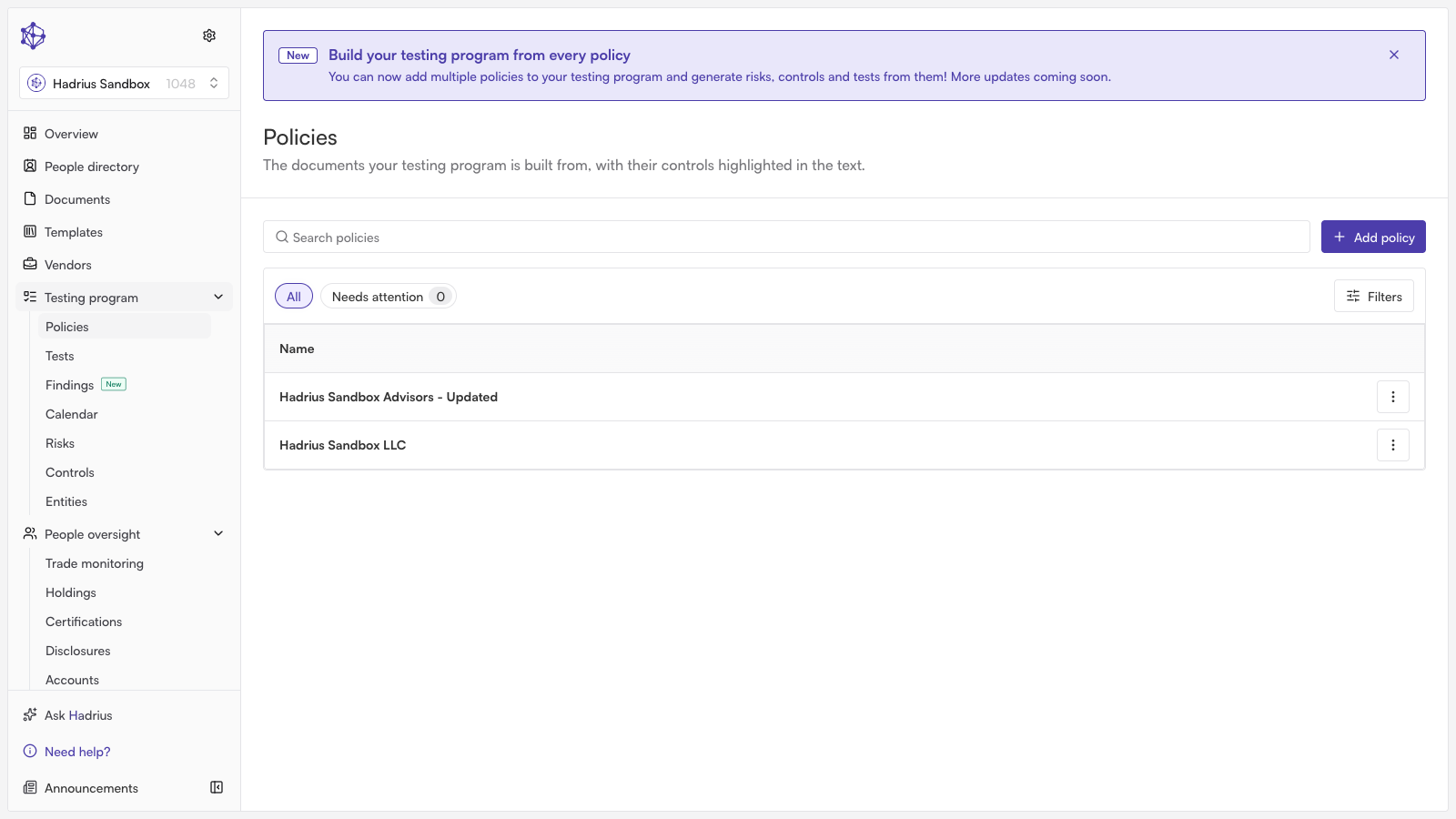
Re-analysis is only available on a policy that already has a document and an existing testing program. If a policy has no risks, controls, or tests yet, you won't see a "Re-analyze" option — instead you'll find a "Find risks and controls" button on the policy's page, which runs the same first-time analysis without anything to replace.
Steps
Open the policy. From the policy list, where every governing document for the firm is kept, click into the policy you want to re-analyze. This opens its dedicated workspace, where the document, its sections, and its testing program all live together.
Open the actions menu. From the policy workspace, open the actions menu (the icon in the corner of the page) to see everything you can do with this policy.
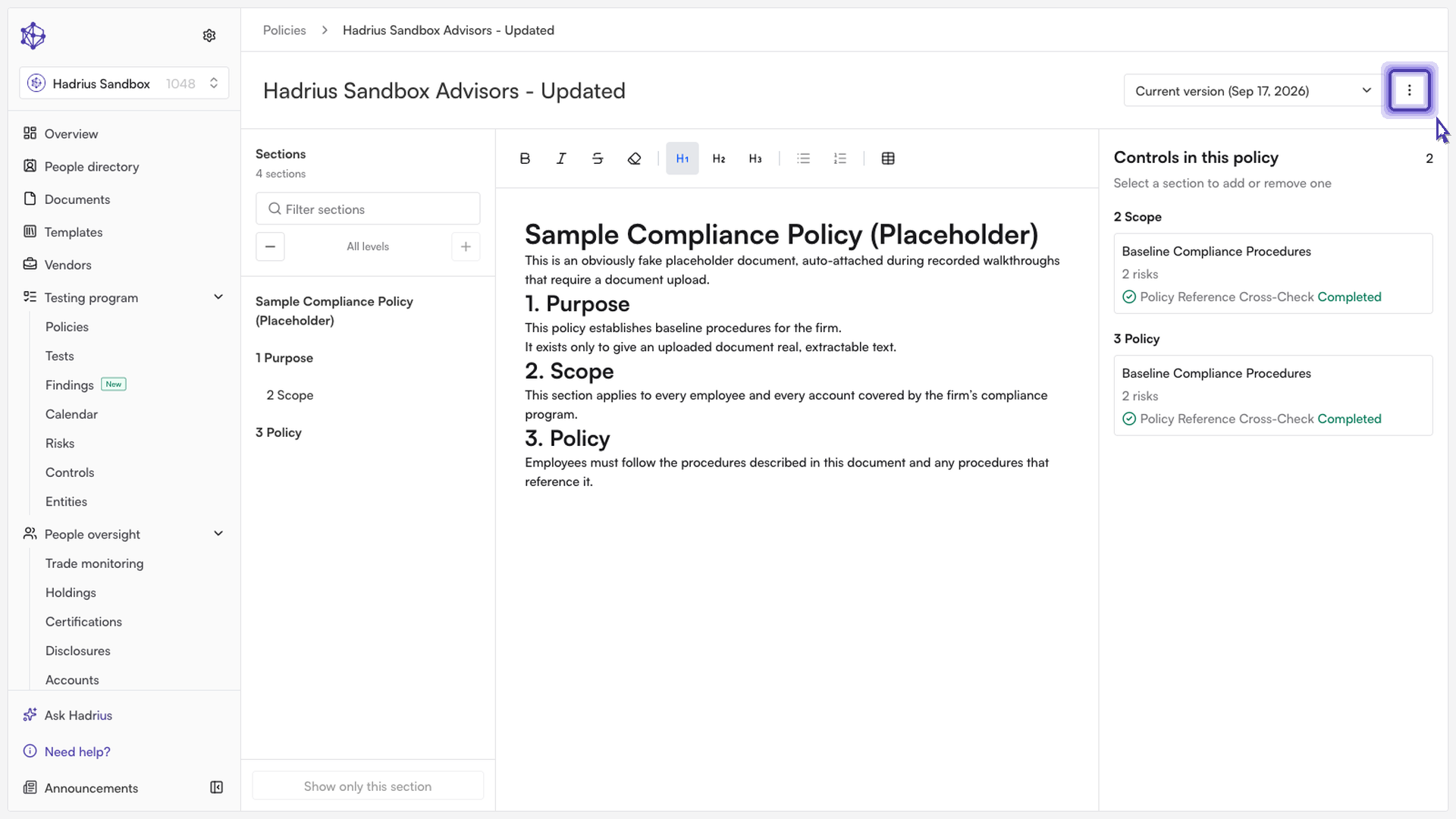
Choose "Re-analyze." This option only appears once the policy already has a testing program in place. Selecting it opens a confirmation dialog explaining that Hadrius will read through the document again, section by section, and build a new set of risks, controls, and tests from what it finds.
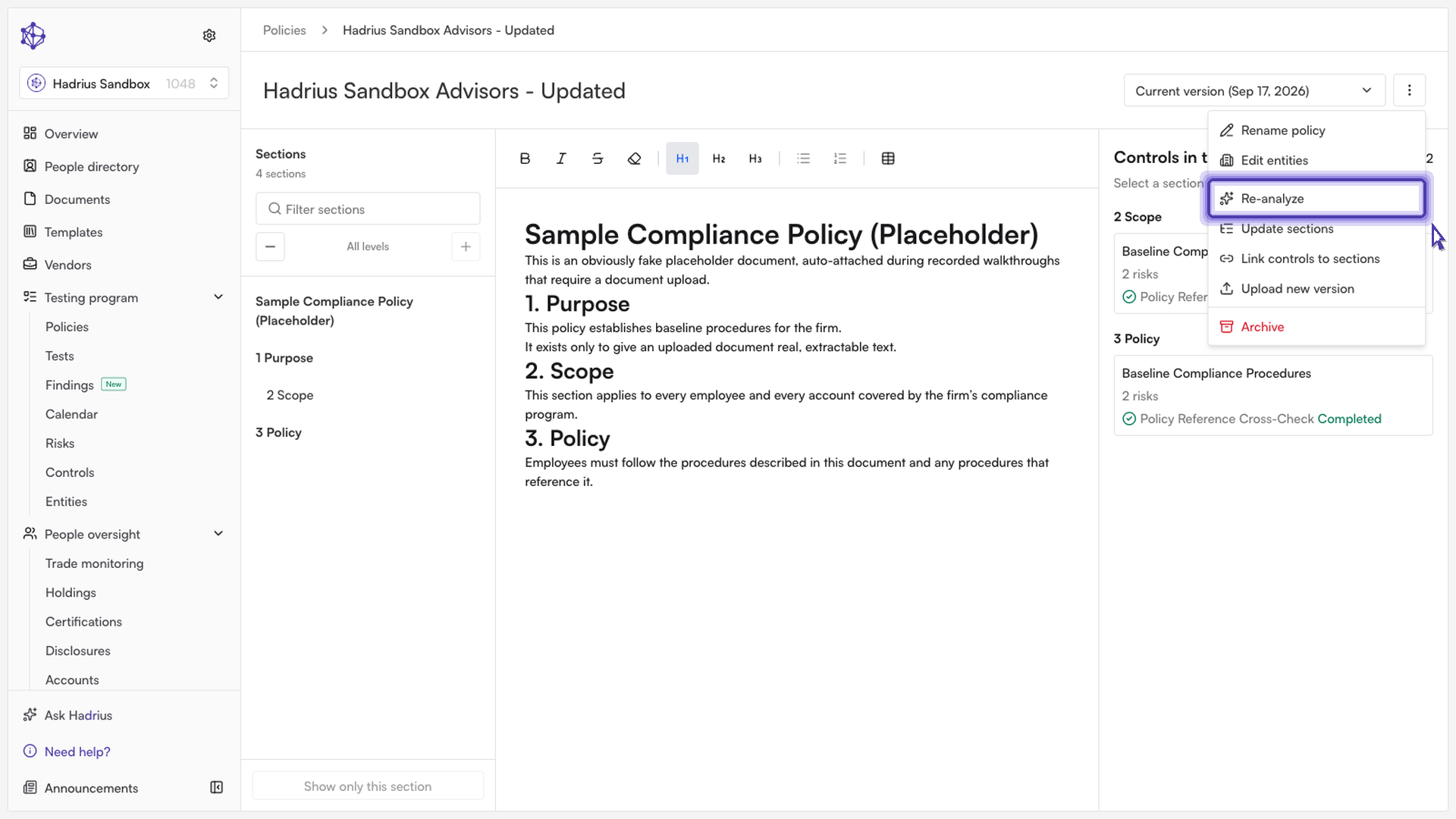
Review what will be replaced, then confirm. Because re-analysis replaces the current testing program rather than adding to it, the dialog shows exactly what will be affected — the number of tests, scheduled or in-progress test runs, risks, and controls tied to this policy. Work you've already completed, such as finished test results, is kept, and no findings are ever removed. Once you've reviewed the impact, click "Re-analyze" to confirm and start the new analysis.
What happens next
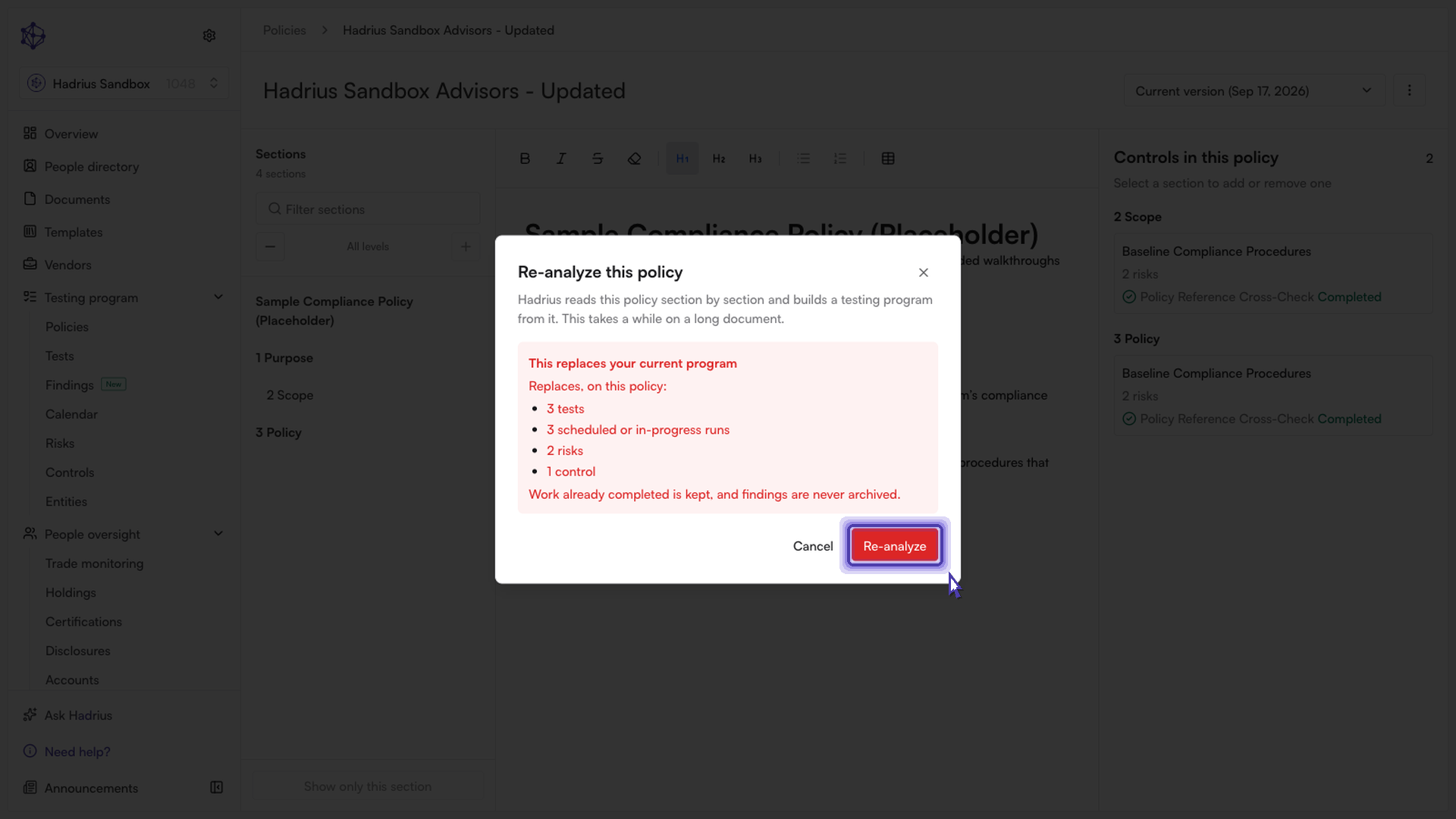
The analysis runs in the background and can take a while on a longer document. While it's in progress, the policy's workspace shows a banner letting you know it's still working. When it completes, the page updates automatically with the new risks, controls, and tests derived from the current version of the document.