Creating Rules for Employee Trade Monitoring
Last updated: October 16, 2026
Flagging rules decide which employee personal trades are flagged for compliance review in Trade Monitoring. This article explains how to create a new rule from one of the built-in templates. The examples are a volume-based rule, which flags large trades, and a minimum holding period rule, which flags positions sold too soon and applies only to selected employees. Create a new rule when you adopt a new trading policy or want to watch for a trading pattern that your current rules don't cover.
Open the flagging rules
Go to Trade Monitoring, where your employees' personal trades are listed for review.
Click Flagging rules. The settings page lists every rule that is currently in place.
Click Add rule to start a new one.
Choose a template
The platform includes ready-made templates for common trading patterns, such as:
Frequency rules: flag repeated trading in the same security within a rolling window.
Day trading rules: flag a buy and a sell of the same security within a few days.
Volume-based flags: flag large trades, or trades in companies above or below a certain size.
Minimum holding period: flag employees who sell a position too soon after buying it.
Find the template that matches your policy and click Use this template. A step-by-step wizard opens. Most rules use the same steps: "Name & overview", the rule's own settings, "Who it covers", and "Review & publish".
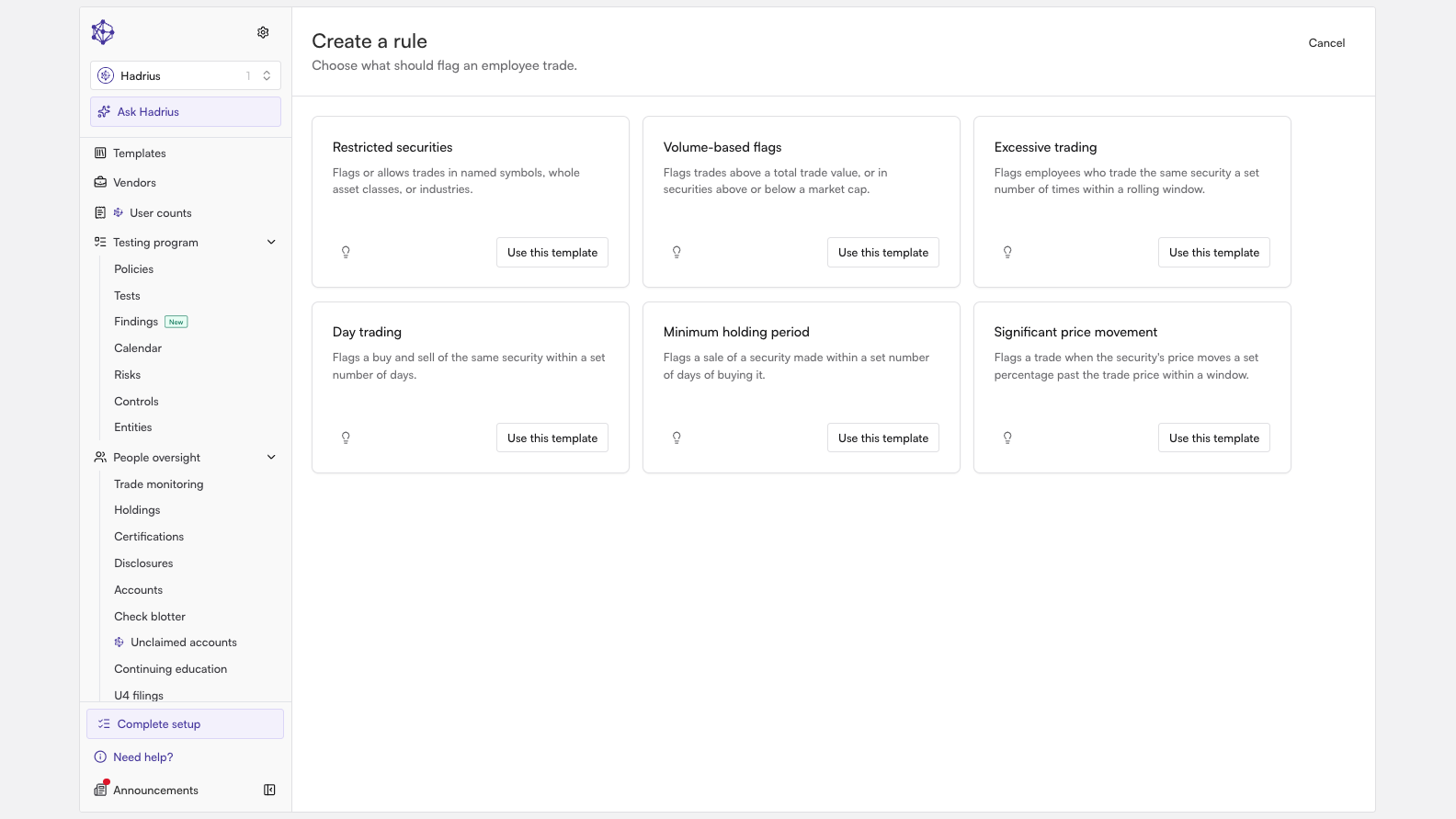
Example 1: Flag large trades with a volume-based rule
Name & overview. Enter a Rule name that reviewers will recognize in the rule list. You can also add a short Description of why the rule exists and what it watches for. The description is optional and appears on the rule's page, not in flag reasons. Then choose the start date. Trades on or after this date are checked against the rule. If you pick a future date, the rule is saved now and starts working on that day. Most rules run until you remove them, so only set an end date if the rule covers a fixed period.
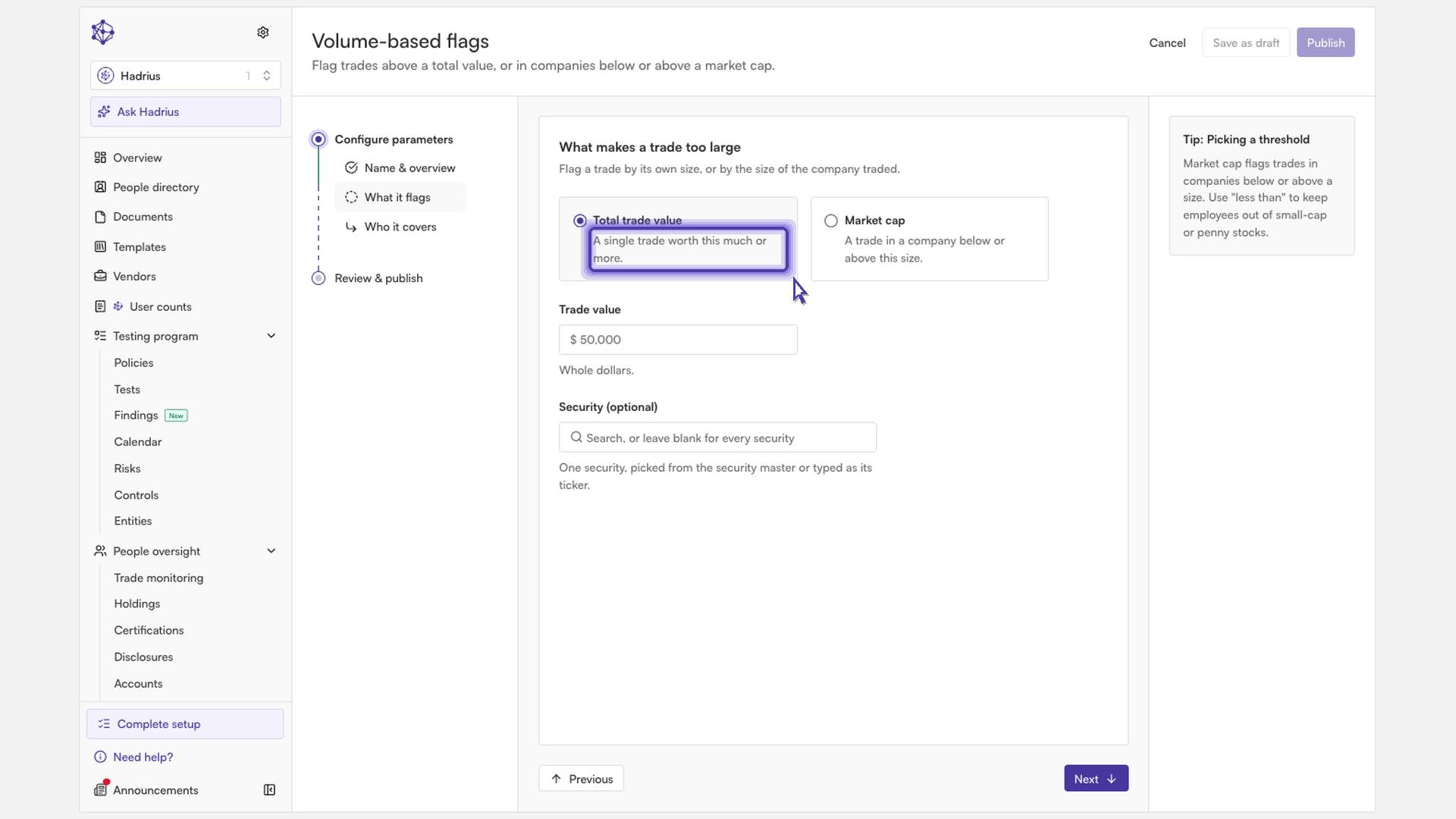
What it flags. Choose how a trade counts as too large:
Total trade value: flags any single trade worth the amount you enter or more.
Market cap: flags trades in companies below or above a market cap you set. Use it to target very small or very large companies.
For a trade value rule, enter the dollar amount in the Trade value field. Any single trade at or above this amount will be flagged.
Who it covers. By default, the rule applies to the personal trading accounts of all employees. If your firm uses managed accounts, you'll also see an Include managed accounts toggle. Accounts that a third party manages for an employee are left out unless you turn this toggle on, because the employee doesn't direct trades in those accounts.
Review & publish. Check the summary of the rule, then click Publish. This turns the rule on, and new trades are checked against it from the start date.
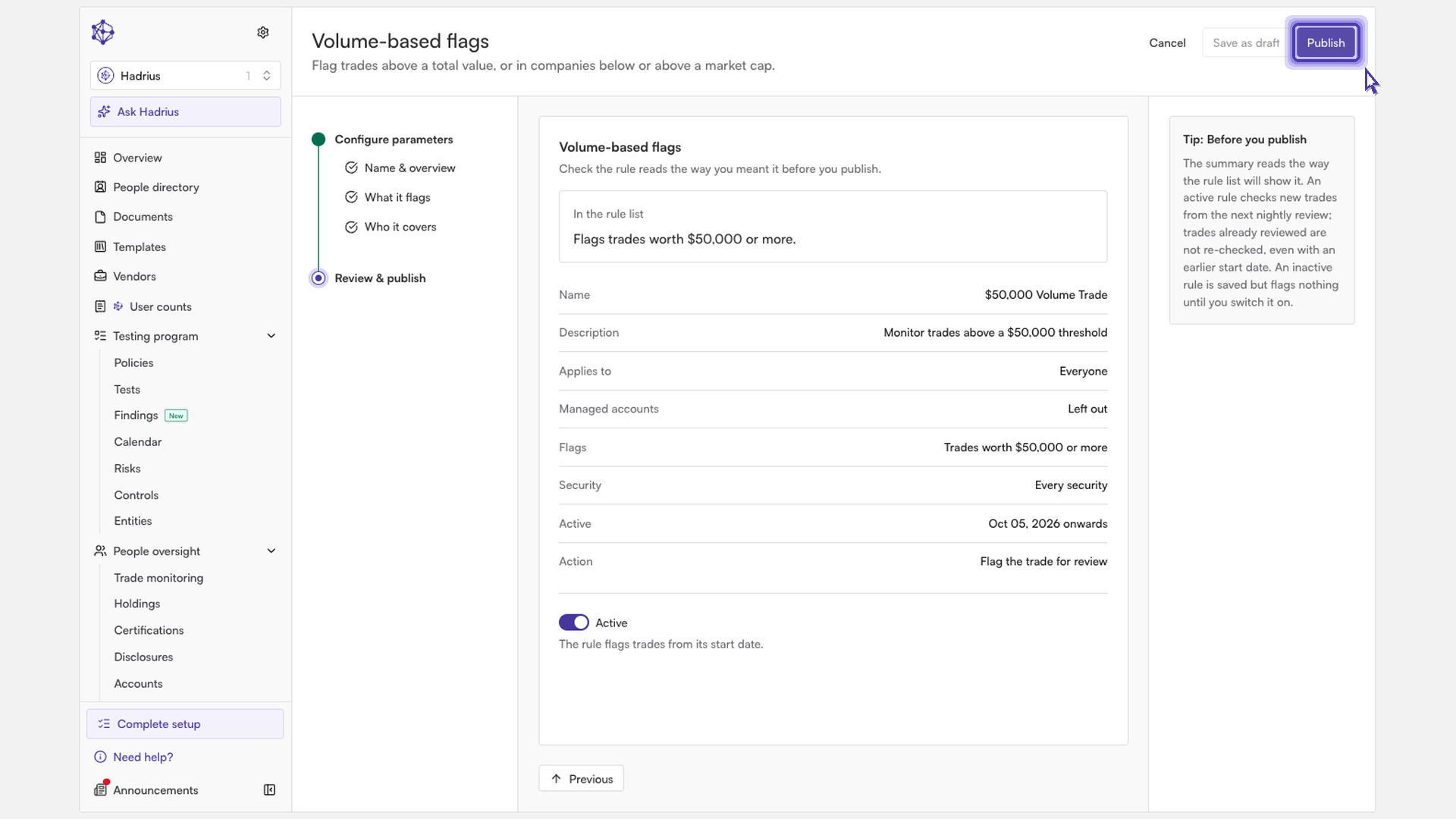
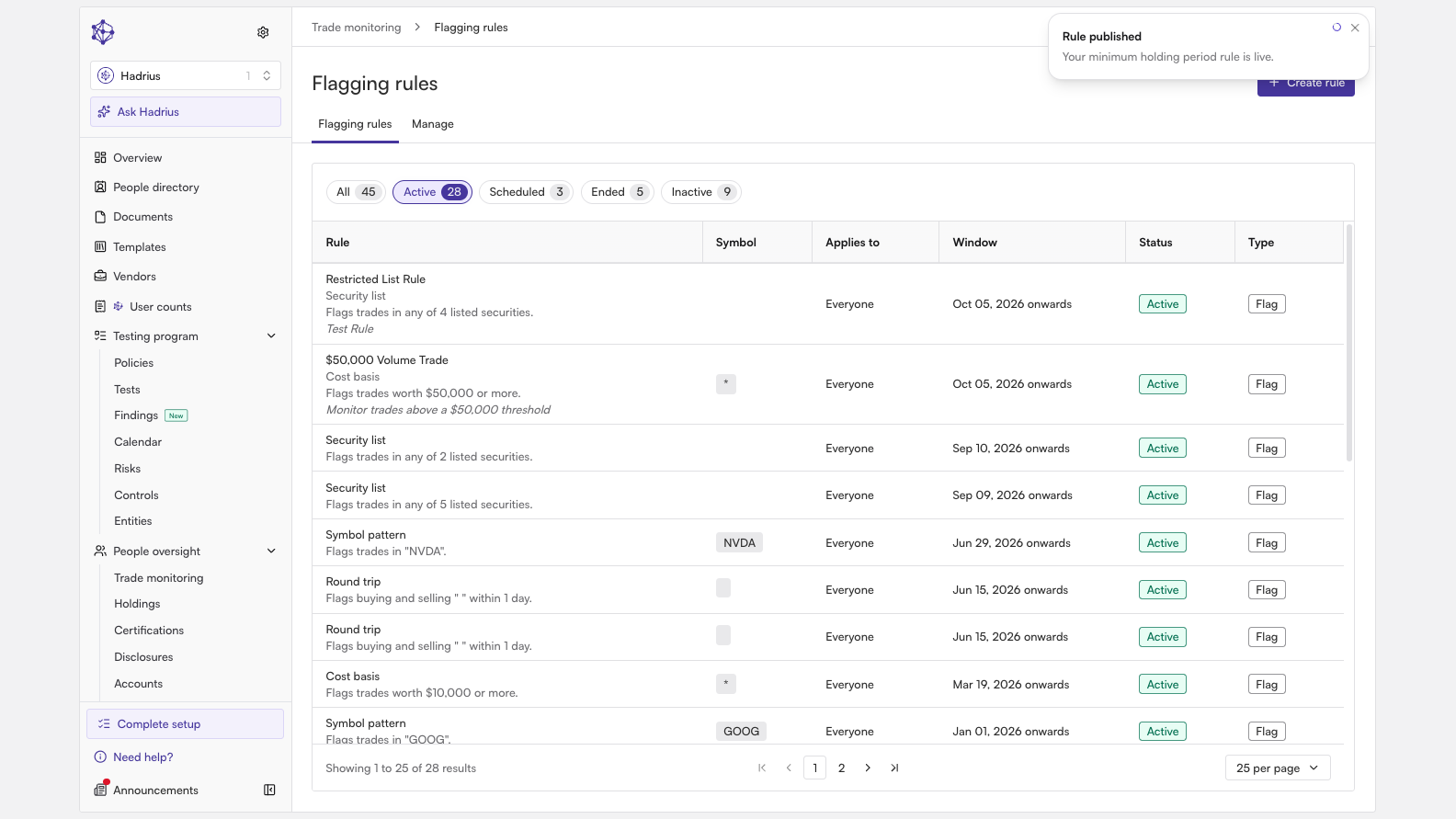
You return to the settings page, and the new rule appears alongside your other rules.
Example 2: Require a minimum holding period for selected employees
On the settings page, click Add rule again and use the Minimum holding period template.
Name & overview. Give the rule a name that makes its purpose clear, add a short description of the holding requirement, and choose when the rule starts.
Holding period. In Minimum holding period (days), enter how many days a position must be held before it can be sold.
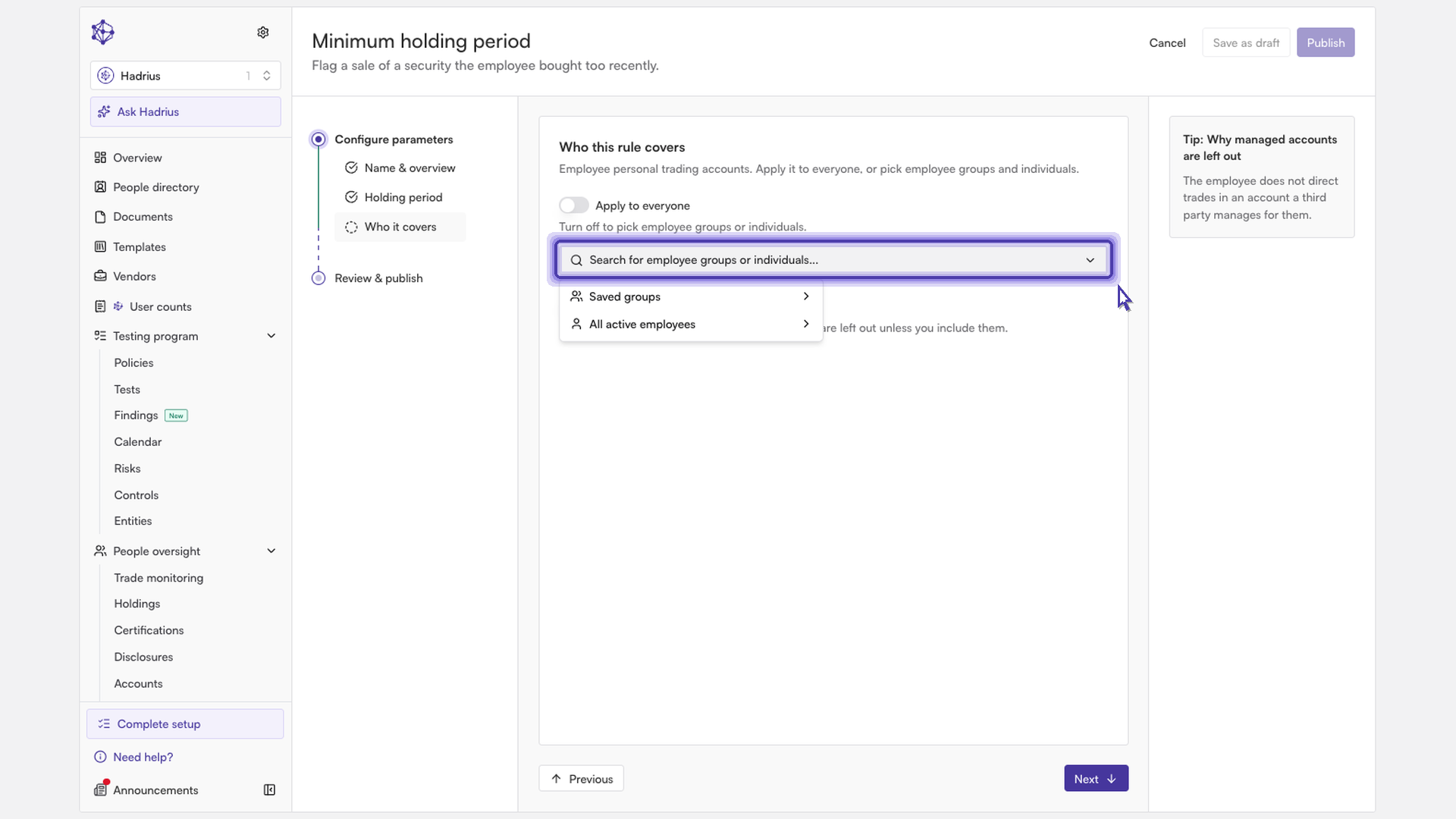
Who it covers. To limit the rule to certain people, switch from everyone to a custom selection. Then search for and select employee groups, individual employees, or both. When you pick a group, the rule follows that group's membership as it changes, so new members are covered automatically. The rule now applies only to the personal trading accounts of the people you selected.
Review & publish. Check the summary, then click Publish to turn the rule on for the people you selected.
Both rules are now active and listed together on the settings page.
What happens next
From now on, new trades are checked against your published rules automatically. Any trade that meets a rule's conditions shows as "Flagged" in Trade Monitoring for review. You can always reach your rules through the Flagging rules link in Trade Monitoring. To add a rule for a new policy, click Add rule there. To change a rule you've already published, open it and save your edits. The saved version replaces the published rule.