Adding Tests to the Compliance Calendar
Last updated: October 17, 2026
The testing calendar in the Testing Program module shows every scheduled test and task across your compliance program, organized by due date. In addition to the tests that run on their own schedule, you can add one-off tasks directly on the calendar. Use this when you need to schedule a review, follow-up, or other piece of compliance work and make sure someone is accountable for it.
Adding a task to the calendar
- Open the testing calendar. Go to the Testing Program module and open the testing calendar. Tests and tasks appear on the days they are due.
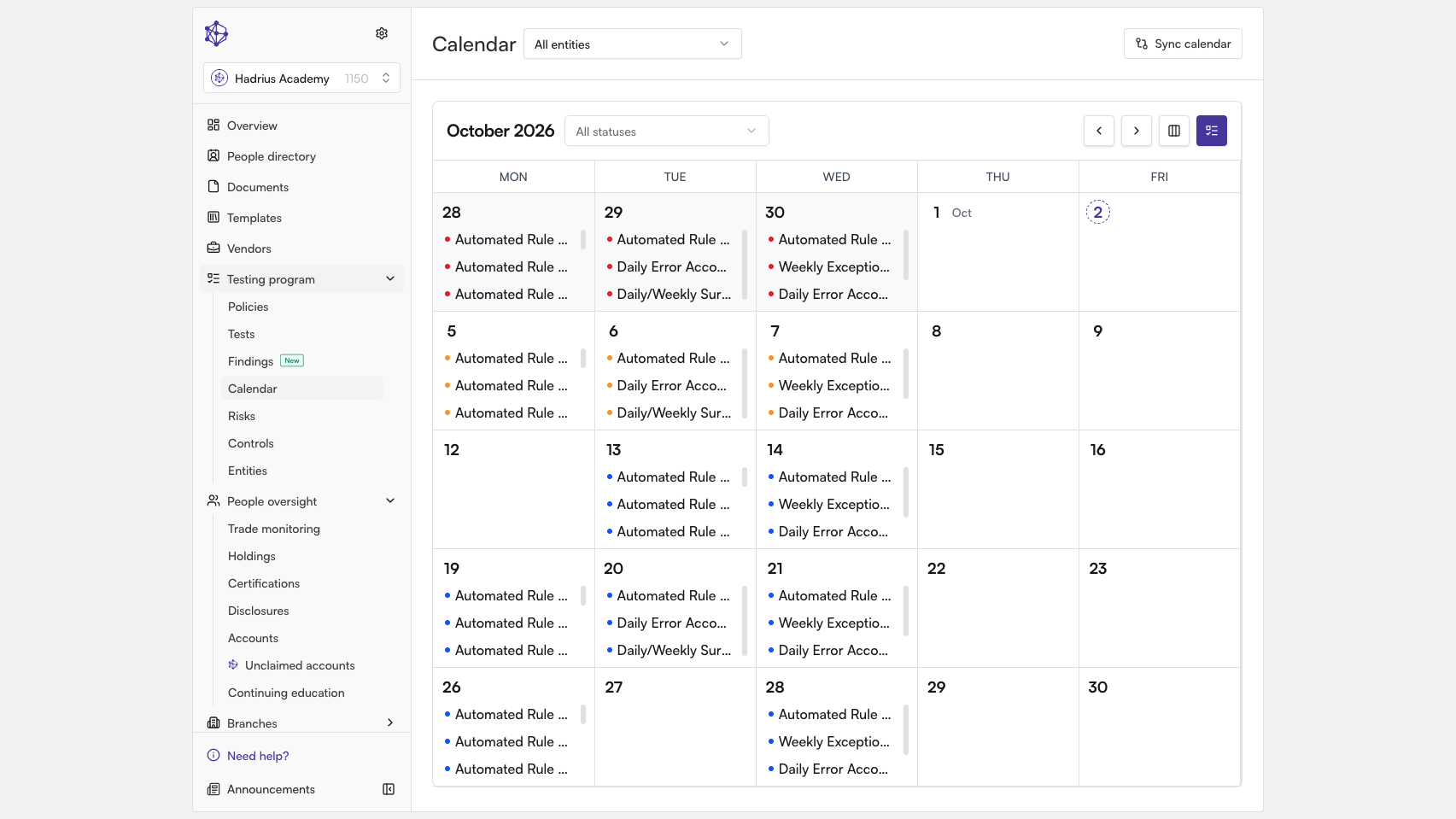
- Start a new task. Select the day you want on the calendar to open the day's detail panel. Click New Task at the top of the panel. A "Create New Task" form opens, and the due date defaults to the day you selected.
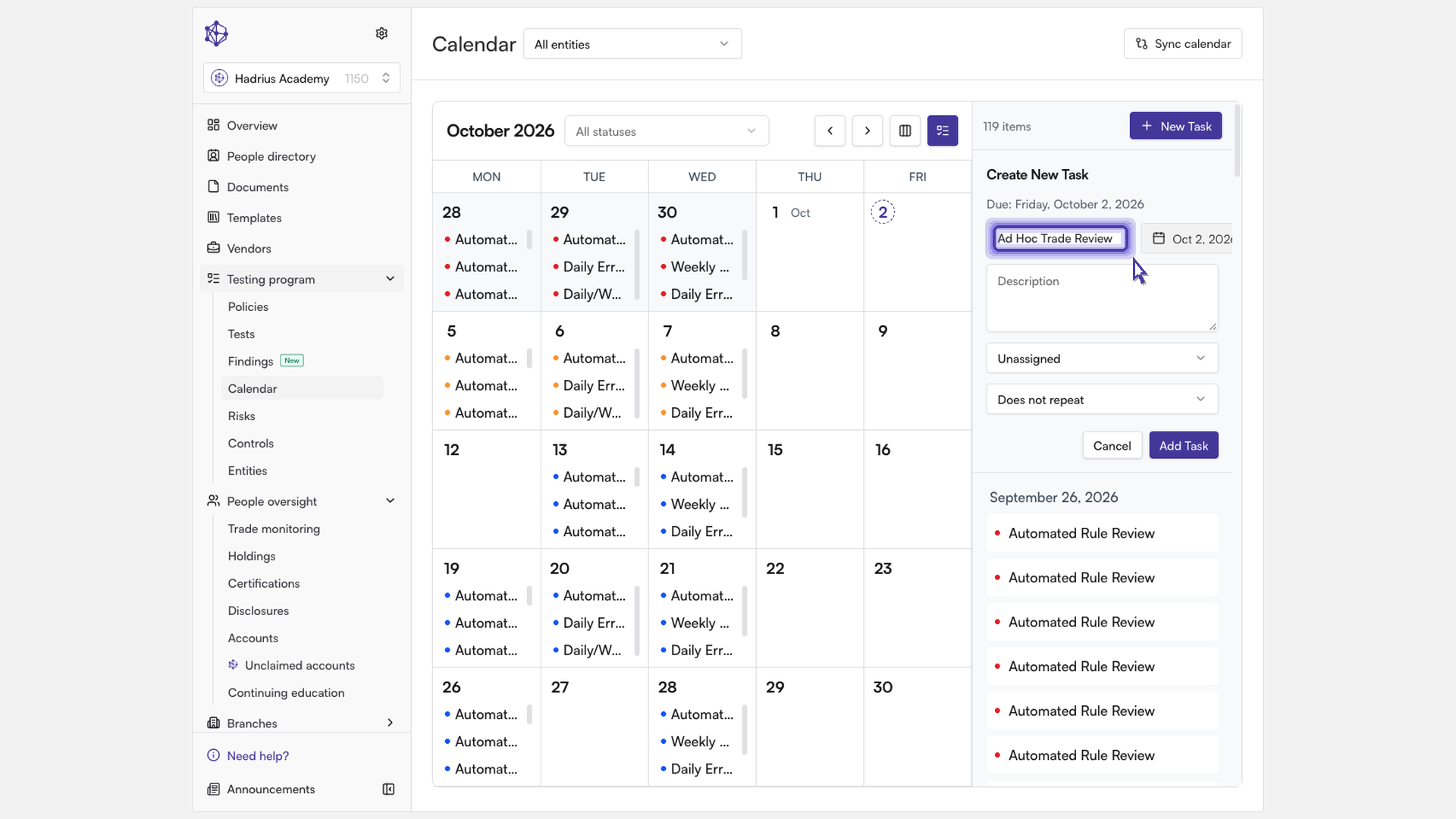
- Name the task. Enter a clear title in the "Title" field. A title is required, so you can't add the task without one. You can also add a description to give the assignee context.
- Adjust the due date if needed. The date picker next to the title lets you change the due date. Open it and choose a later date if the team needs more time. The "Due:" line at the top of the form updates to show the date you chose.
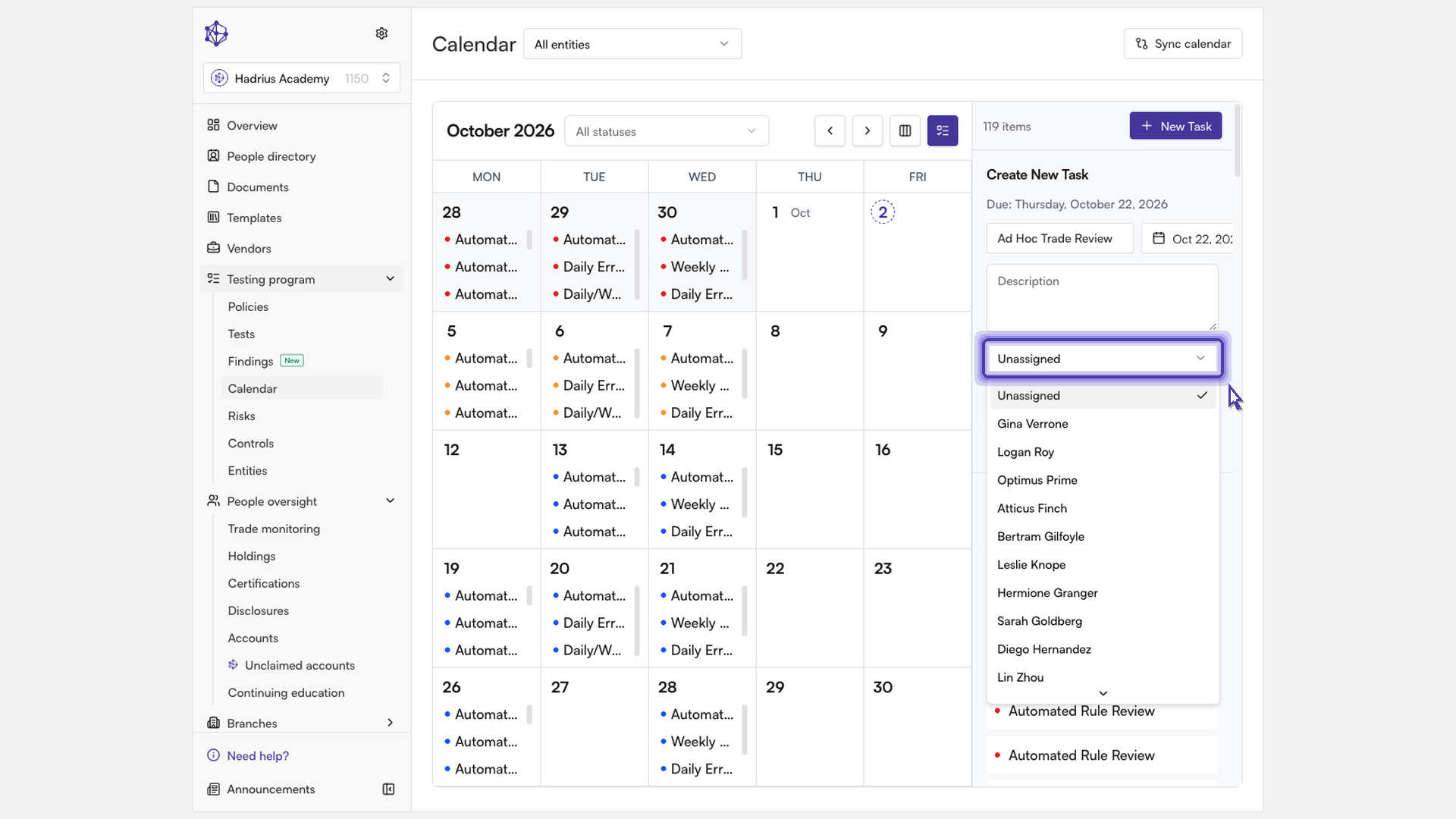
- Assign an owner. Use the "Assignee" dropdown to choose the team member who is responsible for completing the task. The list shows your firm's team members. If you leave it on "Unassigned", the task is still created, but no one is responsible for it.
- Choose how often it repeats (optional). The "Repeat" dropdown defaults to "Does not repeat", which suits a one-off task. You can instead pick a recurring schedule, such as daily, weekly, monthly, quarterly, annually, or every weekday. "Custom..." opens a schedule builder for other patterns.
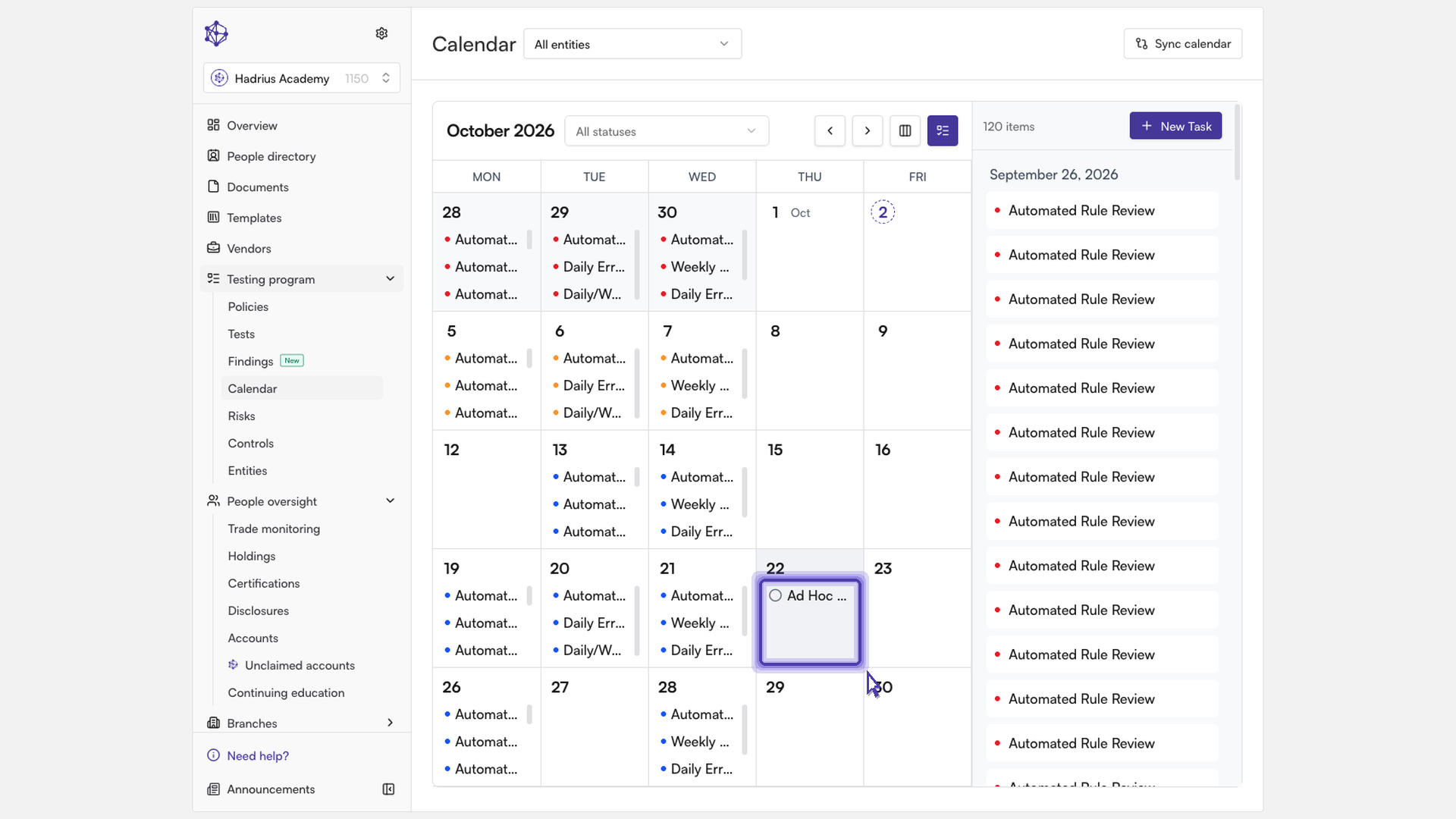
- Click "Add Task". The task is saved and appears on the calendar on its due date, with the assignee shown as its owner.
Checking the task details
Find the new task on the calendar and click its day to open the detail panel, then click the task to expand it. The expanded view shows the description and the assignee.
From there you can click Mark Complete when the work is done (the button changes to "Mark Incomplete" so you can undo it). Edit Task lets you change the title, description, date, or assignee and then click "Save Changes". Delete removes the task. For a recurring task, Delete asks whether to cancel "This Instance Only" or the "Entire Series".
What happens next
The assignee is now responsible for the task, and it stays on the calendar until it is marked complete, so your team can track it alongside the rest of your testing program. If plans change, reopen the task and use Edit Task to move the date or reassign it.