How to acknowledge a business risk during test review
Last updated: October 17, 2026
When a reviewer finds something during test review that shouldn't hold up approval but still needs to be on the record, they can acknowledge it as a business risk. This flags the item, notifies the owner, and lets the review continue — no corrective action is created and no one is blocked waiting on a fix. This article walks through finding a test that needs review and recording that outcome.
Finding tests that need review
Start from the entity's Tests tab, which shows every review in progress for that entity's oversight program. If reviews are overdue or piling up, filter the list down to pending approvals so you're only looking at items that still need a decision.
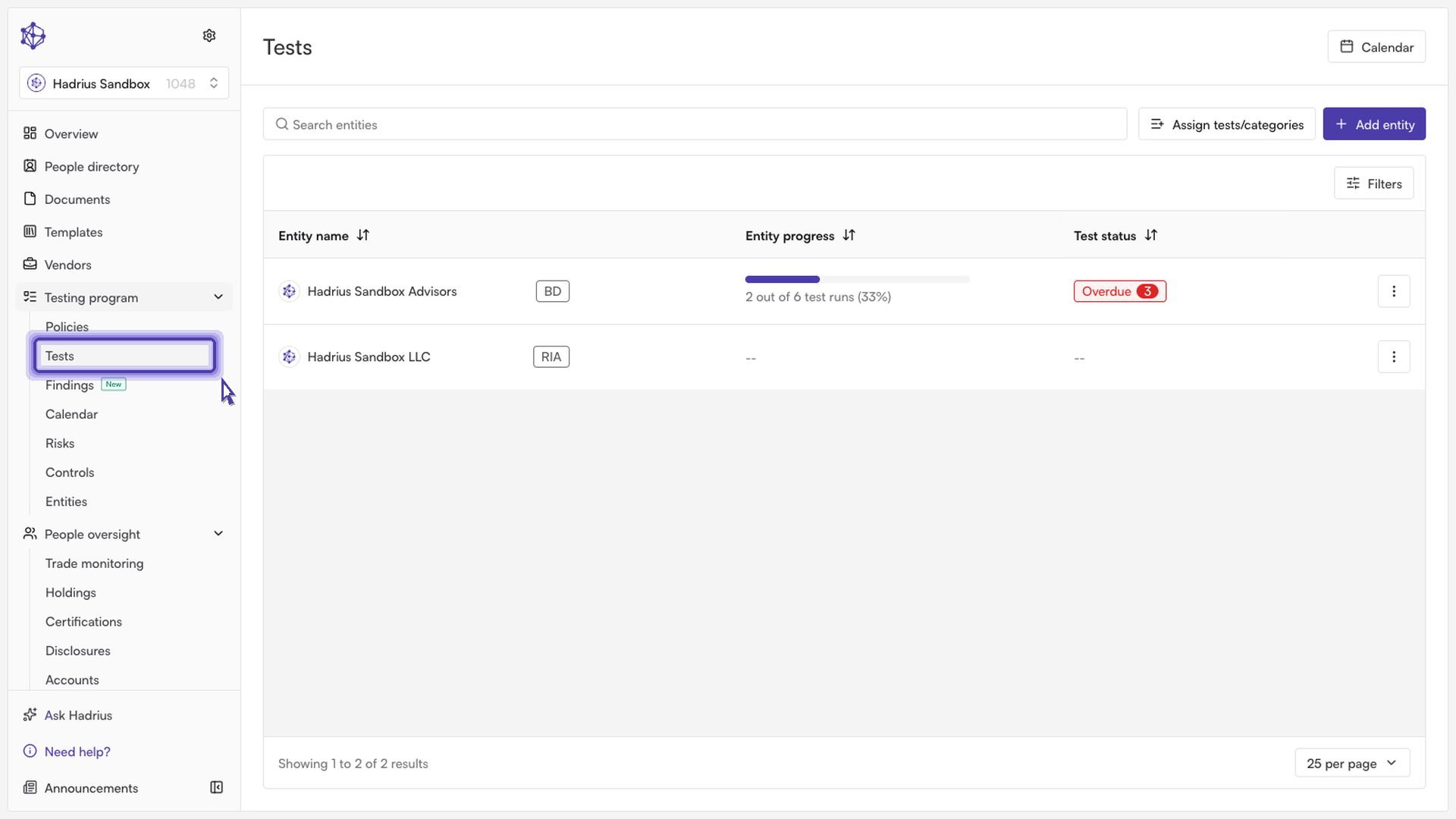
Before opening a review, it's worth confirming ownership is set correctly — who owns the test and who is reviewing it. You can check and update these from the test list itself: select a test, use the menu to assign or reassign the owner and reviewer, and save to lock in the change. This is also a convenient point to hand a review to yourself if you're picking it up.
Opening the review
Select the test and open it to move into the actual review.
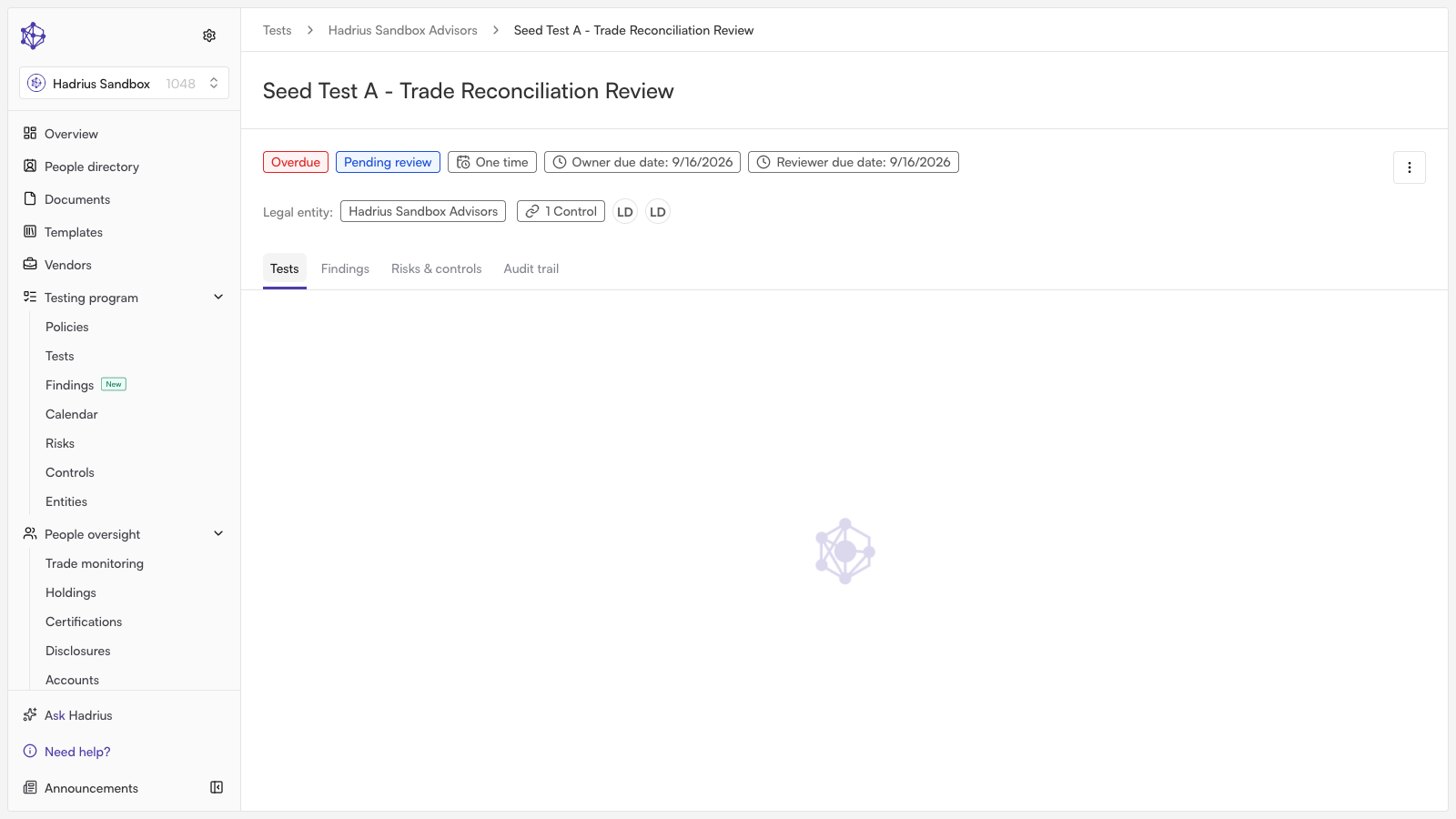
This takes you into the test run itself.
From there, switch to the tasks view to see what within the run still needs a decision.
Choosing an outcome
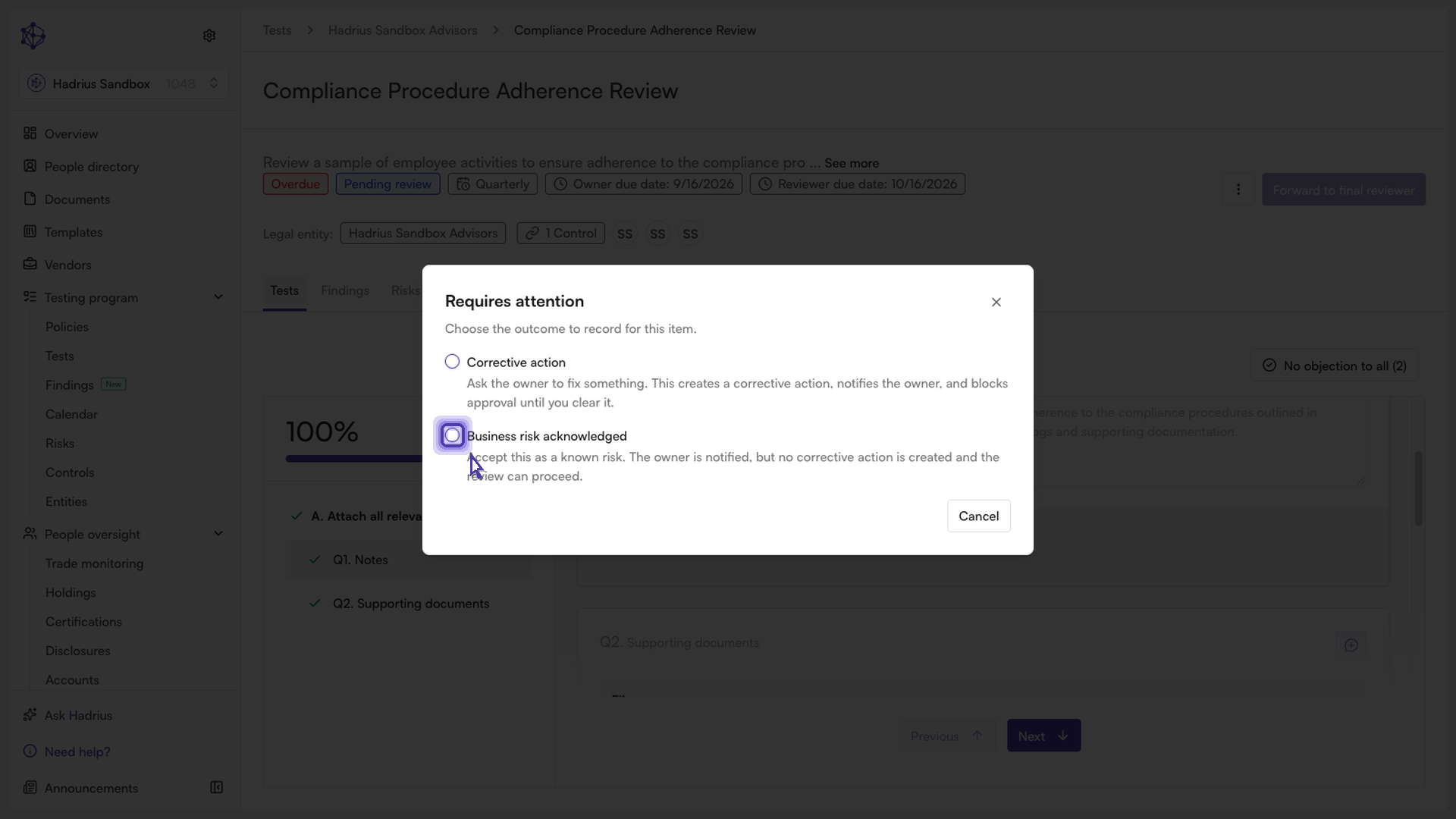
Not every finding needs a corrective action — sometimes it's enough to note that the risk is known and move on. On the item in question, click Requires attention. This opens a dialog asking you to choose the outcome to record for this item, with two options:
Corrective action — asks the owner to fix something. This creates a corrective action, notifies the owner, and blocks approval until the corrective action is cleared.
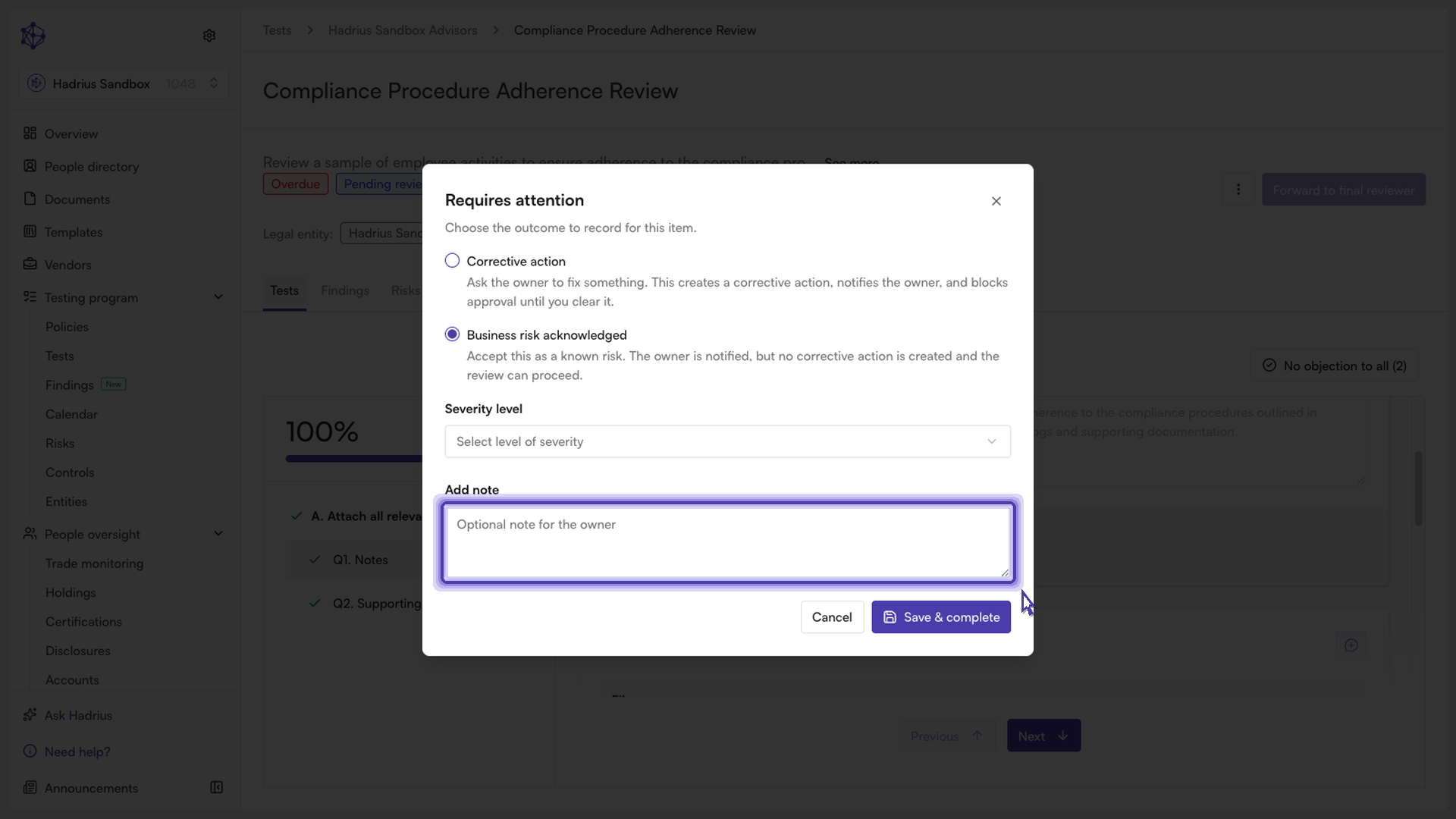
Business risk acknowledged — accepts the finding as a known risk. The owner is notified, but no corrective action is created and the review can proceed.
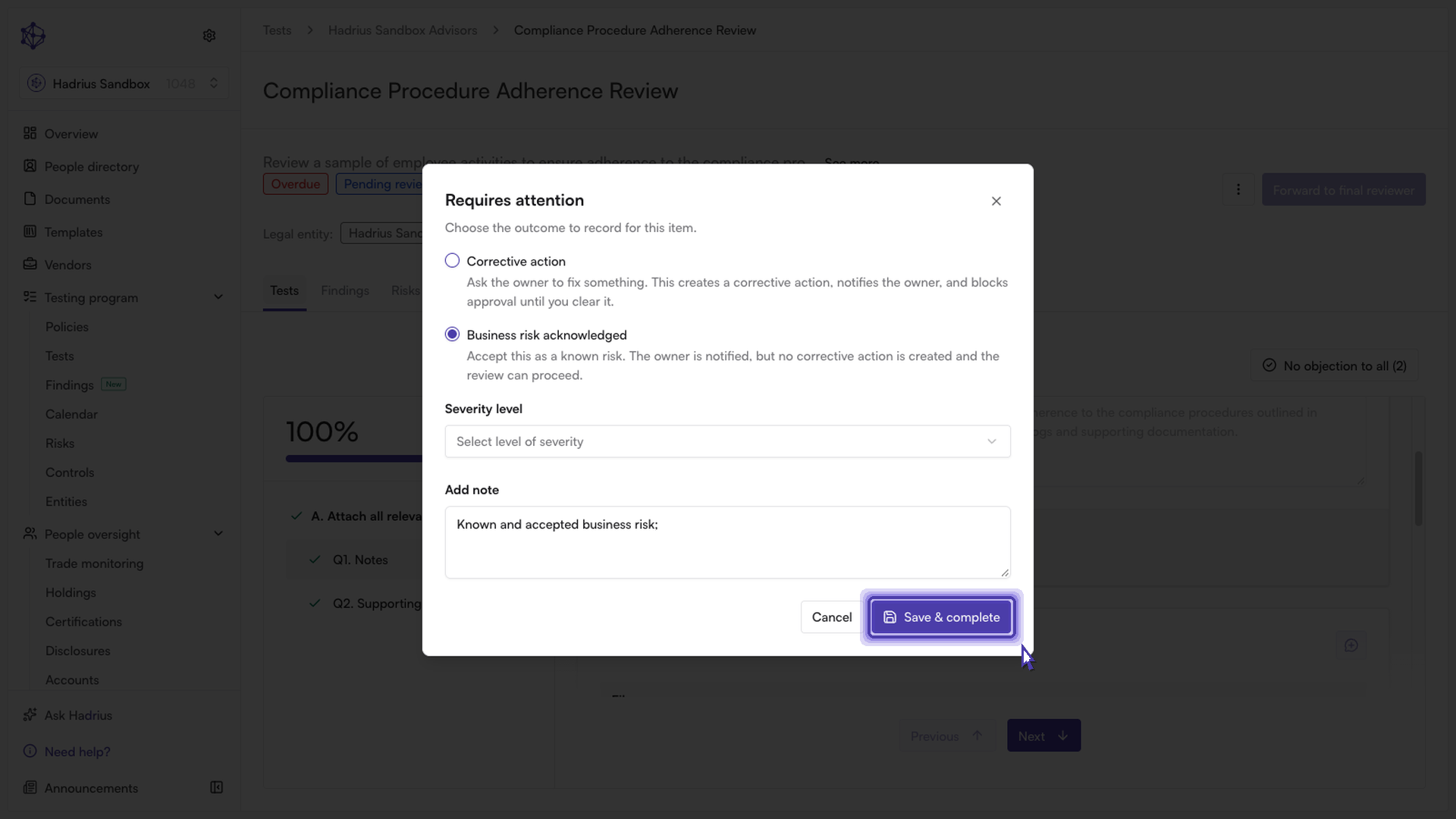
To acknowledge a business risk, select that option. The form that appears lets you optionally set a severity level and add a note for the owner — neither field is required. When you're ready, click Save & complete.
Note: reopening this dialog later always resets to the outcome choice rather than the form you previously filled out, so if you need to change an already-recorded outcome you'll pick it again from scratch.
What happens next
Once saved, you'll see a confirmation that the business risk was recorded, the owner is notified, and the item no longer blocks the review from moving forward. You can then return to the test list to continue working through any remaining items in the queue.