How to cancel or delete a calendar task
Last updated: October 17, 2026
Recurring tasks and one-off items on the compliance calendar can be removed or cancelled directly from the calendar view. This is the workflow to use when a scheduled task no longer applies — whether you want to skip a single upcoming occurrence or stop a recurring task from generating any future occurrences.
Finding and opening the task
Every task and test run appears on the compliance calendar on its due date. Click into a day to open its details, which lists each item along with its current status and assignee at a glance.
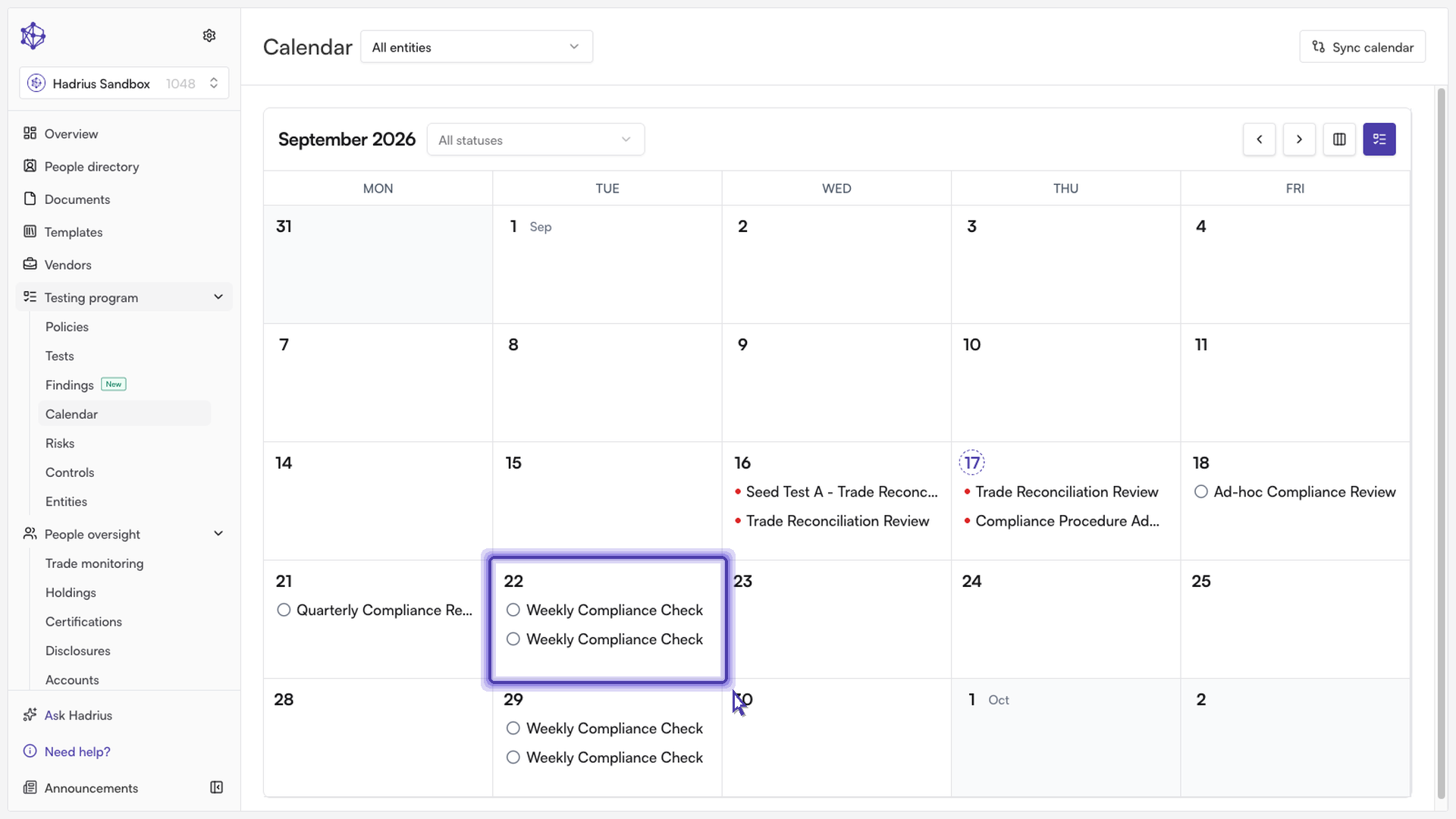
Click on a task in that list to expand it. The expanded view shows the task's description and assigned owner, along with the actions available for that task: marking it complete or incomplete, editing it, or deleting it.
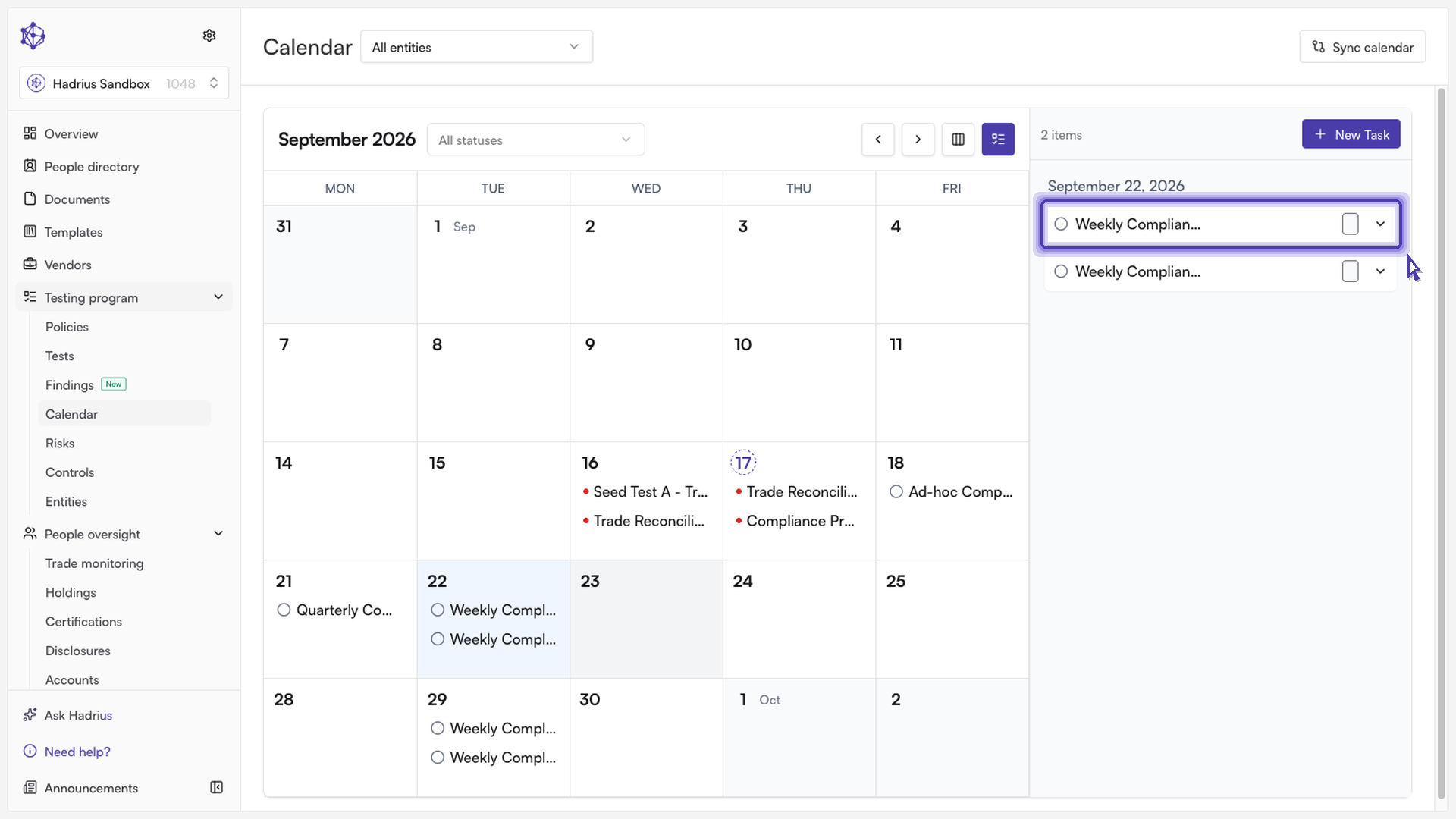
Deleting or cancelling the task
Click "Delete" to remove the task.
If the task does not repeat, it is deleted immediately — there's no additional confirmation step, since there's no ambiguity about what "delete" affects.
If the task is part of a recurring series, a confirmation dialog appears asking whether to cancel only this specific instance or the entire series (this and all future instances).
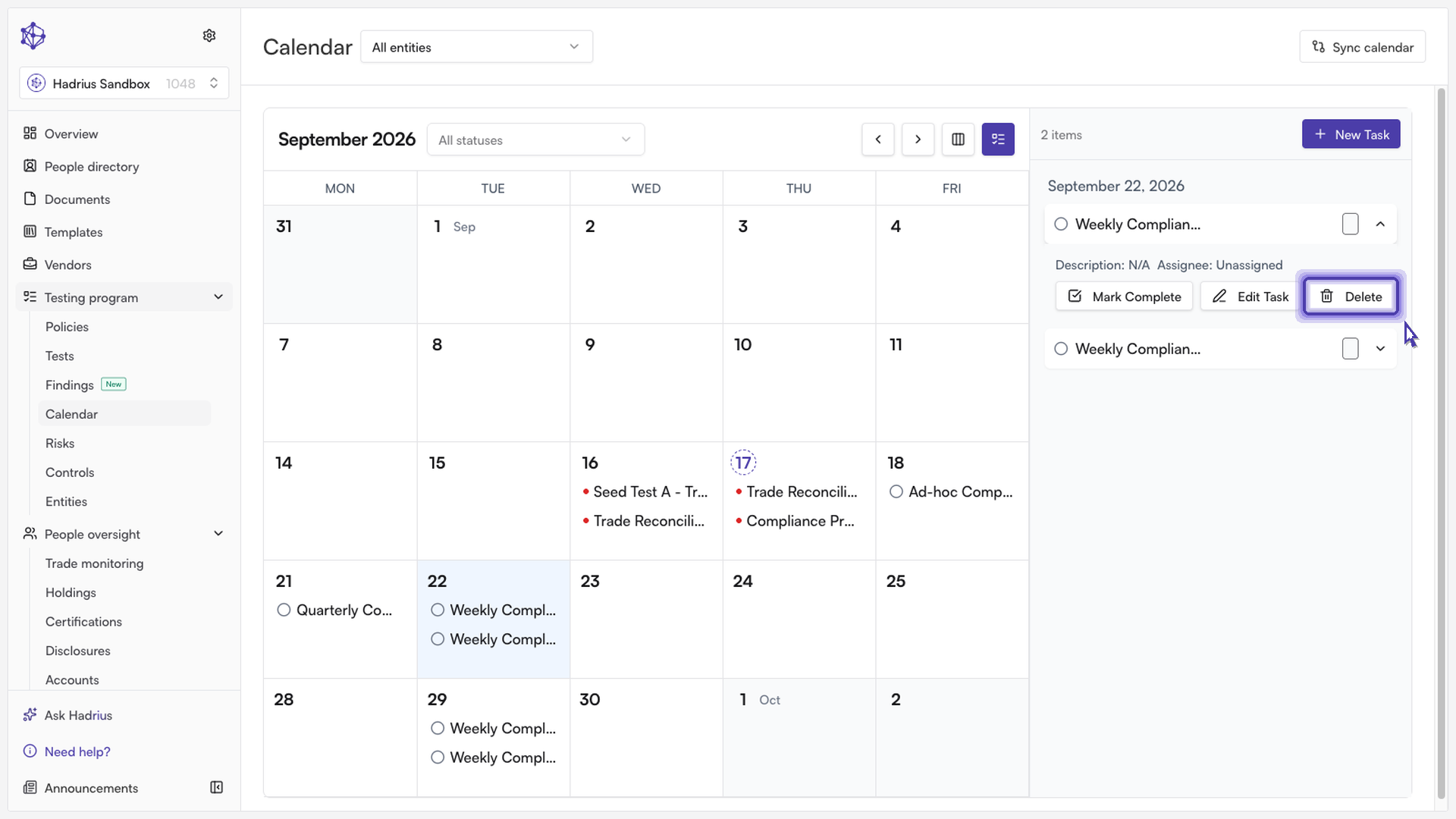
From that dialog, you have three options:
Nevermind closes the dialog without making any changes.
This Instance Only cancels just the selected occurrence. The recurring series stays intact, and all other past and future occurrences are unaffected — only this one is marked as cancelled.
Entire Series deletes the task itself, which removes the recurring series going forward.
What happens after cancelling a single instance
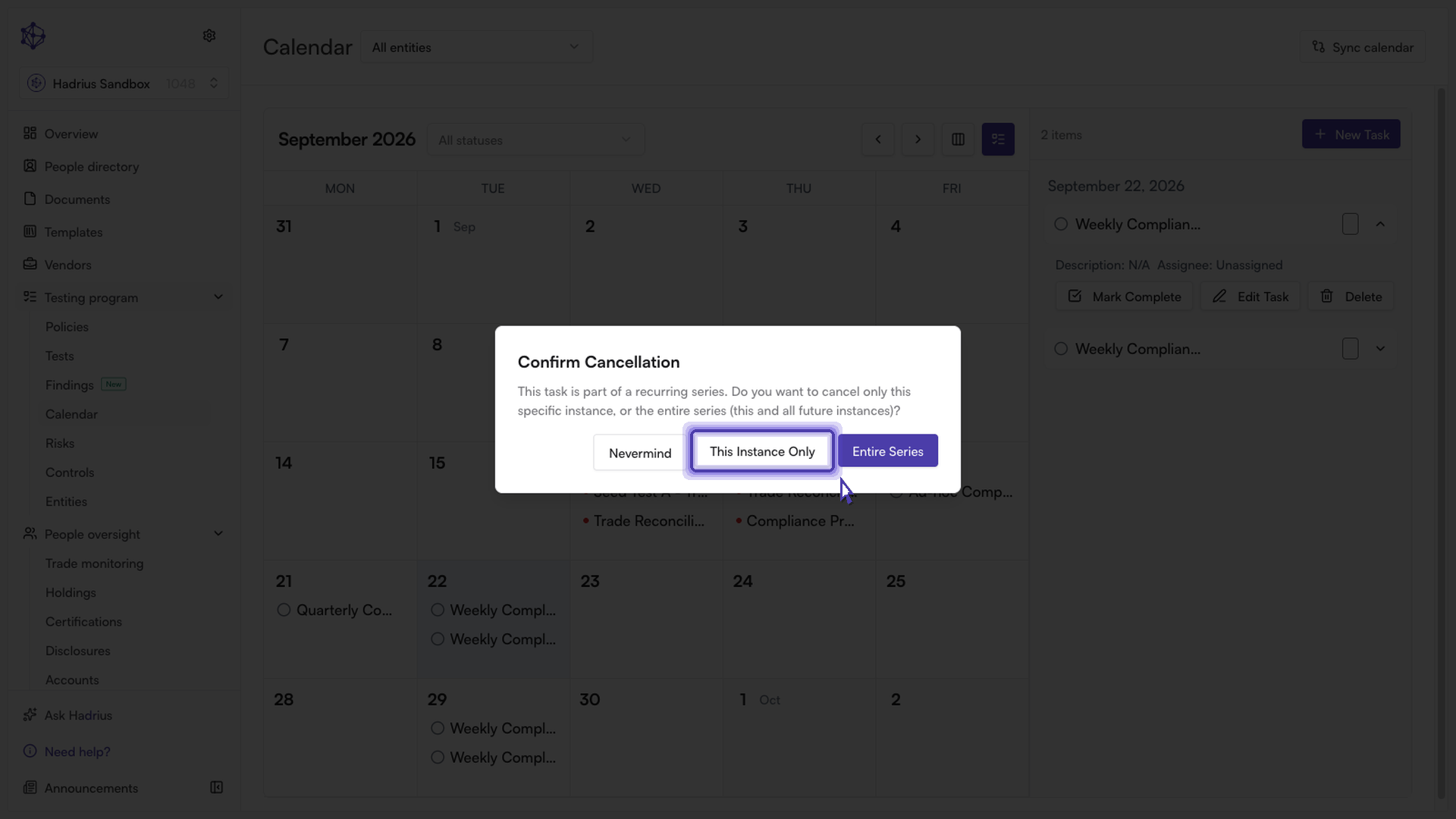
When you choose "This Instance Only," that occurrence's status updates to cancelled and it will no longer show as outstanding on the calendar, while the rest of the recurring schedule continues generating future occurrences as normal.
Note: Deleting the entire series cannot be undone from the calendar — if you only meant to skip one occurrence, choose "This Instance Only" instead.