How to add a new entity
Last updated: October 17, 2026
When launching a new branch, subsidiary, or fund, you need to configure it in Hadrius to isolate and track its specific compliance obligations. Adding an entity establishes distinct rule sets, audit trails, and documentation requirements tailored to that branch of your organization.
Follow the steps below to add and configure a new entity in your Hadrius account.
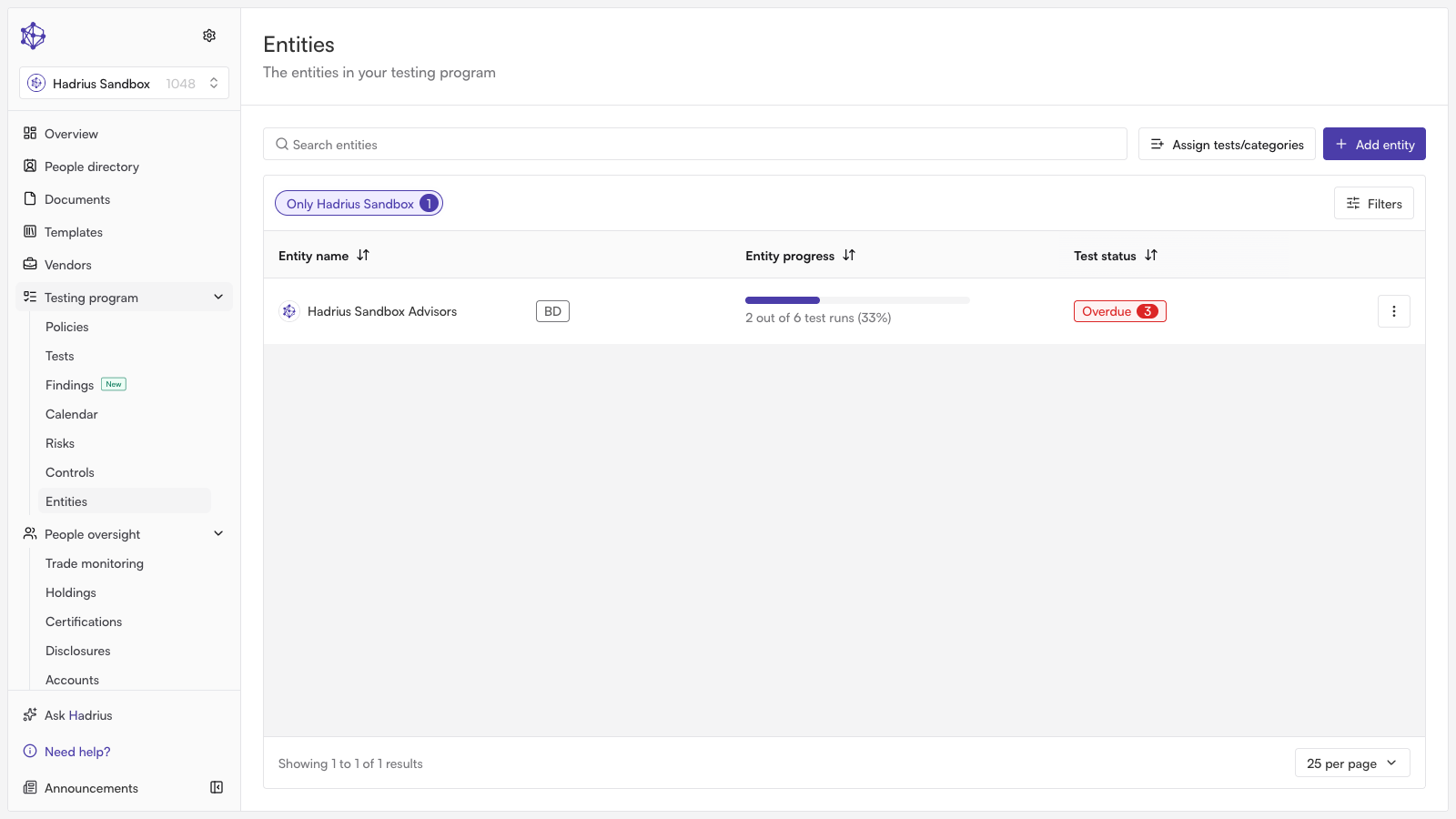
Navigate to the Entities dashboard: Open the Entities section from your main navigation to view your existing organization branches. Click Create Entity to start the setup process.
Enter the entity name: In the setup form, provide a clear, recognizable name for the entity so team members can easily distinguish it across platform reports, filters, and workflows.
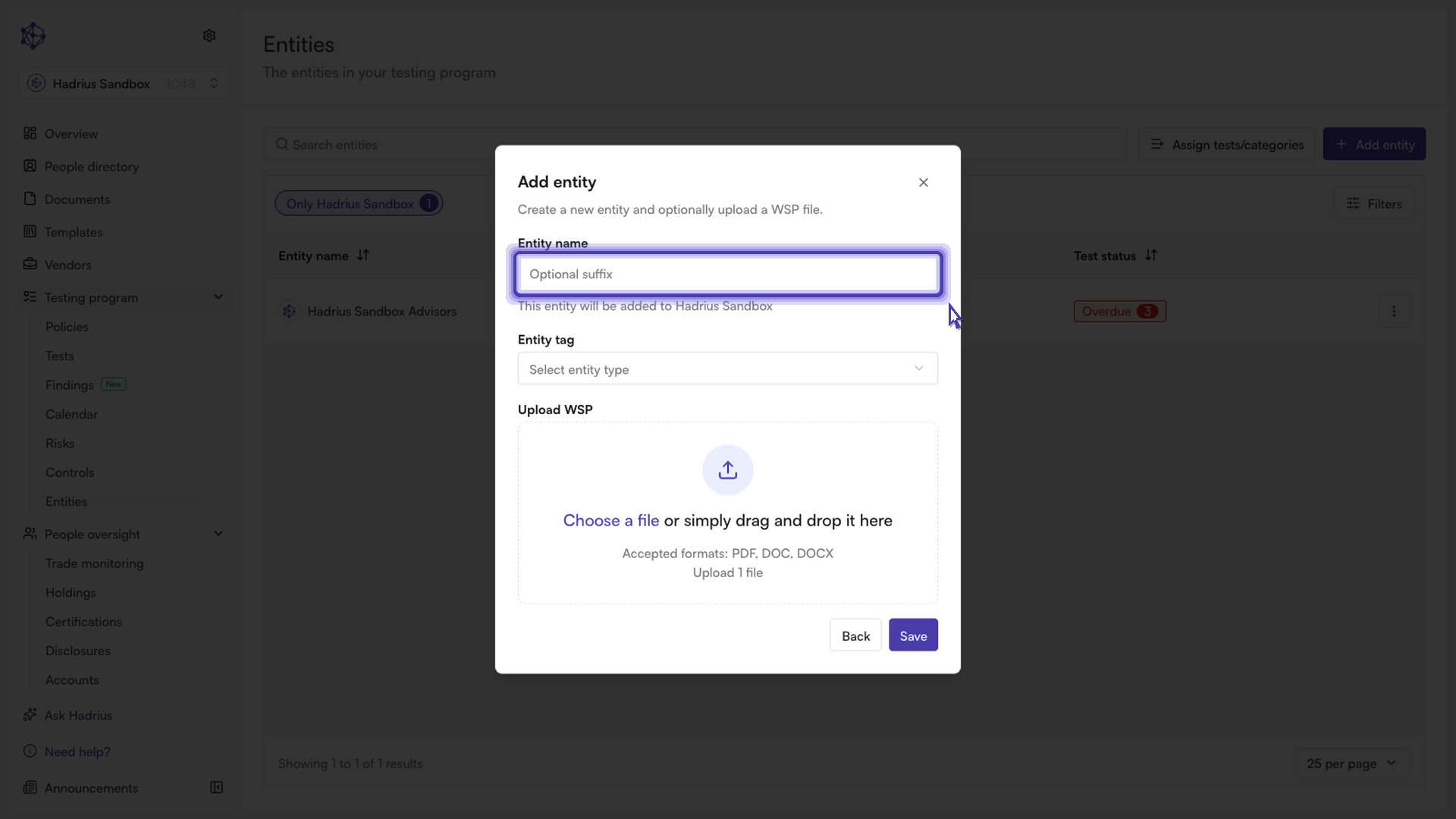
Assign a regulatory classification: Choose the appropriate regulatory classification from the dropdown. This designation is critical, as it determines the specific compliance rules, monitoring thresholds, and obligation schedules Hadrius will apply.
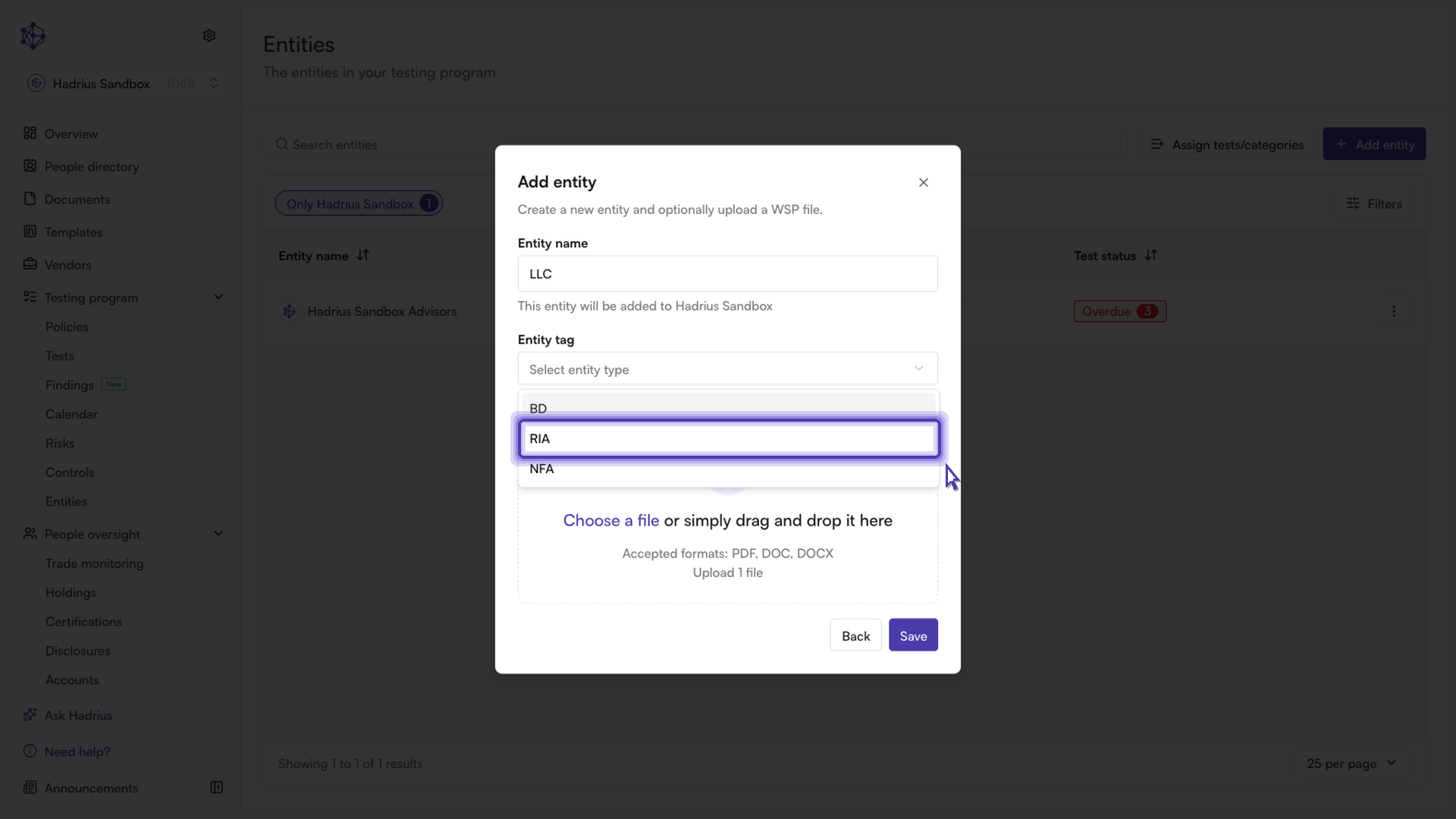
Upload formation documents (optional): Attach key organizational records—such as articles of incorporation, partnership agreements, or state registrations—to keep essential entity documentation centralized and audit-ready.
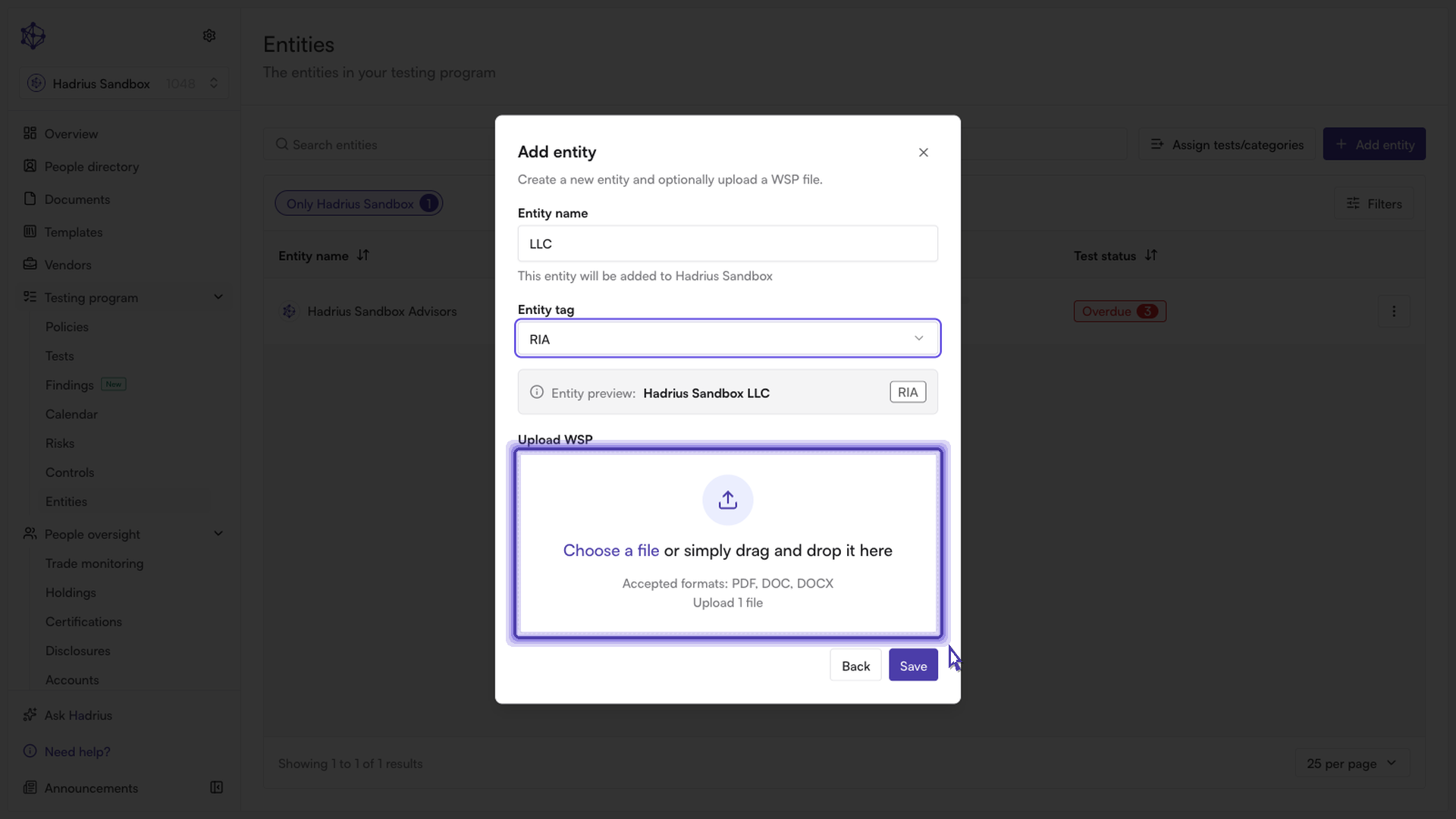
Save the entity: Click Save to confirm the configuration.
What happens next
Once saved, the new entity is immediately integrated into Hadrius. Ongoing monitoring workflows, compliance calendars, and rule sets specific to its classification will activate automatically.