How to link a control to a policy section
Last updated: October 17, 2026
Use this workflow when a control needs to be tied to the specific part of a policy it enforces, so reviewers can see, at a glance, which section of the document a given control is meant to satisfy. This is done from within the policy itself, one section at a time, and works with controls that already exist in your library — no need to duplicate or recreate one.
Before you start
Open the policy library and confirm you're working in the correct entity, since every policy, control, and link is scoped to the organization you have selected. From the library, open the policy you want to work in.
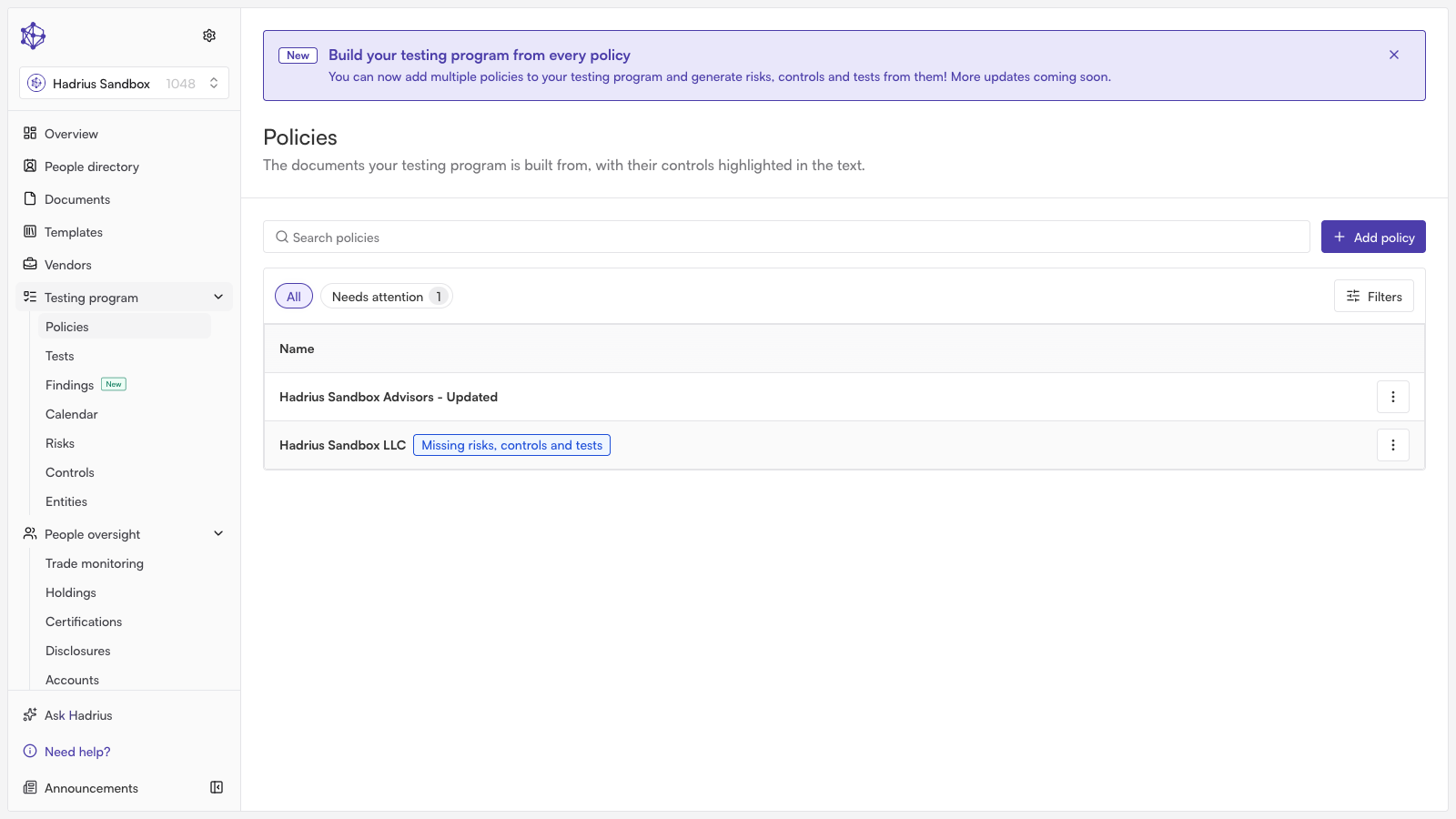
Narrow the document to the right section
Once the policy is open, use the section list on the left to find the part of the document you want to connect a control to. Select that section, then choose Show only this section. This narrows the document view to just that section's text and switches the right-hand pane from a firm-wide view of every control in the policy to a focused view titled "Controls in this section" — the only view a link can be added from.
Note: narrowing the document also turns off editing for the policy text itself until you return to the full view. A section made up entirely of a list or table has no anchor of its own to narrow to; if you pick one of those, Hadrius will tell you it can't isolate that section and shows the whole document instead.
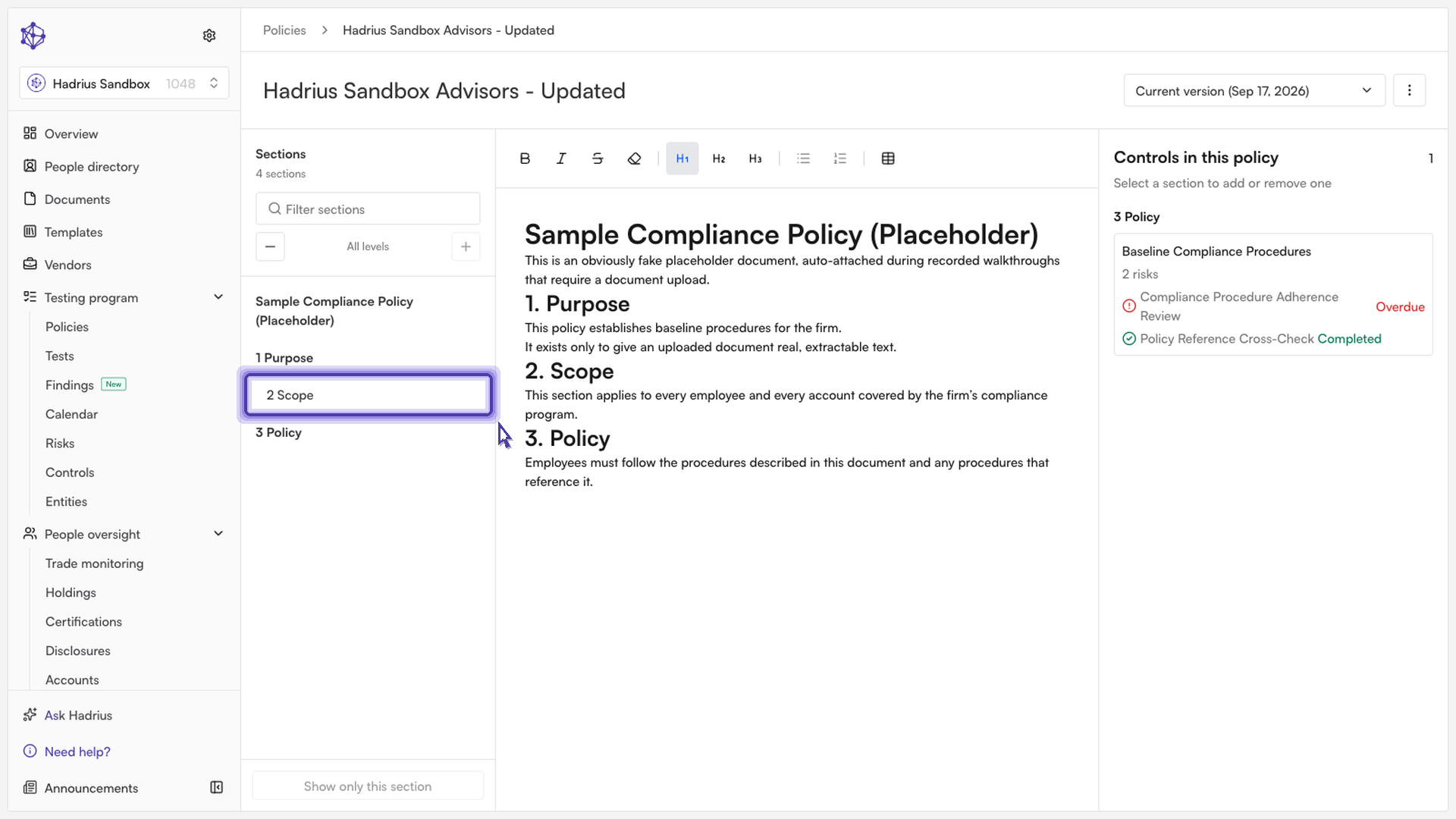
Link an existing control
With the section narrowed, the panel on the right lists any controls already linked here, plus two ways to add one: Link control, which connects a control that already exists in your library, and Generate control, which drafts a brand-new one from the section's text using AI. To connect an existing control, choose Link control.
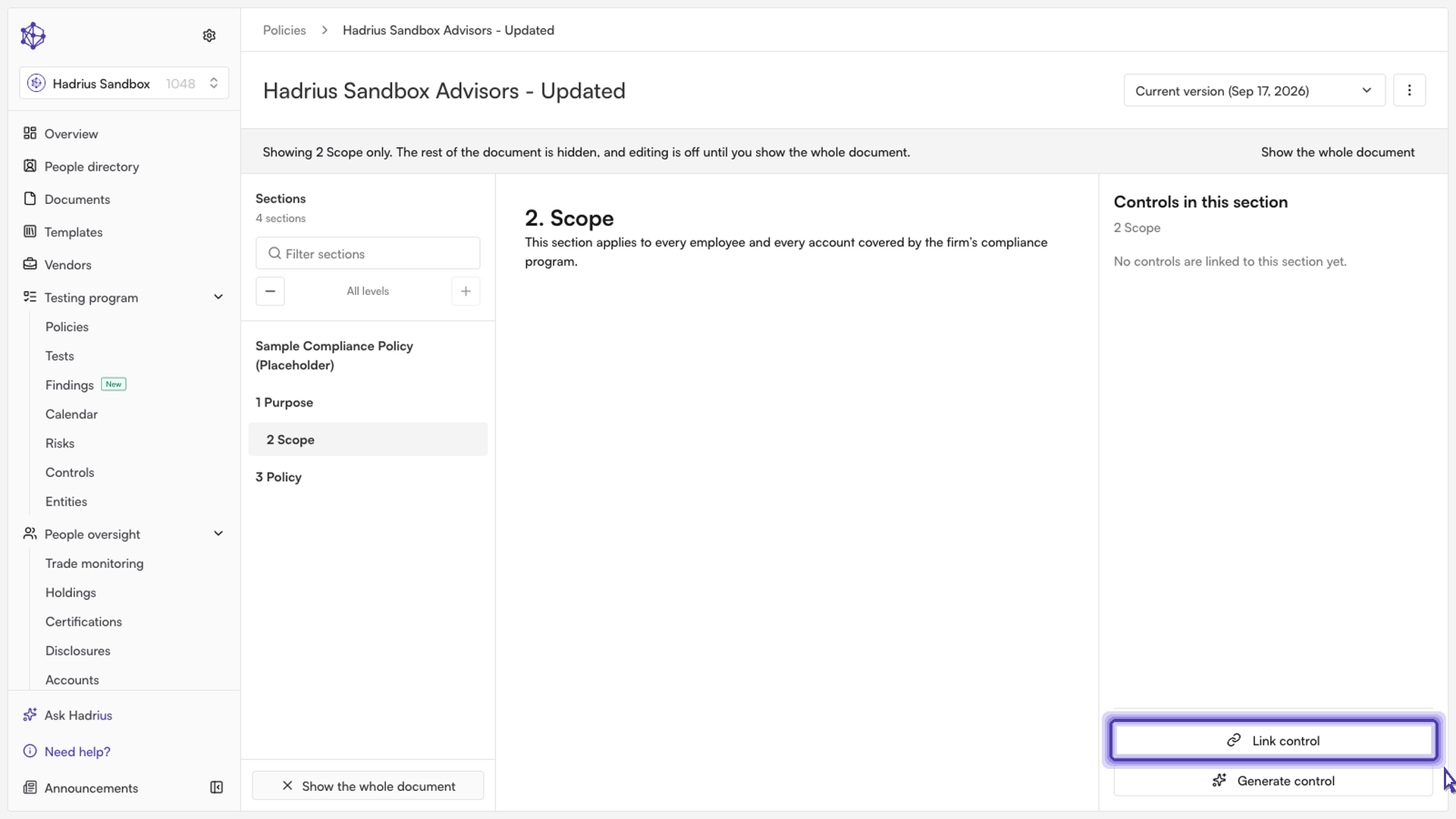
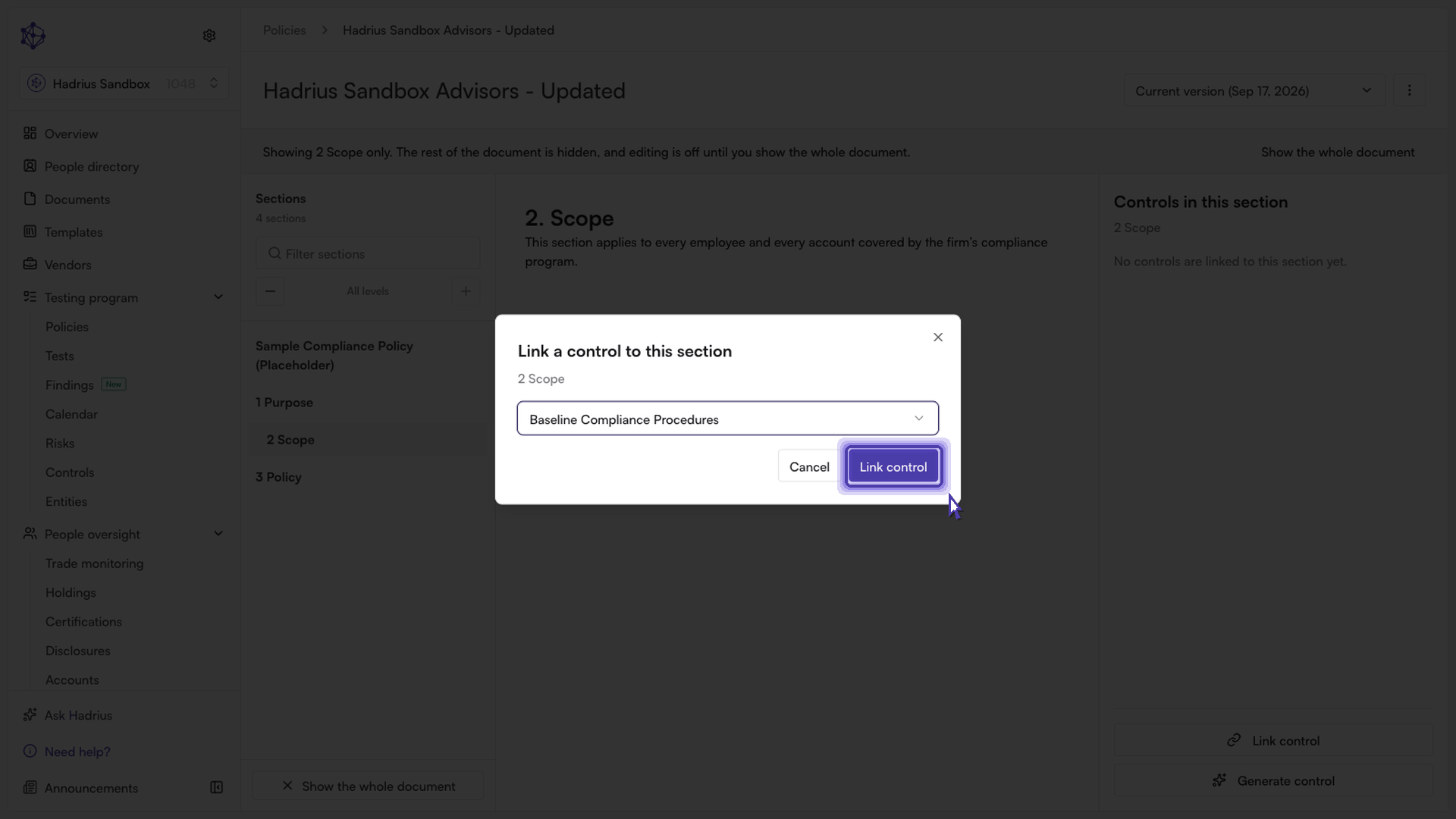
This opens a dialog titled "Link a control to this section." Use the dropdown to select the control that governs this part of the policy — only controls in this policy that aren't already linked to the section appear in the list, so you won't accidentally create a duplicate link.
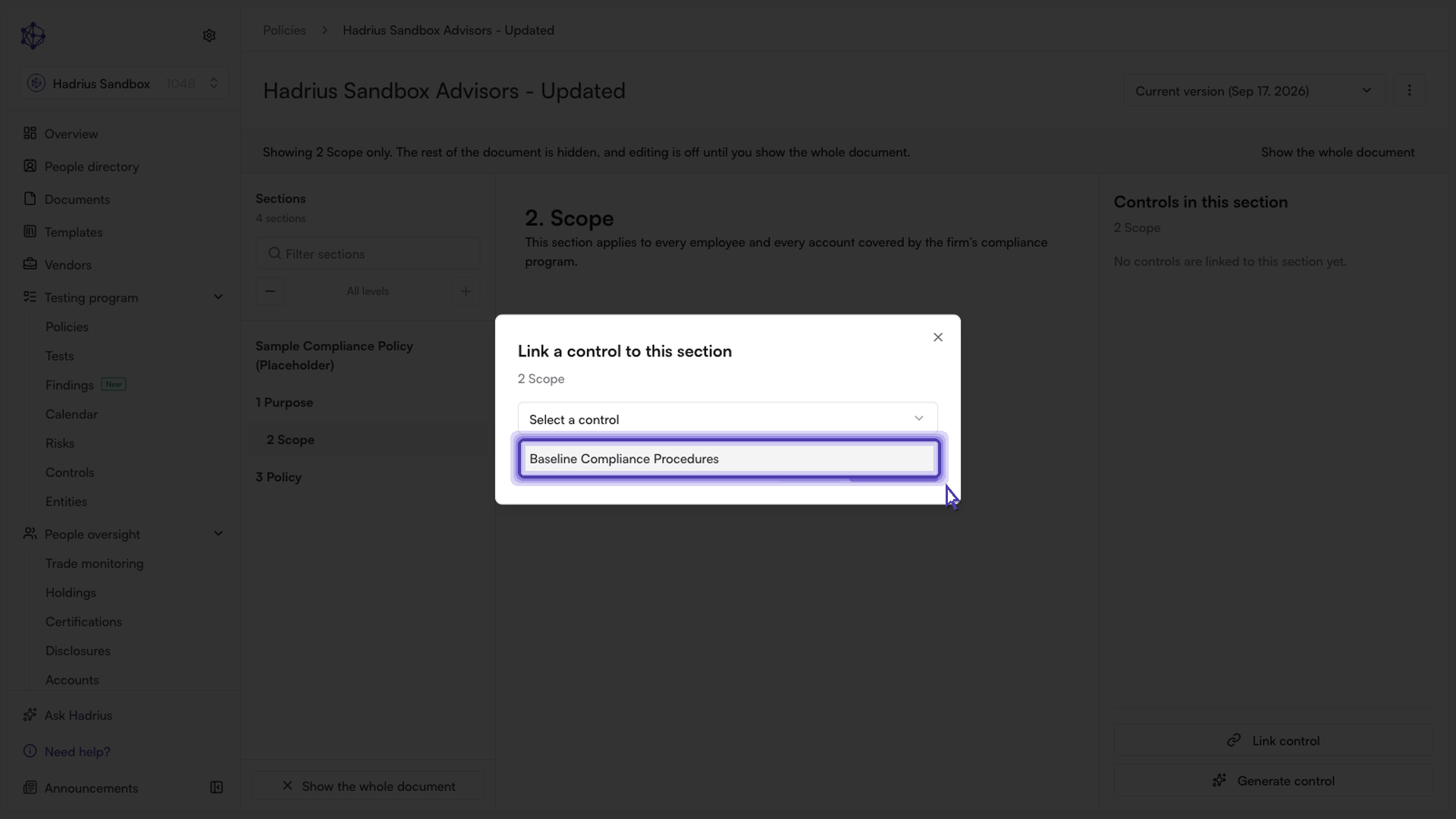
Confirm the link
Select the control and choose Link control in the dialog footer to confirm. The dialog closes, a confirmation appears, and the control now shows up in the "Controls in this section" list for that section — tying the policy language and the control together going forward.
What's next
You can remove a link at any time from the same panel using the trash icon next to a linked control, without affecting the underlying control or its risks and tests. When you're done, select Show the whole document to return to the full policy view.