Assigning a Risk Score
Last updated: October 17, 2026
In the Testing Program module, every risk in the Risk Register has a manual impact score from 1 (low impact) to 5 (very high impact). Each risk has two scores. The Inherent risk score rates the risk before any controls are applied, and you set it when you create the risk. The Residual risk score rates what is left after controls are in place. It is optional and is usually added once controls have been mapped to the risk. A Firm Oversight admin enters both scores when creating or editing a risk. This article covers how to score a risk that is already in your register and how to add and score a custom risk that the risk library doesn't cover.
Scoring an existing risk
Go to Testing Program > Risks and open the Register tab. The register lists each risk's scenario, category, inherent risk score, and residual risk score. A risk that hasn't been scored yet shows "?" in place of a number.
Find the risk you want to score. You can use the search bar or the category filter to narrow the list. Open the row's actions menu and select "Edit" to open the risk's details panel.
In the Guidance field, explain how your team should manage this risk.
Under Inherent risk, drag the Impact slider to a value from 1 to 5. The selected value appears beside the slider.
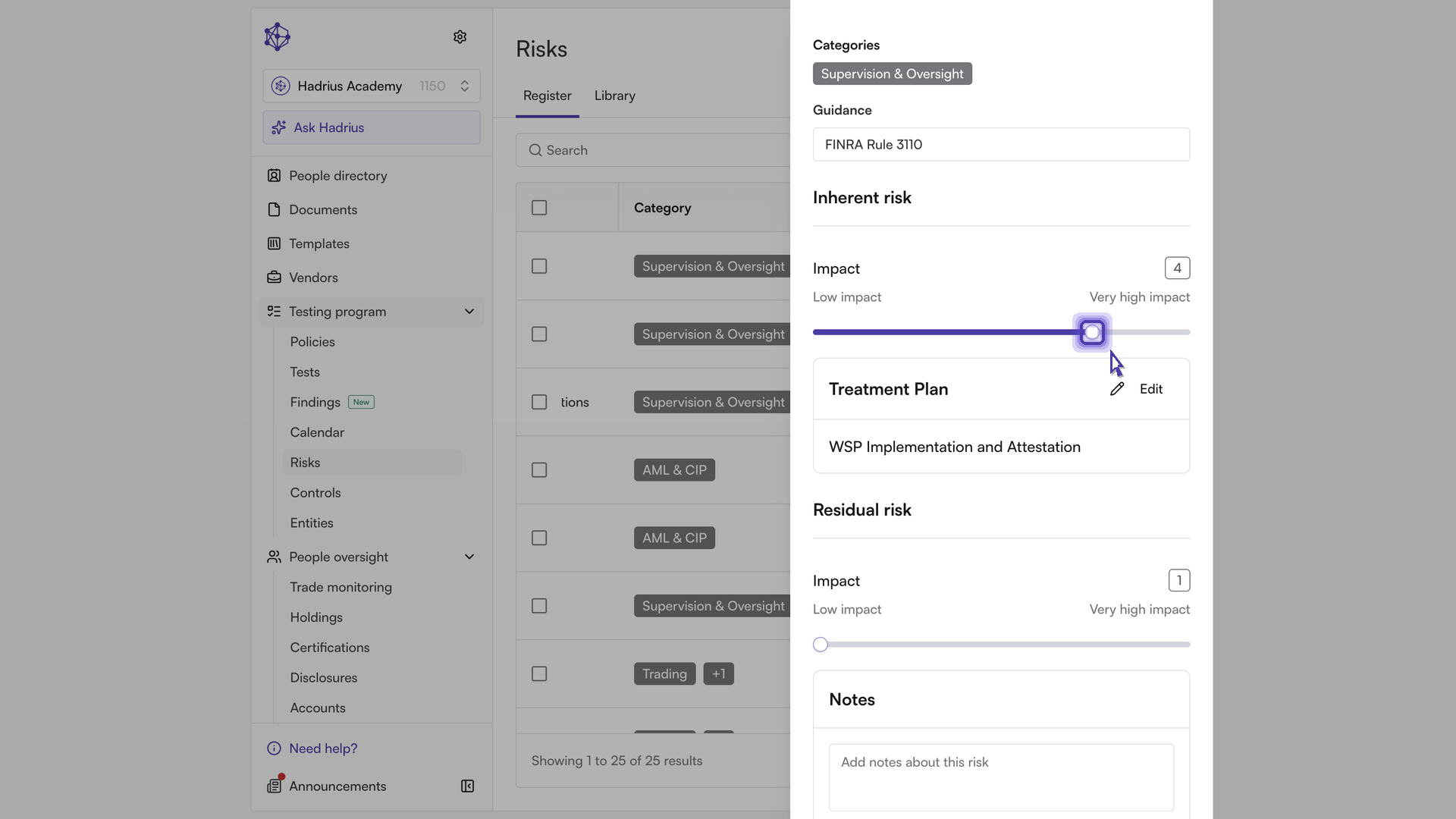
If controls are already in place for this risk, you can also set the Residual risk slider. It sits below the Treatment Plan section, where you link the controls that address the risk.
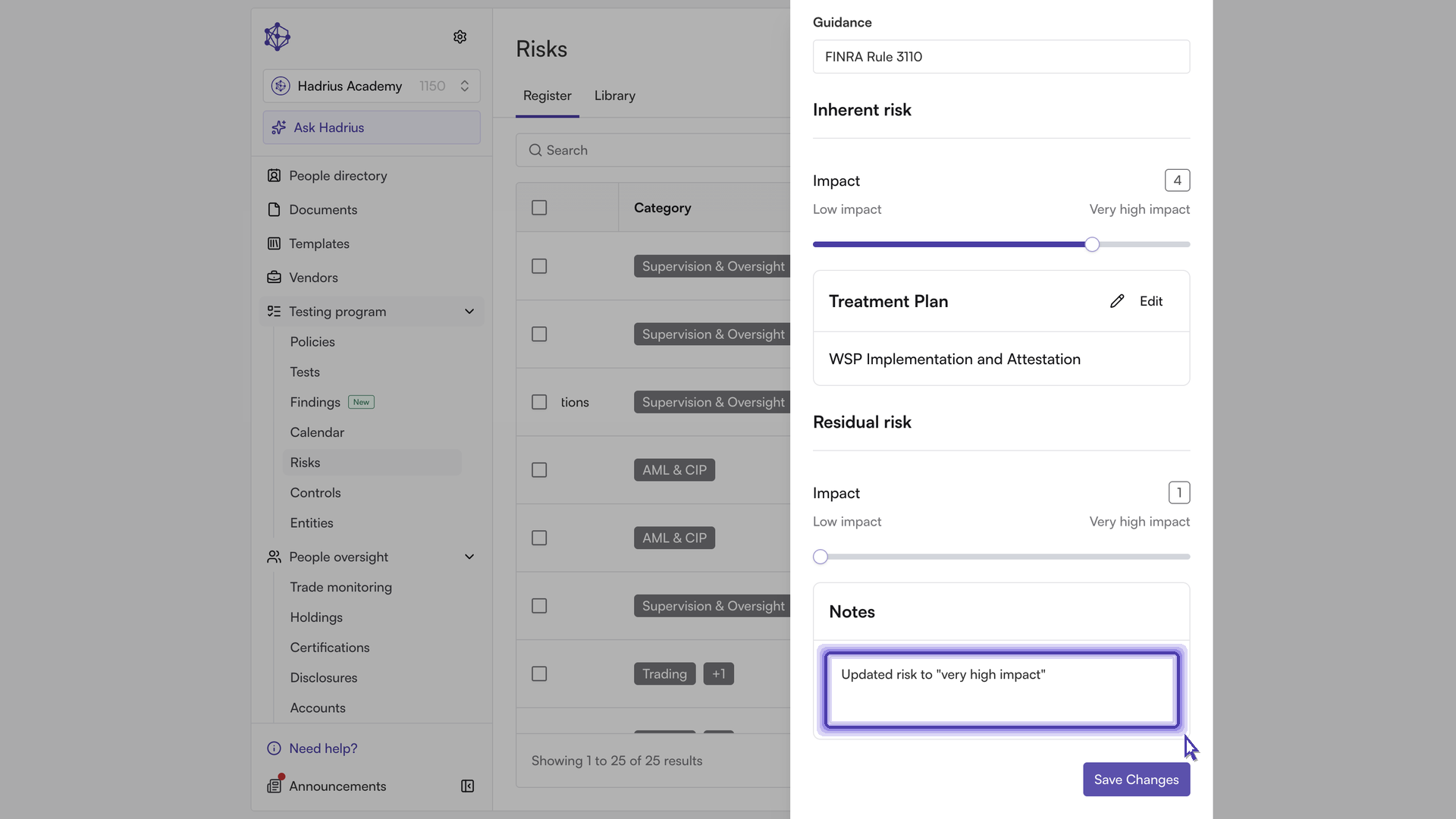
In the Notes section, write down why you chose this score. These notes give context for later reviews and audits.
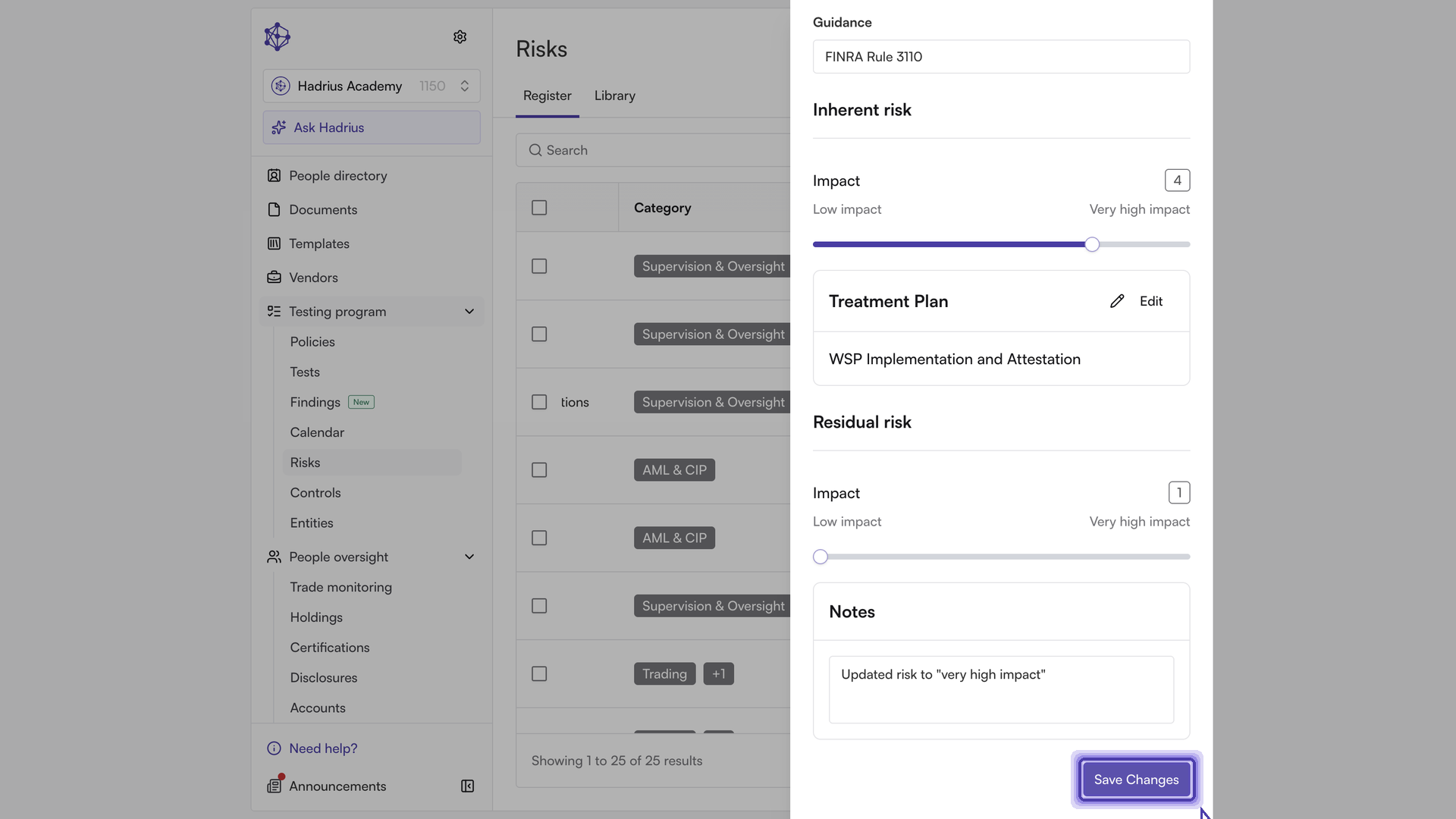
Click "Save Changes." The risk record updates, and the new score appears in the register right away.
In the register, scores are colour-coded so higher-impact risks are easy to spot: scores of 4 and 5 show in red, 3 in amber, and 1 and 2 in green.
Adding and scoring a custom risk
Custom risks let you track scenarios that are specific to your firm and aren't already in the risk library.
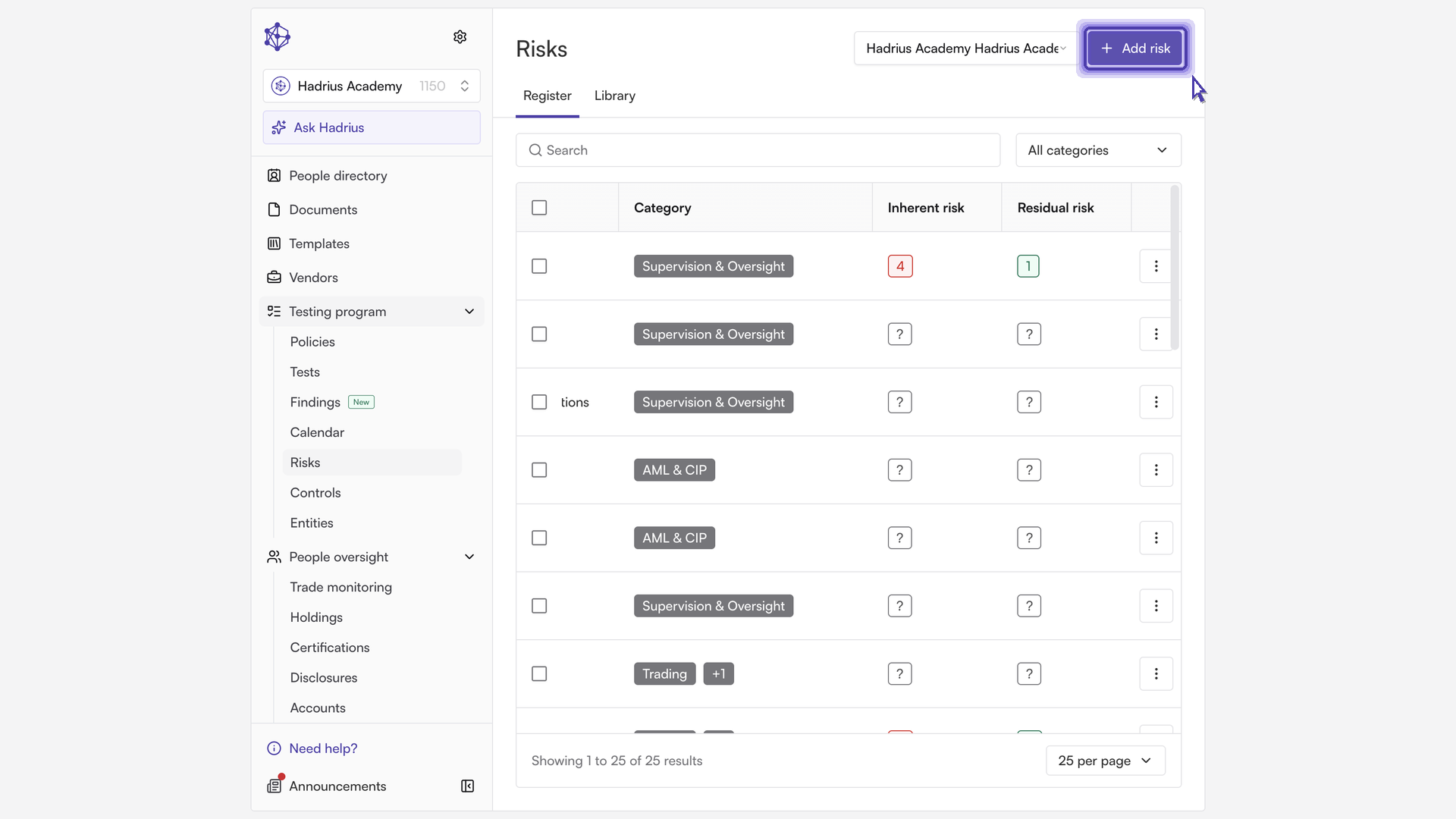
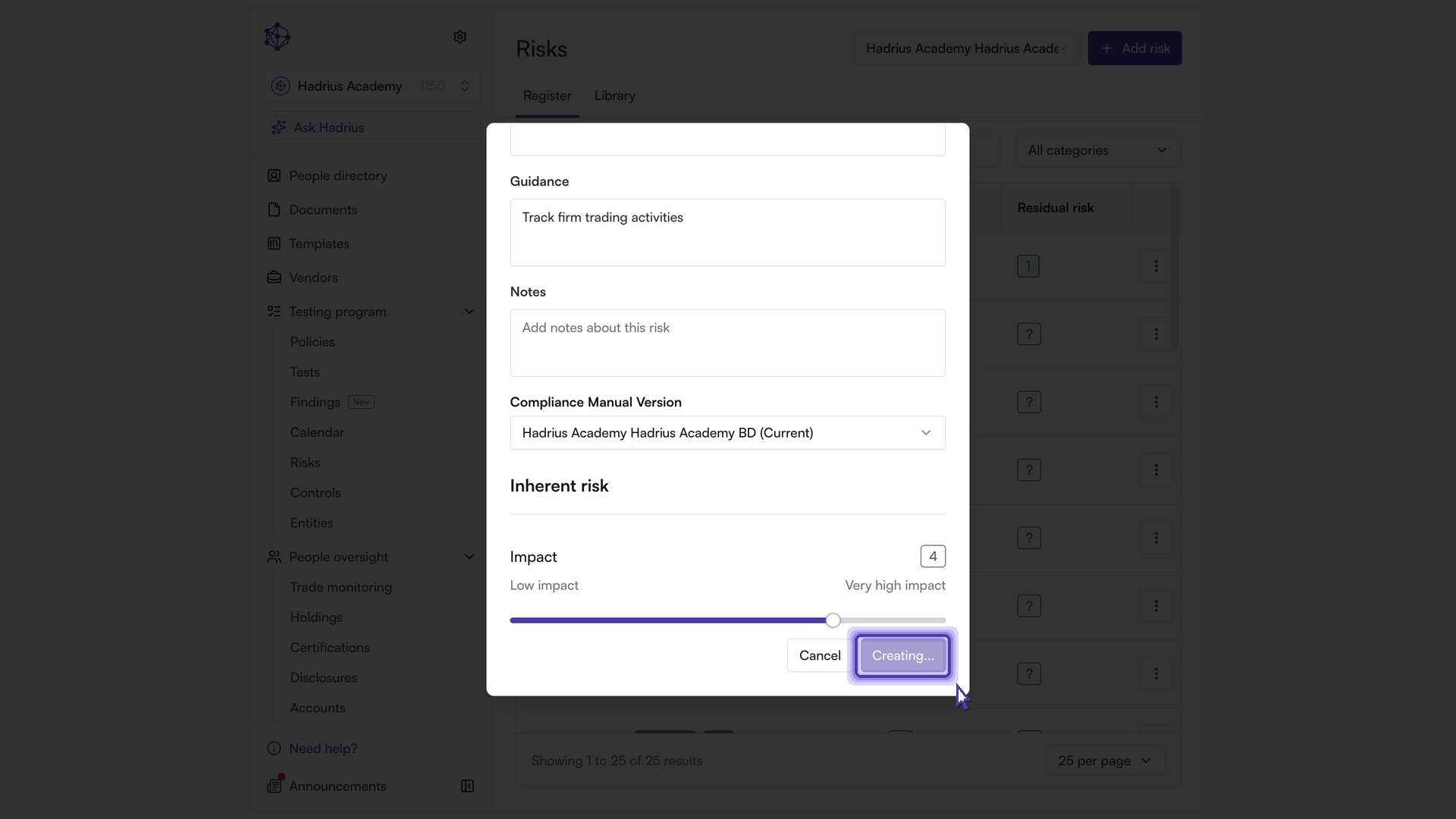
On the Register tab, click "Add risk" to open the Create risk dialog. This button only appears when the compliance manual version selected at the top of the page is the active version.
Under Details, fill in the Guidance field so the risk's owner knows how to handle it.
Complete the remaining details so the scenario is clearly documented:
Scenario: describe the risk scenario.
Notes: add any background or reasoning behind the risk.
Compliance Manual Version: confirm which manual version the risk belongs to.
Under Inherent risk, use the Impact slider to set a score from 1 to 5.
Click "Create risk."
What happens next
The new risk appears in the Risk Register with its inherent risk score. The Create risk dialog only captures the inherent score. To set the residual score, open the risk from the register, link the controls that address it in the Treatment Plan section, set the Residual risk slider, and click "Save Changes."