Admin/Employee View Switch
Last updated: September 2, 2026
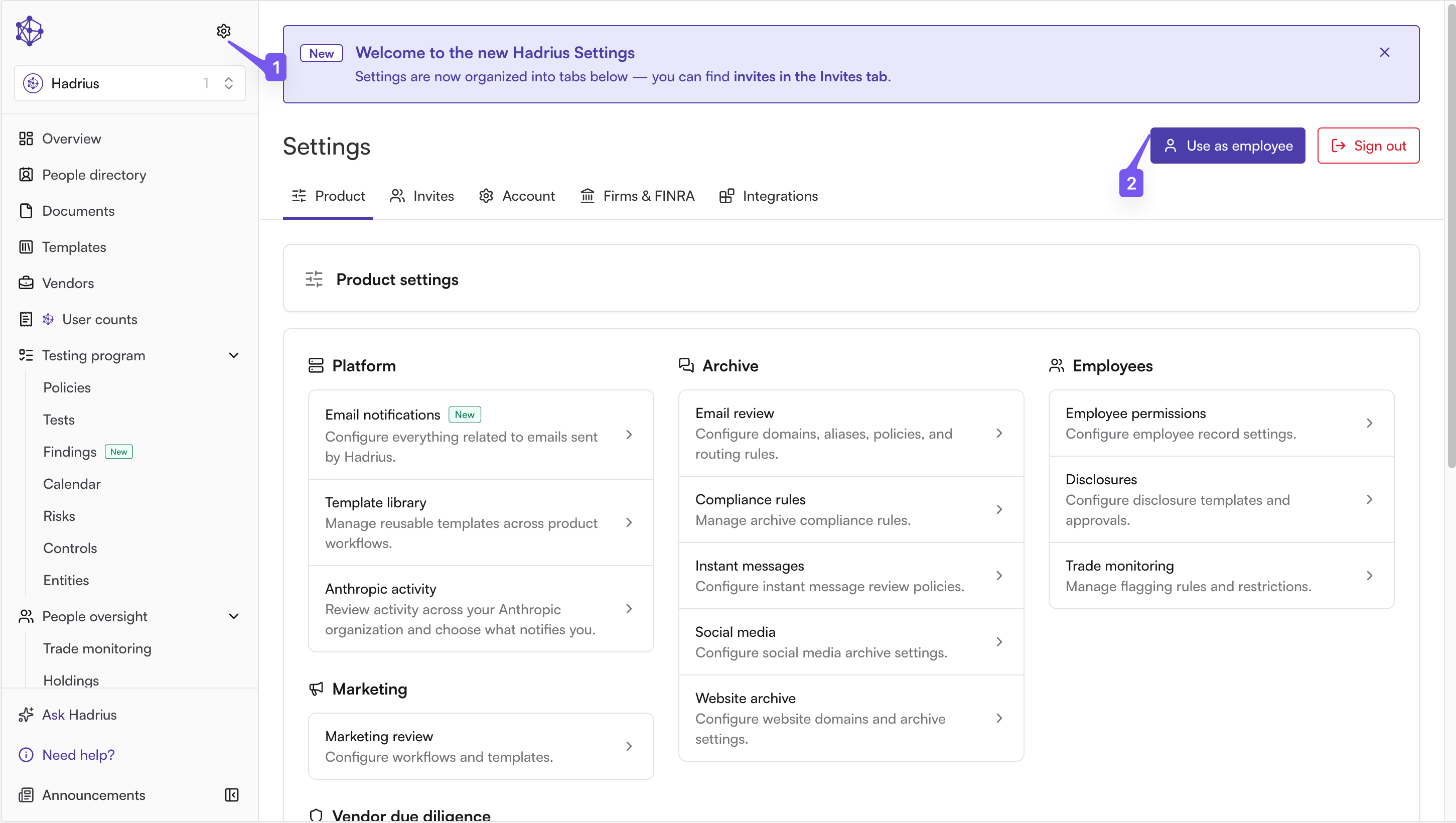
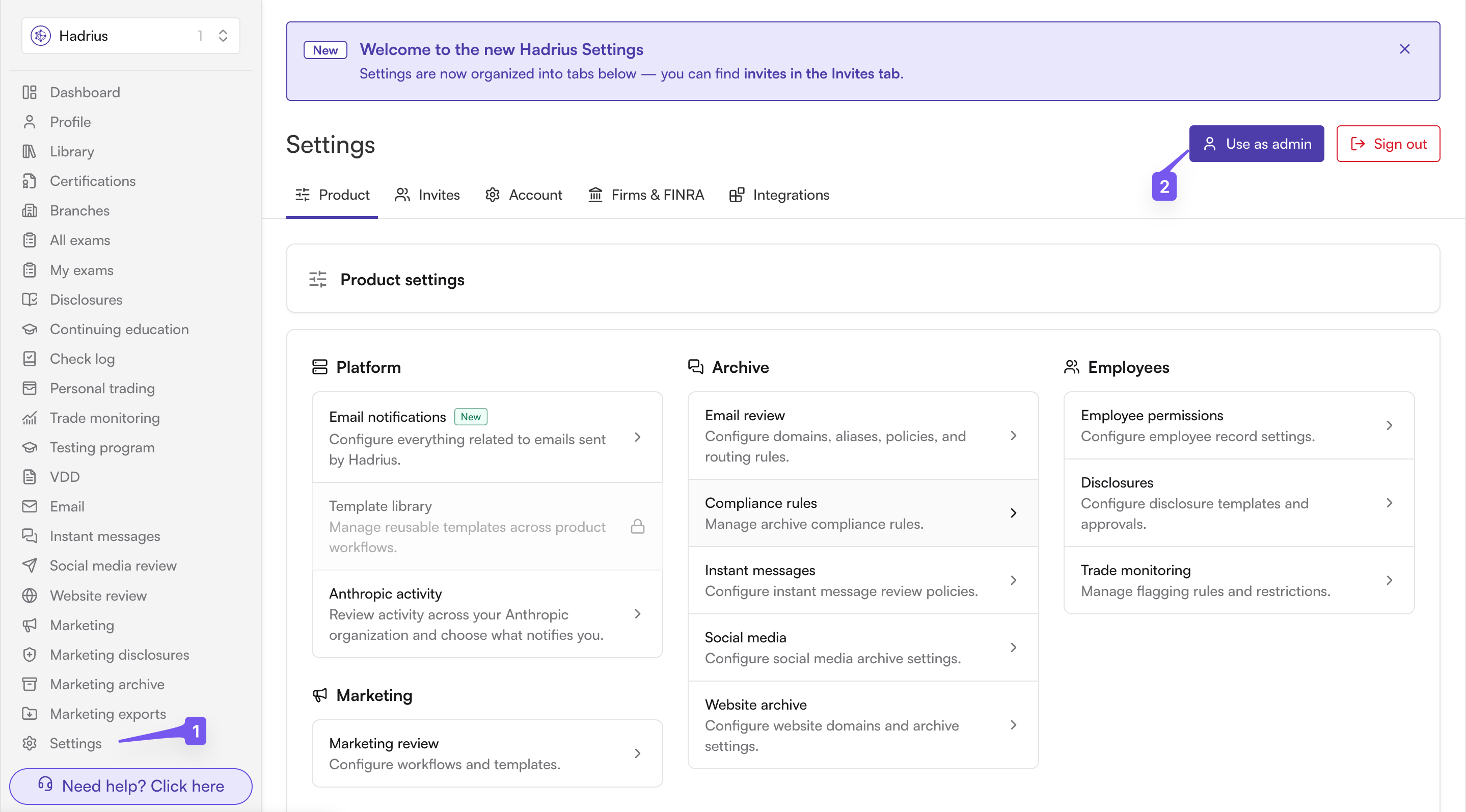
Quick answer: Go to Settings → Account. Next to Sign Out is a button — Use as Employee or Use as Admin, depending which view you're in. Click it to flip.
Where exactly is the button?
In the actions bar at the top of any Account Settings tab (Account, Product, Invites, Integrations) — it sits right beside Sign Out.
What does it look like in each view?
Admin View
Button reads: Use as Employee
Employee view
Button reads: Use as Admin
Who can switch?
What actually changes when I switch?
The whole app reroutes to the matching side — e.g. /dashboard ↔ /employee/dashboard, /records ↔ /employee/records — so you see the product the way that role does.
Does my choice stick?
Yes, per browser — until you switch companies. Changing companies via the company picker always drops you back into admin view, so you'll need to toggle again if you want employee view there.