How to Import Employees
Last updated: October 15, 2026
The People Directory is the central record of every employee in your Hadrius account. Use this workflow whenever a new hire joins the firm and needs a profile created — whether you're adding a single employee or onboarding a whole group at once through a CSV upload.
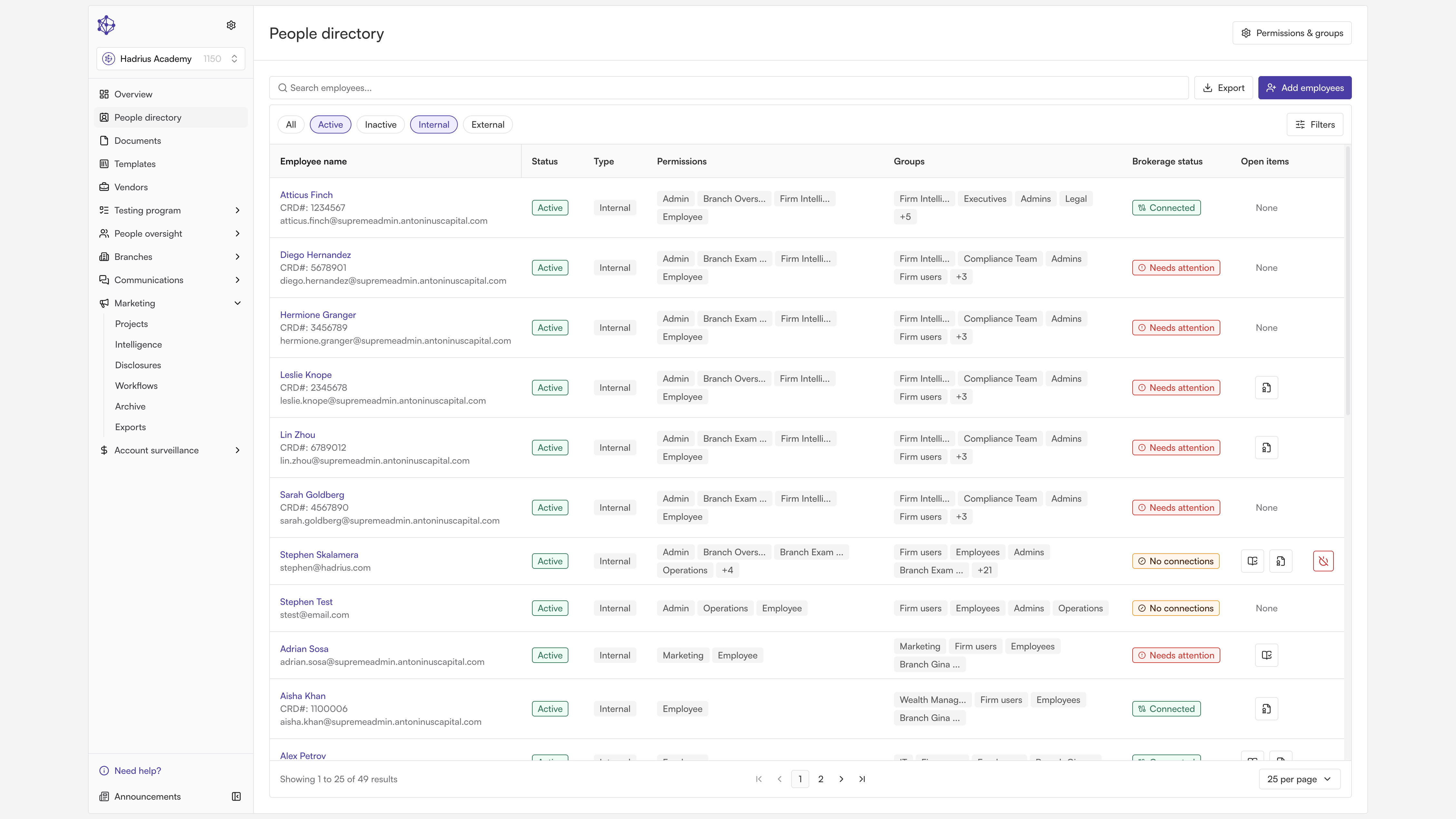
Getting started
From the People Directory, click "Add employees" in the top right. This opens the Add employees screen, where a toggle at the top lets you switch between Manual entry and Bulk upload.
Adding one employee at a time
With "Manual" selected, fill in the employee's first name, last name, and email address under Employee details. You can also add any additional email addresses the employee uses, and optionally set their employment start date.
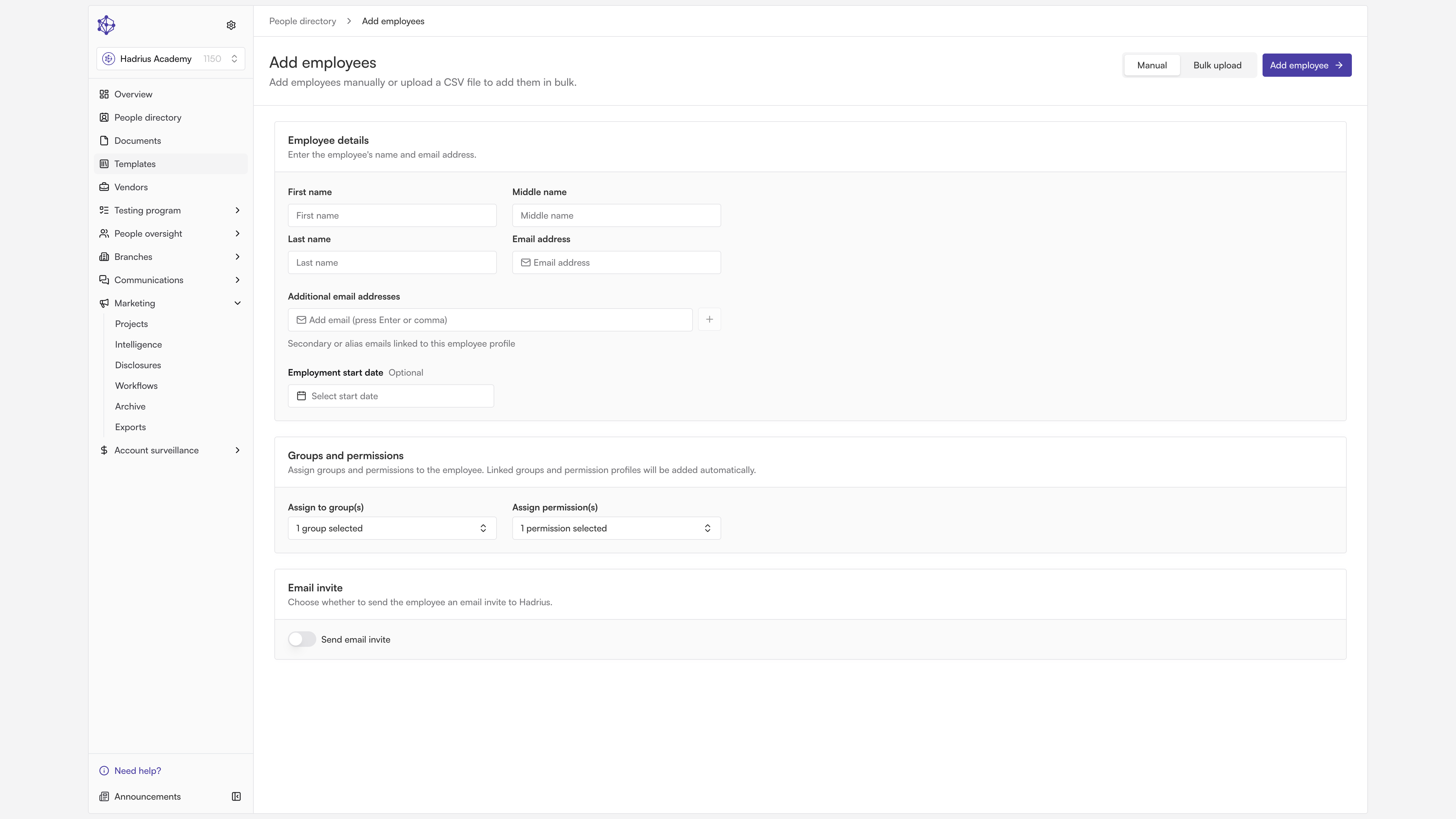
Next, under Groups and permissions, assign the employee to one or more groups and permission sets. Linking a role to a group will automatically add its paired group (and vice versa), so you don't have to set both separately.
Finally, under Email invite, decide whether to send the employee an email invitation right away or leave it off — their profile is created either way, and you can invite them later if you choose not to now. When everything looks right, click "Add employee" to save the record.
Adding several employees at once
For onboarding a group, switch to "Bulk upload." Start by clicking "Download CSV template" — this gives you a file with every column already formatted the way Hadrius expects, including the exact format needed for group and permission names (which are case-sensitive).
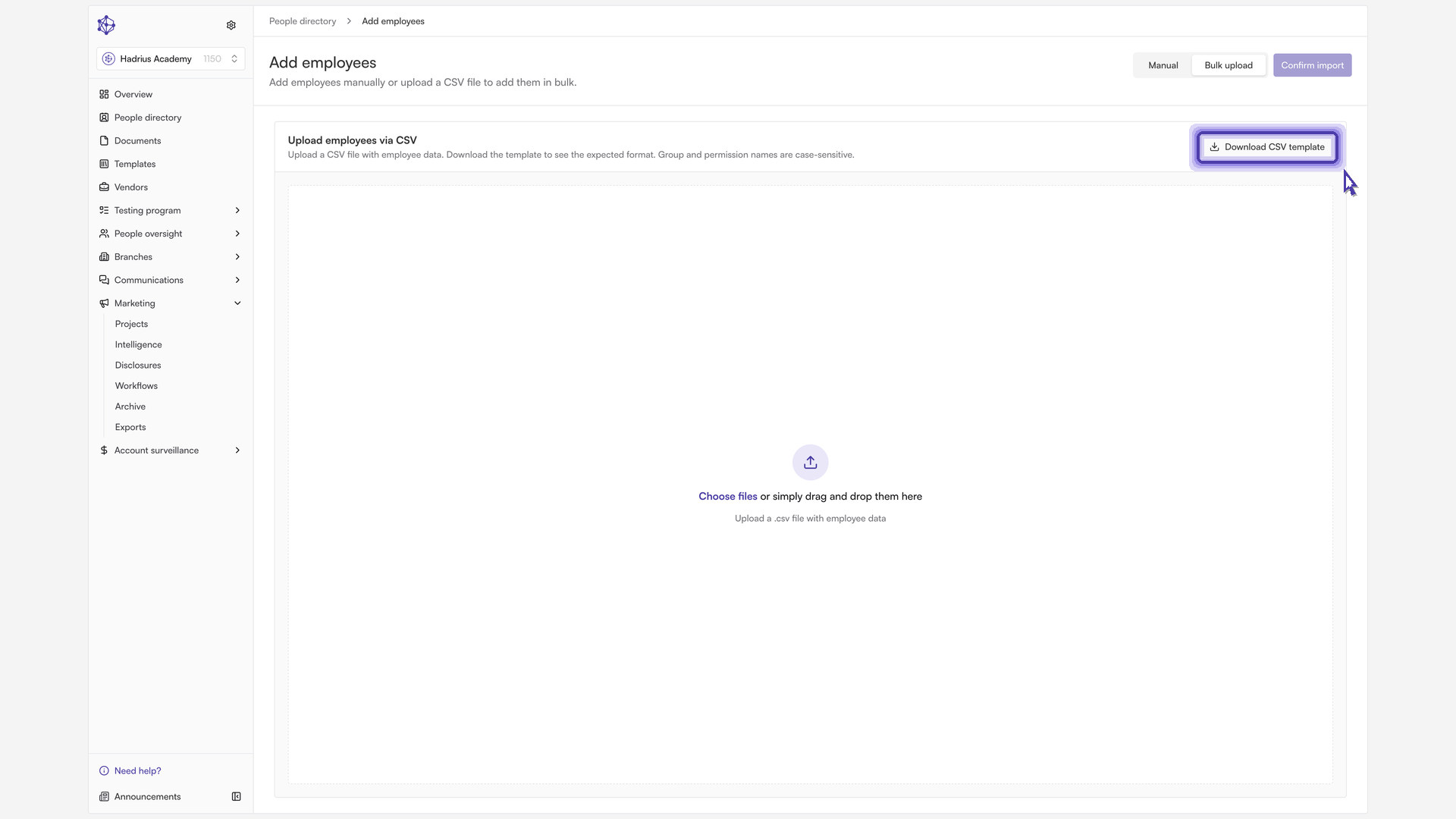
Fill out the template with each new employee's details, then drag it into the upload area (or browse to select it). Once the file is processed, you'll see a review table listing every parsed profile, with a count of how many rows are valid and how many have errors.
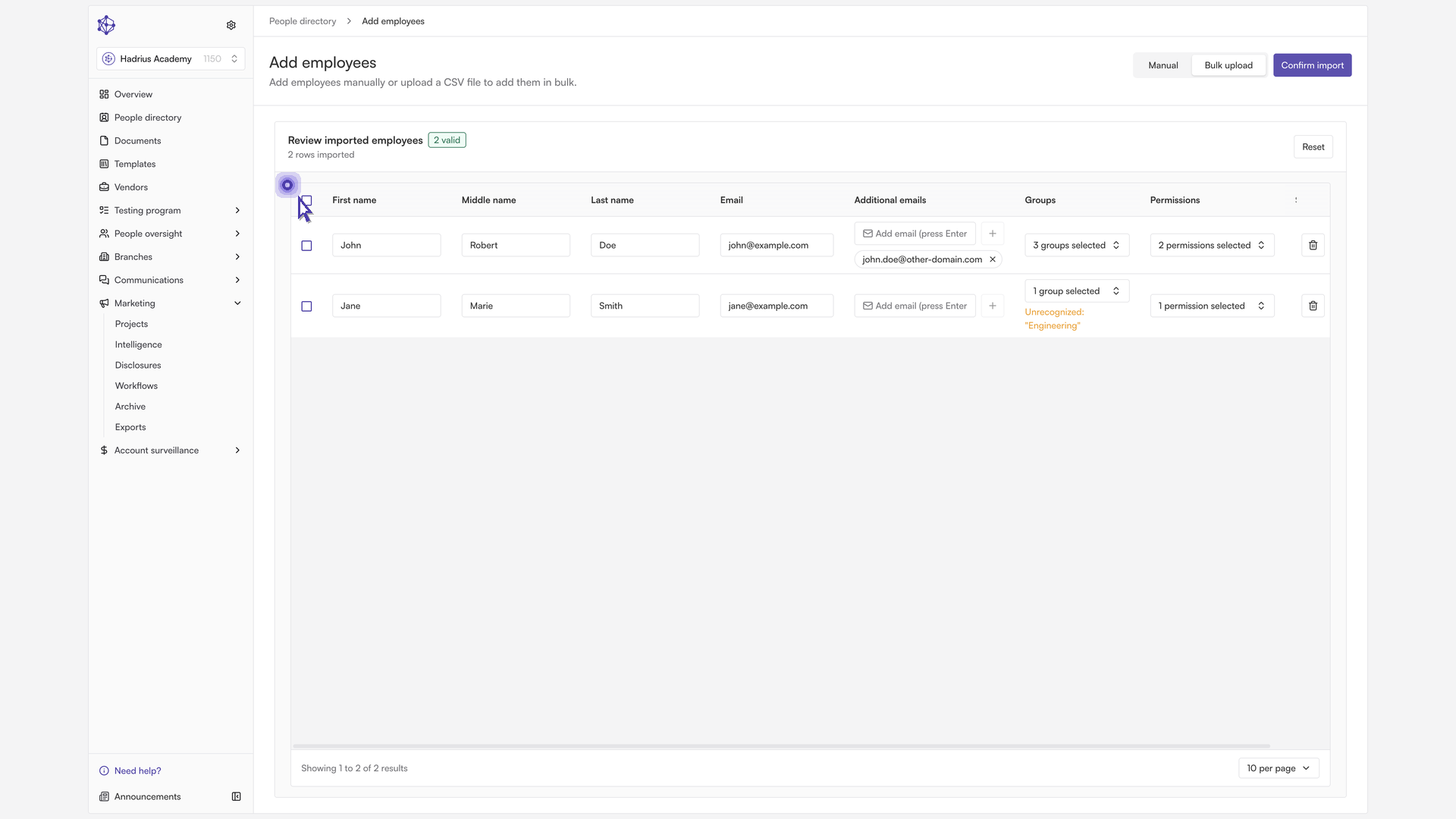
Use this table to fix any flagged rows directly — missing names, invalid email formats, or duplicate emails within the file are all called out inline. You can also edit groups, permissions, and the invite toggle per row, or select multiple rows to assign a group, permission, or invite setting to all of them at once. When you're ready, click "Confirm import." Hadrius validates each row one more time before creating the new employee accounts, so nothing is added until every row passes.
Once the import finishes, you're taken back to the People Directory, now showing the newly added employees.
Finding an employee afterward
To confirm a new hire's profile was created correctly, use the search box at the top of the People Directory table. Typing a name filters the list down instantly to matching employees.
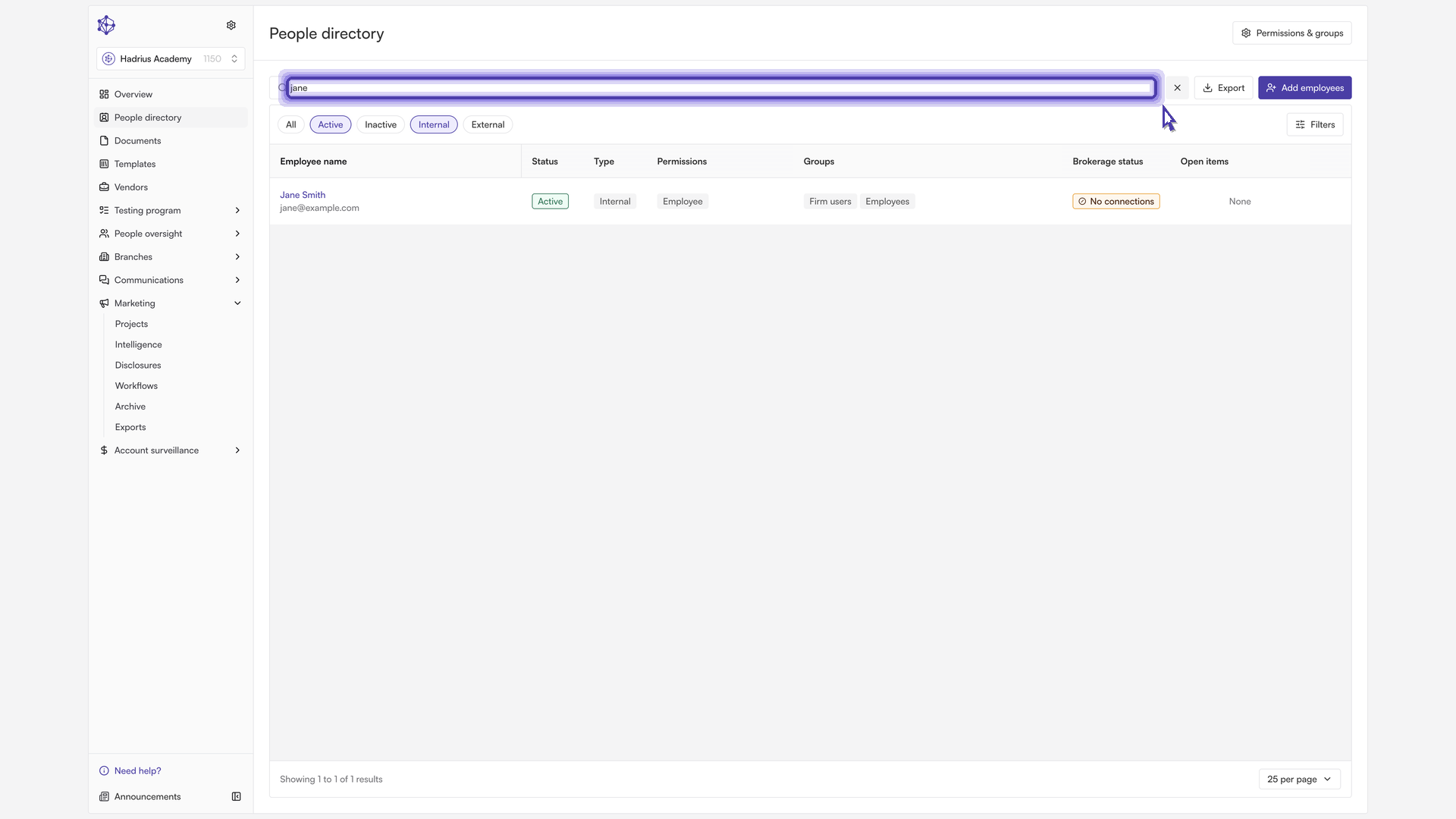
Clearing the search box returns the directory to showing the full employee roster.
Note: Employees added without an email invite still appear in the directory immediately — you can send their invite at any time from their profile once you're ready for them to log in.