How to update employee email addresses in Hadrius
Last updated: July 1, 2026
There are two ways to update email addresses in Hadrius: employees can update their own email addresses, or admins can request updates from support in certain situations.
Employee Self-Service Email Updates
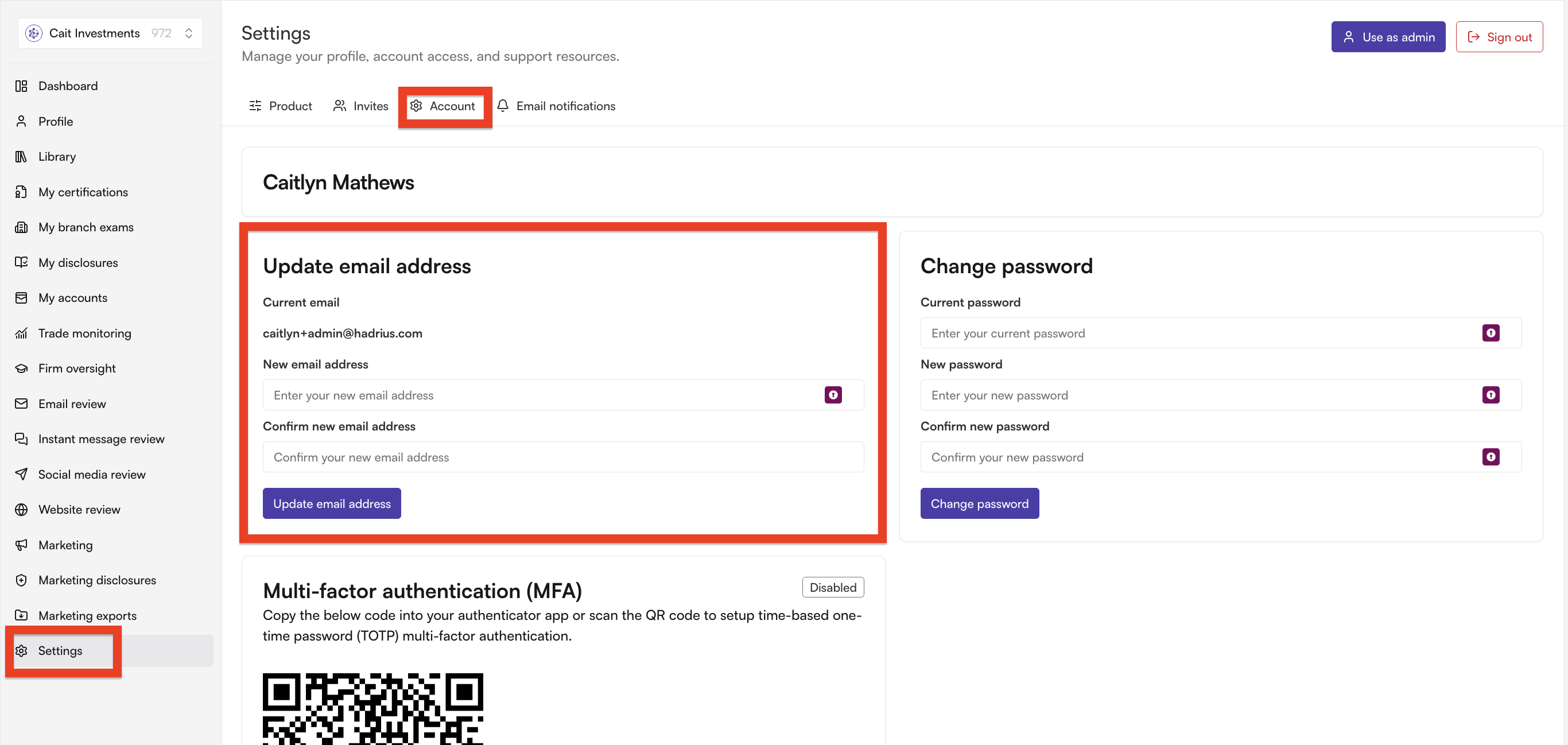
Employees can update their own email addresses by following these steps:
Click on 'Settings'
Enter the new email address in the provided fields
Click "Update Email Address"
Enter the confirmation code sent to the new email address
Important: The employee must have access to the new email address to receive and enter the confirmation code. If they don't have access to the new email yet, they should wait until they can access it before making the change.
Admin-Requested Email Updates
If an employee cannot update their email address themselves (for example, if their current email is incorrect and they cannot log in), admins can contact Hadrius support to request the update.
Common scenarios where admin assistance is needed:
Employee's current email address in the system is incorrect and they cannot log in
Employee has changed their name and needs both name and email updated
Bulk email updates due to domain changes
Employee is unavailable to make the change themselves
When contacting support for email updates, provide:
Employee's current name and email in the system
New email address
Reason for the change (if applicable)
Troubleshooting Common Issues
Not Receiving Confirmation Code
If an employee doesn't receive the confirmation code:
Check spam/junk folders
Verify the new email address was entered correctly
Wait a few minutes and try again
Contact support if the issue persists
"Invalid Email" Error
If you receive an "invalid email" error message, contact Hadrius support for assistance with the email update.