How do I archive emails from Google Workspace/Gmail?
Last updated: April 14, 2026
Adding Content Compliance rule
The rule described in the below steps can be applied the organization as a whole or a specific Organizational Unit if so required.
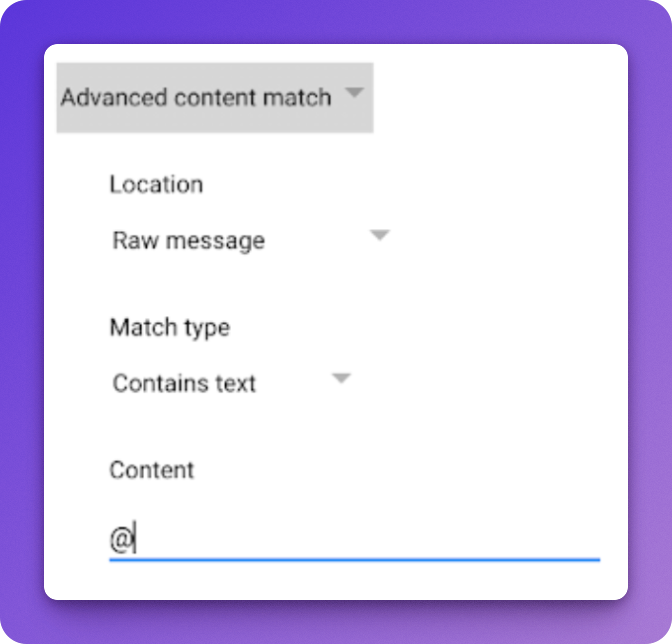
Visit the Google Admin Console and navigate to Apps > Google Workspace > Settings for Gmail > Compliance.
Scroll down to Content Compliance and click Add another rule.
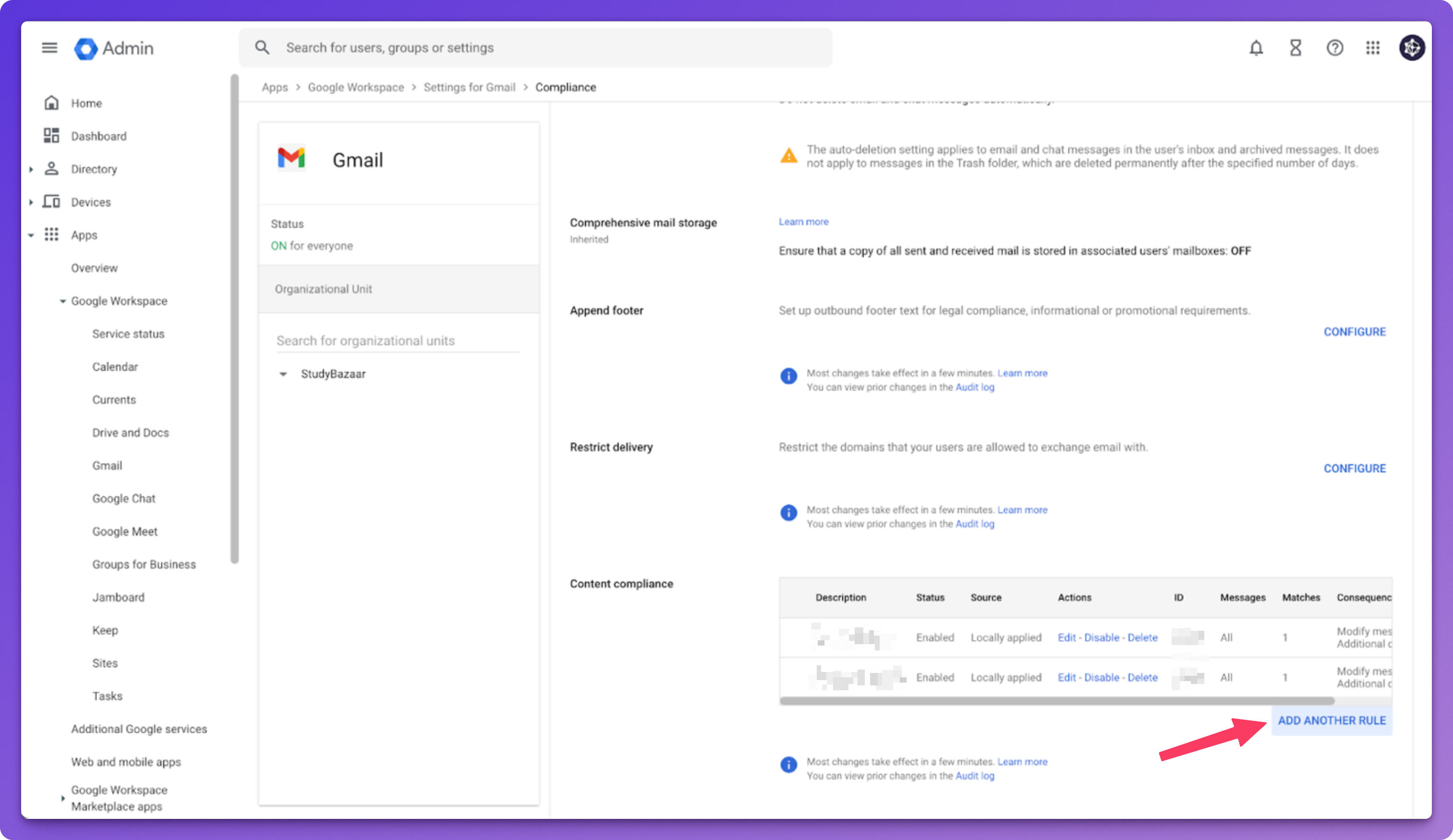
Enter any name you'd like for internal reference (ex: "Hadrius Archiving"). In the next step, select all four checkboxes (Inbound, Outbound, and both Internal ones).
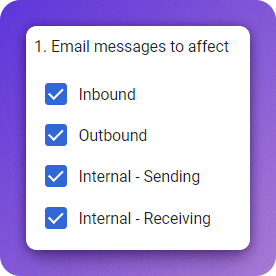
Add an expression and match the following:
Select "Advanced content match" from the first dropdown.
Change the "Location" dropdown to
Raw message.You can leave "Match type" as
Contains text.Under "Content", simply put the
@symbol.
After saving the expression, the only remaining step is to scroll down near the bottom and check the box that says "Also deliver to > Add more recipients".
Basic<archive_subdomain>-<secure_key>@journaltohadrius.com
Find your journaling address on the Hadrius platform at Email review > Manage > Journal addresses, or this can be provided to you by the Hadrius team.
When configuring the Content Compliance rule, use the full journaling address (e.g., yourcompany-abc123@journaltohadrius.com) for email address fields, and use only journaltohadrius.com for fields labeled “Domain”.
Save the rule and you're done!