How do I connect Bloomberg Messenger for archiving?
Last updated: October 9, 2026
At a glance
Typical setup time: About 20 minutes of setup, plus however long your Bloomberg account manager takes to enable SFTP
Who you need: Someone who can email your Bloomberg account manager, and access to the Bloomberg Enterprise Console
What Hadrius reads: Messages delivered through the Bloomberg Message Compliance SFTP feed
Before you begin
In order to enable the daily-file feed, Bloomberg's Support team requires you to appoint an Admin User, who is required to have either a BVault or Bloomberg Anywhere (BBA) license.
In Hadrius
Generate your keys
On the Bloomberg integration page, click Generate keys. Hadrius creates the SSH and PGP keys Bloomberg needs.
In Bloomberg
Email your Bloomberg account manager
Ask your Bloomberg account manager to have the Message Compliance team set you up with a BB-SFTP site. In that email, include:
Whitelist IP address.
3.19.89.199/32PGP public key. Download it with Download Public PGP Key on the integration page in Hadrius.
Wait for your SFTP username
Once Bloomberg has enabled SFTP for your firm, they send you an SFTP username.
In Hadrius
Add the SFTP username
Enter the username in the SFTP username field and click Save username.
In Bloomberg Enterprise Console
Open SFTP Monitoring
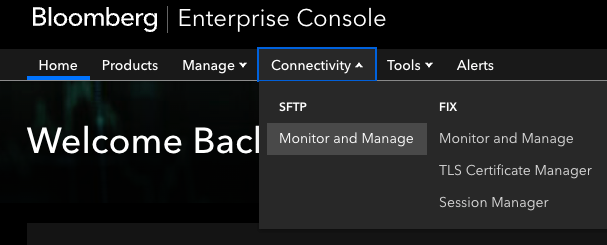
Sign in to Bloomberg Enterprise Console (ec.bloomberg.com) and go to Connectivity > SFTP > Monitoring.
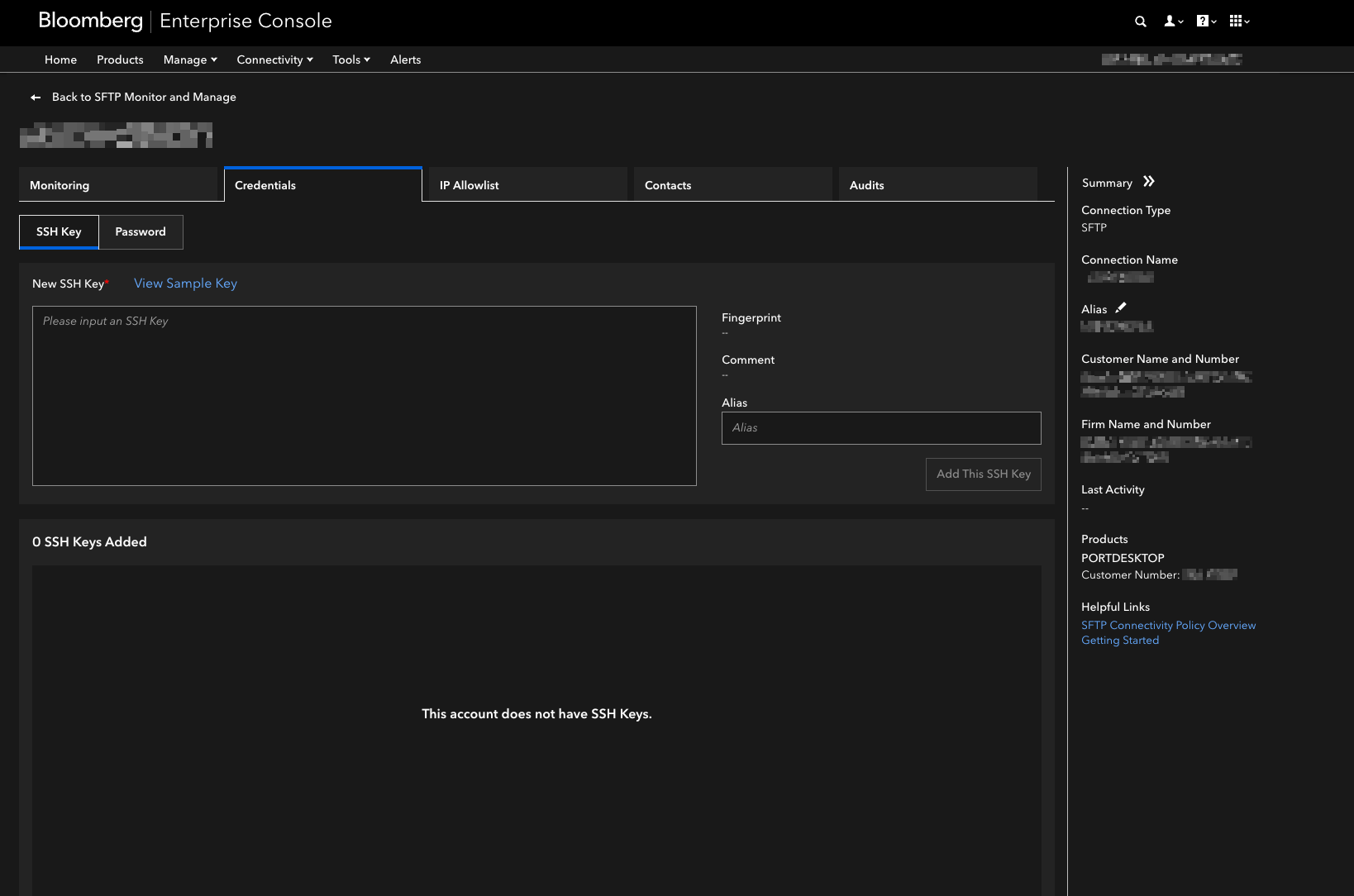
Paste the Hadrius SSH key
Download the key with Download Public SSH Key on the integration page in Hadrius. Open the file, then copy and paste its contents into the SSH Key box.
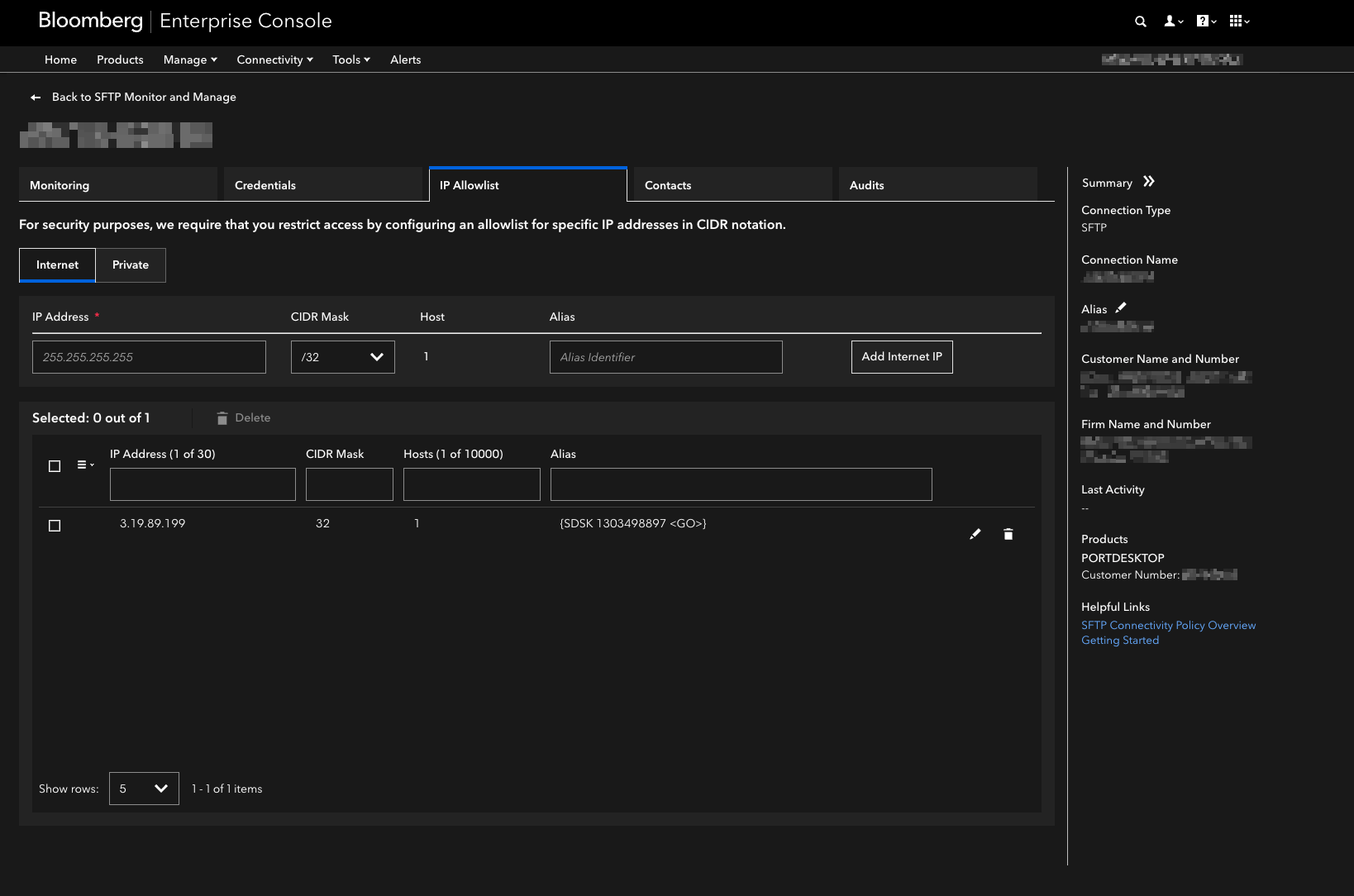
Check the IP whitelist
Confirm the whitelist contains 3.19.89.199/32, the IP address from your email to Bloomberg. If it doesn't, add it here.
In Hadrius
Test the connection
Click Test connection. Setup is complete once Hadrius connects to Bloomberg's SFTP server.