How to Connect Instagram Accounts
Last updated: July 14, 2026
Hadrius can archive Instagram Accounts for supported professional Instagram accounts. This article explains how to connect an Instagram account for archiving using either the standard Hadrius connection flow or an employee magic link.
For instructions on how employees should connect Instagram DMs refer to: https://support.hadrius.com/articles/1561522661-instagram-dms?lang=en
Before you begin
Instagram archiving is available for professional Instagram accounts, including Business and Creator accounts.
Personal Instagram accounts are not supported. If an employee uses a personal Instagram account, Instagram may prompt them to convert it to a professional account before the connection can be completed.
Hadrius begins archiving Instagram DMs after the account is connected. Historical Instagram messages are not backfilled.
Connect Instagram IMs for existing Hadrius users
After your Hadrius representative has enabled the Instagram connector, follow these steps.
Step 1: Add the Instagram IM connector for employee(s)
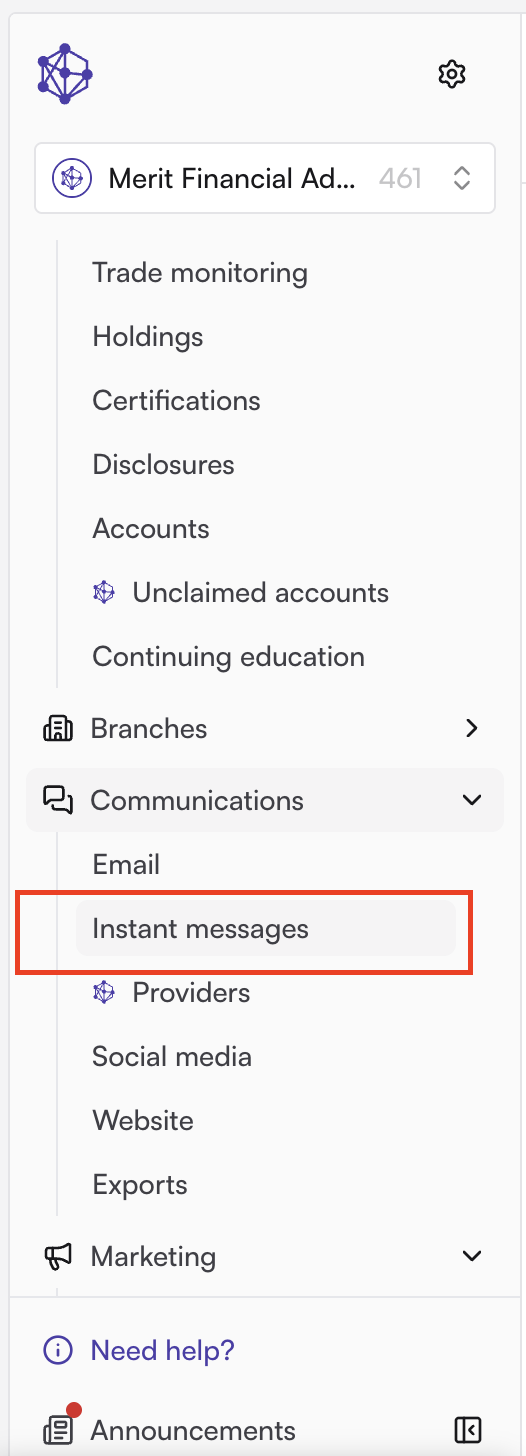
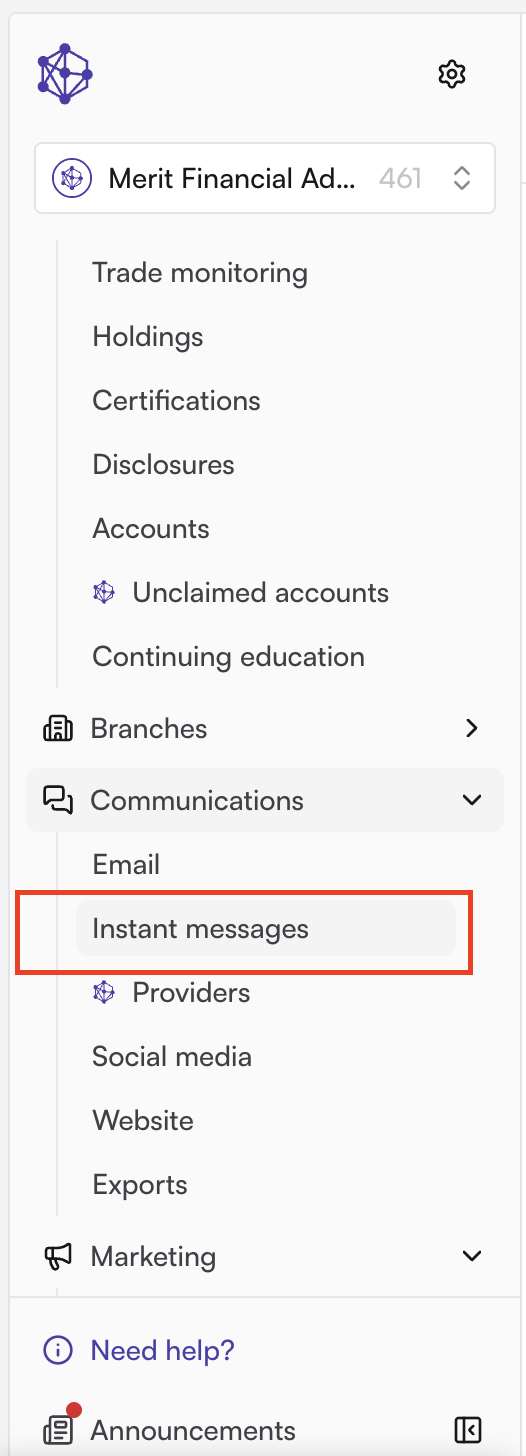
Under the Communications module, go to:
Instant Messages
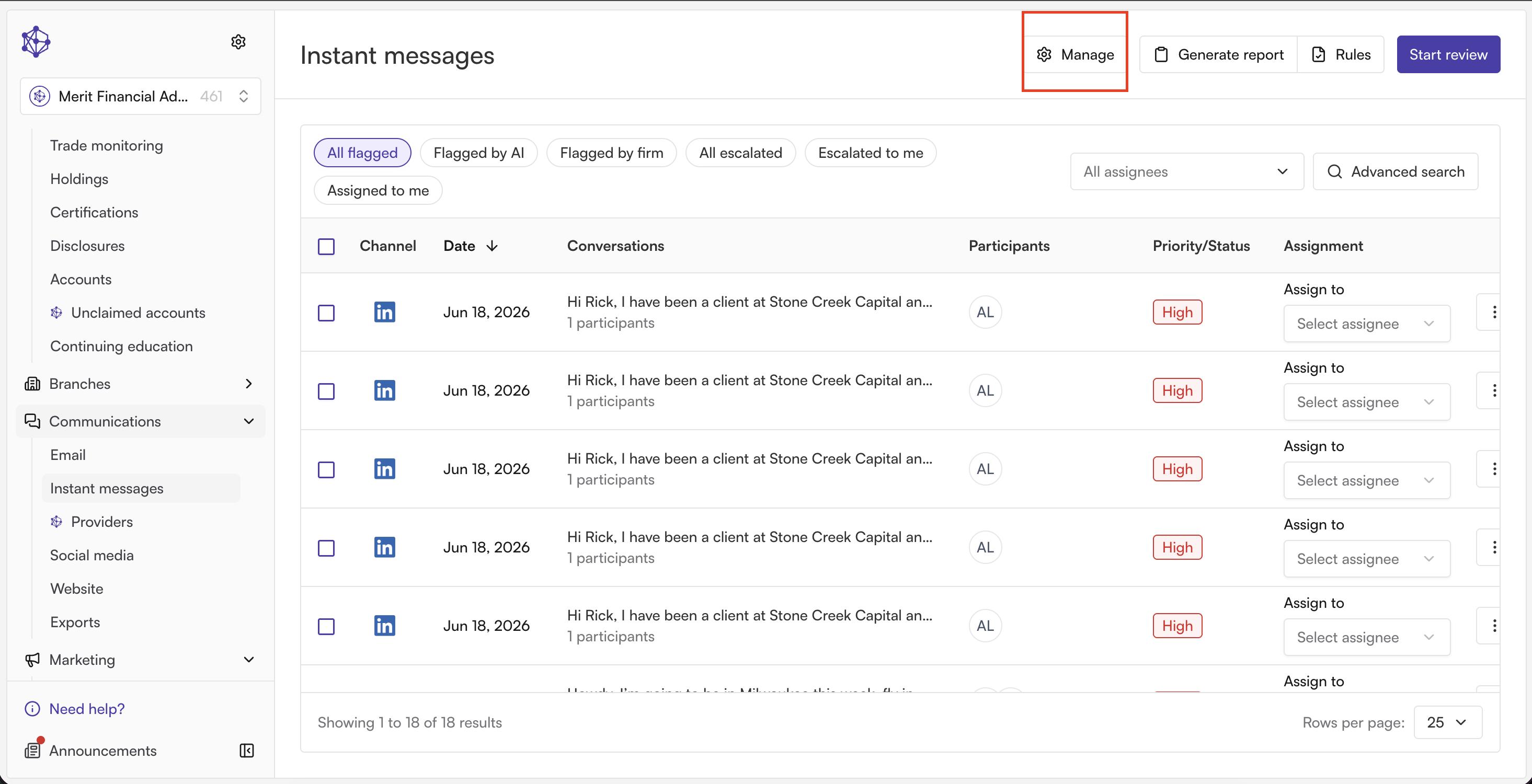
Manage
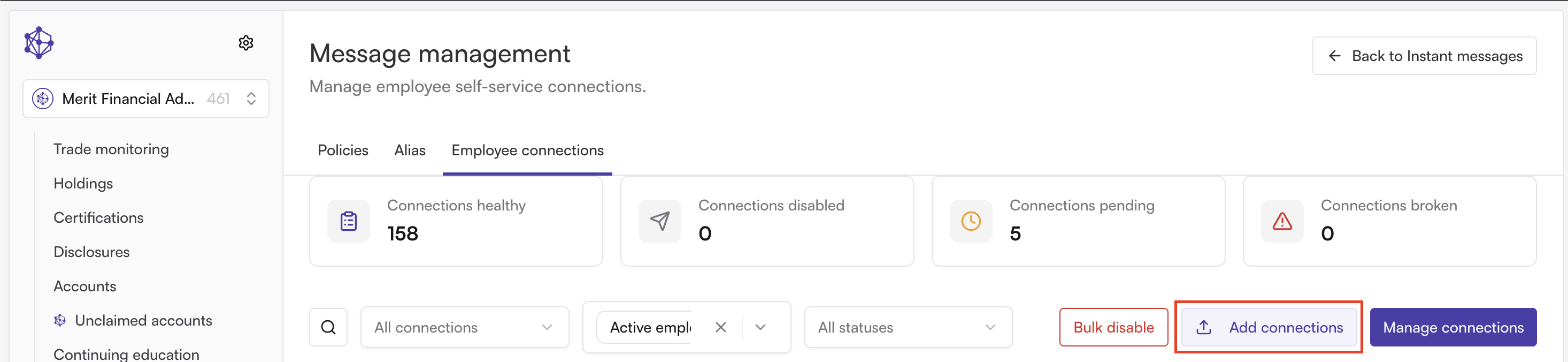
Employee Connections

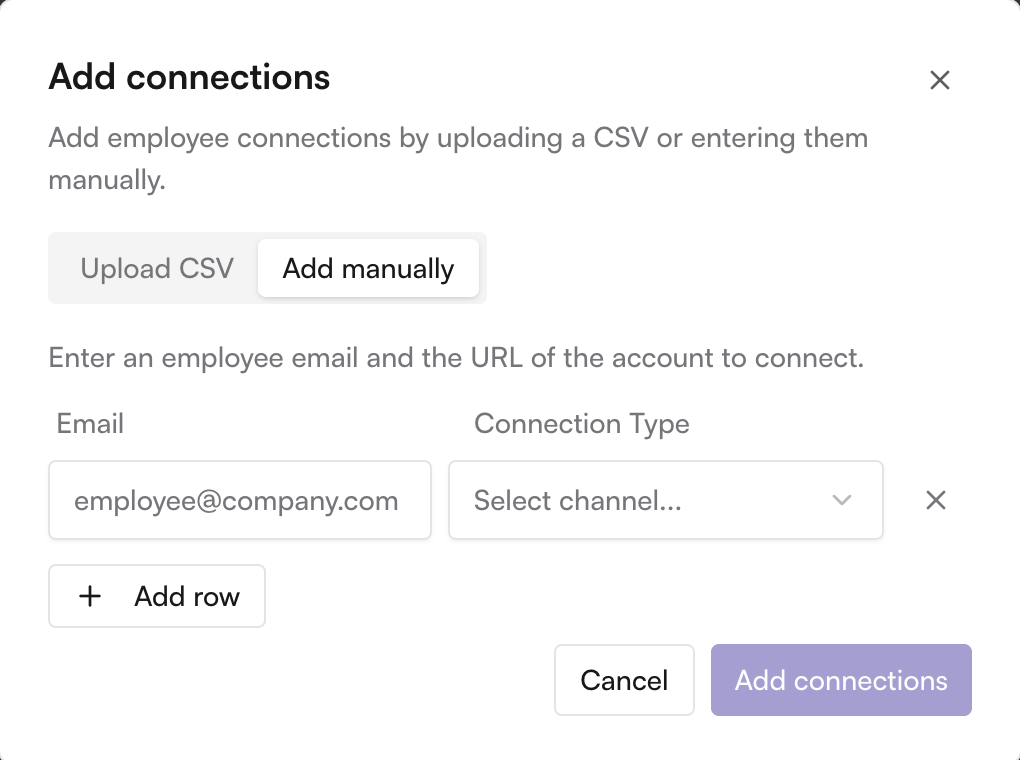
Select Add Connections.
You now have two options:
Download the CSV template and record all applicable employees. Once completed, you can choose the CSV file or drag and drop it and click upload.
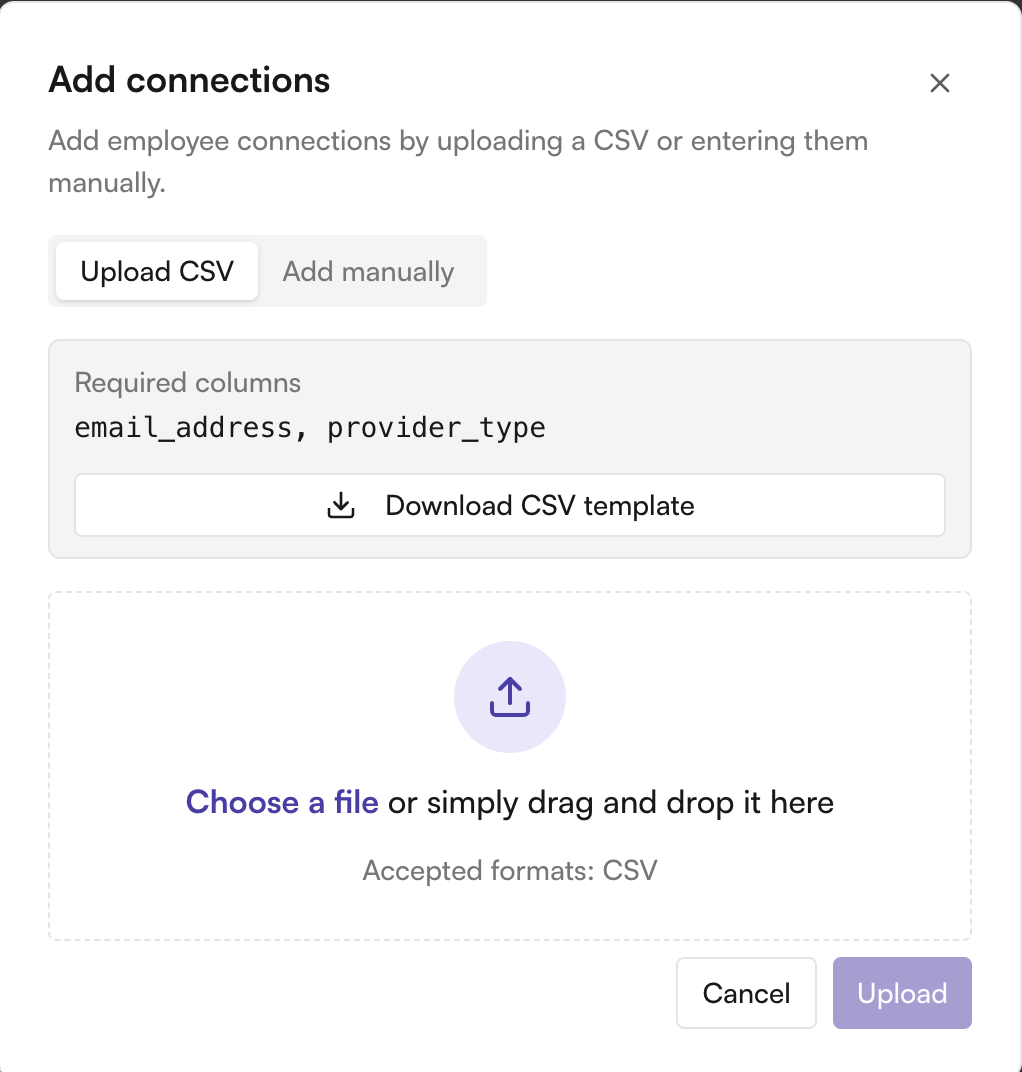
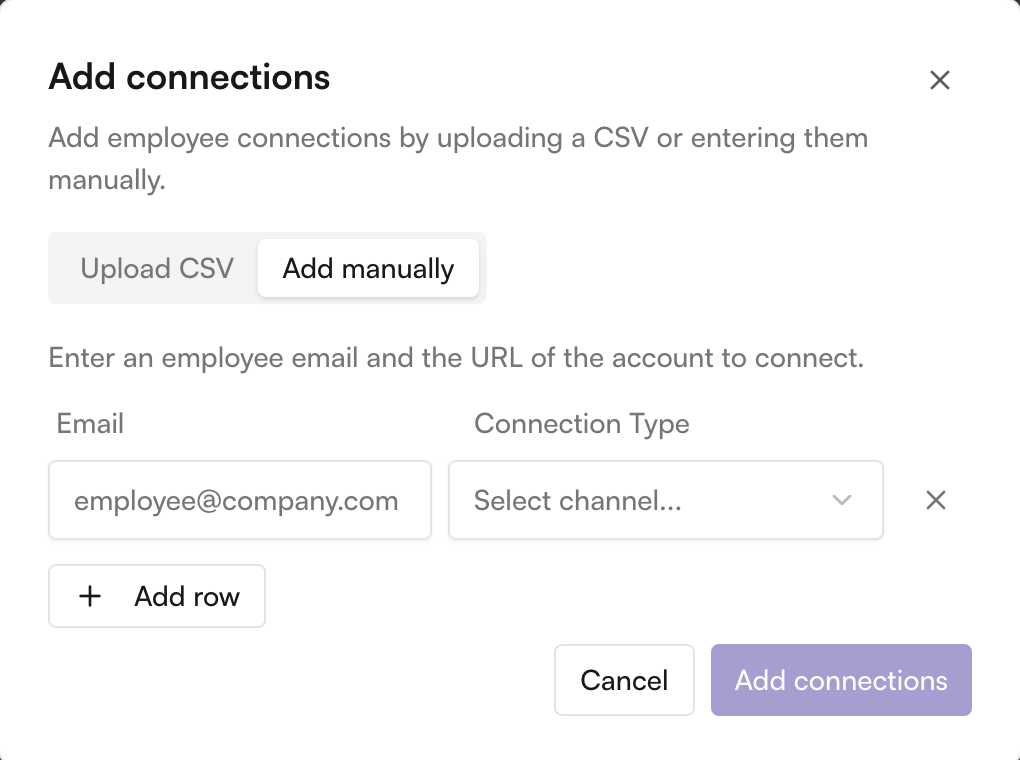
Add employees manually by entering the employee’s email and choosing Instagram as the Connection Type. Select add connections.
Step 2: Employee receives an invite and instructions
The employee will receive an invite and instructions on how to link their account.
The employee should sign in with the Instagram account that needs to be archived.
Once permissions are granted, Hadrius will begin archiving new Instagram DM activity going forward.
Please note that past messages will not be archived.
If employees do not have a profile in Hadrius
An employee profile is required to map IMs properly.
Use this article to add them to the platform. Please note, sending an invite to users is not required in order to archive IMs.
Once completed, complete the steps below.
Step 1: Go to Employee Connections
In Hadrius, navigate to:
Instant Messages
Manage
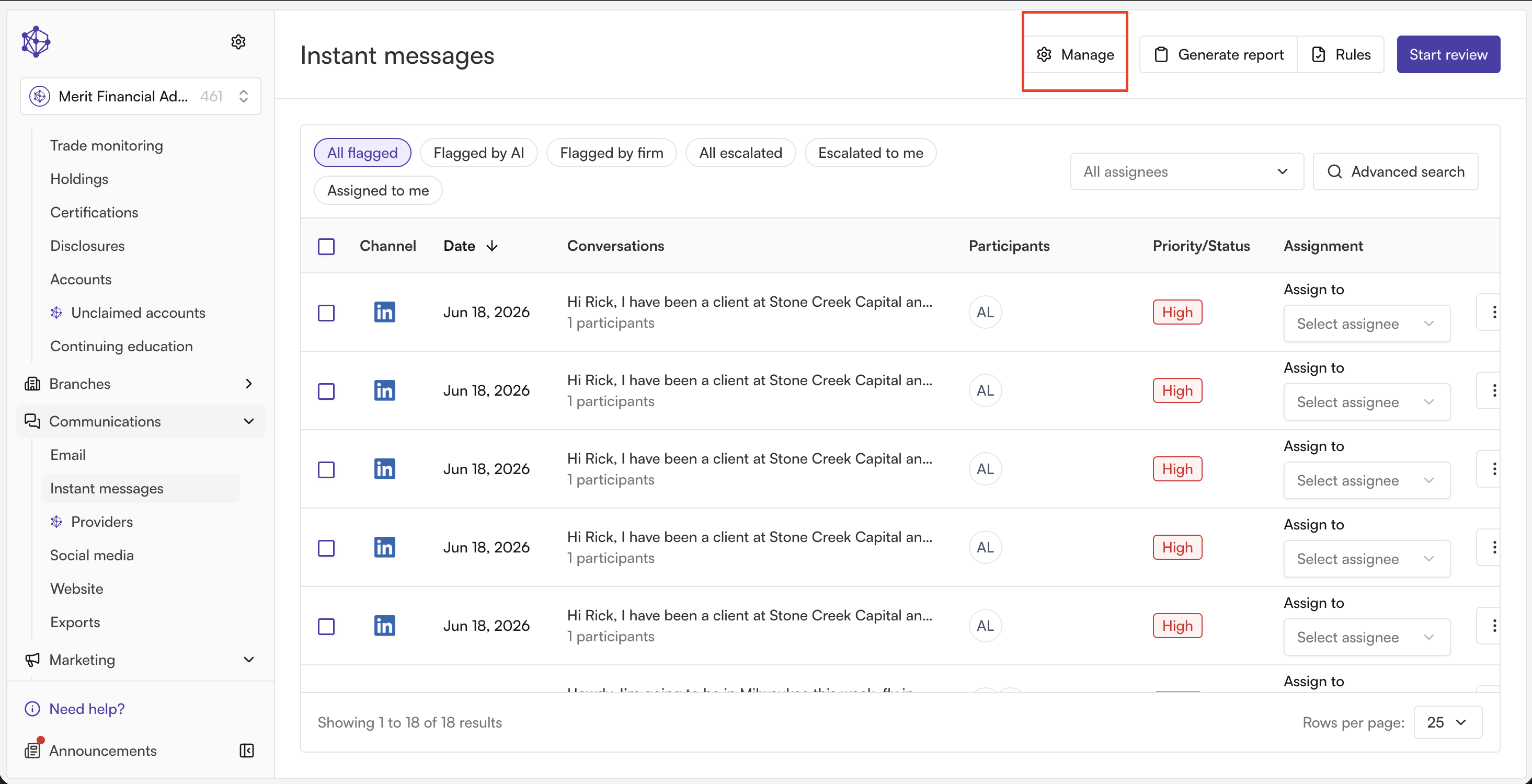
Employee Connections

Step 2: Add the Instagram Connection
Click Add Connection.
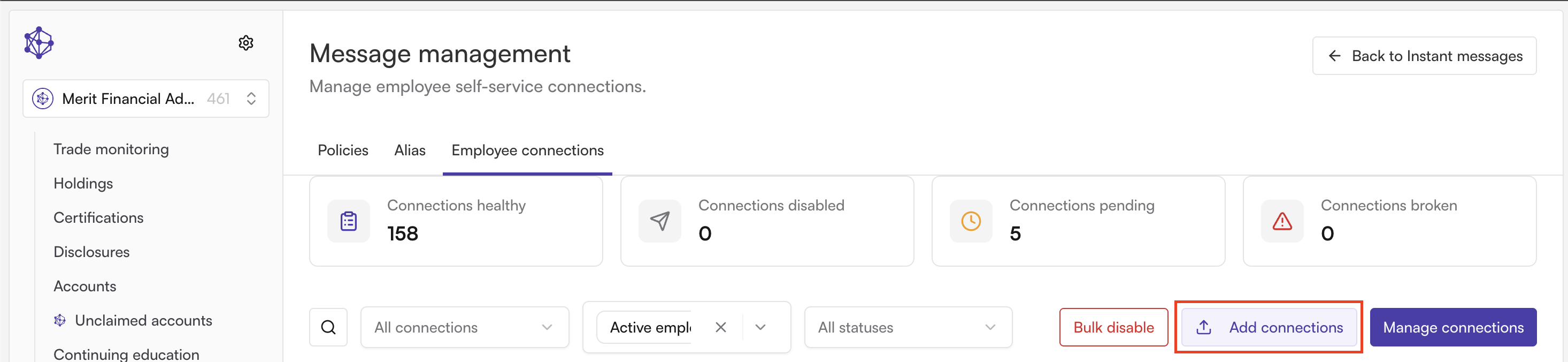
Enter the employee’s email address and select Instagram as the connection type.
Step 3: The Magic Link
After the step 2 is completed, the employee will receive an email containing a magic link.
Magic links expire after 7 days.
Step 4: Employee Opens the Email
The employee should open the email and click the magic link.
They should use a browser where they can sign in to the Instagram account that needs to be archived.
Step 5: Employee Clicks Authorize
After authorization is complete, Hadrius will connect the Instagram account and begin archiving new Instagram IM activity.
What Hadrius archives
Once connected, Hadrius archives Instagram DM events received after the connection is completed, including:
Direct messages
Inbound and outbound messages
Message edits
Reactions
Attachments
Each connected Instagram account is stored as its own provider in Hadrius.