How do I review the AI comments on my materials?
Last updated: July 13, 2026
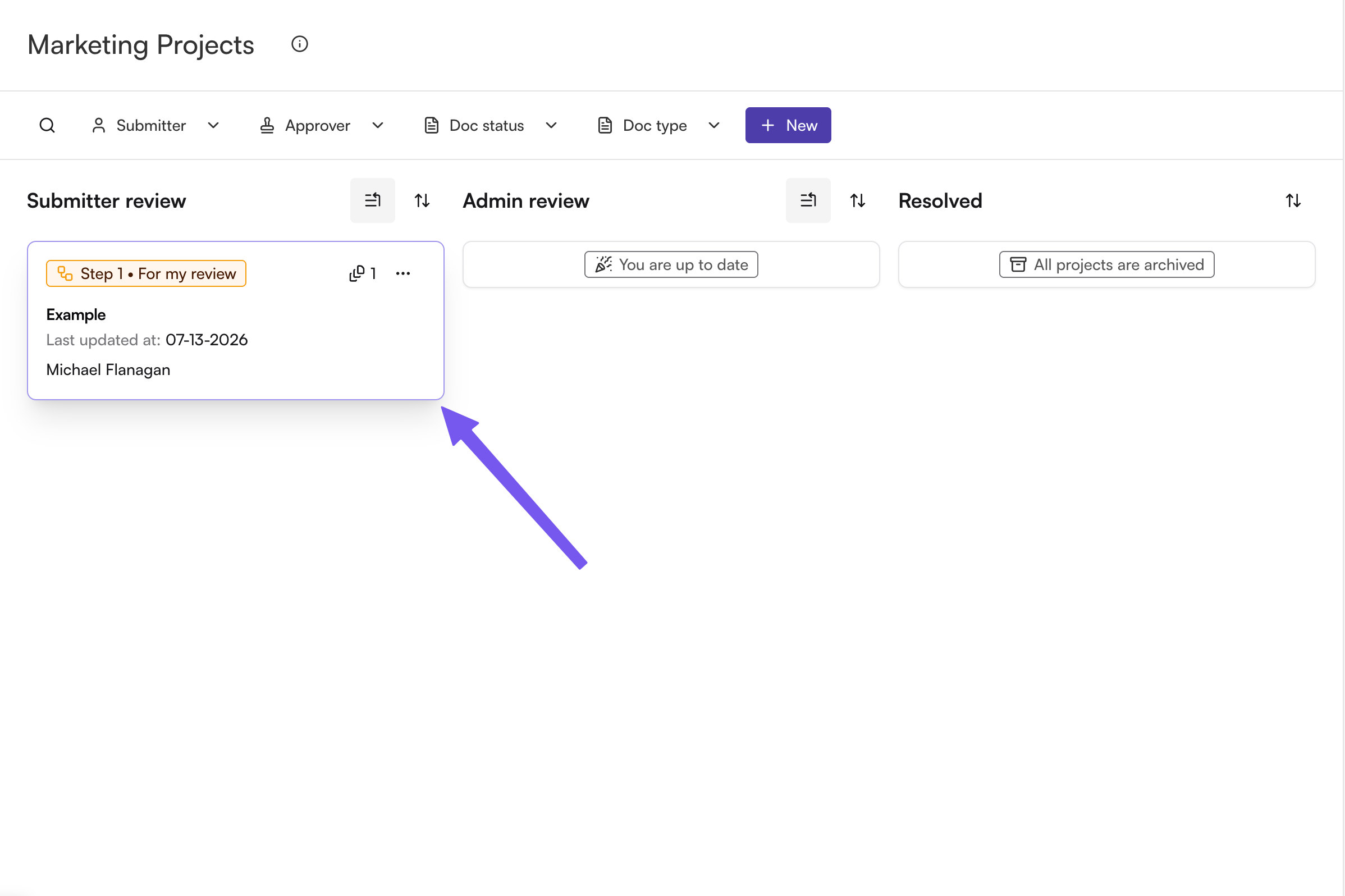
Open your project from the Marketing Review dashboard and click into a document.
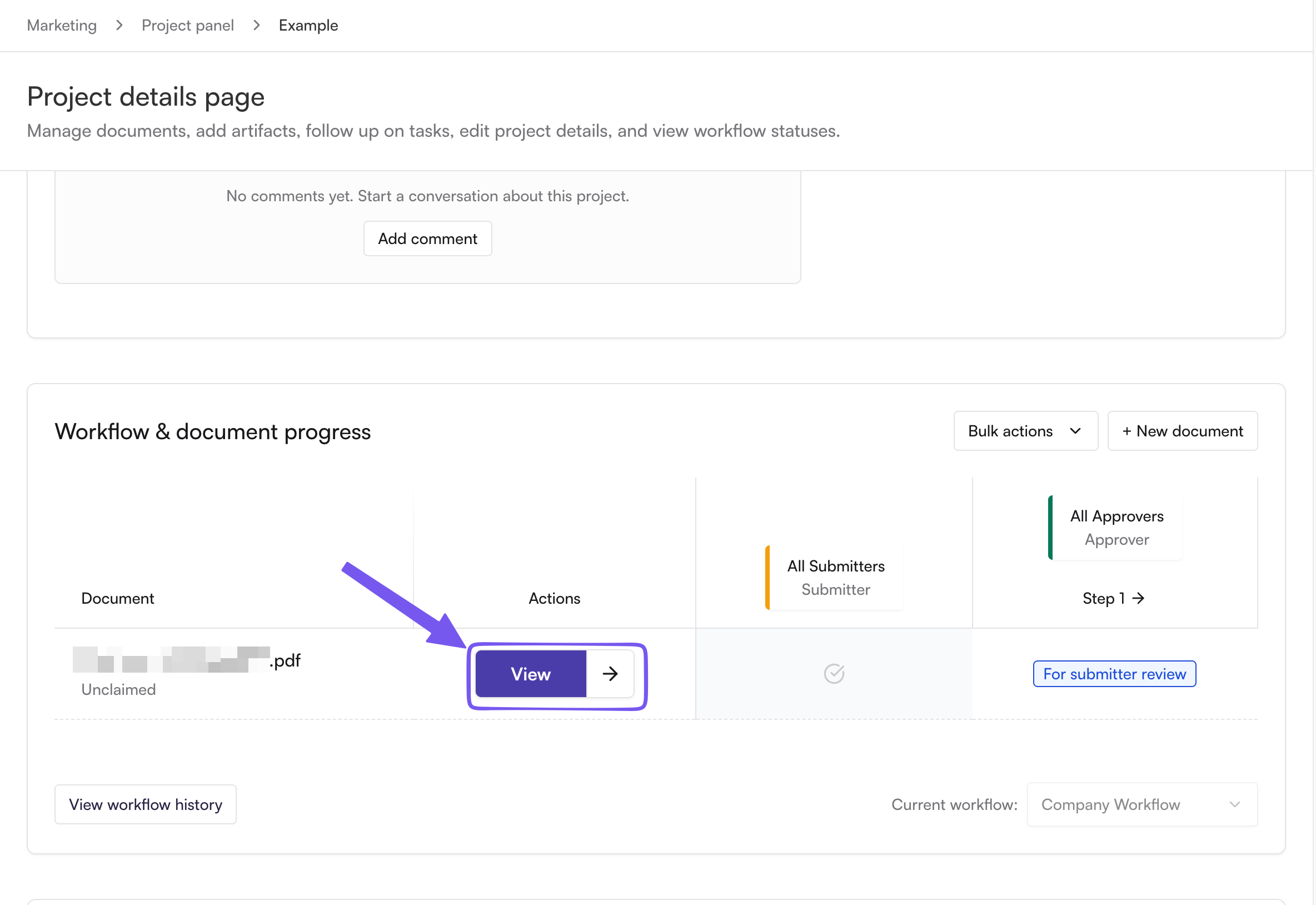
Within the "Workflow & Document progress" section of the project page click view on the document you are reviewing
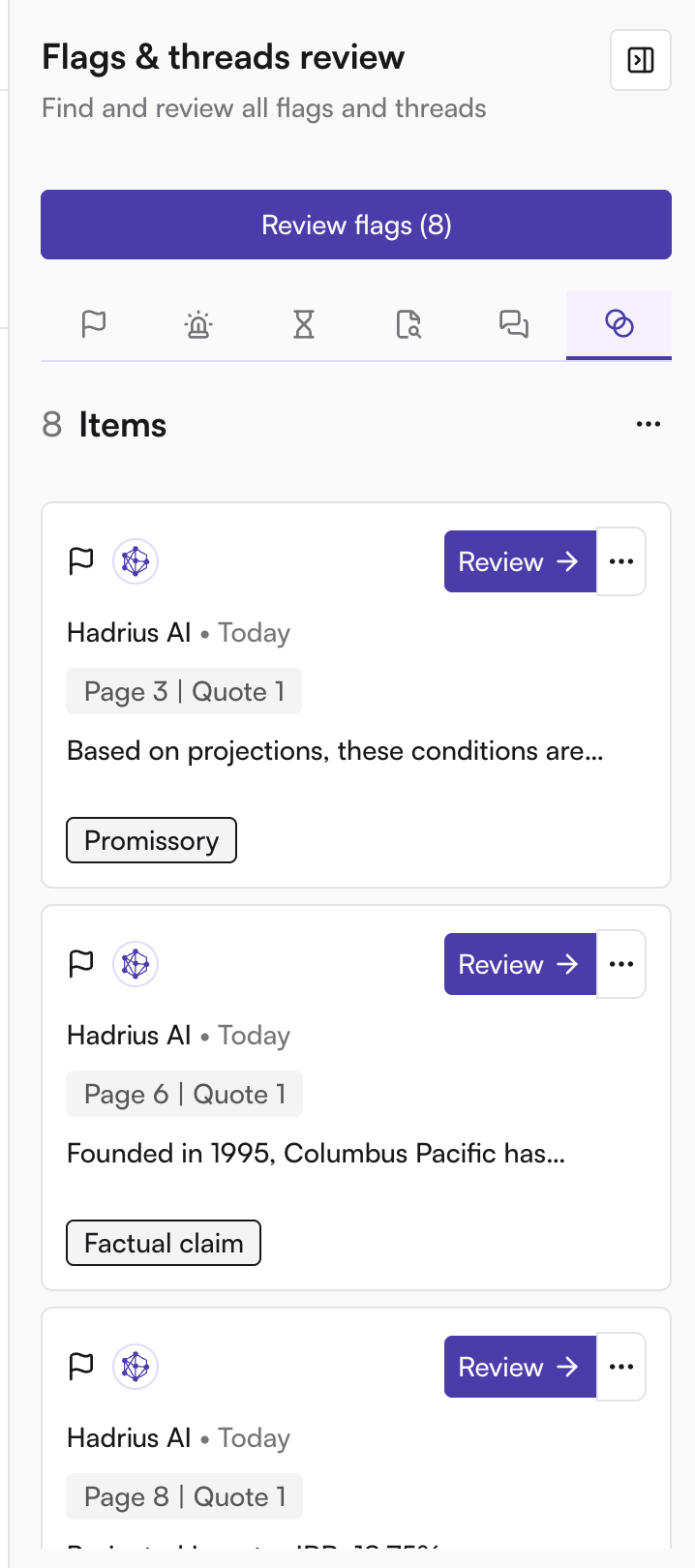
The document viewer shows your material with the AI's flags and comments pinned to the exact text or region they refer to. The sidebar lists every item with its status (Not started, In review, Resolved, or Dismissed).
Click each flag to see what the AI found — e.g., a missing disclosure, promissory language, or an unsubstantiated performance claim — along with suggested fixes.
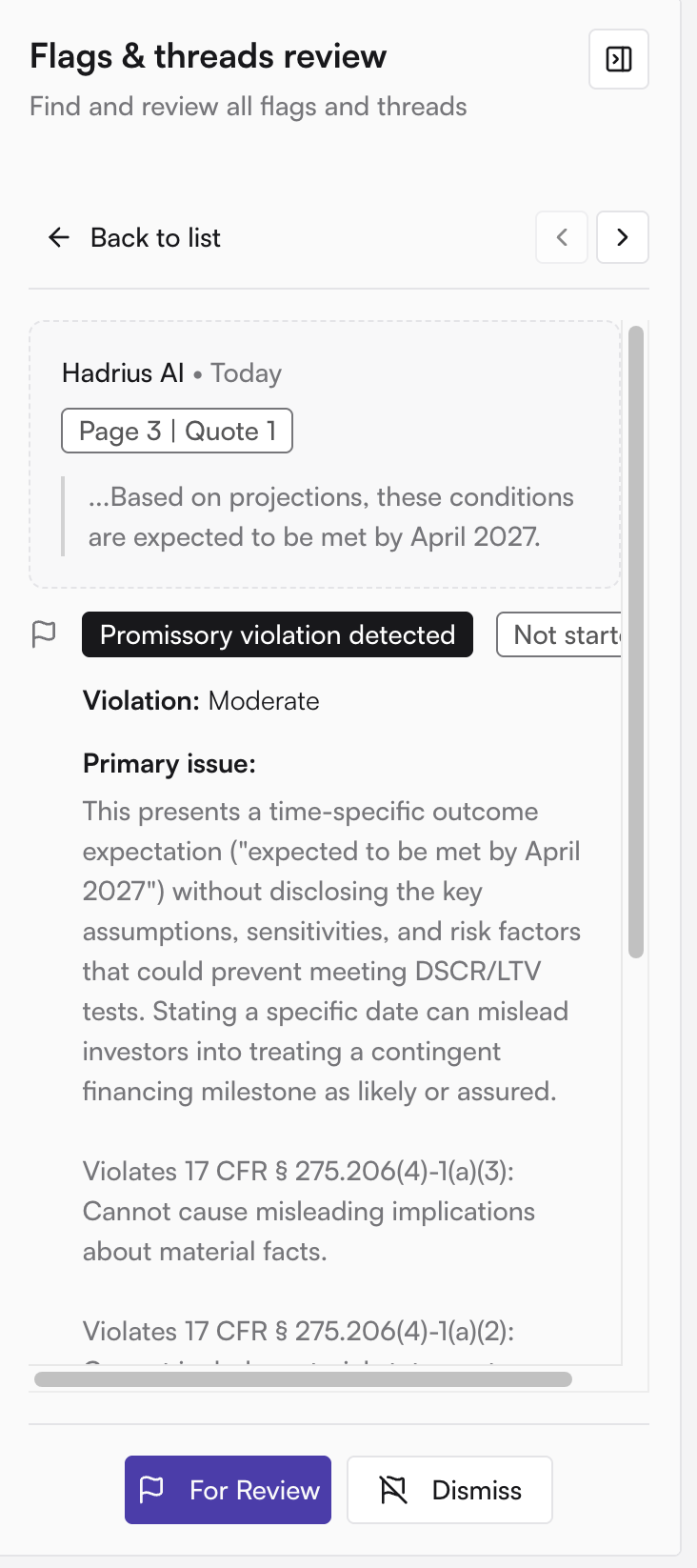
For each item, decide what to do: note the change you'll make in your source file, reply in the comment thread if you have questions, and resolve the item once addressed — or dismiss it if it doesn't apply.
You can also add your own comments and highlights for your approver team to see.
The AI comments are there to help you fix issues before your marketing approver team sees the document — clearing them up front means fewer send-backs later.