How to Complete a Certification
Last updated: November 5, 2026
When your compliance team assigns you a certification, you need to answer its questions, attest that your answers are accurate, and sign it electronically before you submit it for review. This article shows you how to find an outstanding certification, complete it, and submit it from your employee dashboard.
Find the certification
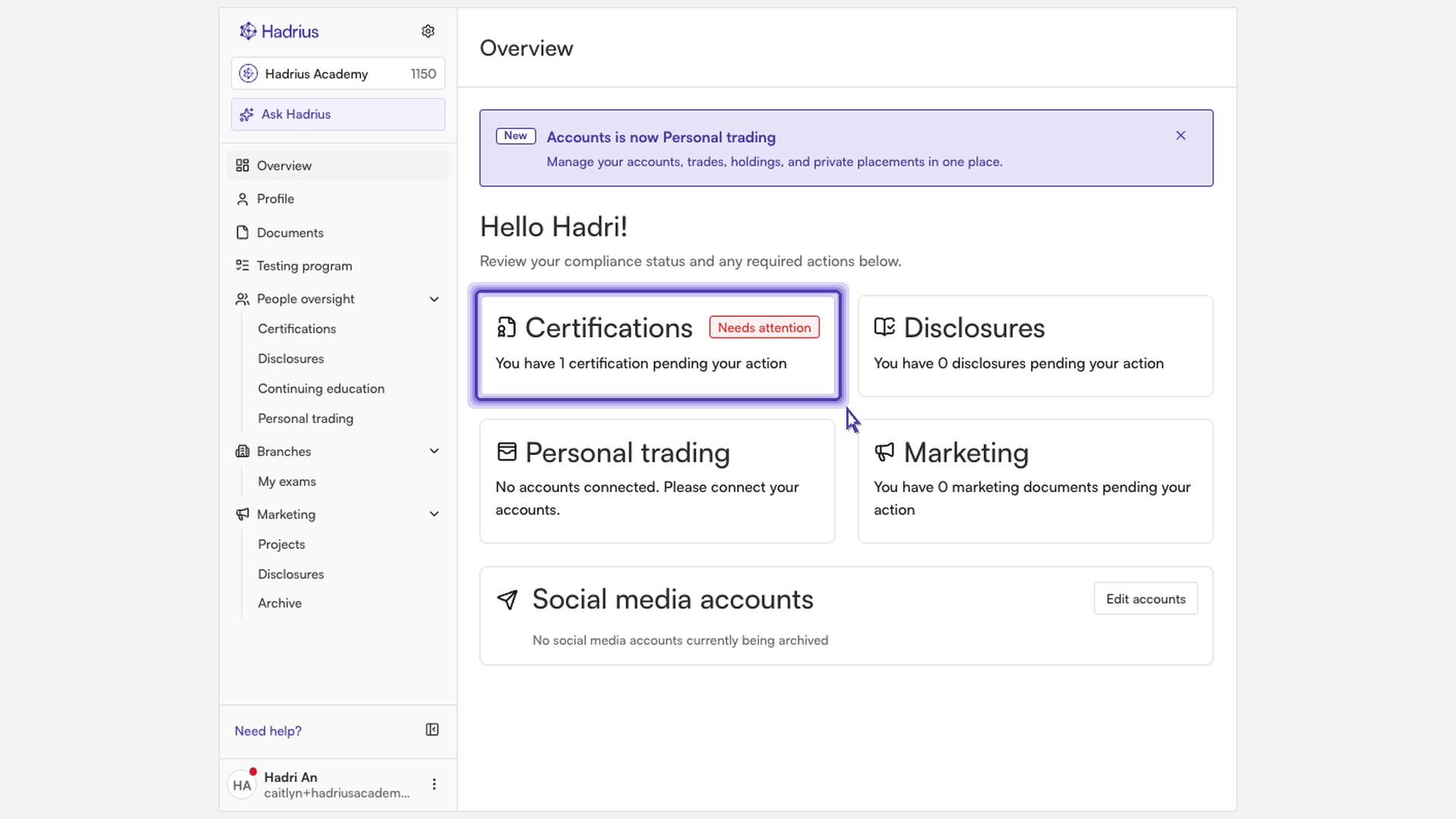
Start on your employee dashboard. Items that need your attention appear here first. The Certifications card shows how many certifications are waiting on you. Click it to open your certifications list.
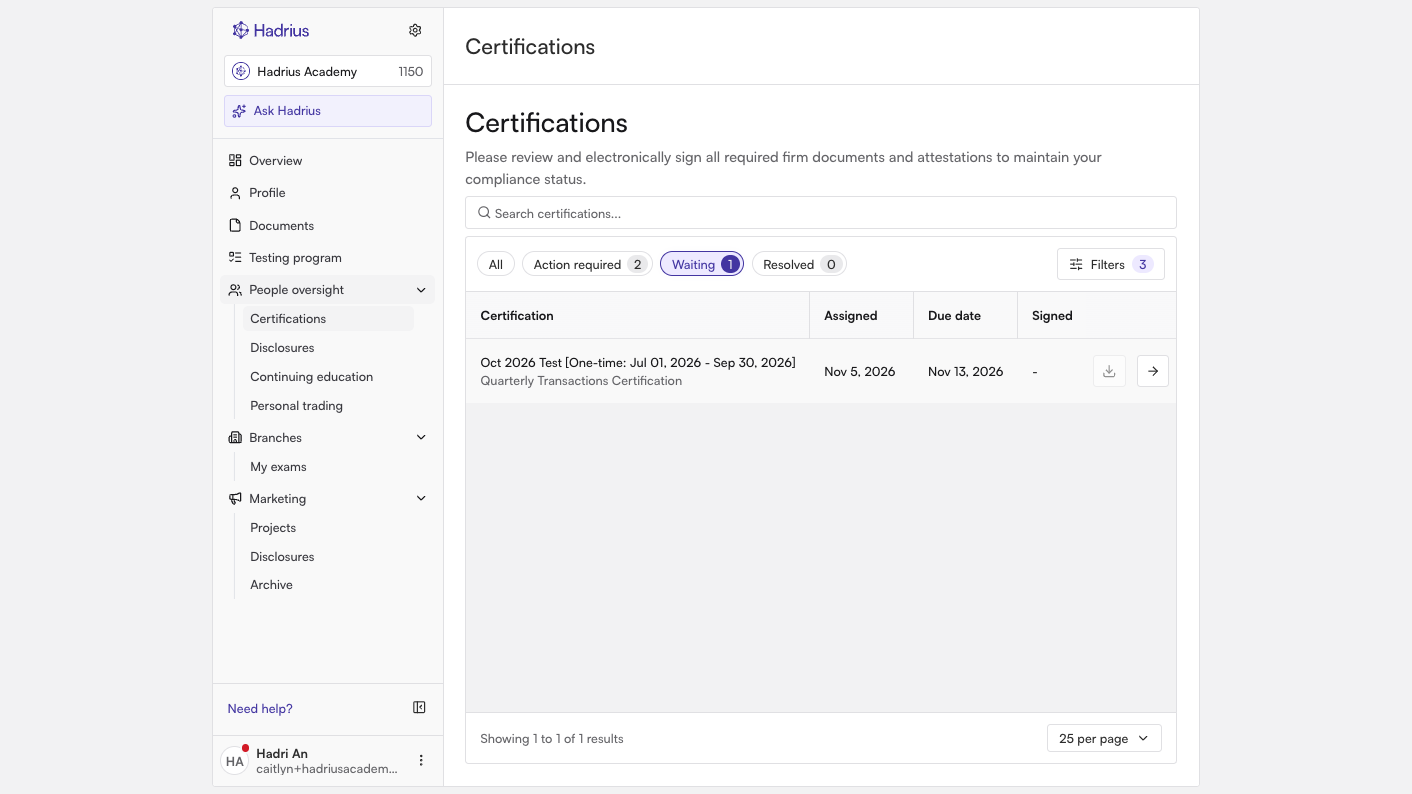
Filter to your outstanding certifications. The certifications page lists every certification assigned to you, both open and completed. To see only the ones that still need something from you, select the Waiting filter. This view shows certifications with a status of "Not started," "Draft," or "Action required." "Action required" means a reviewer returned the certification to you for changes.
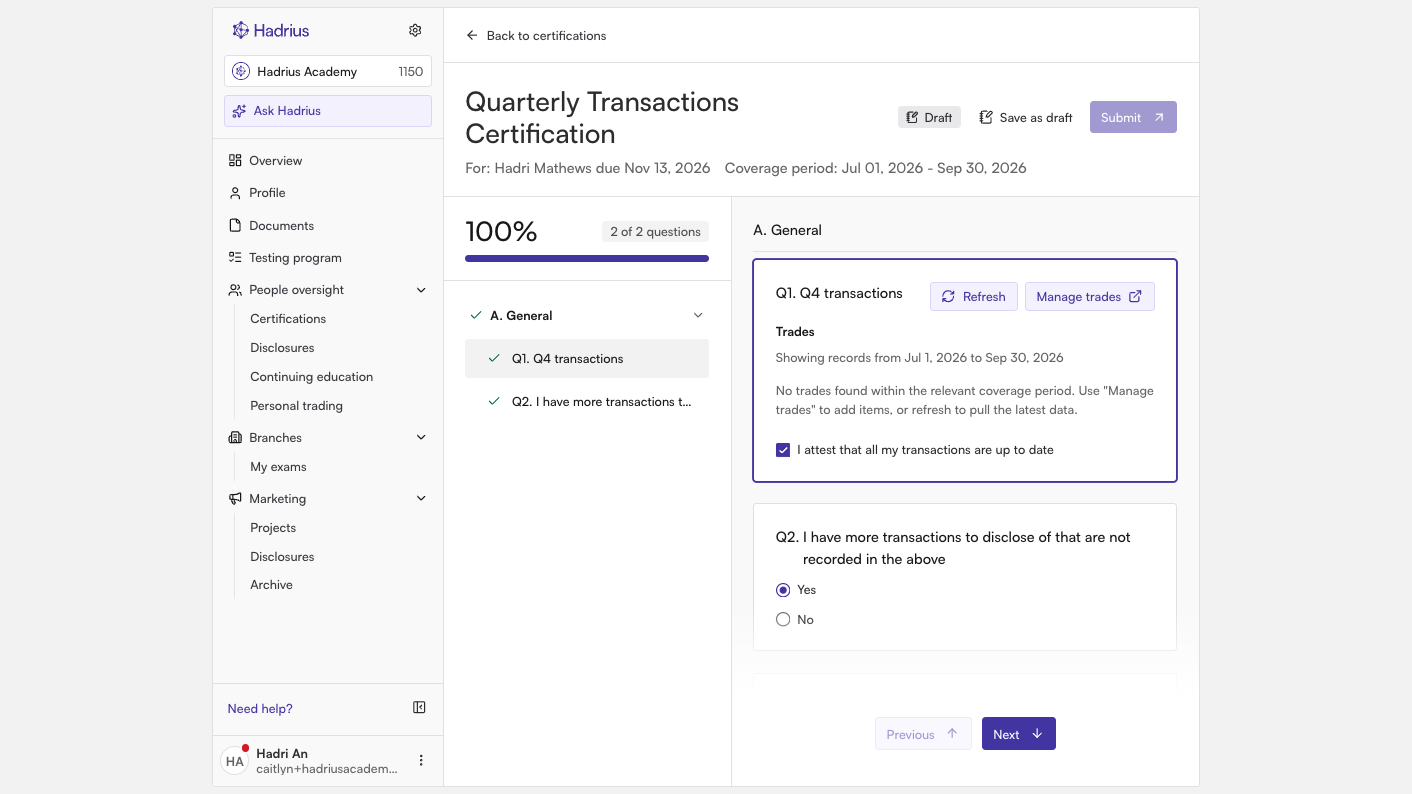
Open the certification. Click the certification you want to complete to open its questions.
Answer the questions
Work through each question. The certification page shows a progress sidebar listing the questions, with the attestation and signature step at the end. Answer each question, and use the navigation controls or the sidebar to move between them. Your answers save automatically as you move from one question to the next. If you need to stop partway through, click Save as draft and come back to it later. The certification will show as "Draft" in your list.
Attest and sign
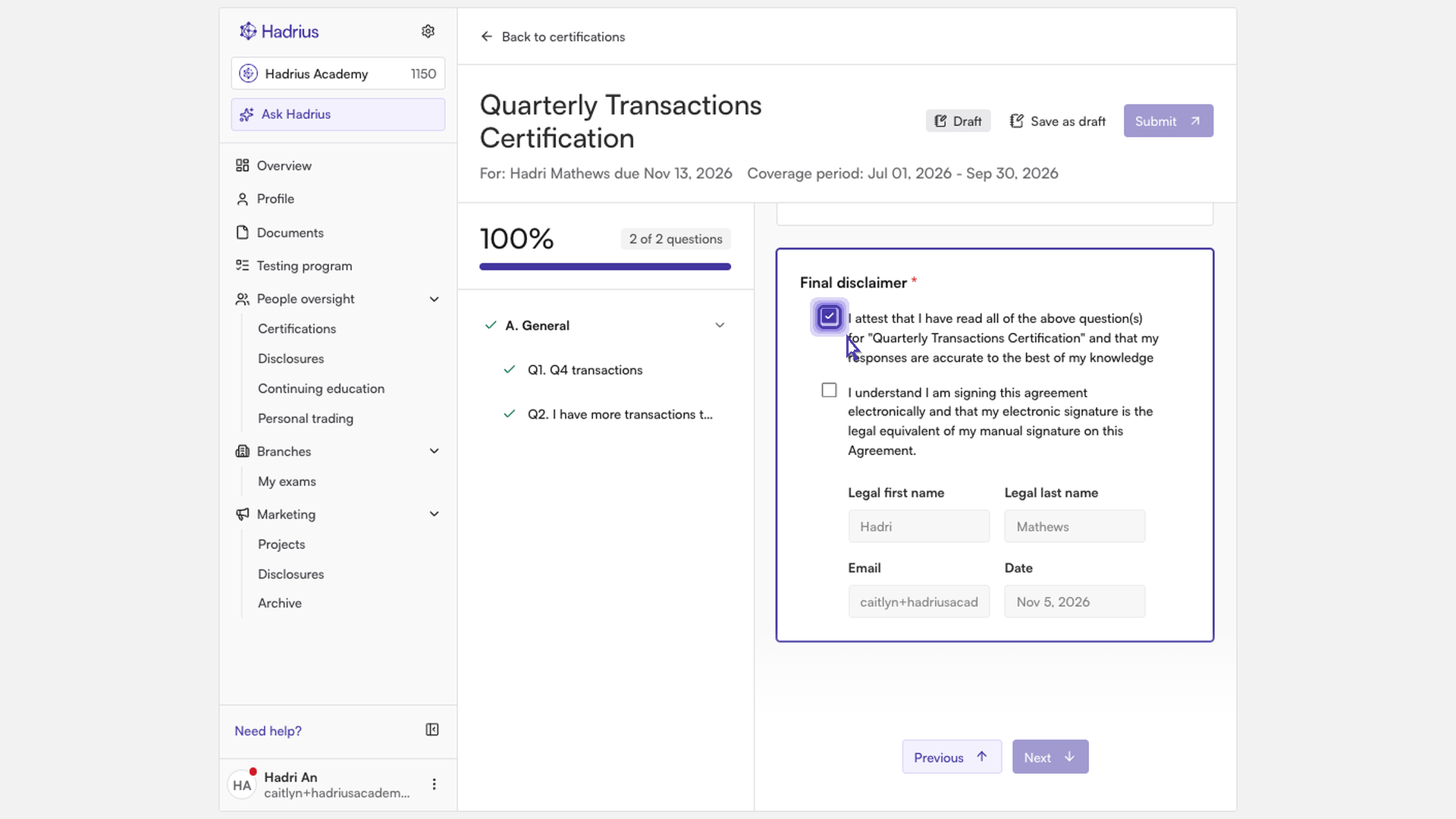
Confirm your answers are accurate. On the final step, check the attestation box to confirm that you have read every question and that your answers are accurate.
Add your electronic signature. Your firm requires the final disclaimer, and checking it adds your signature. By checking it, you acknowledge that your electronic signature carries the same legal weight as a handwritten one.
Submit the certification
Click "Submit." The Submit button becomes available once you have answered all required questions and checked both the attestation and the signature. Click it to send the certification to your compliance team for review. If you are completing a certification that was returned to you, the button reads Resubmit.
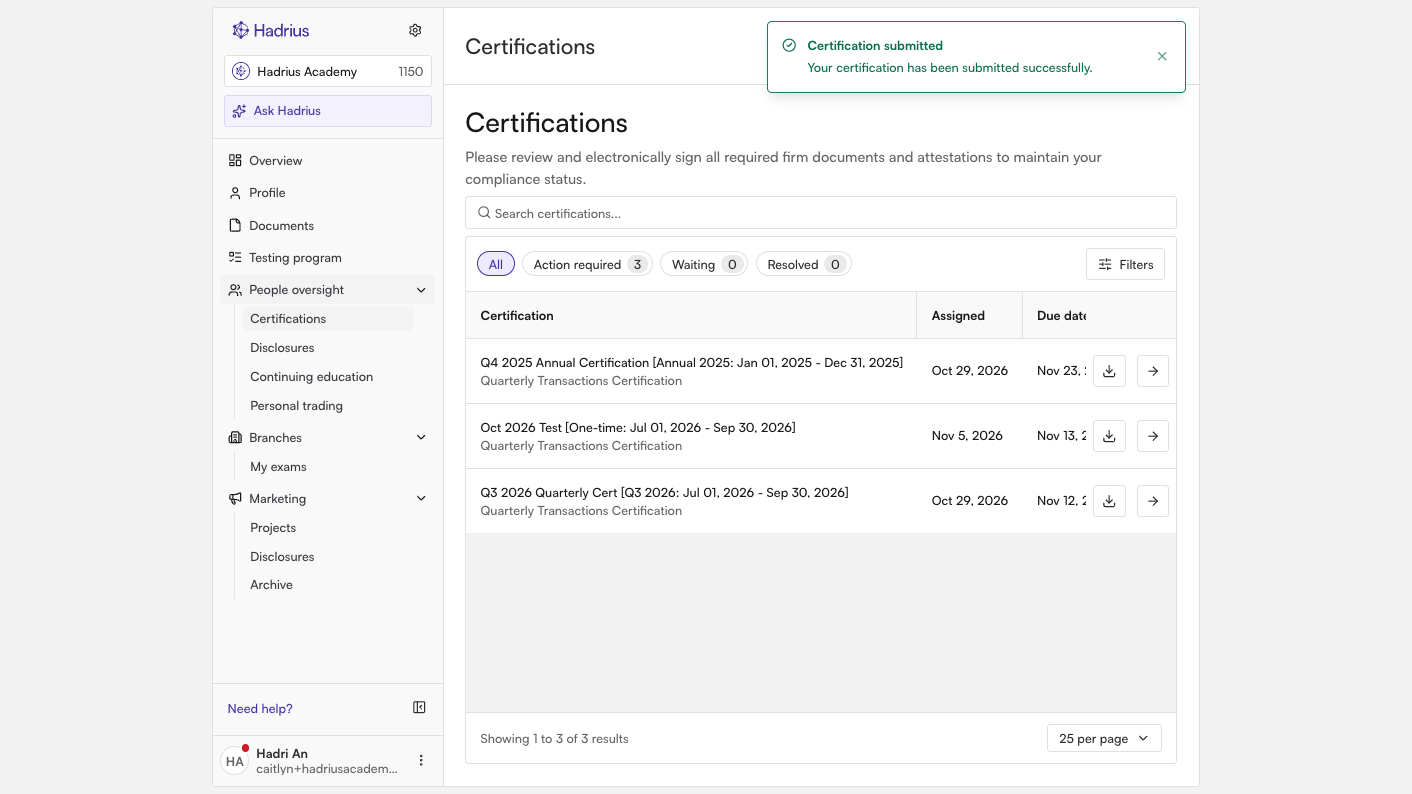
After you submit, a confirmation message appears and you return to your certifications list. The certification no longer shows under Waiting.
What happens next
Your compliance team will review your submission. Some certifications are approved automatically when you submit them, and the confirmation message will tell you if that happened. If a reviewer needs more information, the certification will come back to you with a status of "Action required" and will appear again under the Waiting filter so you can update and resubmit it.