How to Find a Project ID/URL
Last updated: November 6, 2026
Every Marketing Review project has a unique project ID and its own web link. You can use the link to send a teammate straight to a project, or add it to an email, a ticket, or your internal records. The project ID is helpful when you need to reference a project exactly, for example when you contact support or track submissions in another system. This article shows you where to find both.
Find the project ID
Go to the Marketing Review module and open the projects list.
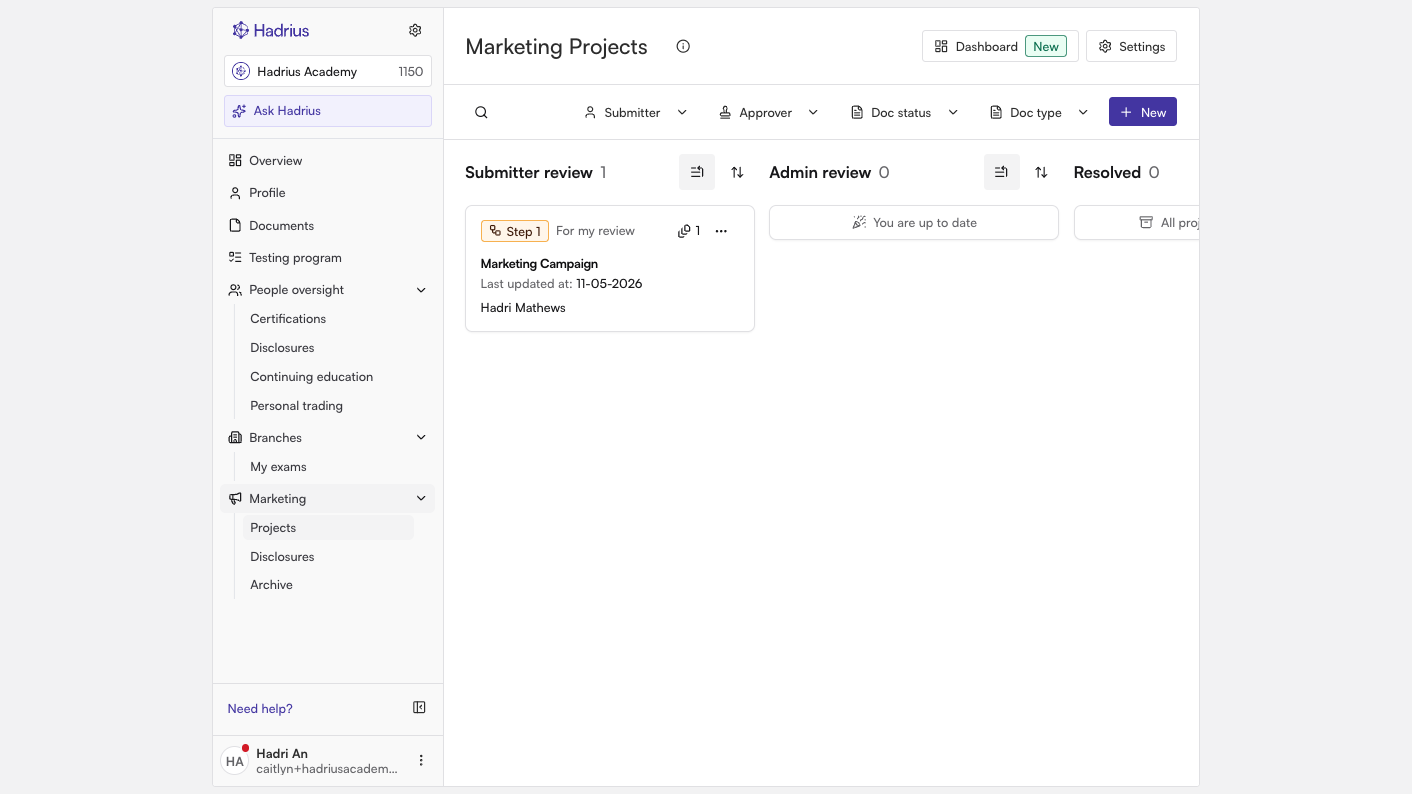
Find the project you want to share or reference, then click it to open the project page.
Look at your browser's address bar. Project pages use the format /marketing/project/<ID>/, and the project ID is the number at the end of the address. For example, if the address ends in /marketing/project/1234/, the project ID is 1234.
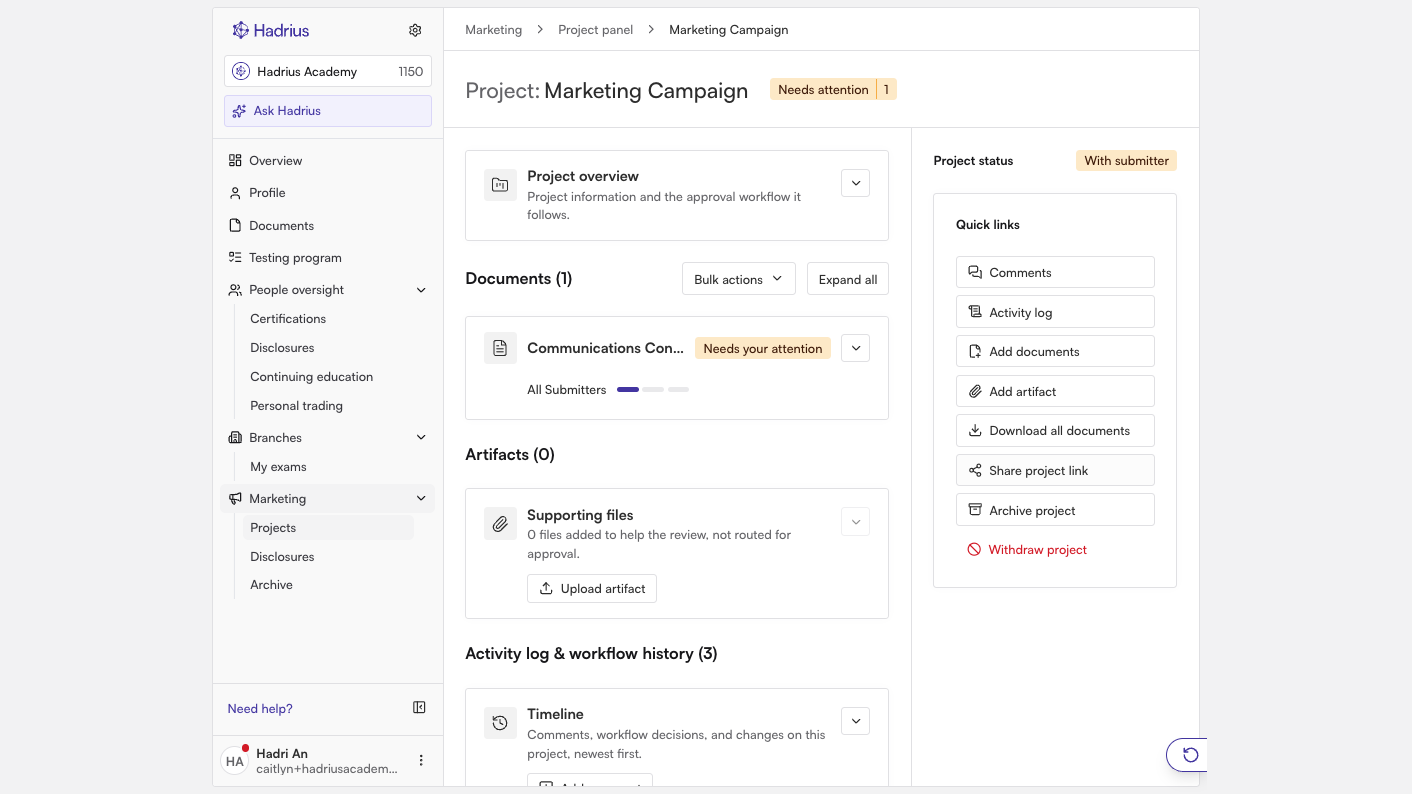
Copy the project link
You don't have to copy the address by hand. Under Quick links on the project page, click "Share project link". The project's full URL is copied to your clipboard, and a "Link copied" confirmation appears. You can then paste the link into an email, a chat message, or a document.
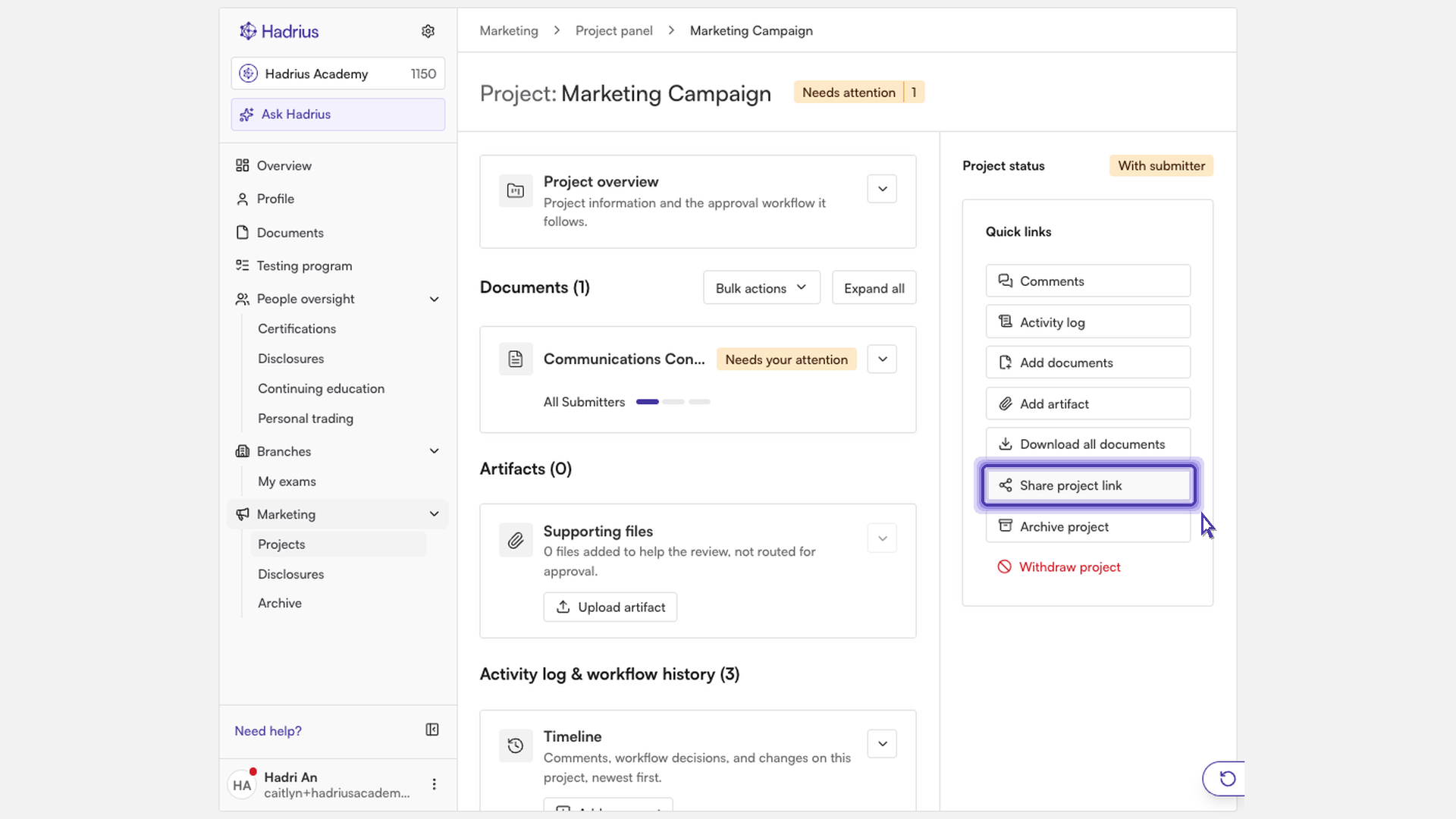
Note: Anyone who opens the link still has to sign in to Hadrius and have access to Marketing Review projects to see the project. Sharing the link doesn't change who can view the project.