Navigating Your Employee Dashboard and Action Items
Last updated: November 5, 2026
The employee dashboard is your home base in Hadrius. It shows everything your compliance team needs from you, including certifications to sign, disclosures to submit, accounts to connect, and marketing materials to review. This article explains each part of the dashboard and how to use it to find and finish your open action items. It's a good place to start whenever you log in or get a notification from your compliance team.
Getting to your dashboard
Your employee dashboard opens when you log in. It greets you by name and shows a short summary: "Review your compliance status and any required actions below." If you go to another part of the platform, click the Home link in the navigation to come back to the dashboard.
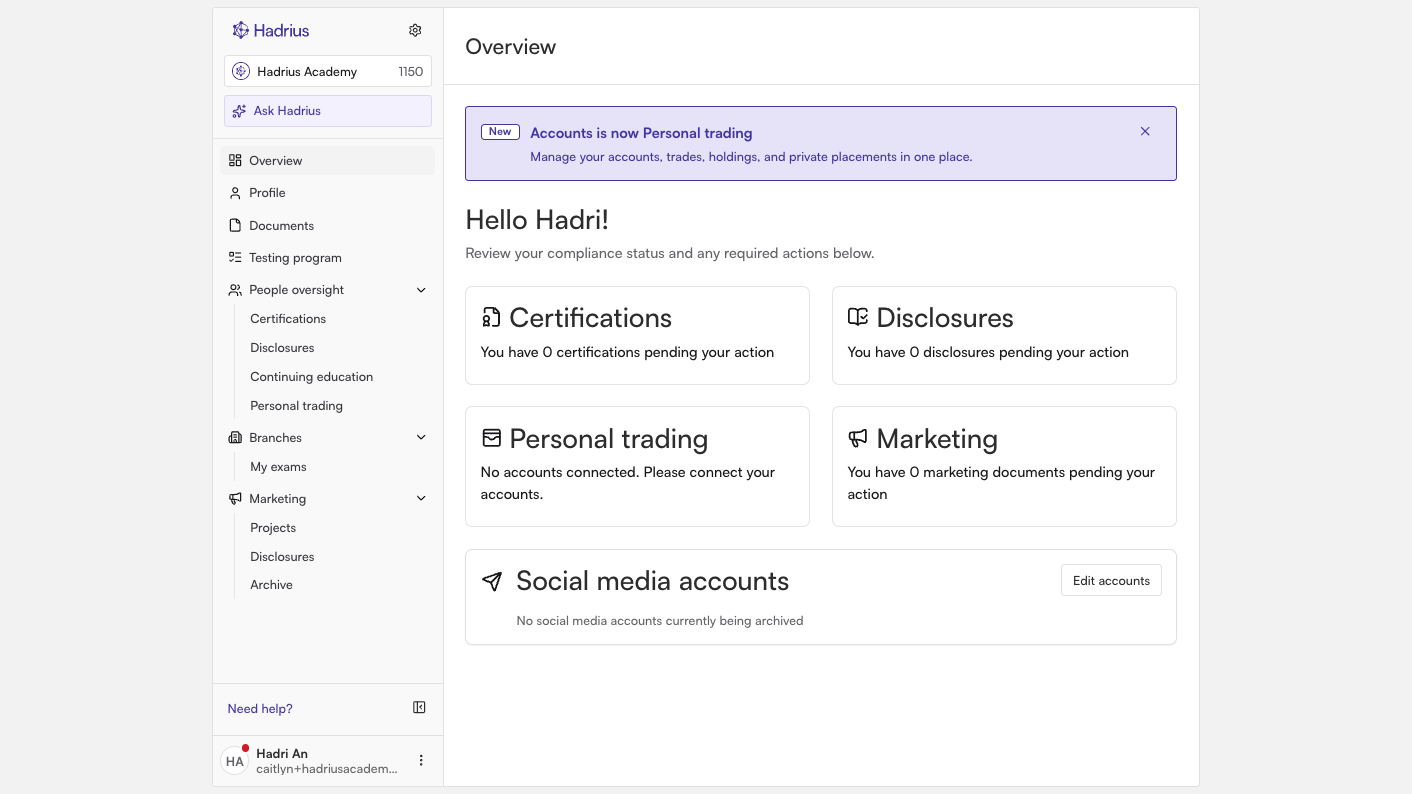
The dashboard shows a card for each compliance area that applies to you. Each card tells you how many items are waiting on you. If a card has anything pending, it shows a red "Needs attention" badge. Click anywhere on a card to open that area. Which cards you see depends on the modules your firm has turned on and the permissions you've been given, so your dashboard may not have every card described below.
Understanding each card
Certifications
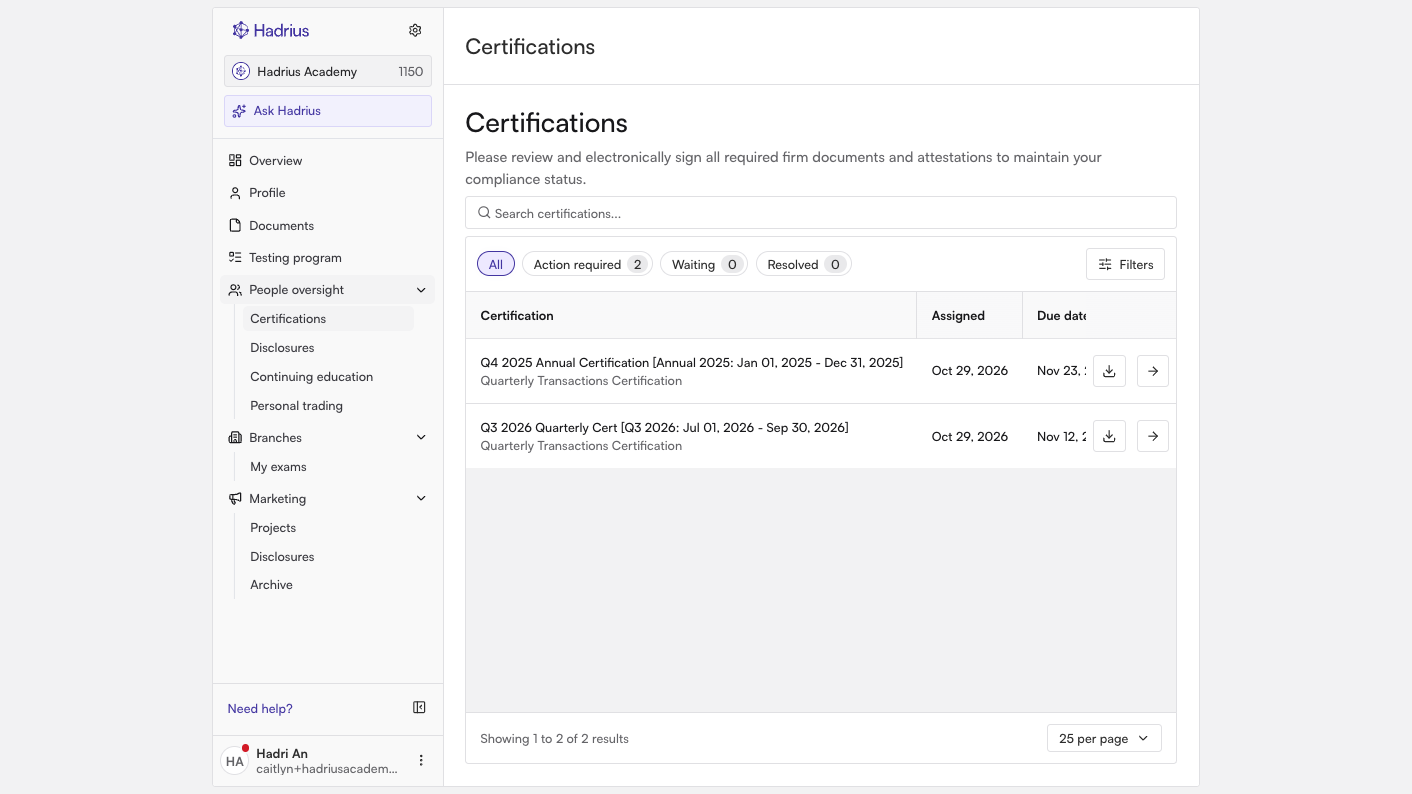
The Certifications card shows how many certifications are pending your action. This count includes certifications waiting for you to submit, certifications past their due date, and certifications your compliance team has returned to you for changes. Click the card to open your certifications, where you can review and sign anything your compliance team has sent you.
Disclosures
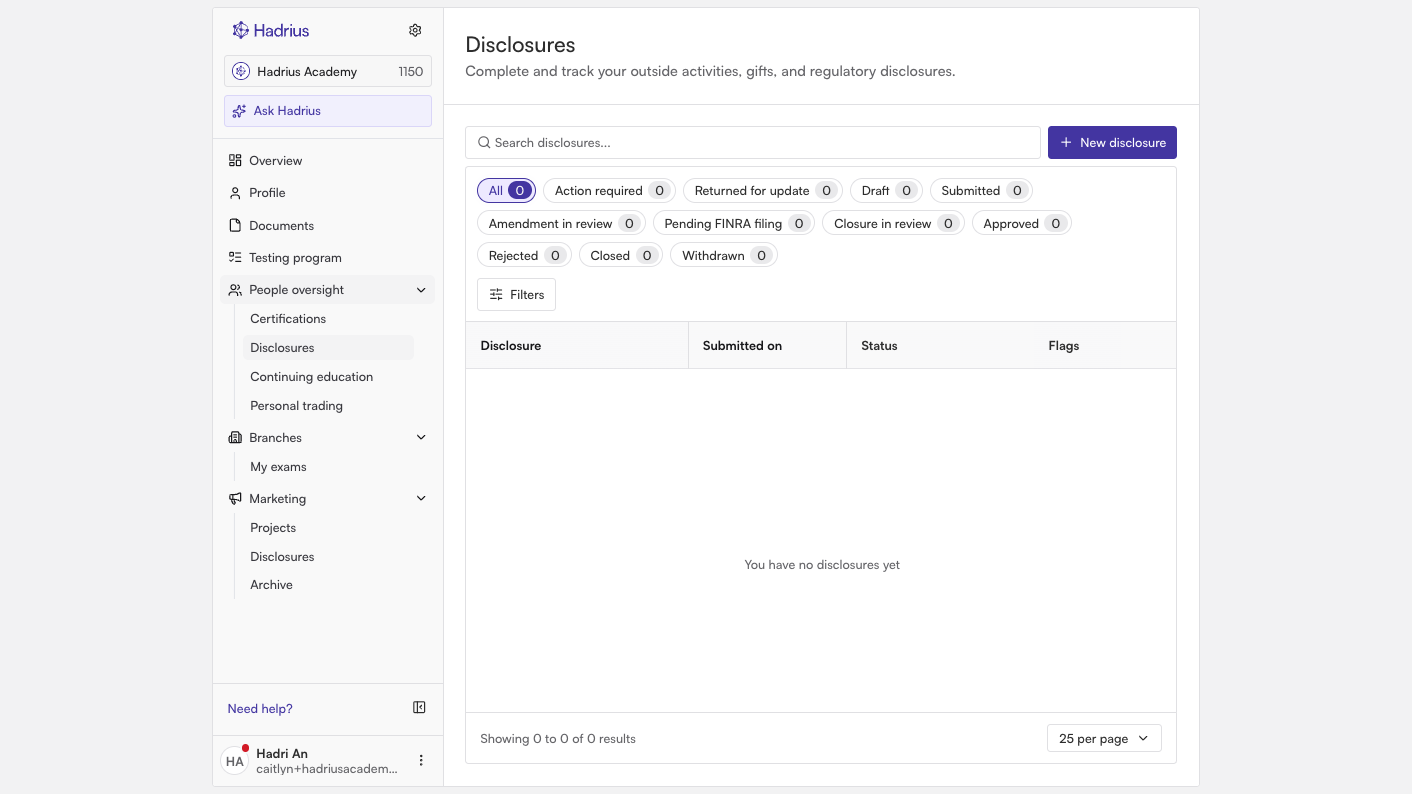
The Disclosures card covers things like outside business activities and gifts. Its count includes disclosures that need your action, drafts you've started but haven't submitted, and disclosures returned to you for an update. Click the card to submit a new disclosure or update an existing one.
If you also approve other people's disclosures, the card shows how many are waiting for your review. If you have none of your own to complete, the card takes you straight to the disclosures waiting for your approval.
Personal trading
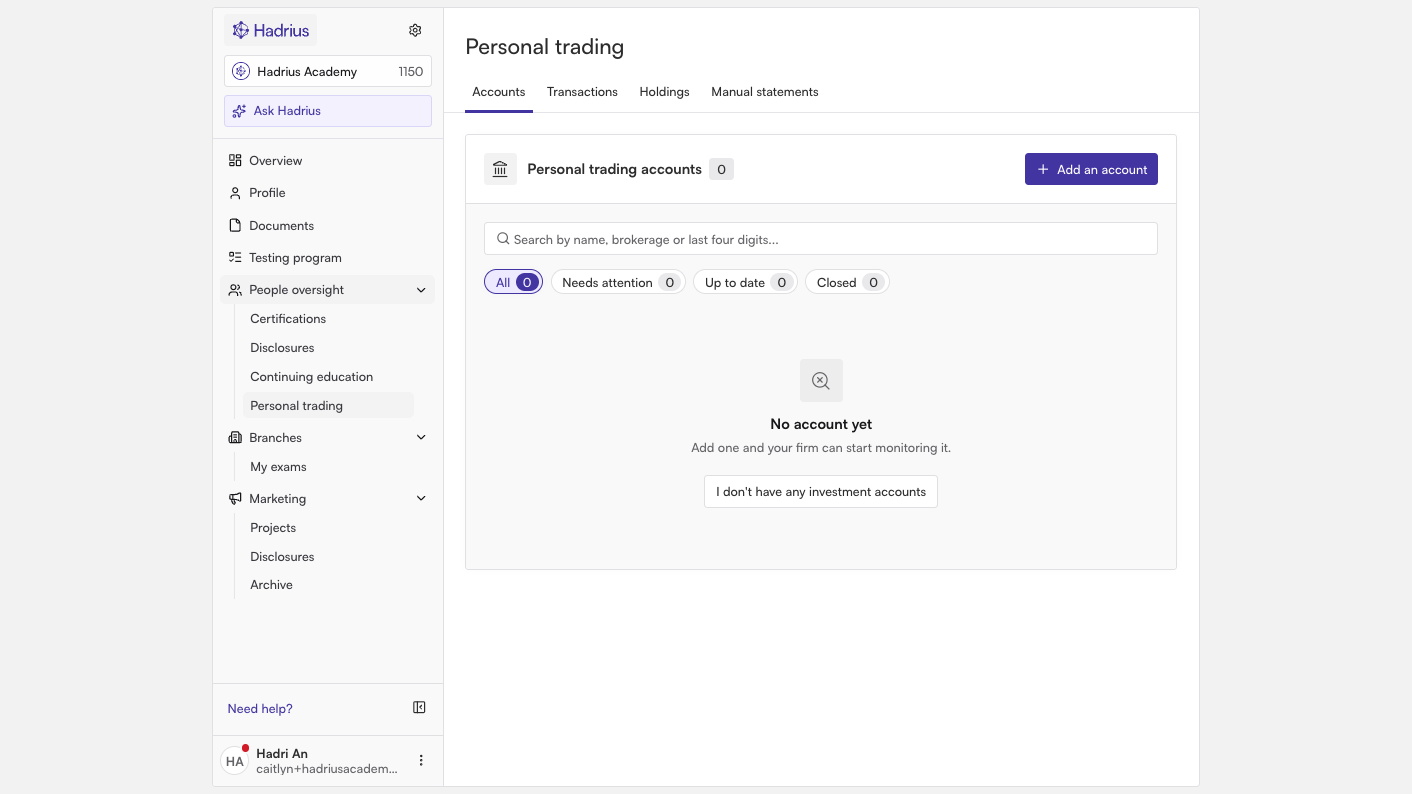
The Personal trading card is where you manage the brokerage accounts the platform monitors for your personal trades. You can also manage your trades, holdings, and private placements here. The card counts account connections that need your action, such as an account request still in progress, a connection that has stopped working, or an account that is missing statements. If you haven't connected any accounts yet, the card says "No accounts connected. Please connect your accounts." Click the card to connect or fix your accounts.
Marketing
The Marketing card tracks marketing documents waiting for your input. Click it to open Marketing Projects. Marketing Projects keeps all the documents going to compliance review in one place, so you can see what needs your attention and respond.
Managing your archived social media accounts
If your firm archives social media, the dashboard also has a Social media accounts section. It lists each account being archived for you, along with the platform, its status, and a link to the account. To add or remove an account, click Edit accounts and submit your request.
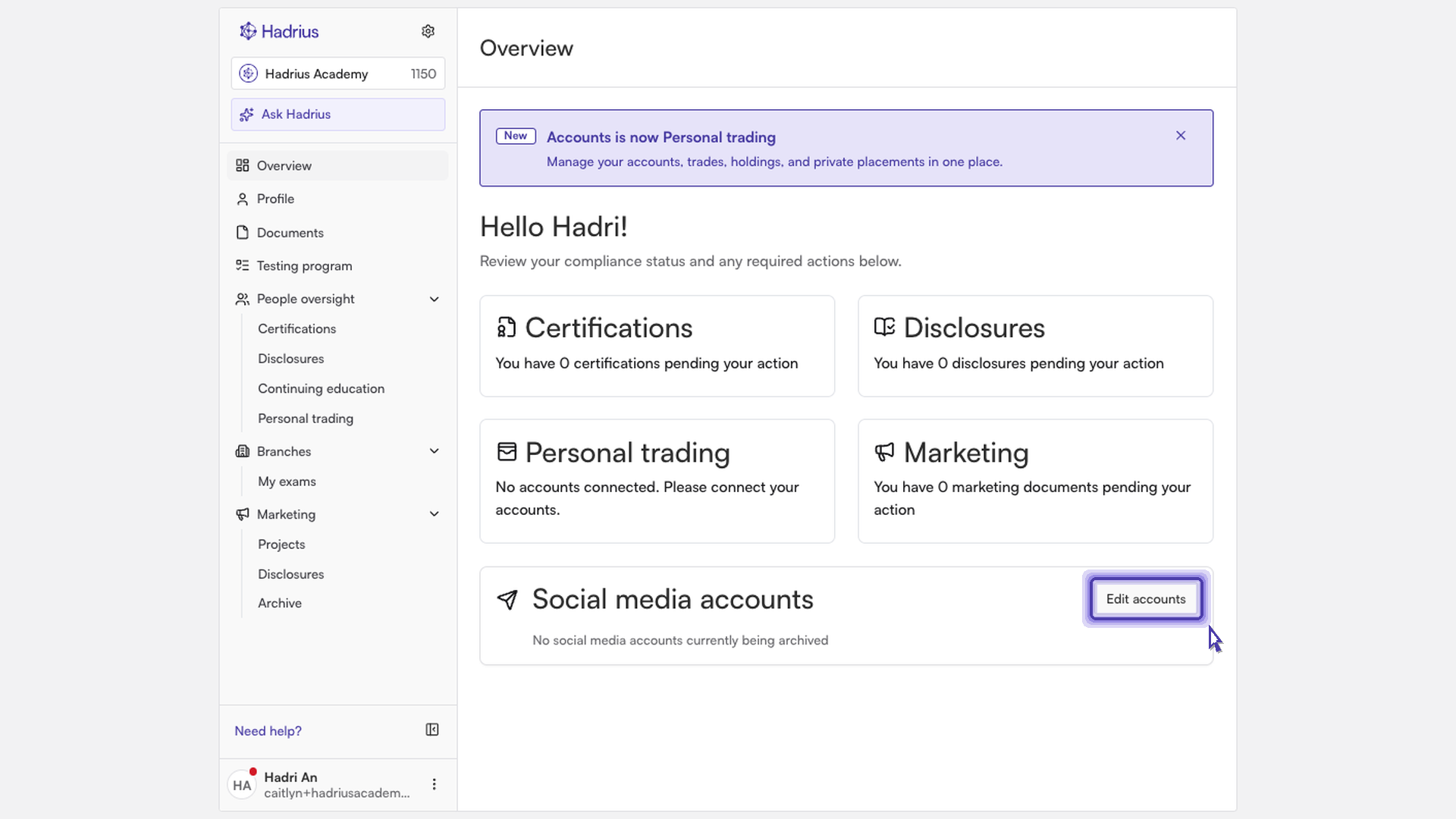
Your compliance team has to approve each change before it takes effect. Until then, a new account shows as "Pending approval" and an account you've asked to remove shows as "Pending removal." Once approved, the account's status changes to "Active" or "Inactive."
What's next
When you finish an item, the count on its card goes down. When nothing is pending, the "Needs attention" badge goes away. Check your dashboard regularly, and especially after you get a notification from your compliance team. That way you can catch new requests early and meet their deadlines.