Building a Certification Template
Last updated: September 25, 2026
Certification templates are the reusable question sets behind every attestation your firm sends out. Building one in the template library lets you define the questions once — including the ones that pull live platform data into the certification — and then reuse that template for each certification cycle. This article walks through creating a certification template from scratch, configuring each question type, previewing the employee experience, and publishing.
Before you start
Templates are created and stored in the template library, which you can reach from the Certifications module or from Account settings. You need permission to manage certification templates in the template library. If a question will attach a document, have that file ready to upload.
Create the template
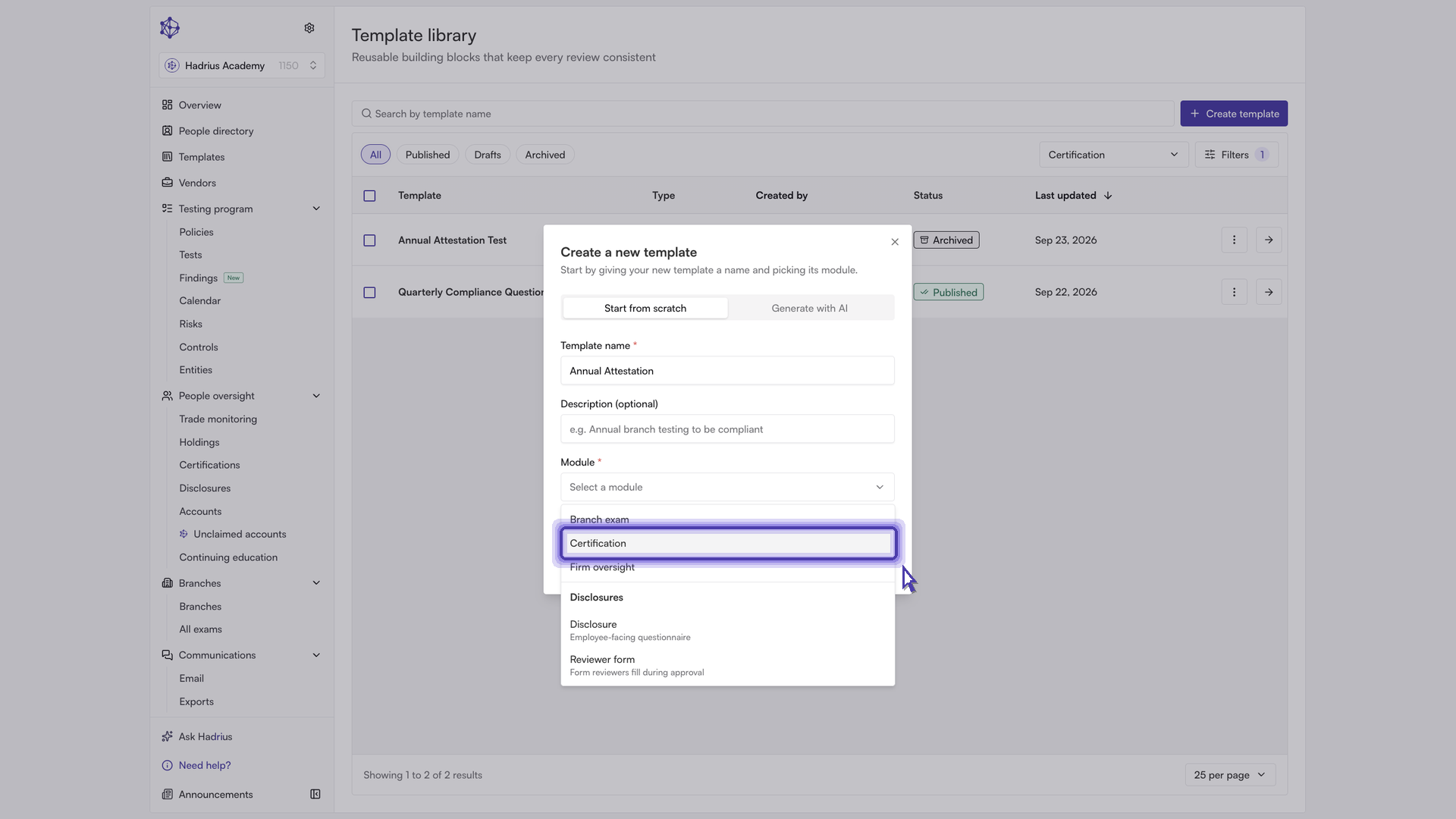
From the template library, select "Create template". In the dialog, give the template a name, add an optional description, and choose the module it belongs to — in this case, Certification. The name and module are both required; the "Create template" button stays disabled until you've provided them. Selecting "Create template" opens the builder with a blank canvas and your first question ready to configure.
The builder has three panels: the category and question list on the left, the question content in the middle, and the configuration panel for the selected question on the right. Use "Add question" to extend a category and "Add category" to group questions into sections.
Add an attestation question backed by platform data
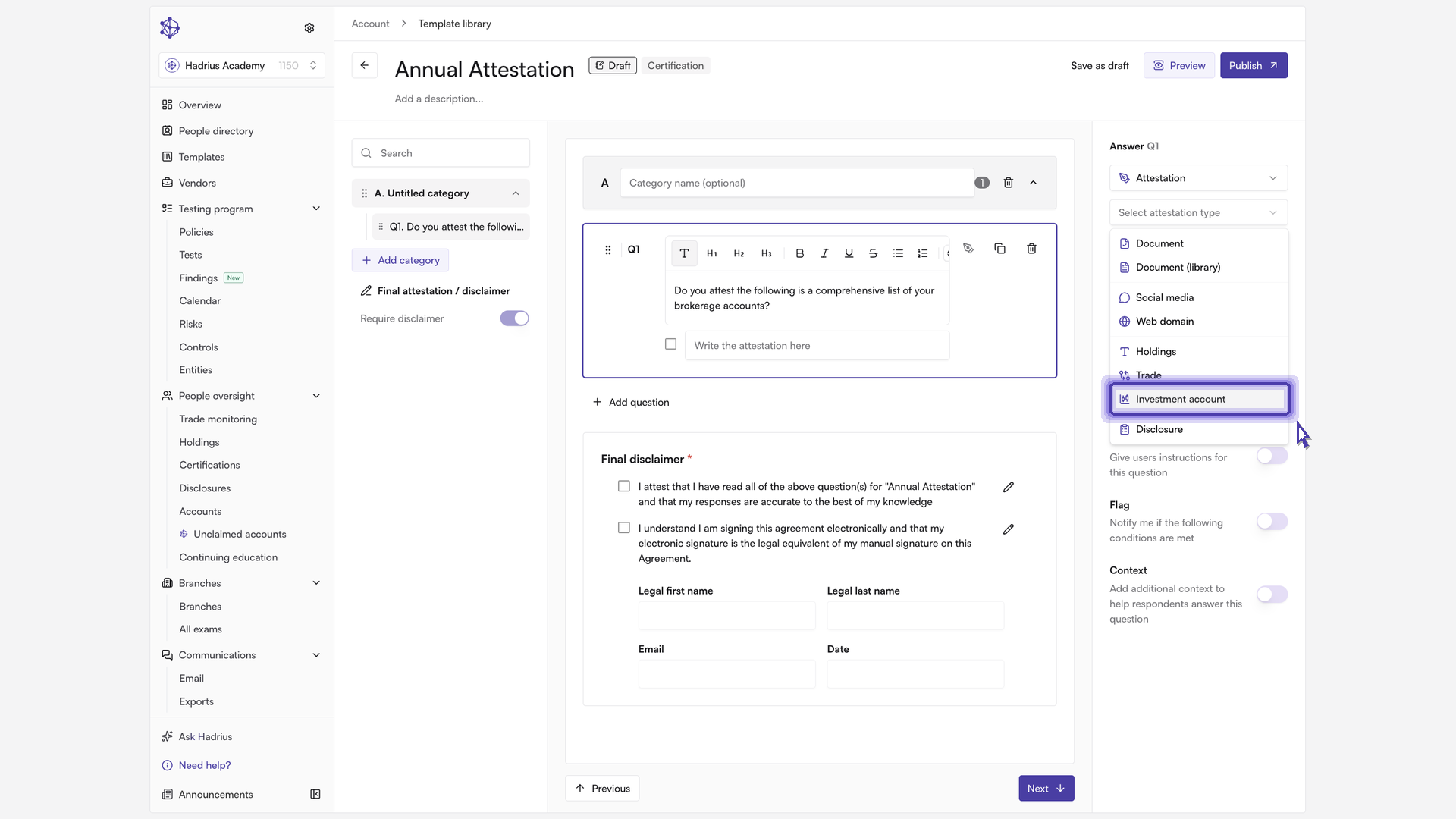
Attestation questions are the ones that pull existing records out of the platform and present them to the employee as a table to review and confirm. To build one, enter the question text, then choose "Attestation" as the question type in the configuration panel. A second selector appears for the attestation type, which determines which records are surfaced.
For a question asking employees to confirm their brokerage accounts, choose the "Investment account" attestation type. Every account already on file for that employee is surfaced in the question. Then write a short attestation message in the text box below the selectors — this is the line employees read and check off, so state exactly what they are confirming.
Attest over disclosure records
Some record types — gifts and entertainment, outside business activities, political contributions — are reported through disclosures rather than stored as standalone records. For those, add another attestation question and choose the "Disclosure" attestation type, then use the disclosure scope selector to narrow what gets pulled in.
The scope selector is grouped into two sections. Under "Disclosure types", pick the type you want — for example, gifts and entertainment — and the question includes all disclosures of that type, showing the disclosure name and a summary answer for each. Under "Specific templates", you can instead pin the question to a single disclosure template you've built, including a custom one. When a specific template is pinned, you can also choose which of its questions appear as columns in the table.
A disclosure attestation question includes the toggle "Only show records from the period being certified", which is on by default. Turn it off if you want employees to see every record regardless of when it occurred.
Attach a document for employees to attest to
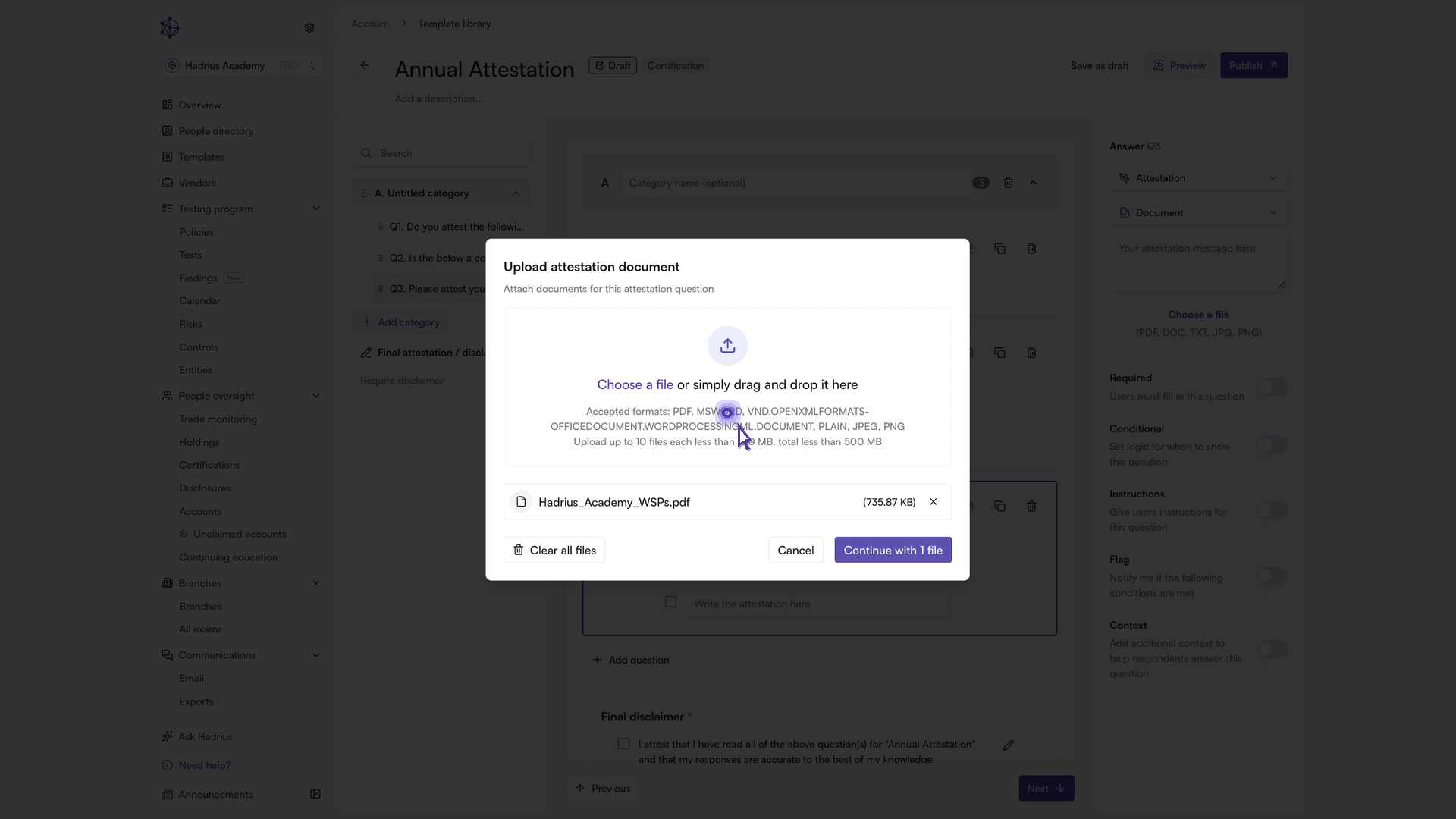
To have employees attest that they've read a firm document — a compliance manual, for example — add an attestation question and choose the "Document" attestation type, then upload the file. The document is embedded directly in the certification, so employees review it without leaving the task. If the document already lives in your document library, choose "Document (library)" instead and select it with "Select from library", which keeps the question tied to the library version.
Add a yes/no question with flagging
For a direct question — such as whether the employee has any unreported customer complaints — choose the "Yes / No" question type. Then turn on the "Flag" toggle in the configuration panel and select which answer should raise the flag. Flagging notifies you when an answer needs a closer look; here, a "no" is what signals unreported complaints, so that's the answer to flag.
Add a conditional follow-up question
A follow-up question gives employees room to explain a flagged answer, and conditional logic keeps it hidden unless it's actually relevant. Add the follow-up question, then turn on the "Conditional" toggle. Choose the question it depends on — the complaints question you just built — then the operator ("Is") and the answer value that should reveal it. Conditional logic needs a preceding question to reference, so the toggle isn't available on the first question in a template.
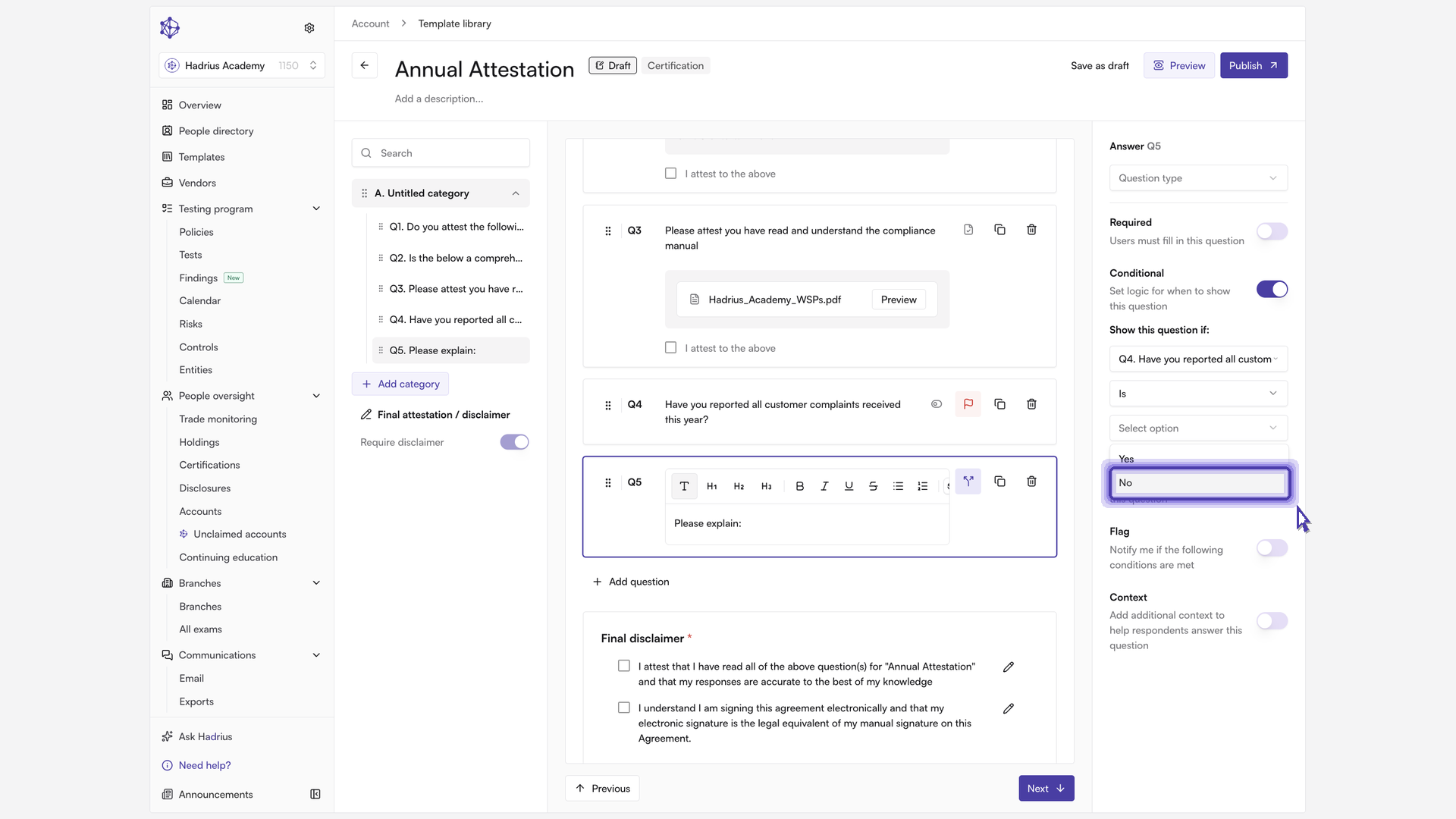
Set the question type to "Long answer" so employees have a free-text field for a written explanation, and turn on "Required" so the explanation can't be skipped.
Context and instructions
Two optional toggles are available on most questions. "Instructions" adds guidance text shown with the question, and "Context" lets you attach supporting material employees can reference. Leave both off when a question is self-explanatory.
Edit the closing attestation
Every certification template ends with a final attestation and disclaimer, which you can open from the bottom of the left-hand panel. Both lines are pre-filled with default language covering the accuracy of responses and the legal equivalence of an electronic signature, and you can rewrite either to match your firm's own wording. Certification templates always require this final disclaimer, so it can't be turned off.
Preview before publishing
Select "Preview" to see exactly what employees will experience. Walk the whole flow: the investment account question shows live brokerage records for review, and if an employee is missing an account they can select "Manage" in the upper right to add it — all changes made there are recorded in their account audit trail. The document question requires employees to download the attached file before they can attest to having read it. Answering "no" on the complaints question reveals the conditional follow-up, where the employee can enter a long-form response. The certification closes with an electronic signature that carries full legal weight.
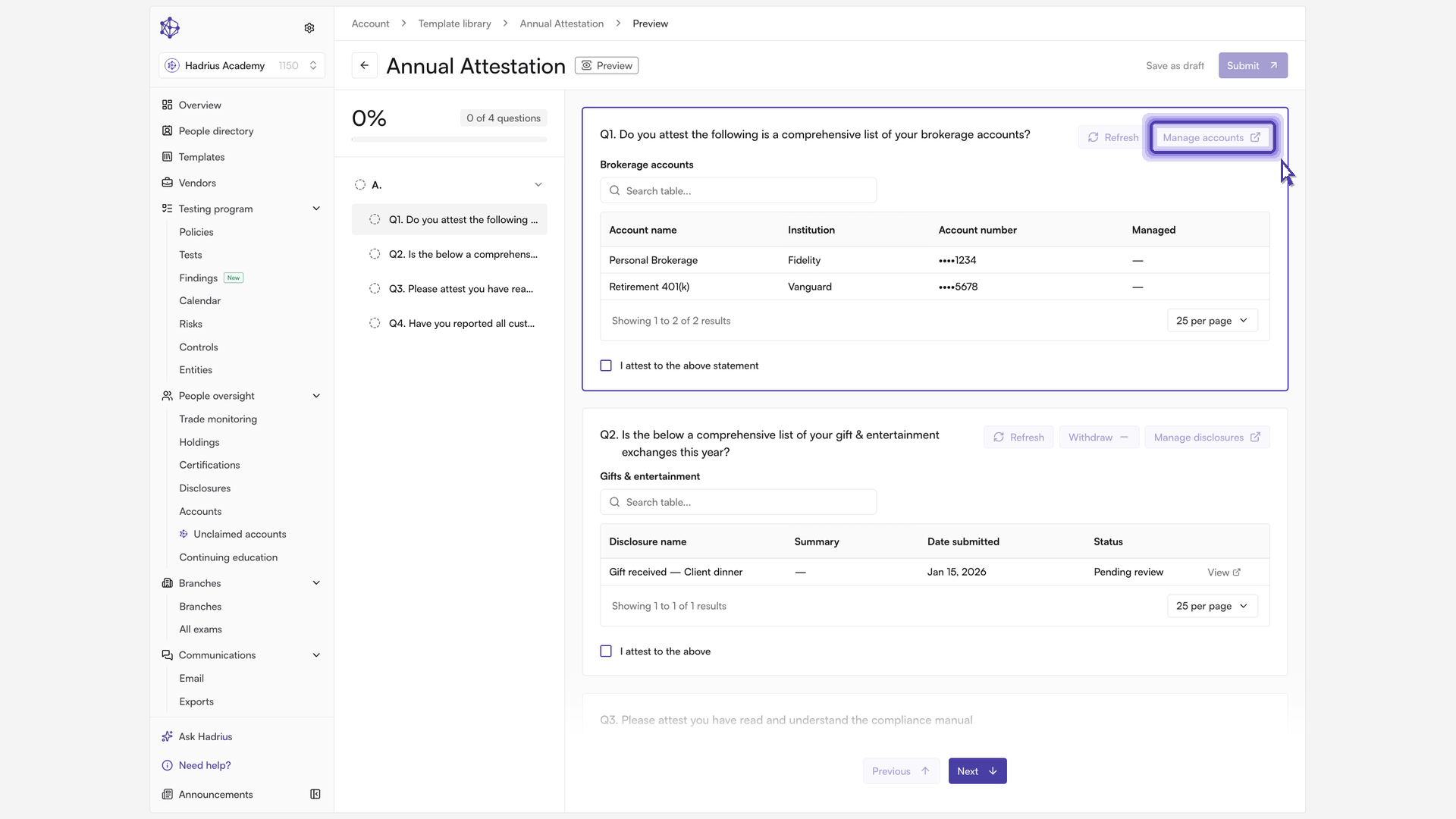
Use the back arrow at any point to return to the builder and make further edits.
Save or publish
If you want to come back to the template later, select "Save as draft" to keep your progress without making the template available for use. When everything is set, select "Publish" and confirm in the dialog. Publishing makes the template available to assign to employees.
Once published, the template is live in your library and ready to be selected when you build your next certification. You can continue to edit it later — and you can combine multiple certification templates into a single packet when sending a certification out.