How to Test a Hadrius Subrule
Last updated: July 14, 2026
Overview
Testing a subrule allows you to confirm that Hadrius is interpreting the subrule as expected. A test set uses example emails or messages to show whether the subrule correctly changes how the base rule behaves.
Subrules are additive, meaning they modify behavior on top of the existing base rule rather than replacing the base rule entirely.
Before You Begin
Before testing a subrule, make sure:
Subrules are enabled for your environment.
You know which base rule the subrule should modify.
You have a few real examples that should be affected by the subrule.
The subrule prompt is written clearly and specifically.
If subrules are not enabled in your environment, contact Hadrius Support. For more information on how to create a Subrule, click here.
Steps to Test a Subrule
1. Open the Relevant Rule
Navigate to the rule where you want to test the subrule.
For email review, this is typically found under:
Communications → Email → Subrules
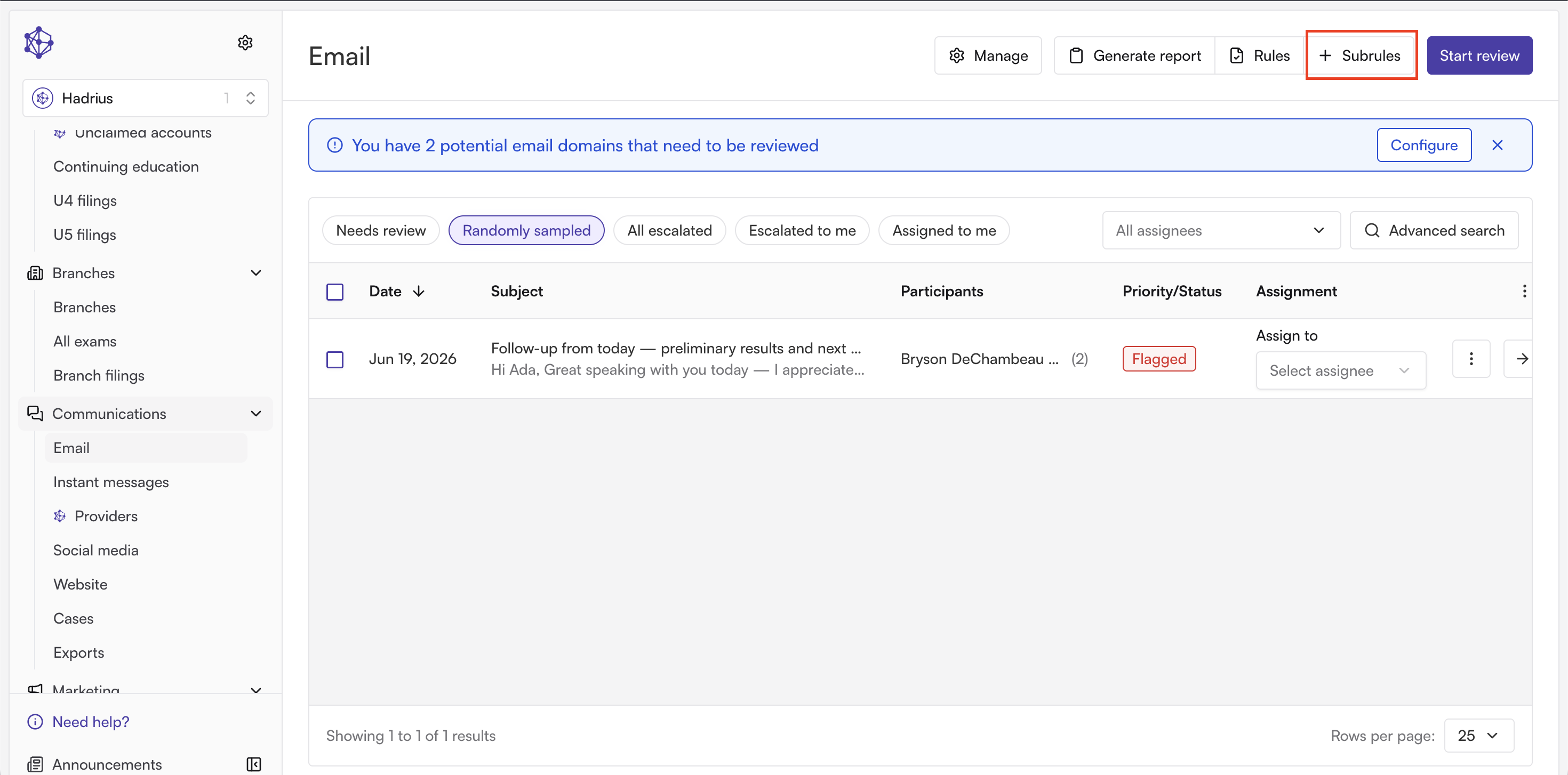
Then select the relevant rule category.
2. Add Messages to the Test Set
Open an example email or message that should be used to test the subrule.
Then click Add to test set.
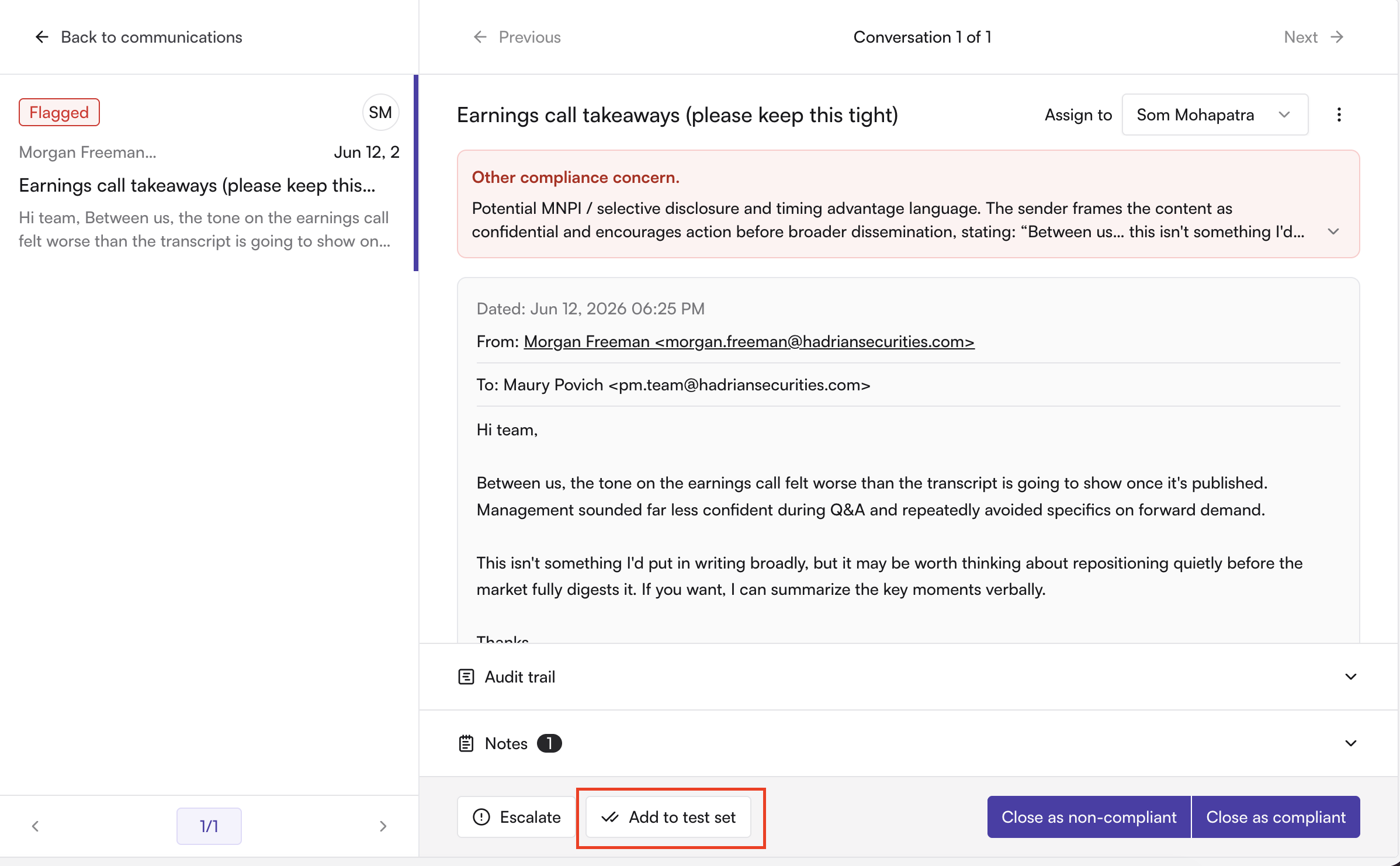
Proceed by clicking on the relevant Subrule
3. Run the Test
After adding one or more examples to the test set:
Return to the subrule.
Open the Test set.
Click Run test or Run tests.
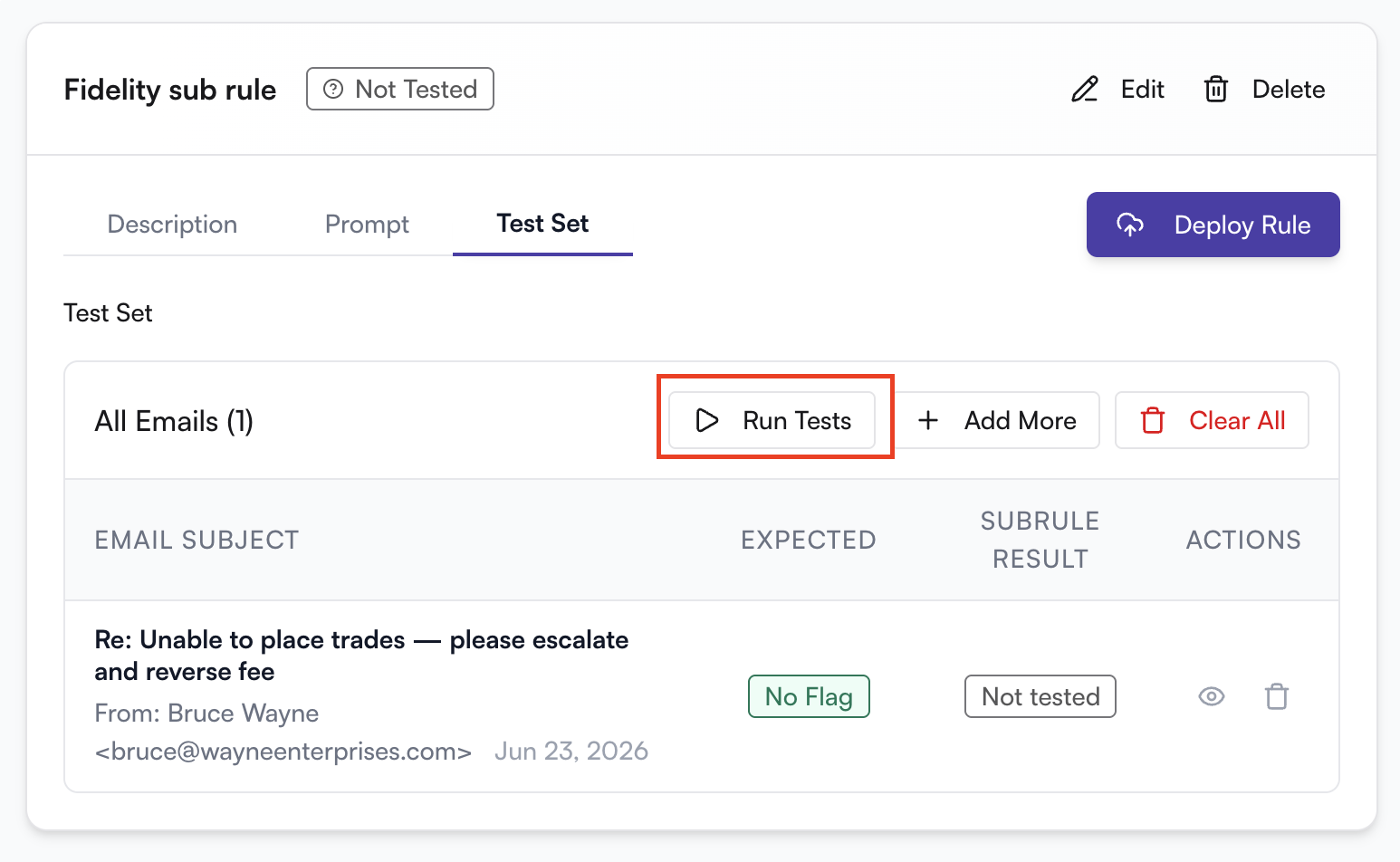
Hadrius will evaluate the examples against the subrule and show whether the subrule handled the messages as expected.
4. Review the Results
After the test finishes, review the outcome for each message.
Check whether:
Messages that should be exempted are no longer flagged.
Messages that should be flagged are still flagged.
The base rule is still behaving correctly.
The subrule is not creating unexpected results.
If the results are not what you expected, revise the subrule prompt and run the test again.