Using the Inbox and Ask Hadrius actions
Last updated: November 18, 2026
The Inbox is the first page you see when you log in to Hadrius. It shows what needs your review across every module, and it puts Ask Hadrius right at the top so you can ask about that work or have Hadrius do it for you. This article covers reading the Inbox, asking what to work on first, and approving the actions Ask Hadrius prepares.
See what needs your review
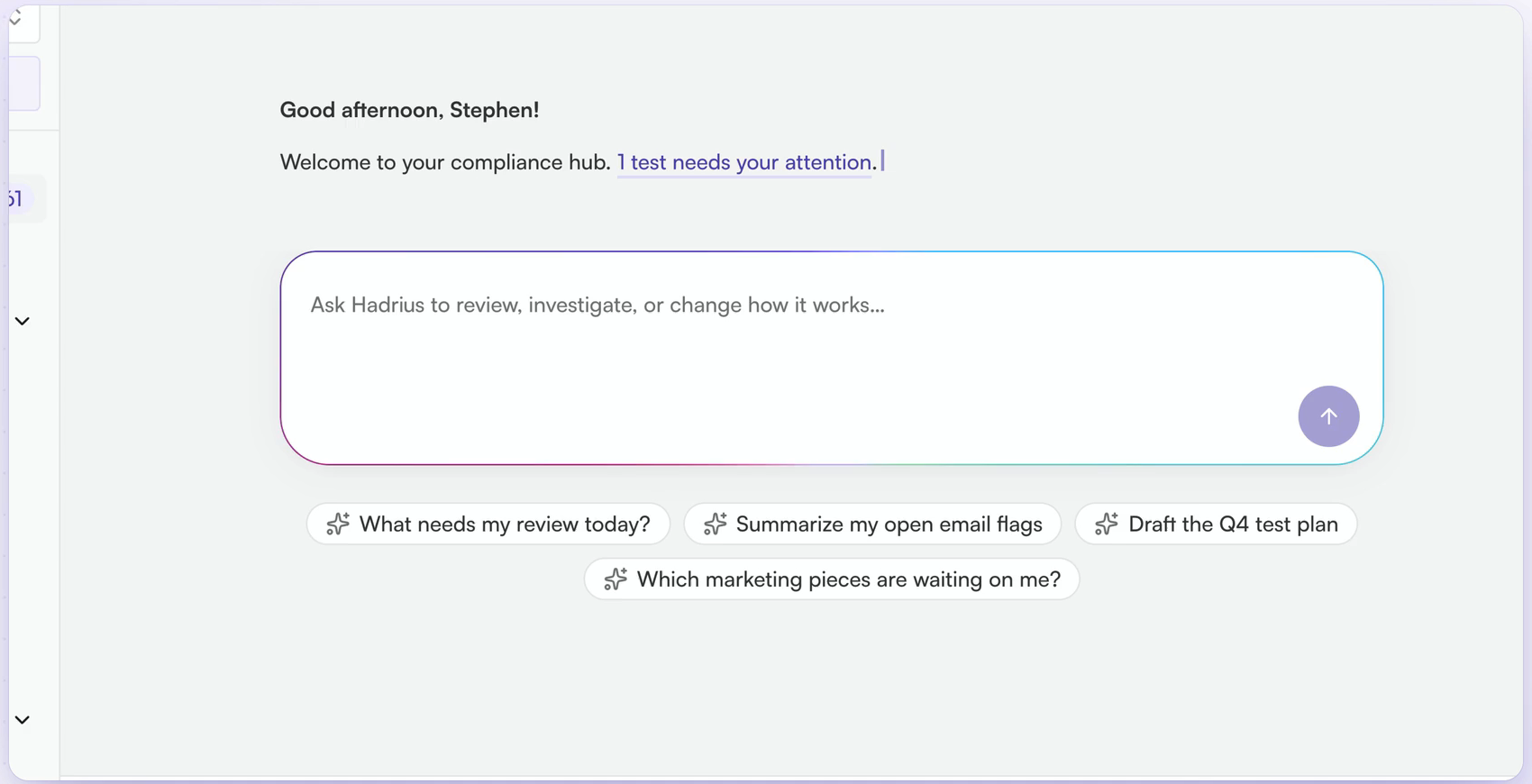
When you log in, the Inbox greets you and points out anything that needs a closer look. Below the greeting is the Ask Hadrius box, with suggested questions such as What needs my review today? and Summarize my open email flags.
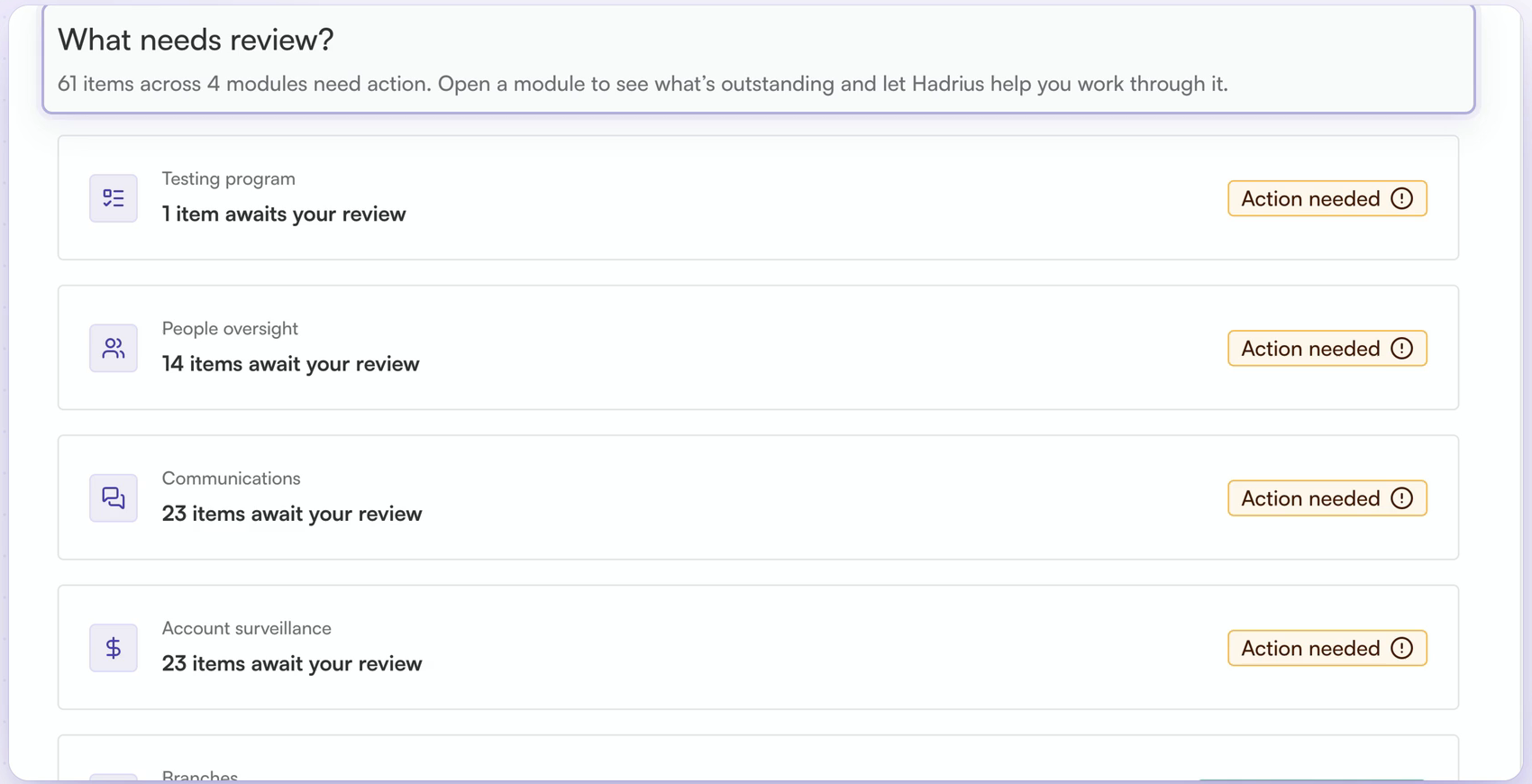
Under What needs review?, each module shows how many items are waiting for you, for example Testing program, People oversight, Communications and Account surveillance. Modules with open work carry an Action needed badge.
Open a module
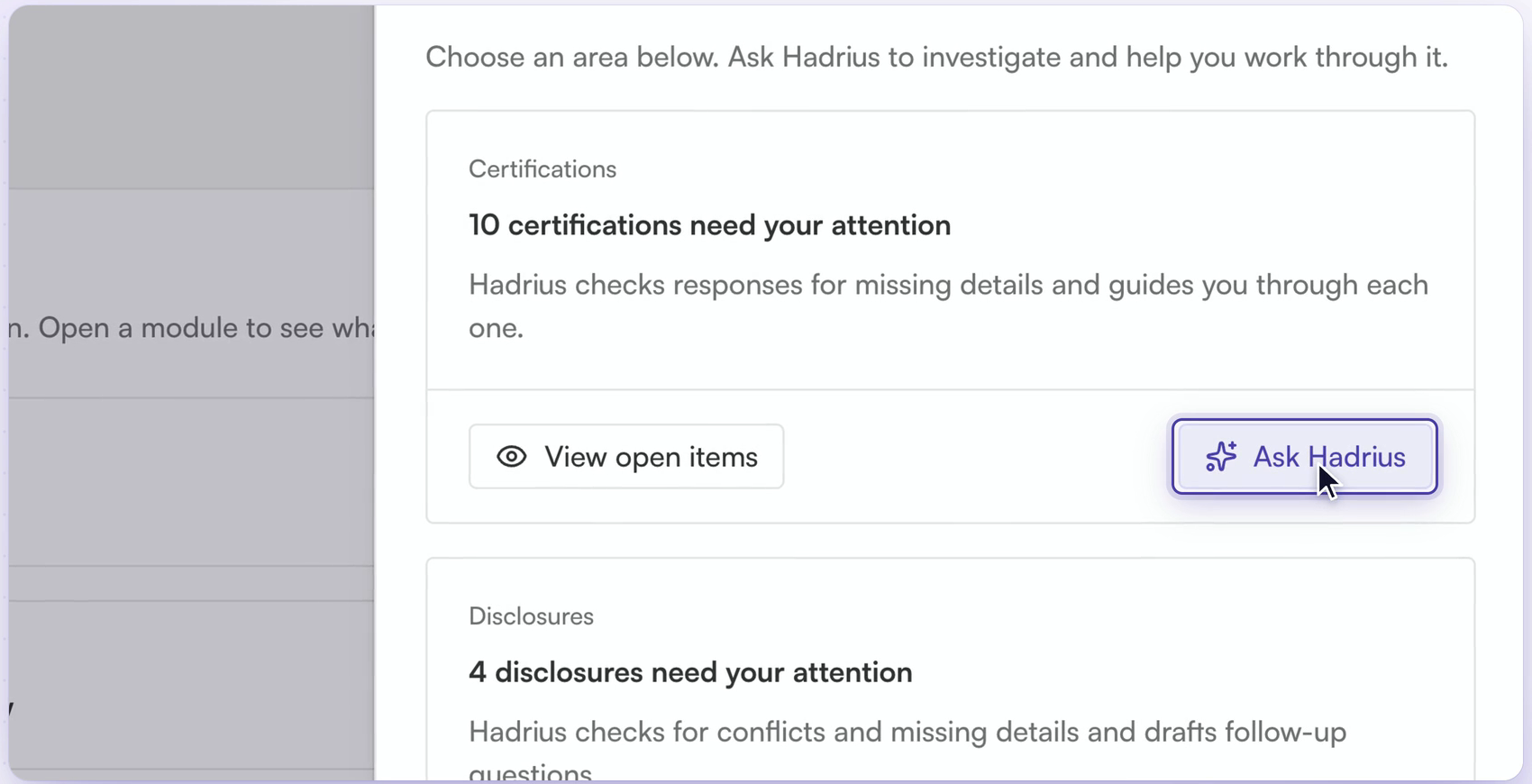
Select a module to see each of its queues, such as Certifications or Disclosures, with a short note on what Hadrius checks for in that queue. Each queue gives you two options:
View open items: go straight to the open items in that queue.
Ask Hadrius: have Hadrius look into the queue and help you work through it.
Ask what to work on first
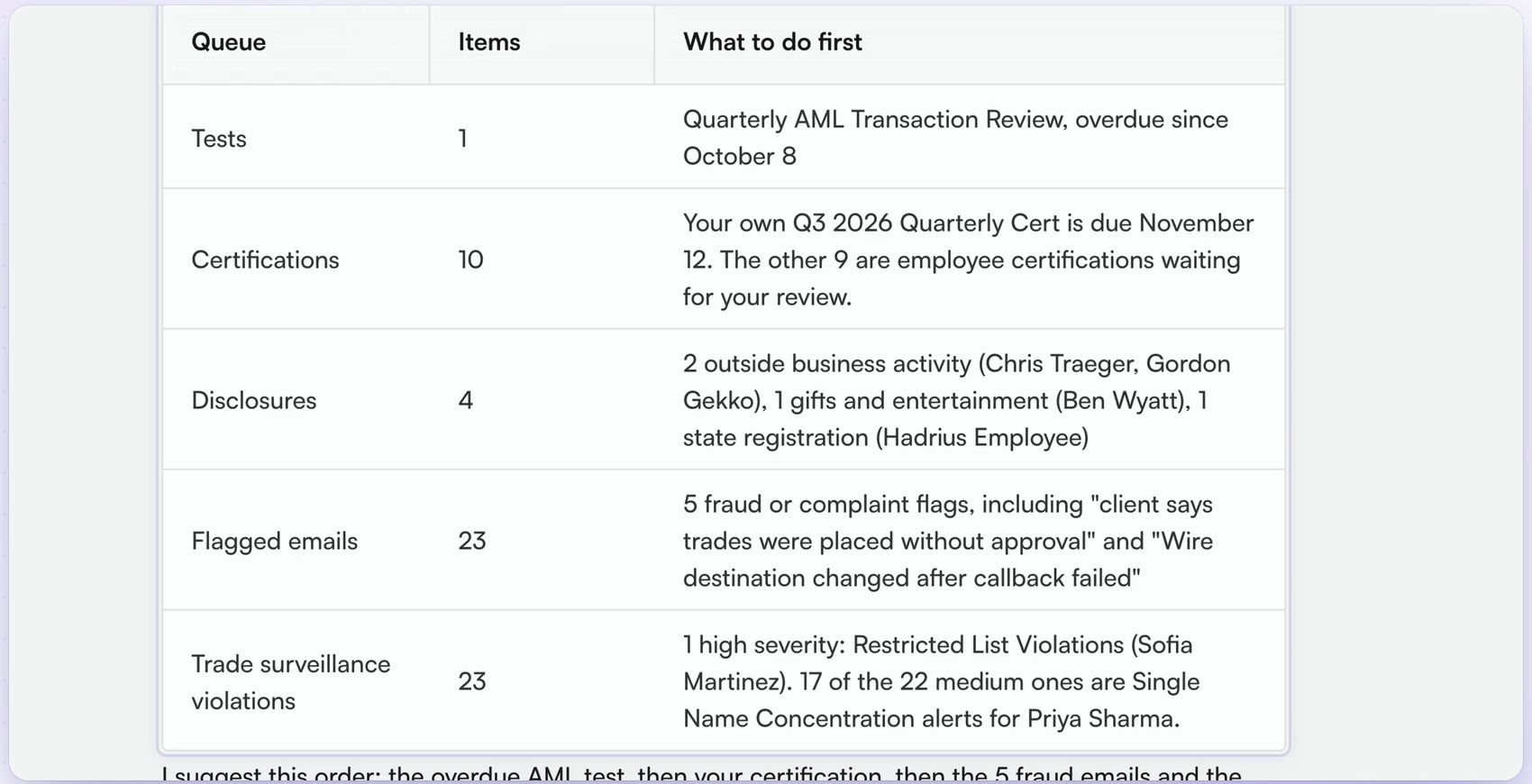
You can also ask a single question, such as What needs my review today? The answer covers every queue in one table, with the number of items and what to do first in each, and ends with a suggested order to work through them.
Have Ask Hadrius do the work
Ask Hadrius can also take action. Describe what you want in one sentence and it prepares the change as a card for you to review. Each card is labeled Approval required and lists exactly what will happen. If anything is missing, Ask Hadrius asks for it before preparing the card.
Some examples from the video:
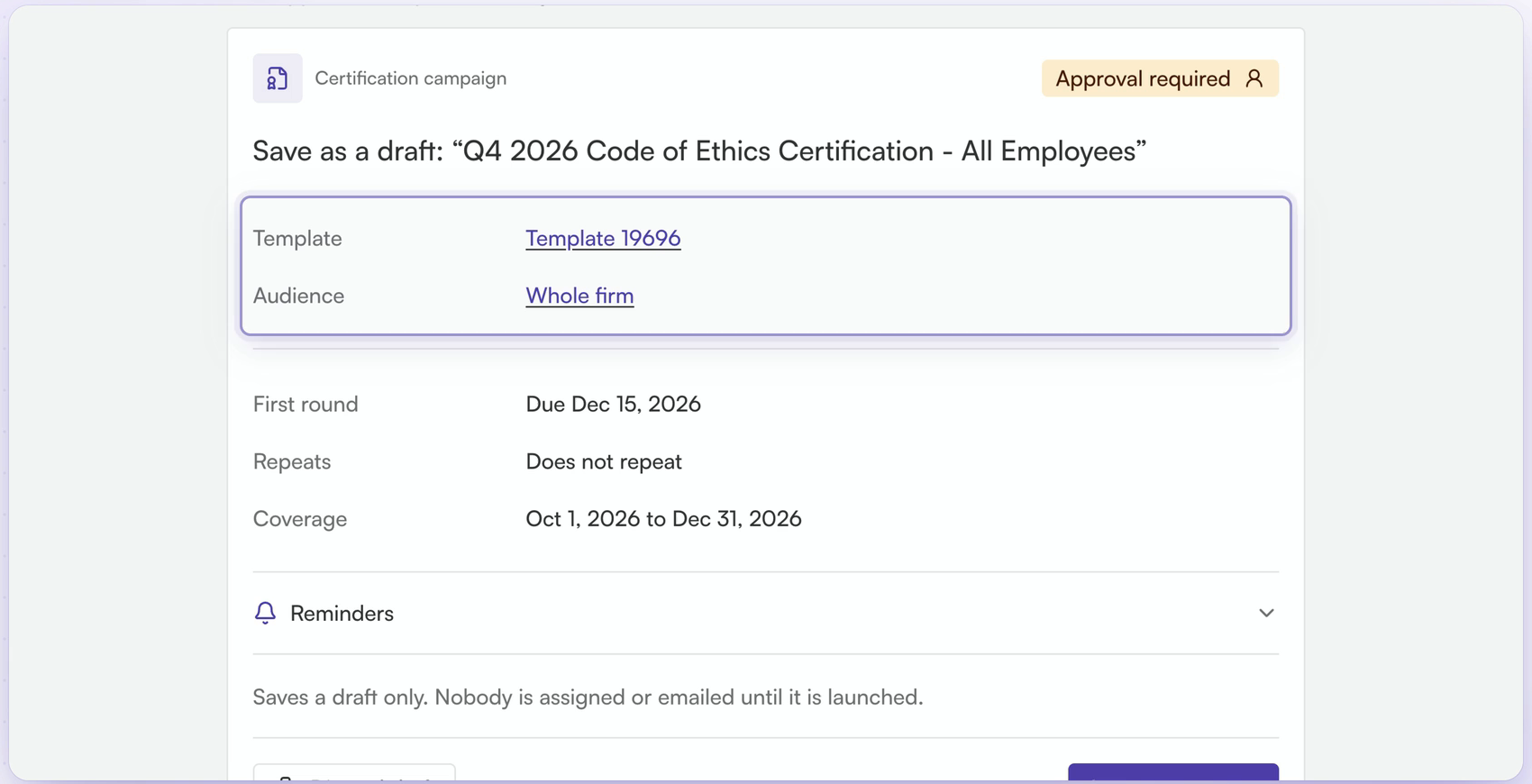
Create a certification campaign: describe the campaign and Ask Hadrius drafts it, asking for the template if you did not name one. The card shows the template, audience, due date, repeat setting and coverage period. Approving saves a draft only. Nobody is assigned or emailed until you launch the campaign.
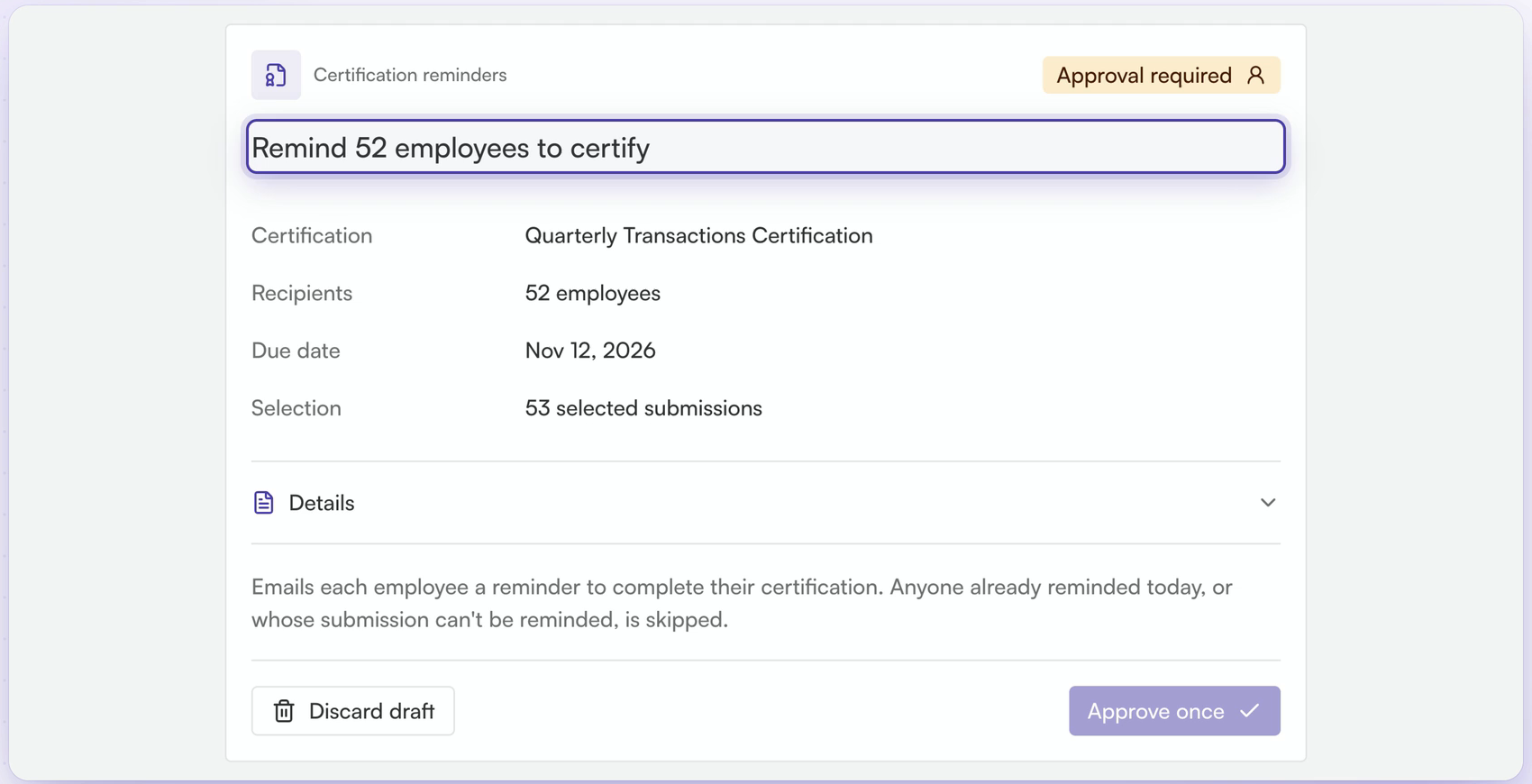
Remind people who have not certified: ask Hadrius to send a reminder for a certification and it finds everyone who has not completed it. The card shows the certification, number of recipients, due date and selected submissions. No email goes out until you approve. Anyone already reminded today is skipped.
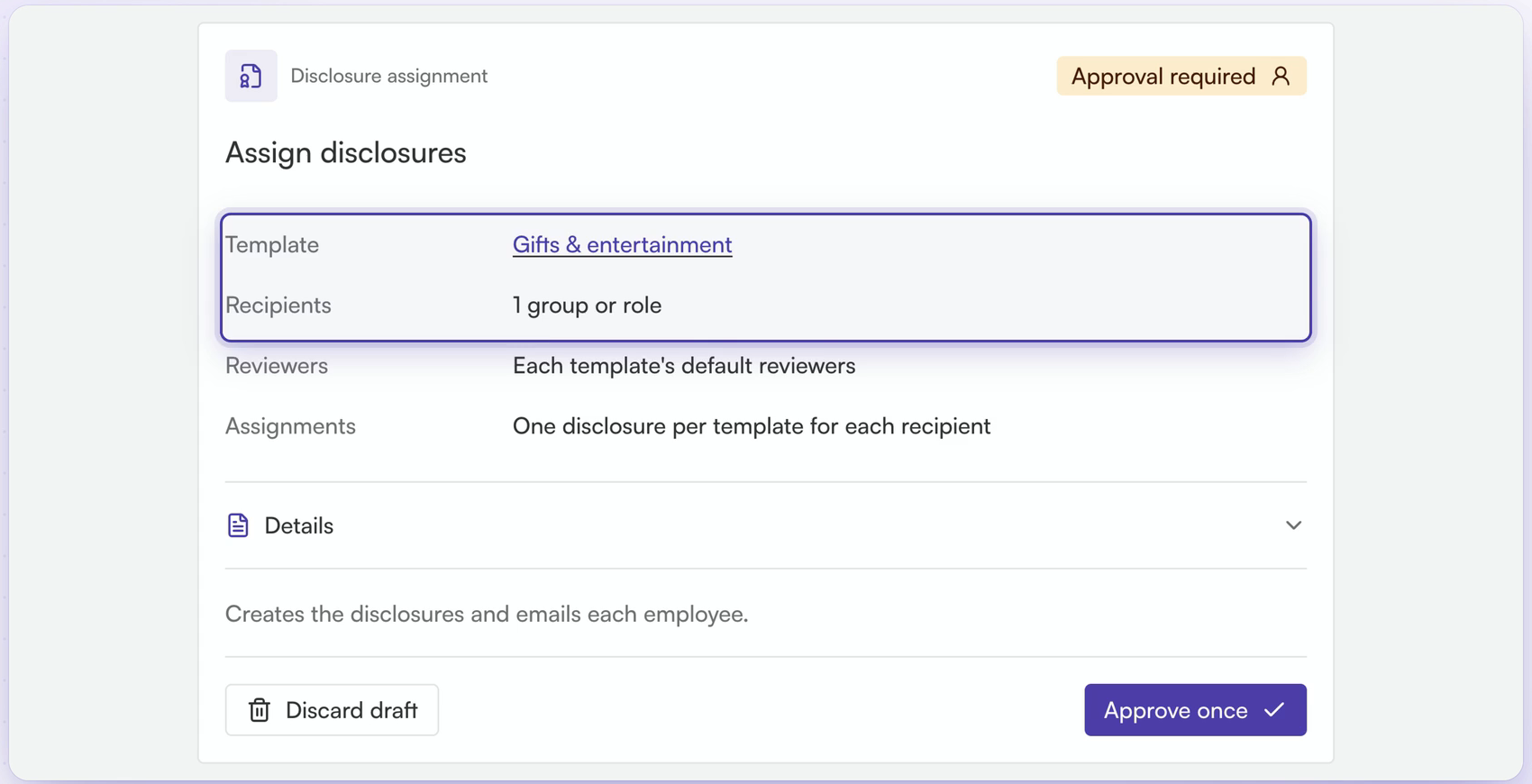
Assign disclosures to a group: assign a disclosure to a whole group or role at once instead of one employee at a time. The card shows the template, recipients, reviewers and how assignments are created. Approving creates the disclosures and emails each employee.
Reassign a review backlog: for example, assign a set of flagged email conversations to one reviewer. The card shows the conversations and the reviewer, and approving puts them on that reviewer's queue.
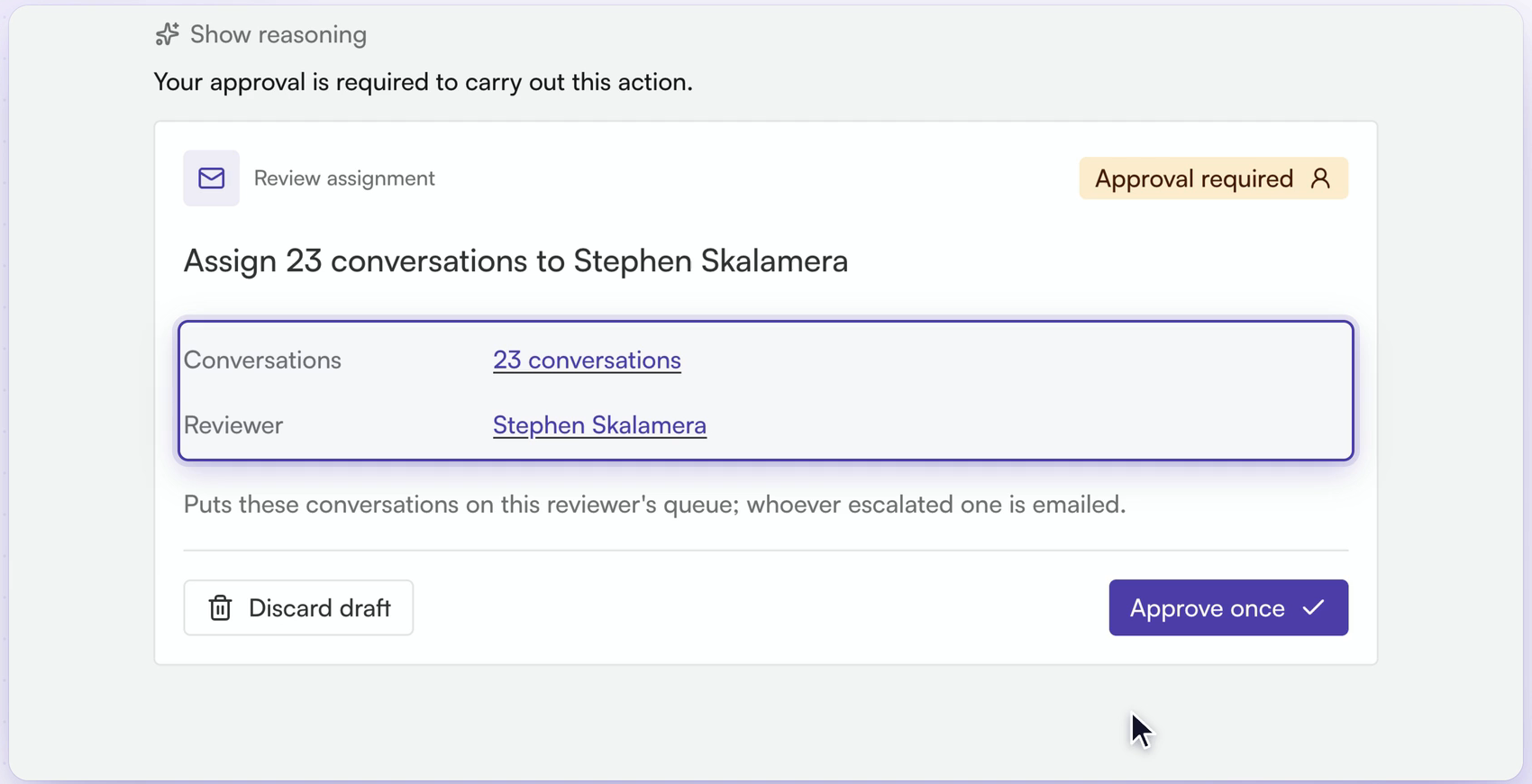
Approve or discard
Nothing changes until you approve. On each card:
Approve once: carry out the action exactly as shown. The card then shows as Completed with a short summary of what was done.
Discard draft: cancel the action without making any changes.
Show reasoning: see how Ask Hadrius arrived at the action.
Ask Hadrius works with your own permissions, so it can only do what you are allowed to do in Hadrius.
Every change Ask Hadrius makes on your behalf is recorded in your audit trail.