Getting Started with Ask Hadrius
Last updated: October 17, 2026
Ask Hadrius is the built-in assistant that answers questions about your firm's activity in plain language. This article walks through opening the assistant, reading and exporting an answer, keeping it beside your work, and finding earlier conversations. Use it whenever you want a quick answer without browsing through several pages.
Open Ask Hadrius and ask a question
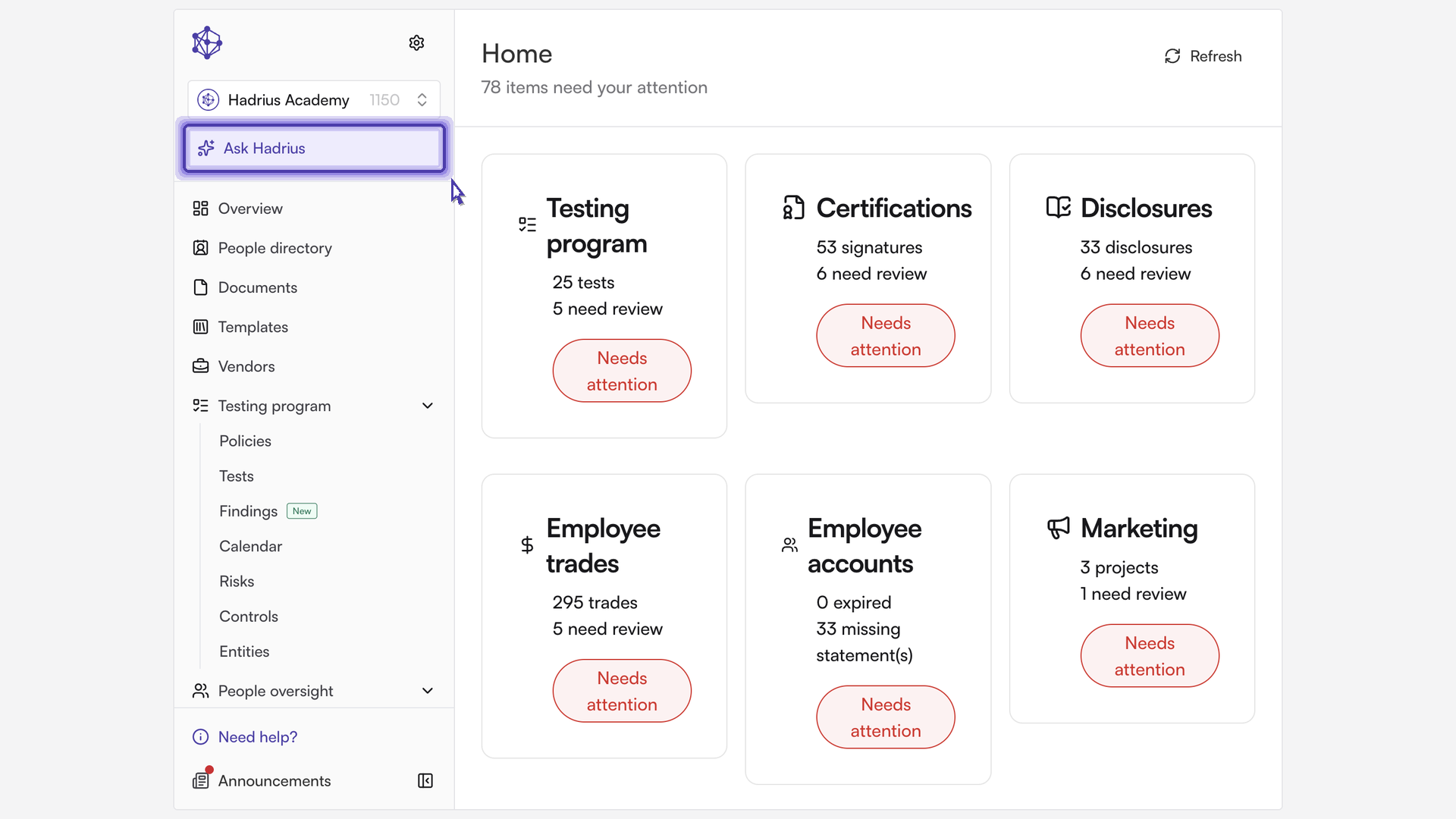
Ask Hadrius is available from the top of the platform, starting on the home page, so you can open it from wherever you are working.
Select Ask Hadrius to open the assistant.
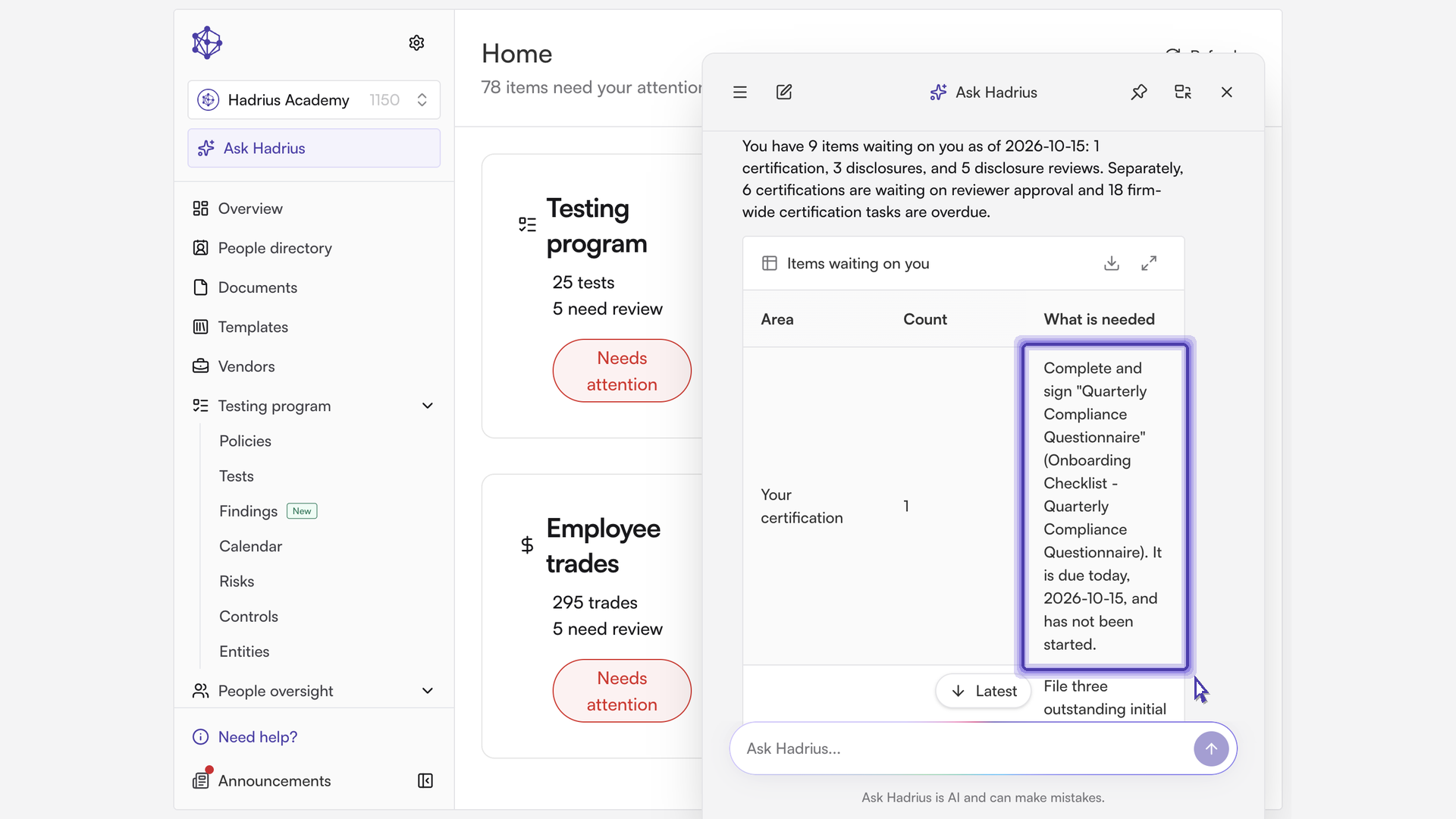
Type your question the way you would ask a colleague. For example, ask what is on your plate right now.
The answer lists real tasks from across the platform that need your attention, so you don't have to check each module separately.
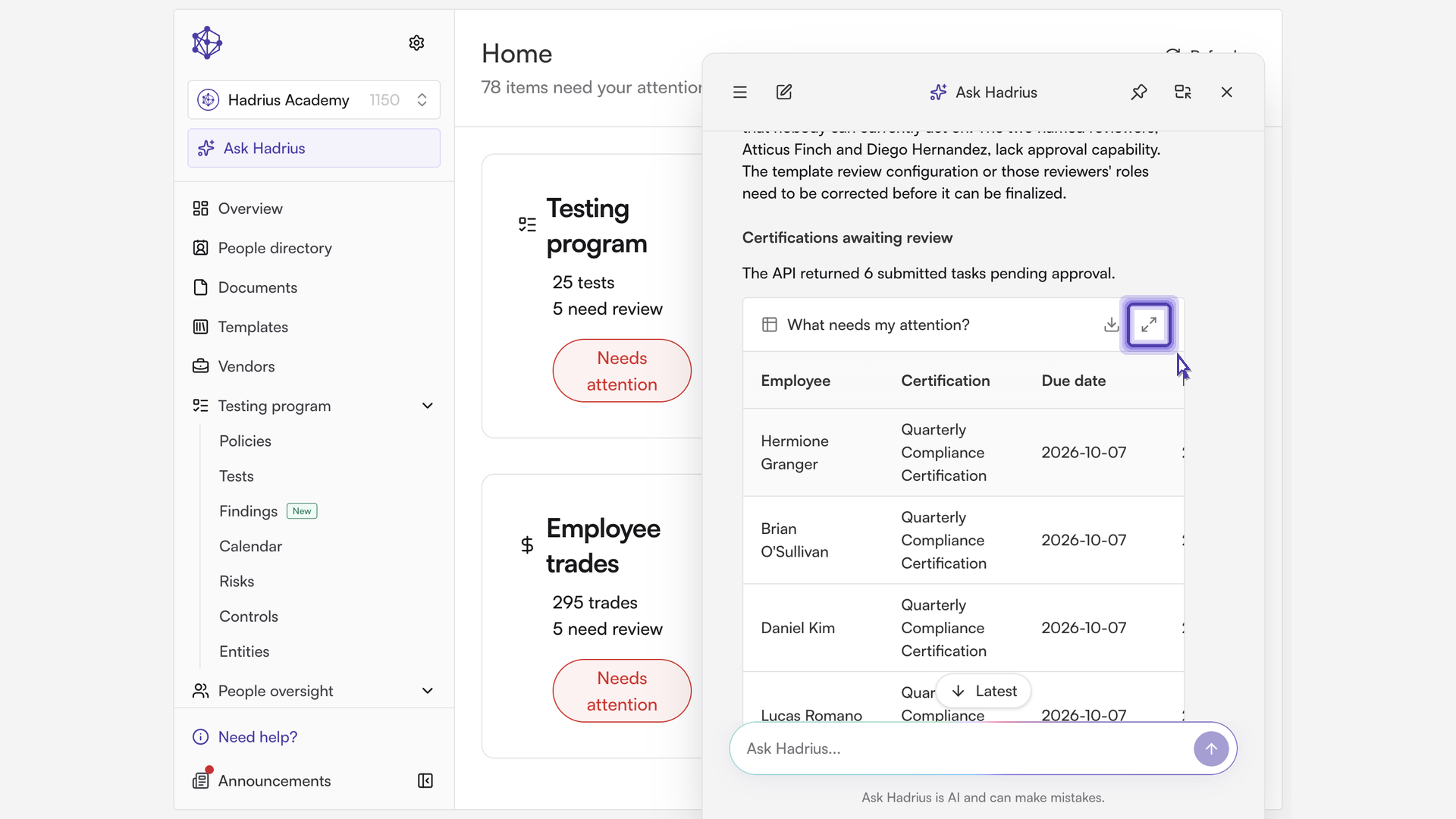
Read a larger view of the answer
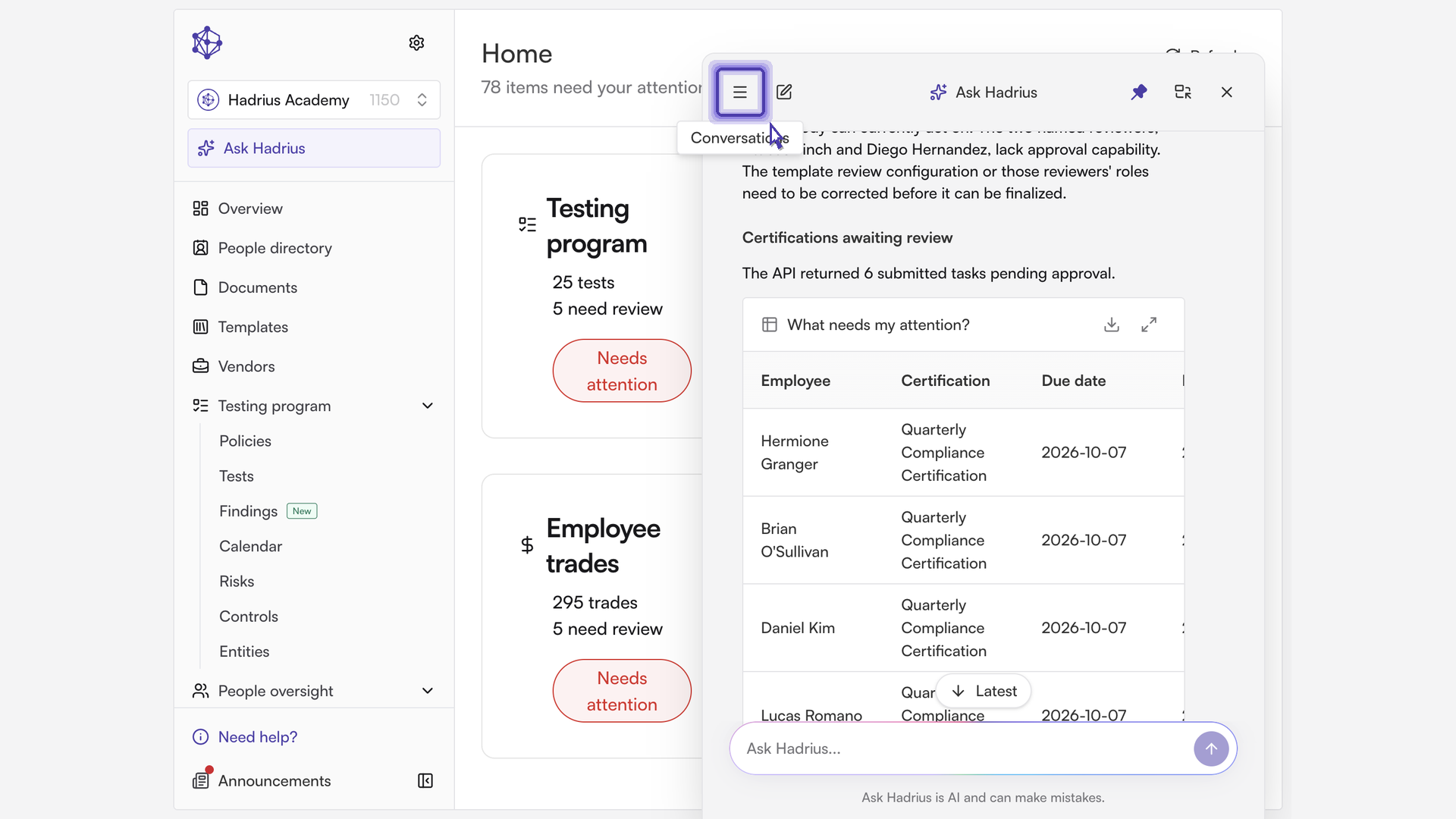
When an answer includes a table, a row of buttons appears above it. Select the expand button (labeled "Expand" followed by the table's title) to open the table in a larger view. Long tables show the first five rows in the chat, and "Show all" reveals the rest.
In the larger view, select Fit to width to snap the table to the space available. You can also zoom in or out manually, and Fit to width returns you to the fitted view.
Export the data as a CSV
If you need the results elsewhere, select Download CSV. It appears both above the table in the chat and in the expanded view. The file contains the table's rows and is named after the table's title, which makes it ready for reporting or sharing.
Pin, dock and collapse the assistant
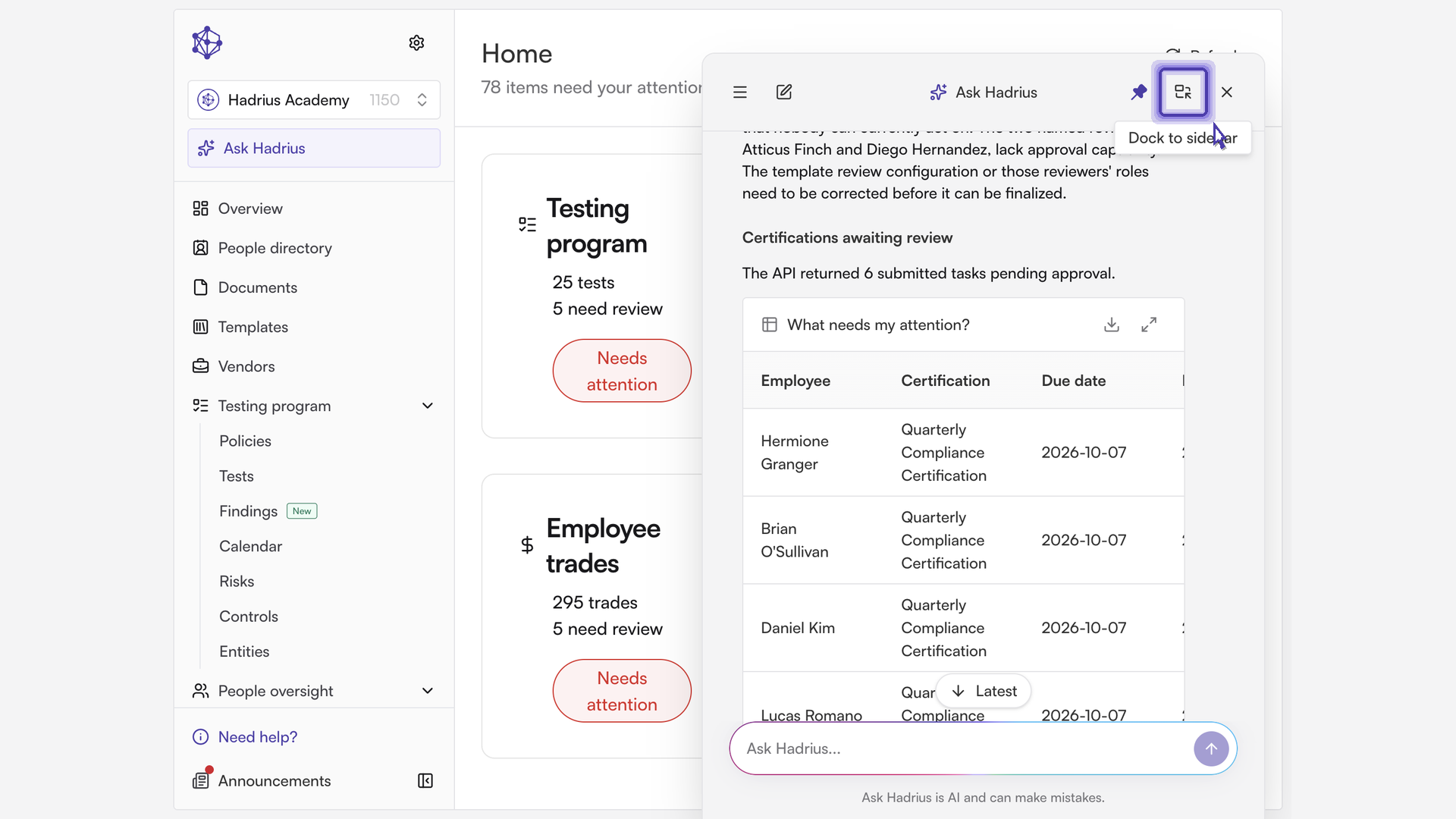
Pin conversation keeps the current conversation handy so it is easy to return to. Select Unpin conversation on the same button when it no longer needs priority.
Dock to sidebar moves the assistant into the sidebar so it stays beside your work instead of covering it.
The collapse control switches to a more compact view and tucks the assistant out of the way. Select it again to expand the assistant.
Find past conversations and start new ones
Select Conversations in the top-left of the assistant to see your full history, so past questions are never lost. Pinned conversations are easy to spot here, and you can unpin one when it no longer needs priority. Use search to find an earlier conversation quickly, and select Back to return to your current chat.
On a fresh chat, the suggested questions give you a quick way to start on common topics. Whenever you want a clean slate, select New chat to start over. Your earlier conversation stays in your history.
What's next
Answers, exports and history are each one step away. Pin the conversations you return to most, and dock the assistant when you want to ask questions while you work in another part of the platform.