How do I configure Entra ID SSO?
Last updated: October 15, 2026
At a glance
Typical setup time: About 15 minutes
Who you need: A Microsoft Entra administrator who can create app registrations
What Hadrius reads: Each user's name and email at sign-in
Before you begin
You need access to the Microsoft Entra admin center with permission to create app registrations and grant API permissions.
In Microsoft Entra
Register the app
In the Microsoft Entra admin center, go to App registrations in the left navigation and create a new registration.
Give it a recognizable name, such as
Hadrius Entra SSO.Under Supported account types, select the first option, <Tenant> only - Single tenant.
Under Redirect URI, choose Web from the dropdown and enter
https://app.hadrius.com/auth/sso.
Enable ID and access tokens
Under Authentication (Preview), open the Settings tab and check both Access tokens and ID tokens.
Create a client secret
Under Certificates & secrets, select Client secrets and create a new client secret. Give it a recognizable description. We recommend setting the expiration to the maximum value.
Copy the secret's Value now. Entra only shows it once, and you'll paste it into Hadrius later.
Add optional claims
Under Token configuration, choose Add optional claim, select the ID token type, and add:
acctemailfamily_namegiven_namepreferred_usernameverified_primary_emailverified_secondary_email
Add API permissions
Under API permissions, choose Add a permission, select Microsoft Graph, then Delegated permissions, and add:
emailprofileopenidoffline_access
In Hadrius
Add the credentials
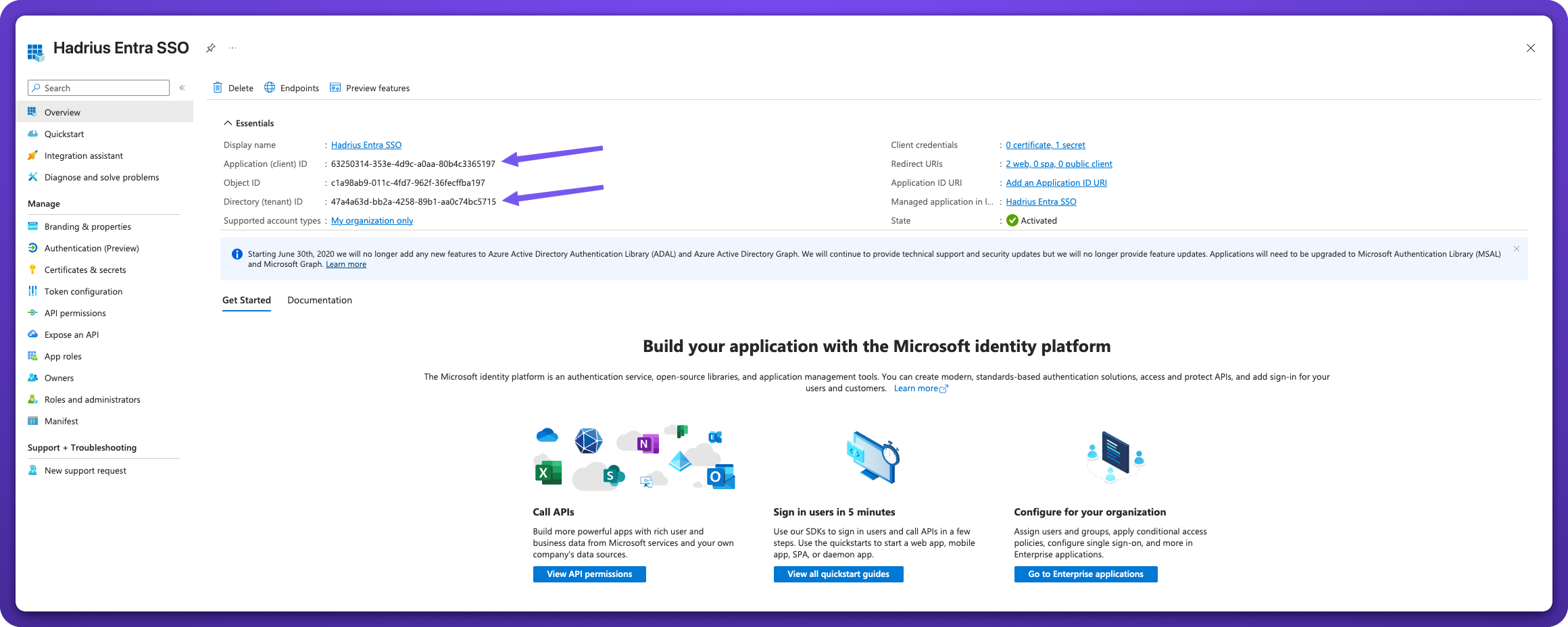
On the app's Overview page, copy the Directory (tenant) ID and Application (client) ID. On the Microsoft Entra SSO integration page in Hadrius, paste them, along with the client secret Value from earlier, into the Tenant ID, Client ID and Client secret fields.
The client secret is sensitive. Paste it directly into Hadrius and don't share it by email or chat.
Choose who signs in with SSO
Once the credentials are saved, the Choose who signs in with SSO step opens. Requirement status sets how strictly SSO is enforced:
Not required: everyone can choose SSO or their password.
Required for internal users: people on your Internal domains must use SSO. Everyone else can still use a password.
Required for all users: everyone must use SSO. Hadrius won't allow this while any existing user's email domain is missing from the list, so nobody is locked out.
The domains table lists the email domains that can sign in through Microsoft Entra. Your firm's own email domain is always first and always Internal. To add more, paste them into Add domains, one per line or separated by commas, and set each one to Internal (your own staff) or External (for example consultants or affiliates).
Your edits appear under Unsaved changes, where you can undo any of them. Click Save there to apply them.