How to submit a Certification in Hadrius
Last updated: July 9, 2026
Login to Hadrius
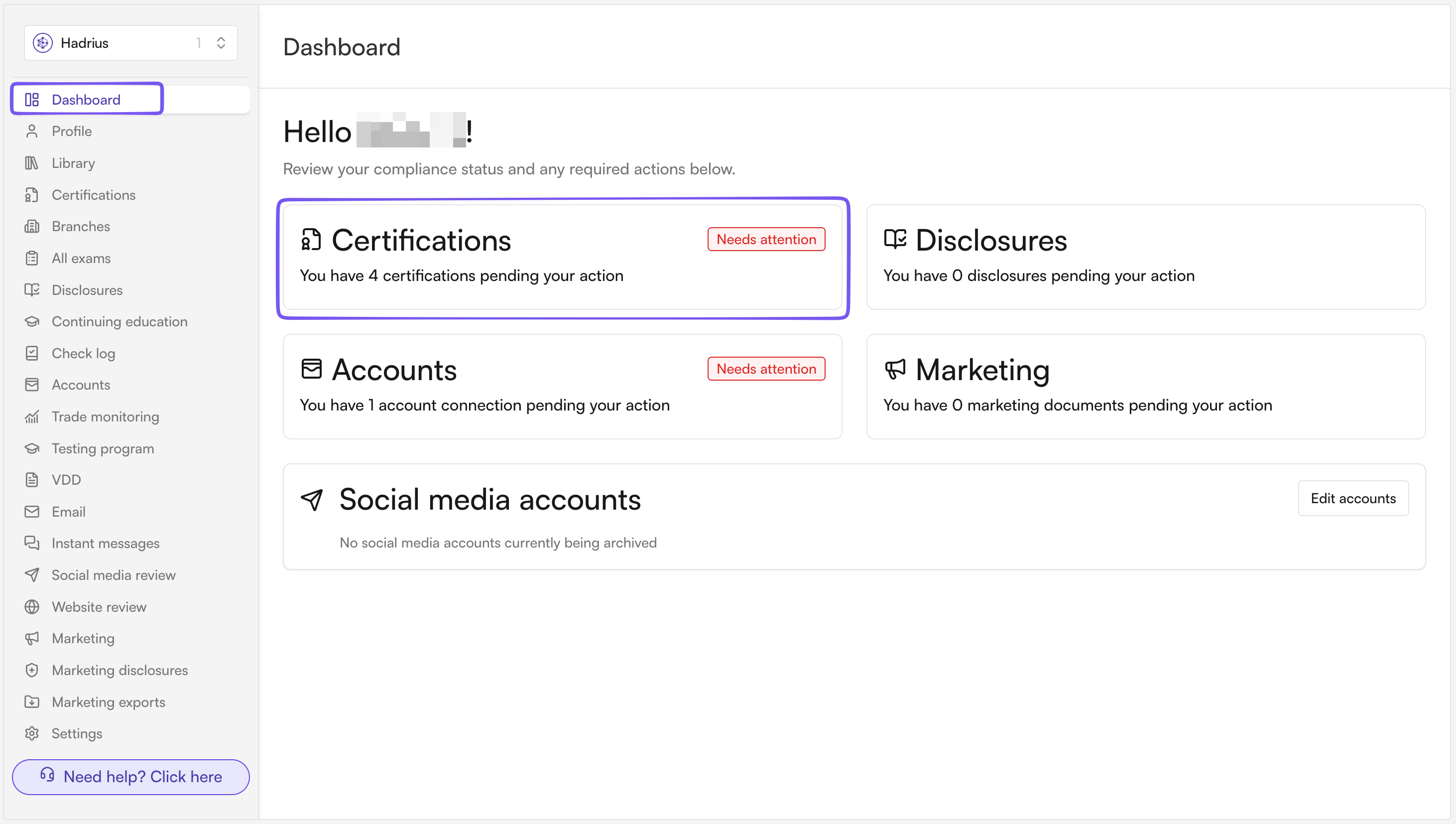
From your employee dashboard, go to the Certifications tab. The employee dashboard will show all outstanding tasks that have been assigned to you
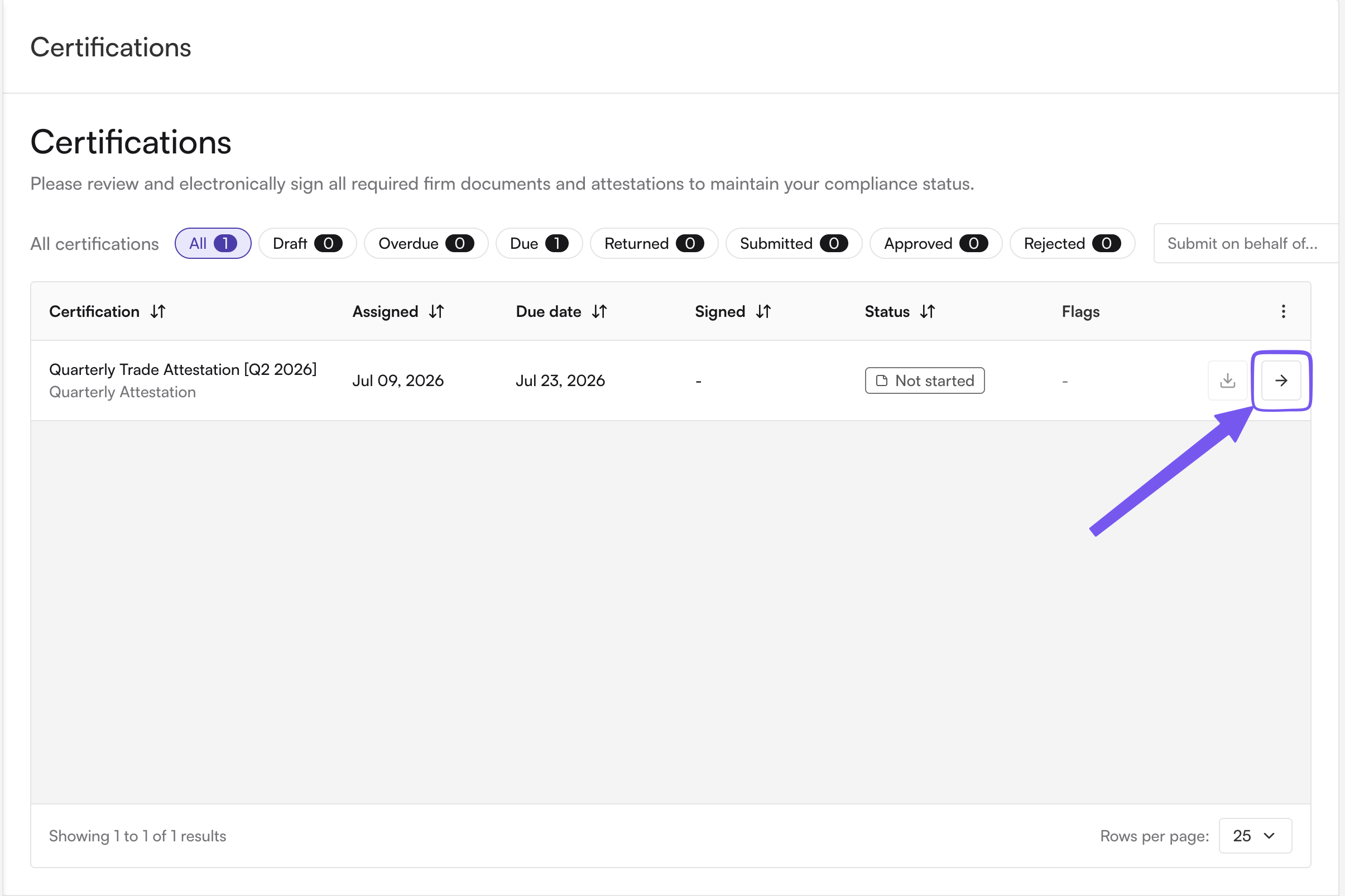
Within Certifications you'll see every task assigned to you, tagged with a status: Not Started, Draft, Submitted, Action Required, Approved, Rejected, or Excluded.
Open a task. Click into any Not Started or Draft certification to begin.
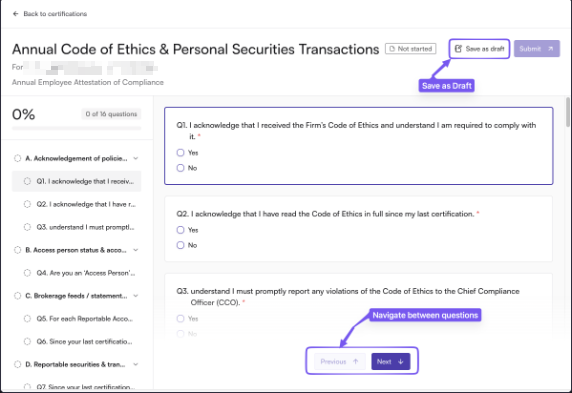
Answer the questions. Work through them one at a time using Previous/Next, the sidebar, or arrow keys. Answering some questions may reveal follow-ups, so keep going until everything visible is answered.
Save progress if needed. Hit "Save draft" to pause and come back later; it'll drop you back at the first unanswered question. Your answers also autosave in the background as you navigate.
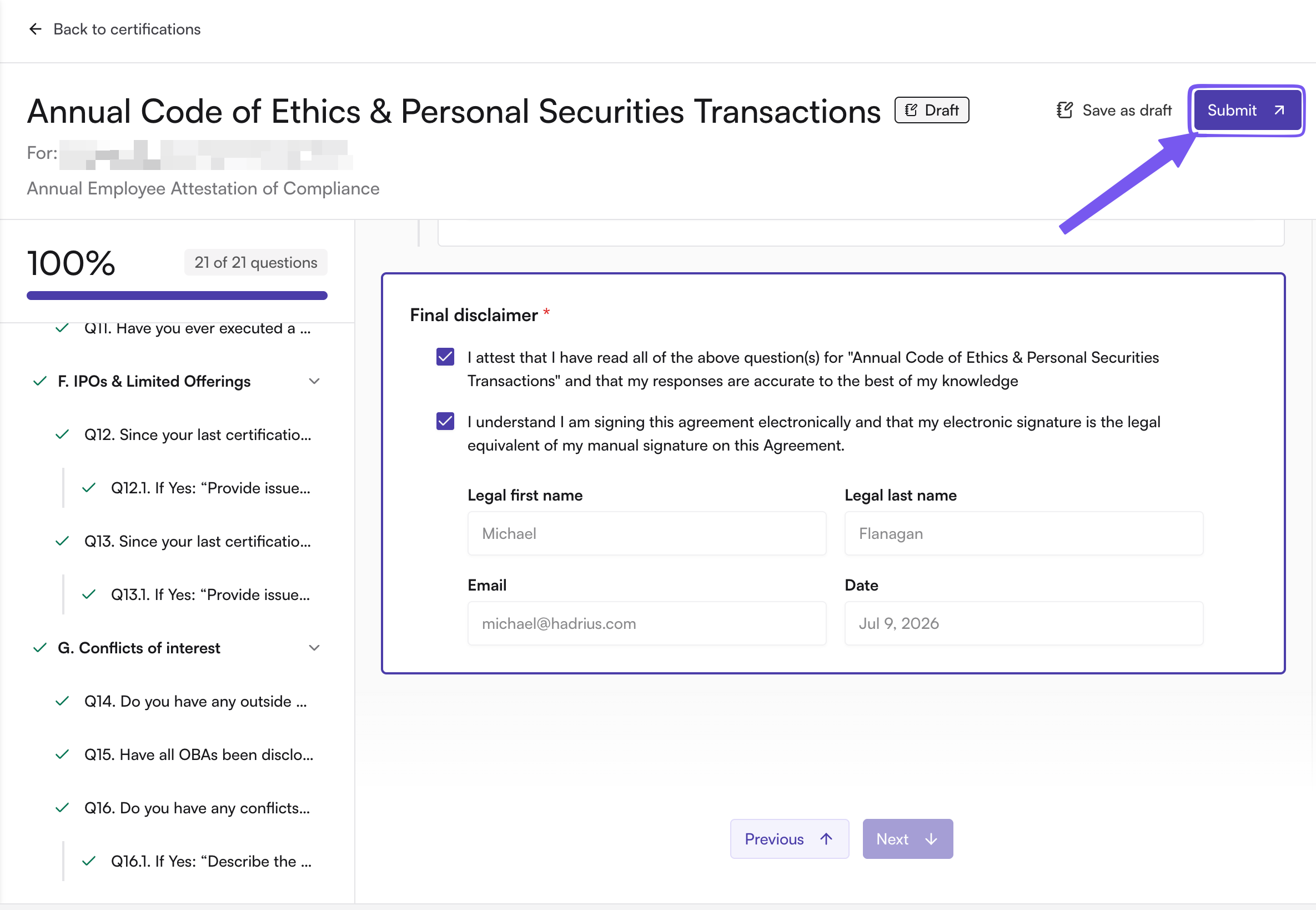
Attest and submit. Once all required questions are answered, check both attestation boxes (confirming accuracy and signing), then submit.
Check the outcome. You'll either get an immediate approval or the task moves to Submitted while a reviewer looks it over.
Fix and resubmit if returned. If the status becomes Action Required, open the task, use the "flagged" filter to jump to what the reviewer flagged, update those answers, and resubmit. No need to recheck the attestation boxes this time.
FAQs
Can I leave comments or attach documents?
Yes, there's a comment panel at both the submission level and per question, and some questions support document attachments directly.
What does "Excluded" mean?
The certification is no longer assigned to you (you were removed from scope), so no action is needed.
Who do I contact if something looks wrong or I'm stuck?
Your firm's compliance team/CCO first. They manage assignments and due dates and can loop in Hadrius support if it's a platform issue.