Fixing Broken Broker Account Connections and Linking Issues
Last updated: July 23, 2026
If you're experiencing broken or failed brokerage account connections, the steps to resolve the issue depend on how your account is managed. Follow the guidance below to identify the right approach for your situation.
Step 1: Verify Whether Your Account Should Be Linked
Before attempting to repair a broken connection, confirm whether your account should be linked at all by using the Guided Flow process:
Navigate to Accounts and click Add Account.
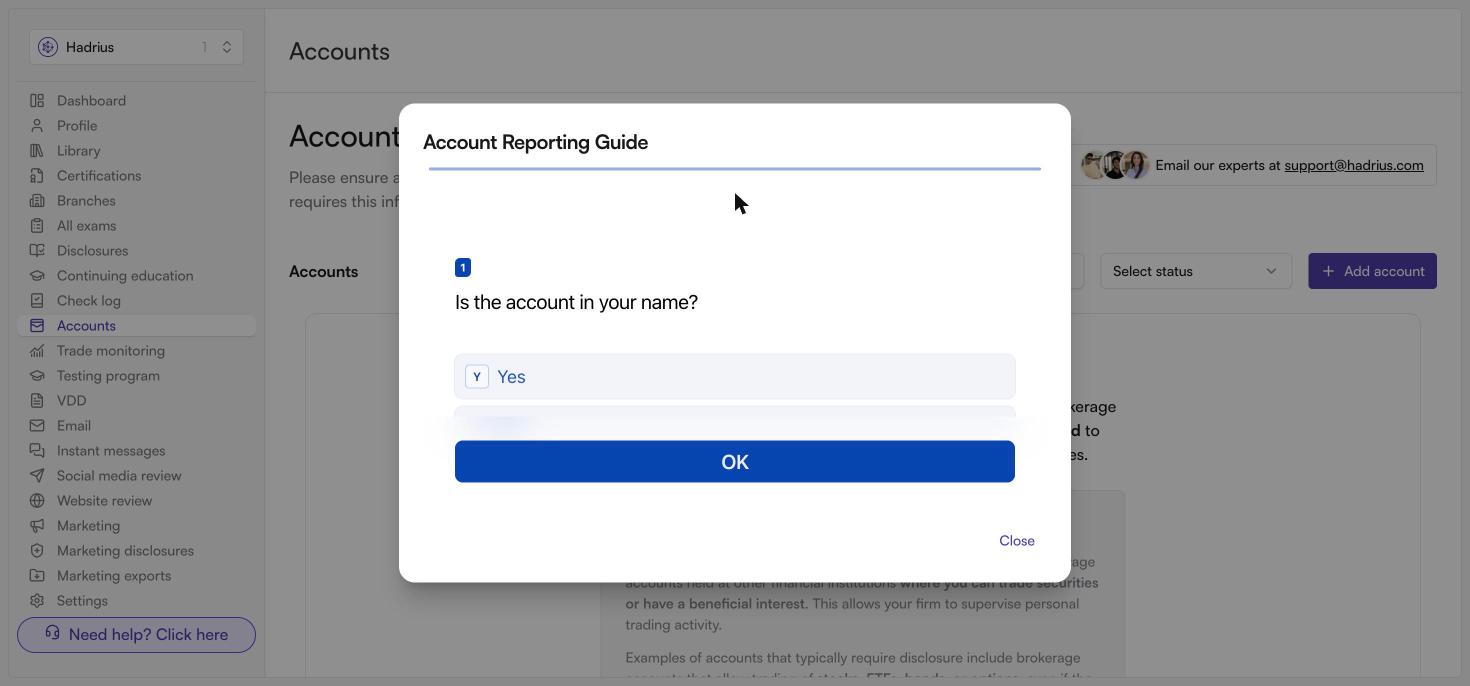
Select Guided Flow and answer the 4 questions.
The flow will determine whether your account is:
Exempt – A managed account that requires manual reporting, not linking.
Non-exempt – A self-directed account that should be linked via a data connection.
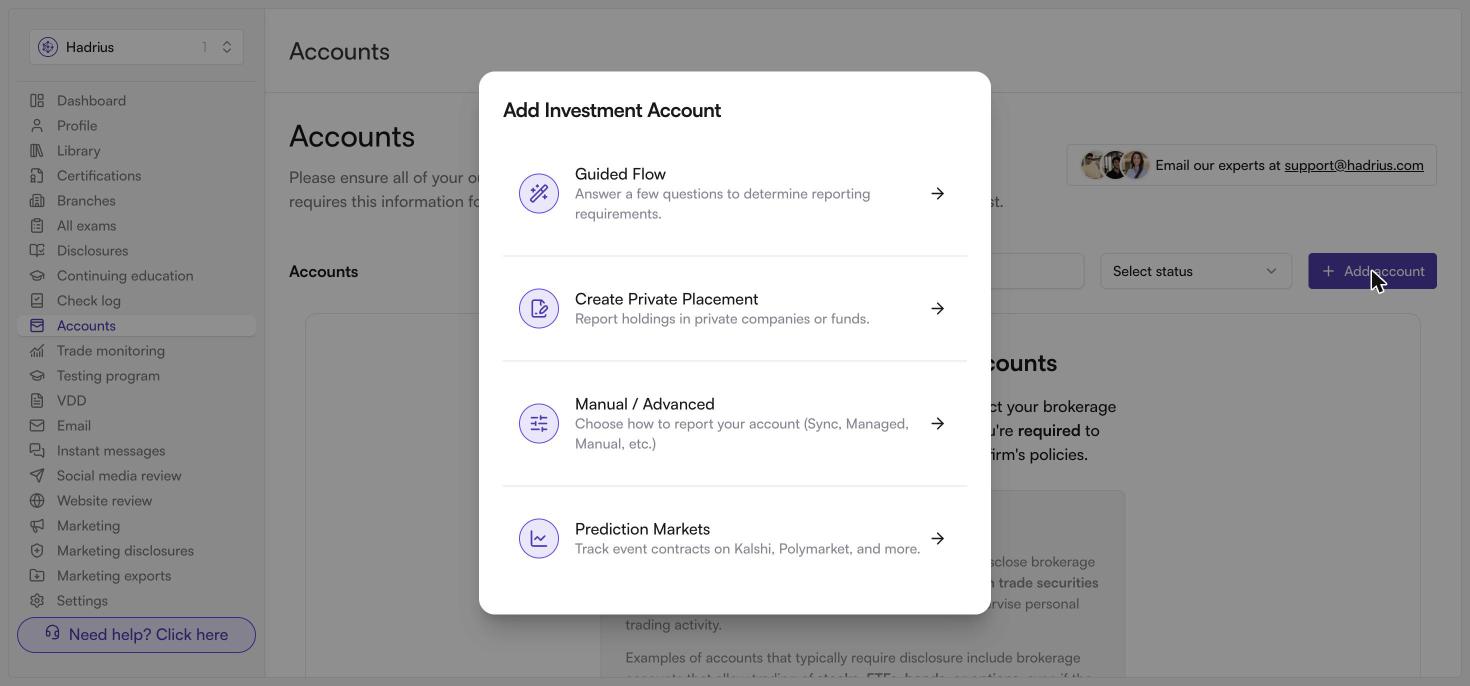
Selecting Guided Flow starts a short questionnaire, beginning with whether the account is in your name.
If Your Account Is Managed by a Financial Advisor
Managed accounts should not be linked via a live data connection. If a managed account was incorrectly linked, follow these steps to correct it:
Go to Profile > Accounts.
Click into the account tab and select Modify/Close Account.
Click Exemption Status, select Closed by Employee, and leave a note.
Report it as a managed account instead: go to Accounts > Add Account > Manual/Advanced > Report Managed Account.
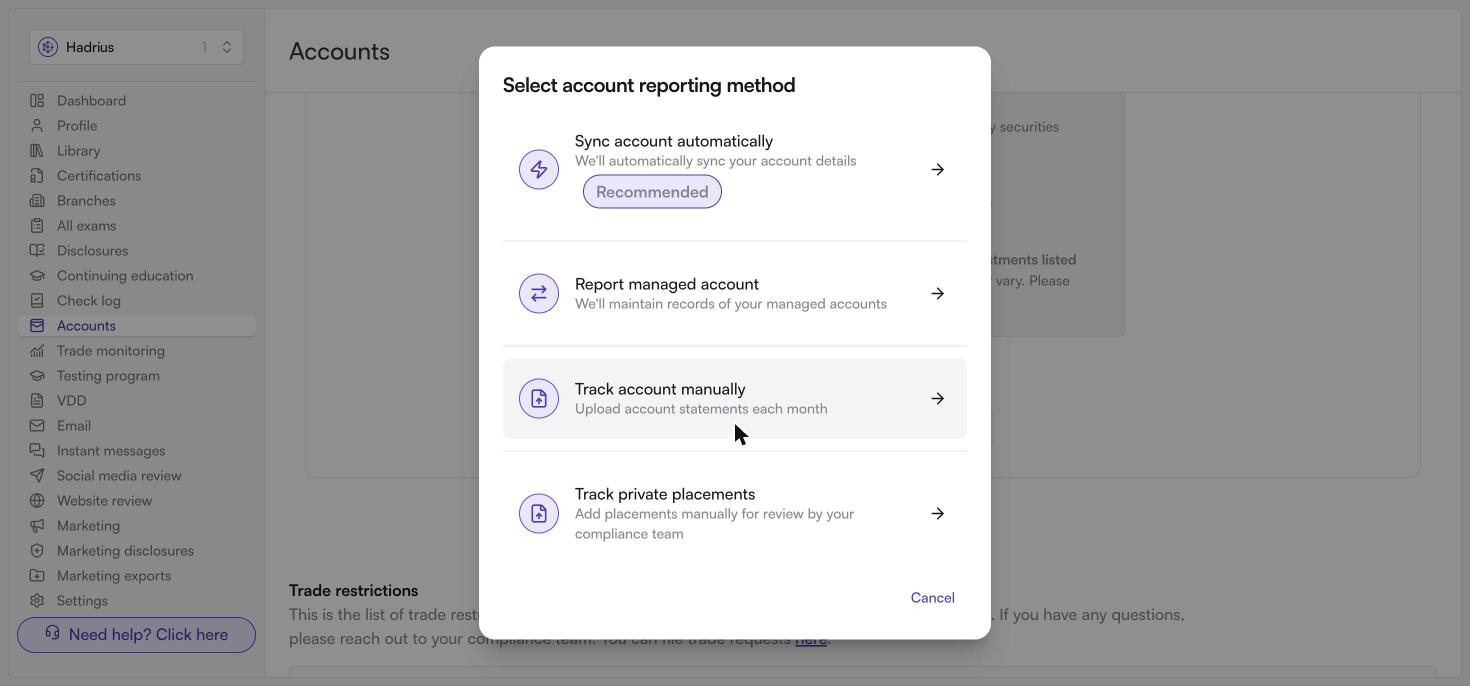
Enter the required details and upload any relevant statements.
Bypassing Guided Flow for Known Advisor-Managed Accounts
If you already know your accounts are advisor-managed and are experiencing recurring disconnections (e.g., monthly), you can skip the Guided Flow entirely:
When re-adding your accounts, select Manual/Advanced instead of Guided Flow.
Choose Report Managed Account.
This approach allows you to meet disclosure requirements without maintaining an active data connection that is prone to breaking.
If Your Self-Directed Account Connection Breaks
For self-directed (non-exempt) accounts that should remain connected but experience broken connections:
Close the current broken connection in Hadrius before attempting to re-link.
Re-link the account. Note that some brokerages (such as E-Trade) now route connections through Plaid, which tends to be more reliable than older connectors.
If connection issues persist despite proper reconnection, contact our support team. For accounts with ongoing instability, a direct data feed from the brokerage may be available, eliminating the need for a third-party connector entirely.
Adding Multiple Connections to the Same Brokerage
If you need to connect accounts from the same brokerage under different users (for example, a spouse's account), the system may reuse saved credentials from a previous connection. To establish a separate connection with different credentials:
Open an incognito or private browsing window in your browser.
In Hadrius, start a new connection and select the brokerage.
Log in with the other user's credentials in the incognito window.
Complete any MFA prompts to finish the connection.
Note: After successfully completing a new connection, it may take several hours for the accounts to appear in Hadrius. This delay is normal.
Still Need Help?
If you've followed the steps above and are still experiencing connection issues, please reach out to our support team. Be sure to include the name of your brokerage and a description of the issue so we can assist you as quickly as possible.