How to submit a disclosure
Last updated: October 21, 2026
Employees submit disclosures to notify compliance of outside activities, accounts, gifts, and other items that require firm awareness or approval.
How to submit
Go to Disclosures → New Disclosure.
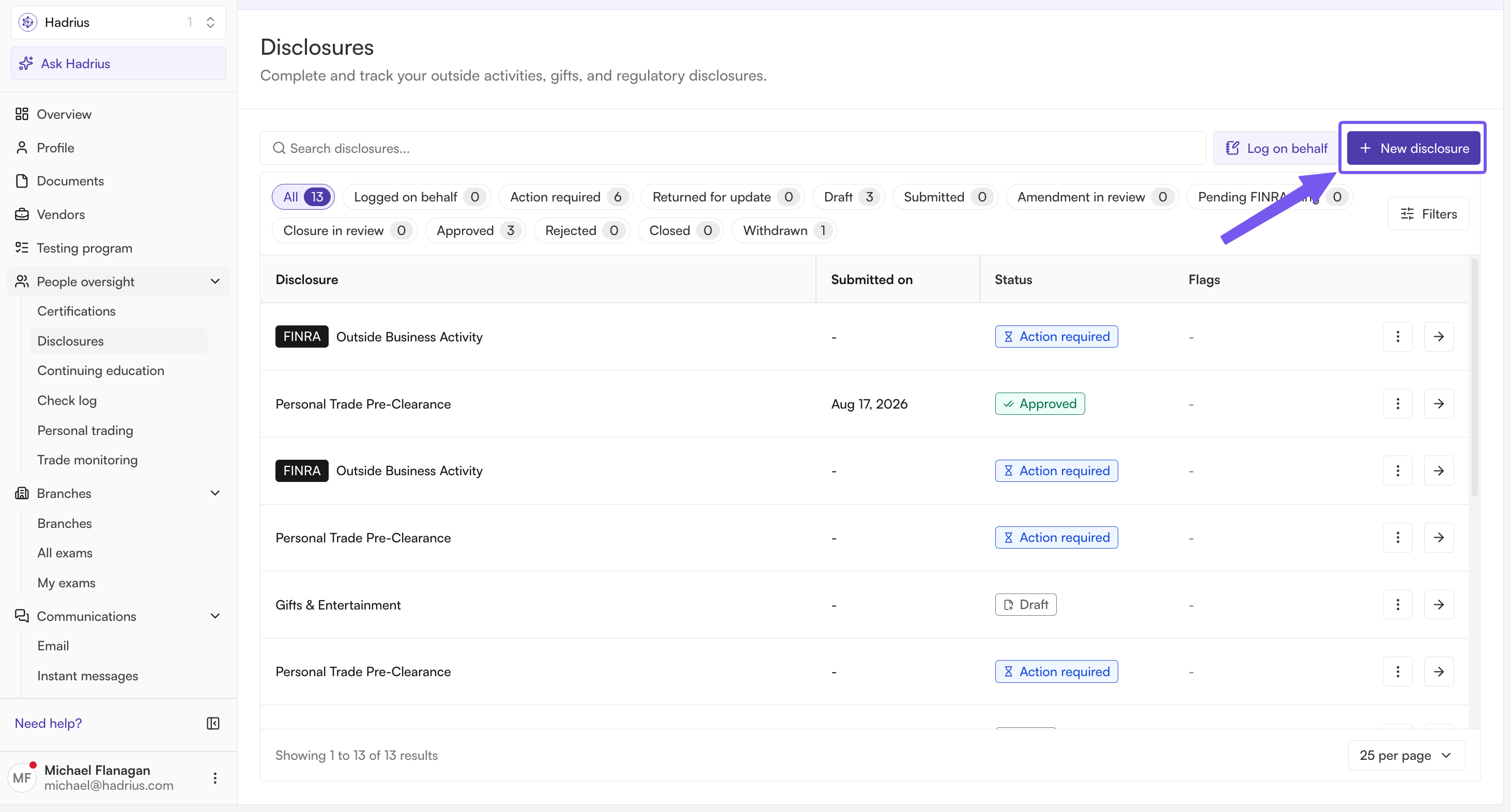
Select the disclosure type.
Fill in the required fields and click Submit.
Your compliance admin receives a notification and will approve, reject, or request more information. You'll get an email notification when they act.
Routine compliance disclosures
Outside brokerage account — a personal investment account held at a broker-dealer outside your firm
Outside business activity (OBA) — a job, board seat, side business, or gig outside your firm
Gifts & entertainment — gifts given or received above your firm's threshold
Political contributions — contributions to candidates or political organizations
Pre-clearance — requests to trade in restricted securities (IPOs, restricted stock)
Administrative updates
These trigger workflow actions in Hadrius but aren't compliance disclosures in the traditional sense:
State registration — changes to your registration status in a state
Address change — a change to your home or mailing address
When an admin approves OBAs, state registration changes, or address changes, Hadrius automatically generates a draft U4 amendment so your compliance team doesn't have to enter the same information twice.
Not all types may be enabled for your firm. If you don't see a type you need, contact your compliance admin.
What happens after you submit
Your admin receives a notification and opens the disclosure.
They take one of three actions: Approve, Reject, or Request more information.
You receive an email for each action. If more information is requested, you can update and resubmit.
Approved disclosures are logged in your compliance record and visible to your admin.
The video below walks through how to submit a disclosure: https://www.loom.com/share/2908de23691a4396bc9324f237f43a5a