How to Connect Claude or Archiving
Last updated: November 2, 2026
Hadrius can archive your firm's Claude conversations, so your compliance team can review them alongside your other communications. The connection runs through the Claude Compliance API. This article explains how to get a Compliance API key from your Claude organization, add it to Hadrius and, if you want, bring your Claude organization's activity feed into Event Watch.
Before you begin: Claude archiving has to be enabled for your firm. If you can't connect Claude, contact your account manager to have it turned on. You also need access to your Claude organization so you can create a Compliance API key.
Open the Claude integration
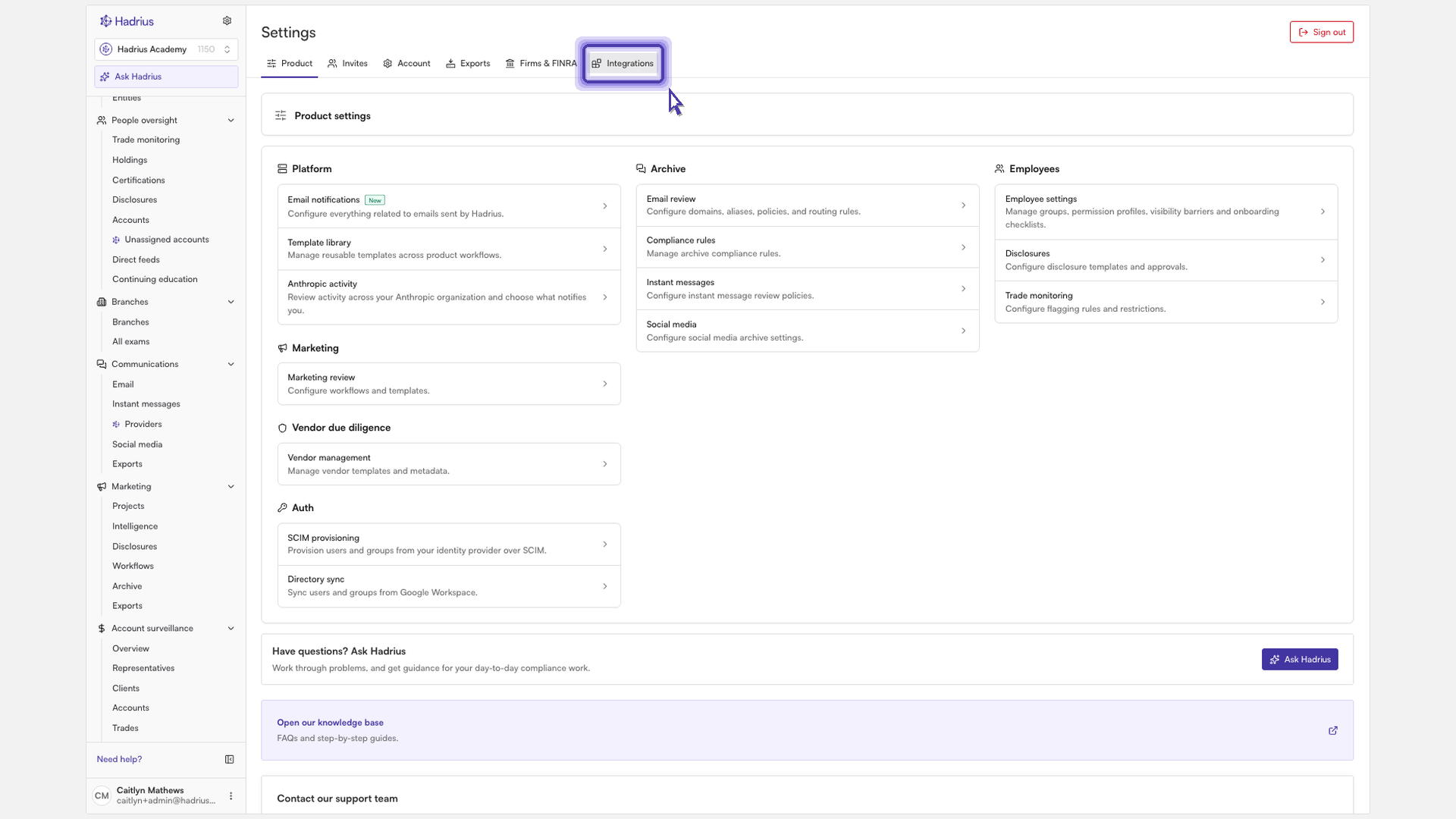
Go to Settings.
Open Integrations. This is where all connections to outside tools are managed.
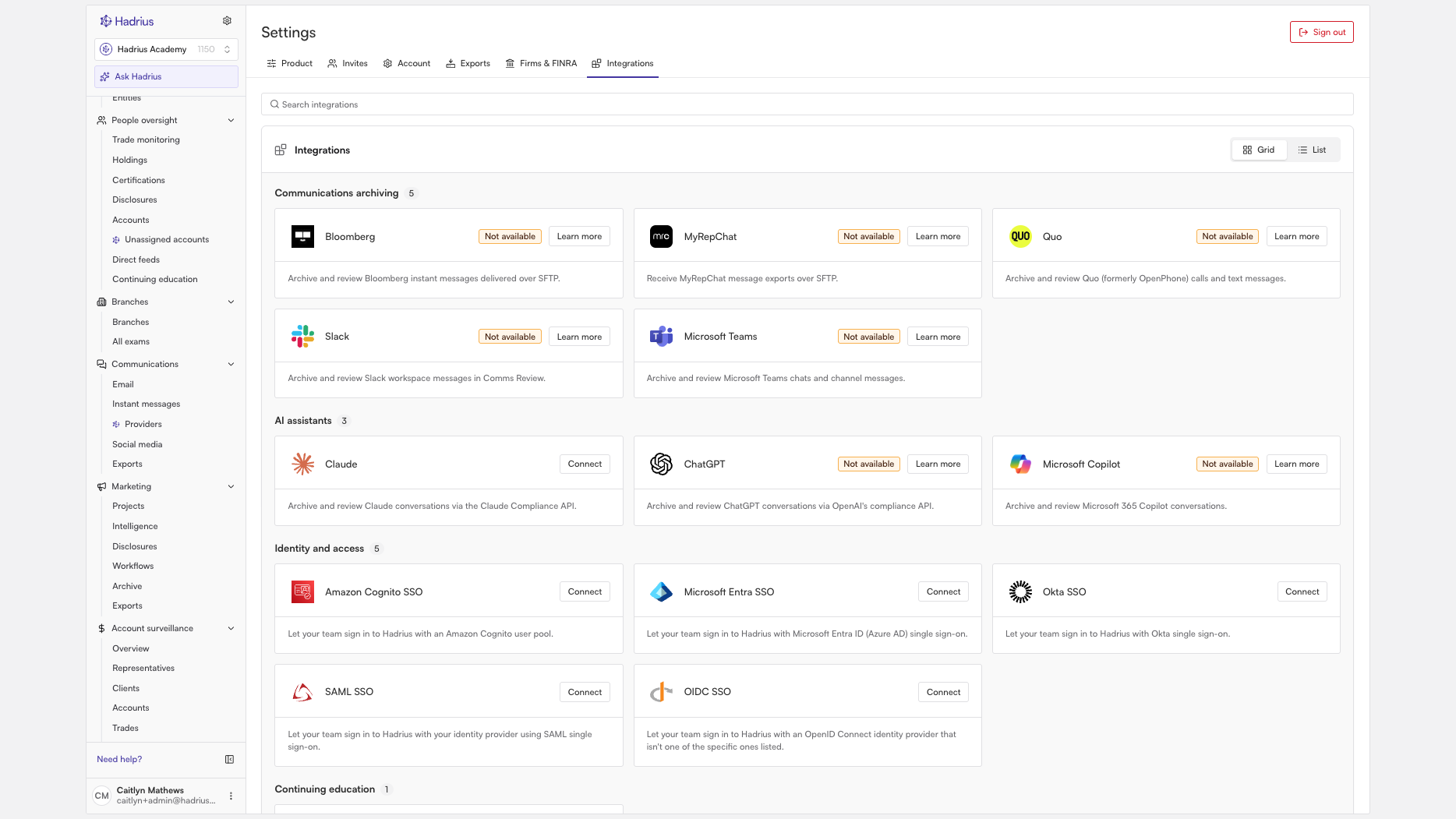
Find Claude in the AI assistants section. Its status shows "Not connected" until setup is finished.
Click Connect on the Claude card to start setup.
Step 1: Get a Compliance API key from Claude
Setup has two parts. First you get a Compliance API key from Claude, then you add it to Hadrius. The setup screen includes instructions for creating the key in your Claude organization. Follow them, then copy the key.
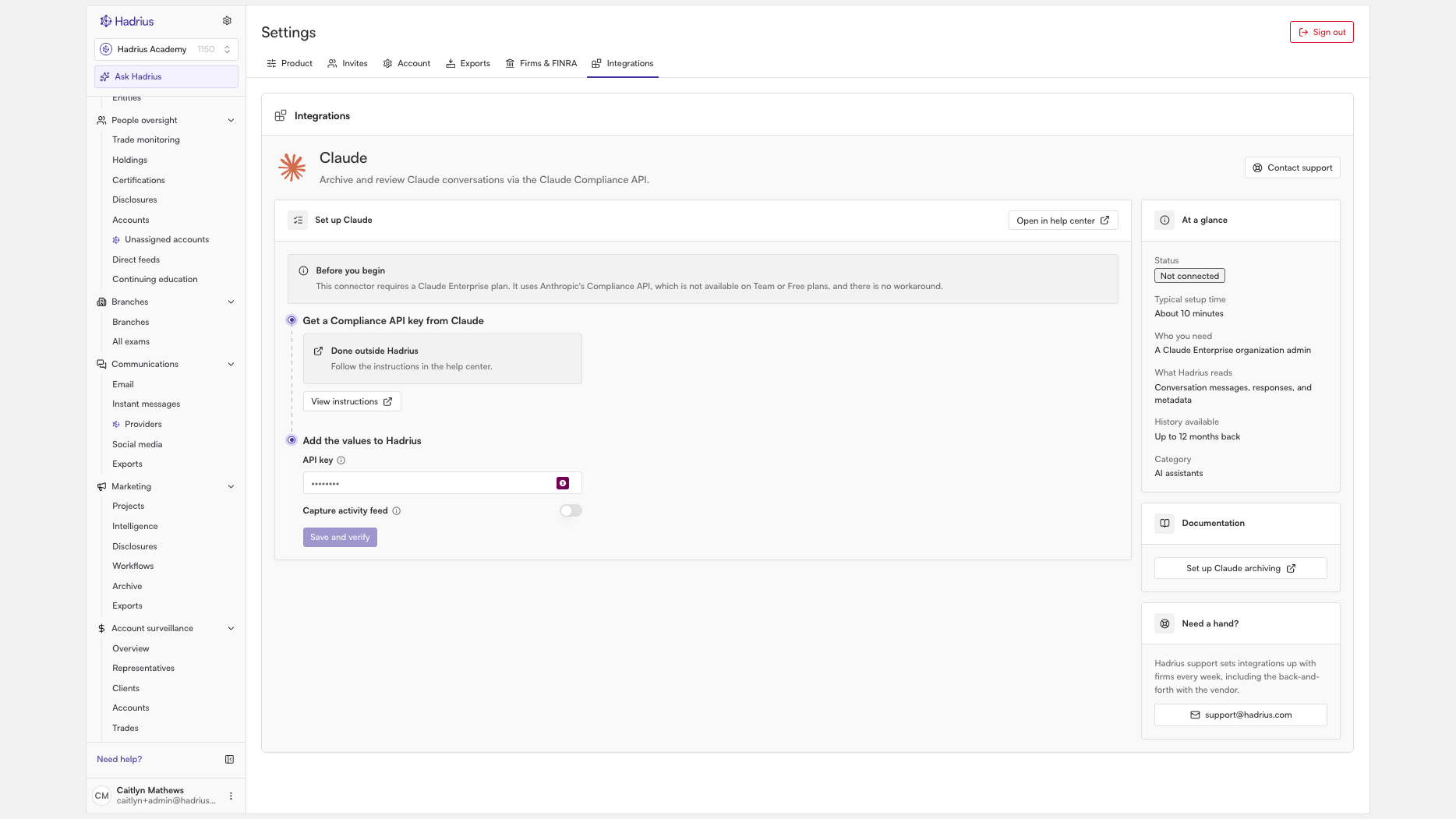
Make sure you create a Compliance API key specifically. Hadrius uses the key to read your organization's users and conversations, and a standard API key does not have the access it needs.
Step 2: Add the key to Hadrius
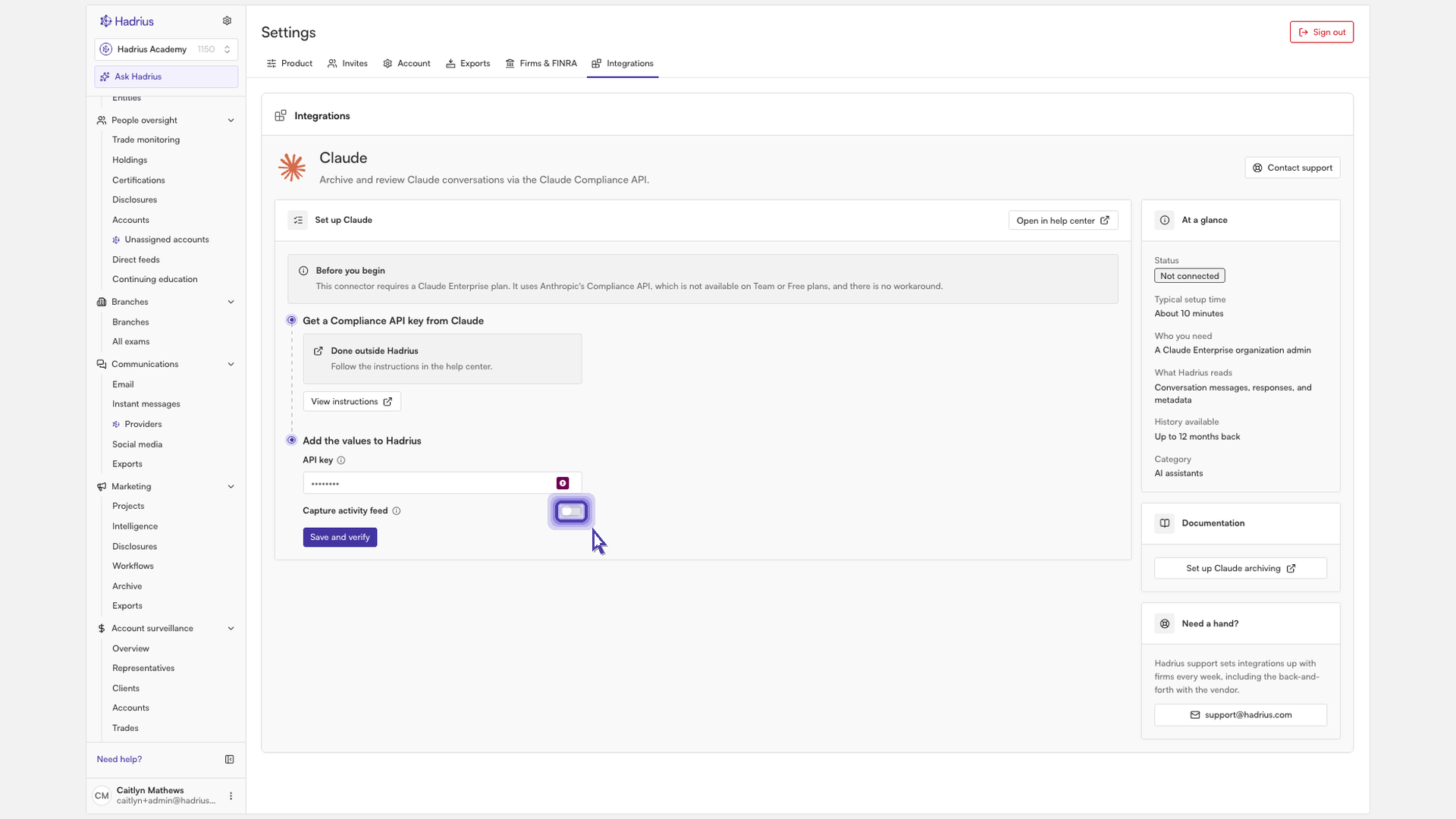
Under Add the values to Hadrius, paste the key into the Compliance API key field.
If you also want to monitor your Claude organization's activity, turn on Capture your Claude organization's activity feed in Event Watch. This brings administrative and usage events from your Claude organization into Event Watch.
Click Save and verify.
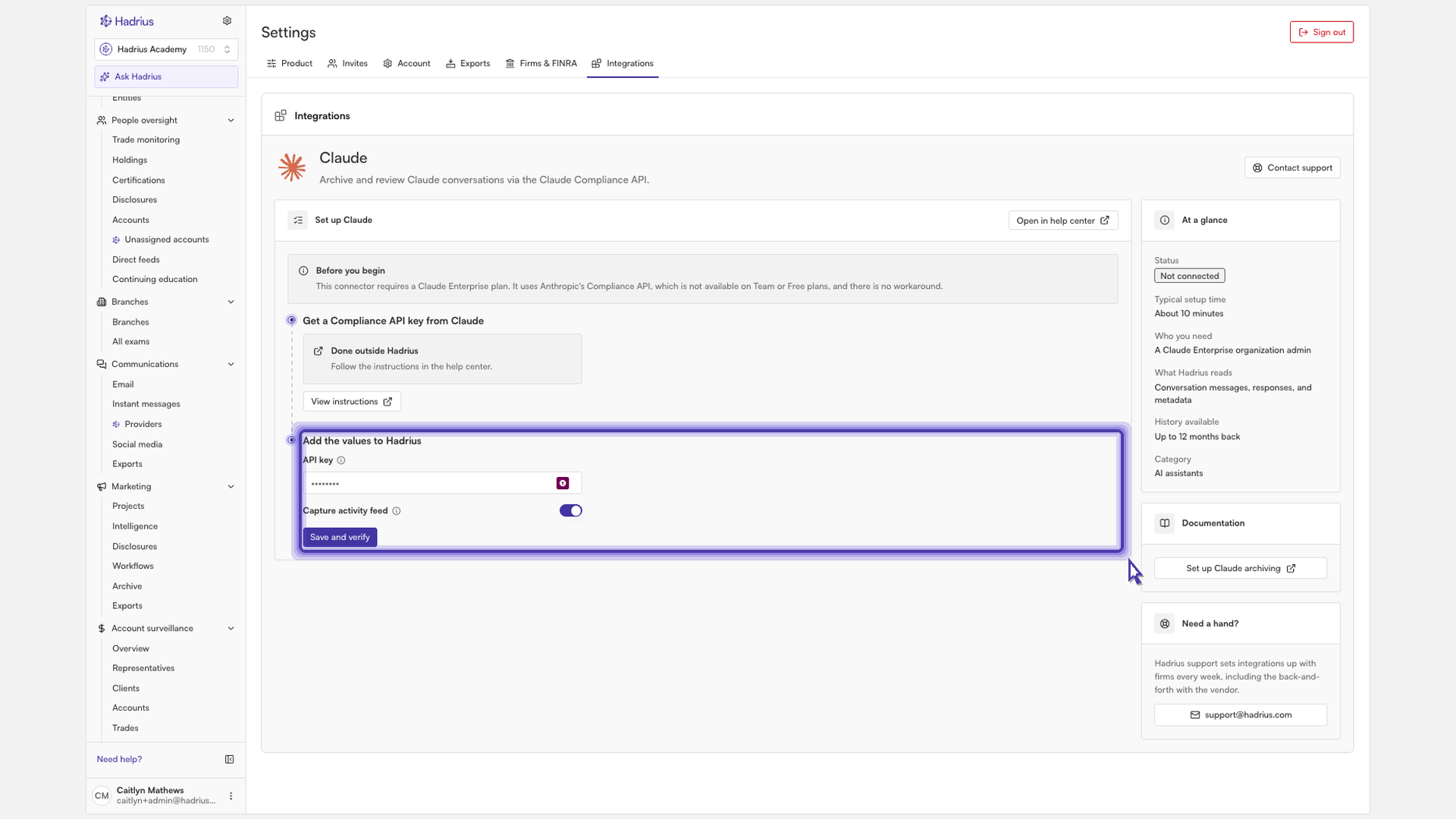
When you save, Hadrius checks that Claude accepts the key, confirms it can read your organization's compliance activity and users, and then confirms that Claude conversations will be archived. If a check fails, you'll see a message describing the problem. Common causes are an incorrect key, or a key that isn't a Compliance API key. Fix the key and save again.
What happens next
Once the connection is verified, Claude shows as "Connected" on the Integrations page, and your firm's Claude conversations will be archived for review. If you turned on the activity feed, Claude organization events appear in Event Watch after the connection has synced. You can return to the Claude integration at any time to replace the key or turn activity feed capture on or off.