How to Set Up Sandbox Rules
Last updated: October 16, 2026
Sandbox rules let you test a new trade monitoring rule against live trade data without it taking any enforcement action — no alerts are escalated and no accounts are flagged for review while a rule runs in sandbox mode. Use this workflow whenever you want to validate a new rule's logic and tuning before turning it fully active. The example below walks through setting up a rule that flags trades in a security your firm has restricted, but the same steps apply to any rule template.
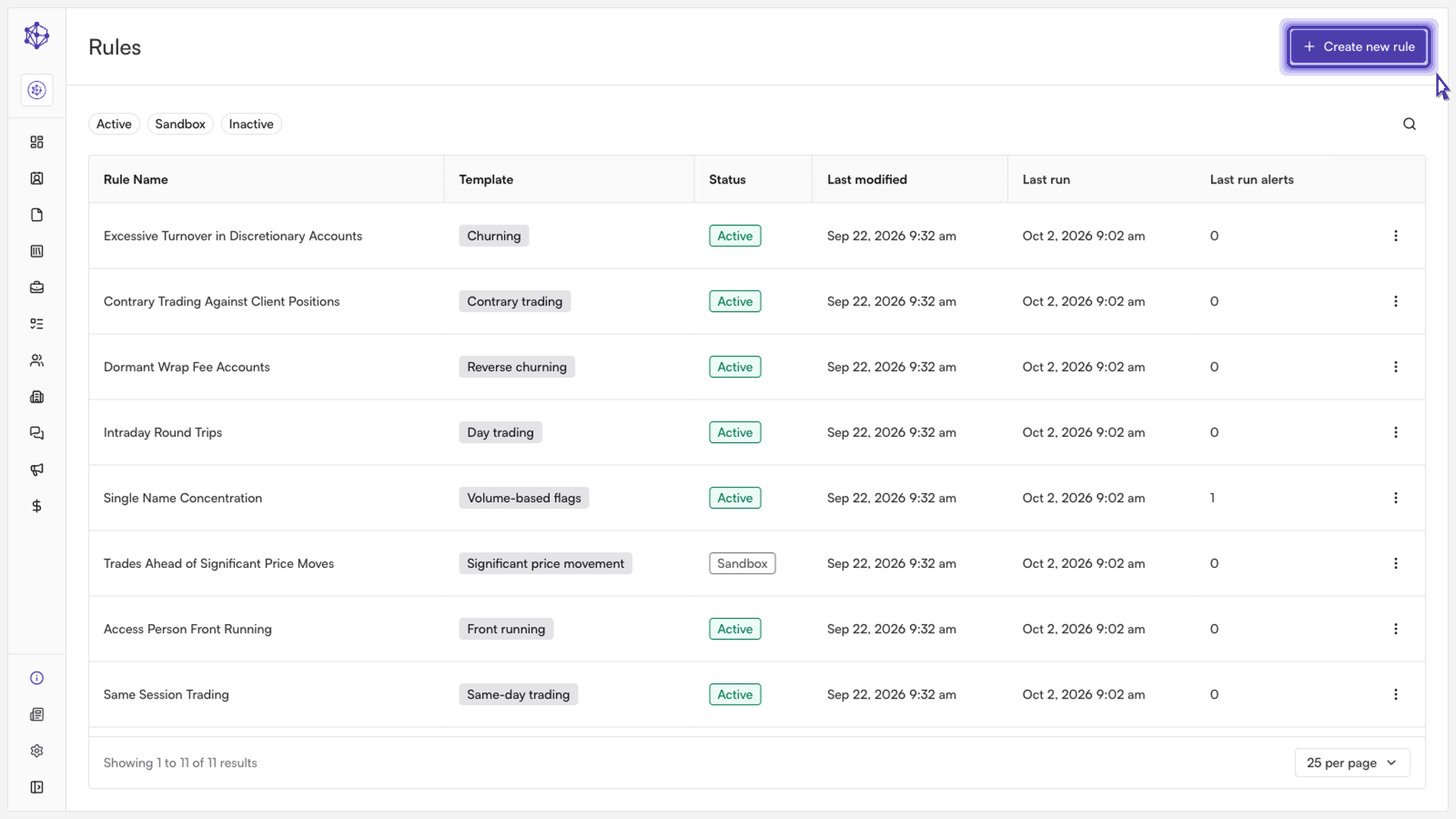
Starting from a template
From the rule library in Account Surveillance, where every trade monitoring rule for the firm is listed, open the template gallery rather than building a rule from scratch. Templates are grouped by category — for a restricted-security rule, look under "Firm & employee conduct" for the "Restricted trading" template, which is built specifically for catching trades in securities on a firm's restricted or watch list. Click "Use this template" to launch the configuration wizard.
Naming and defining the rule
The first step of the wizard asks for a name and overview. Give the rule a clear, descriptive name so the team knows exactly what it watches for — this name is what will appear throughout the rule library and in any exceptions it generates.
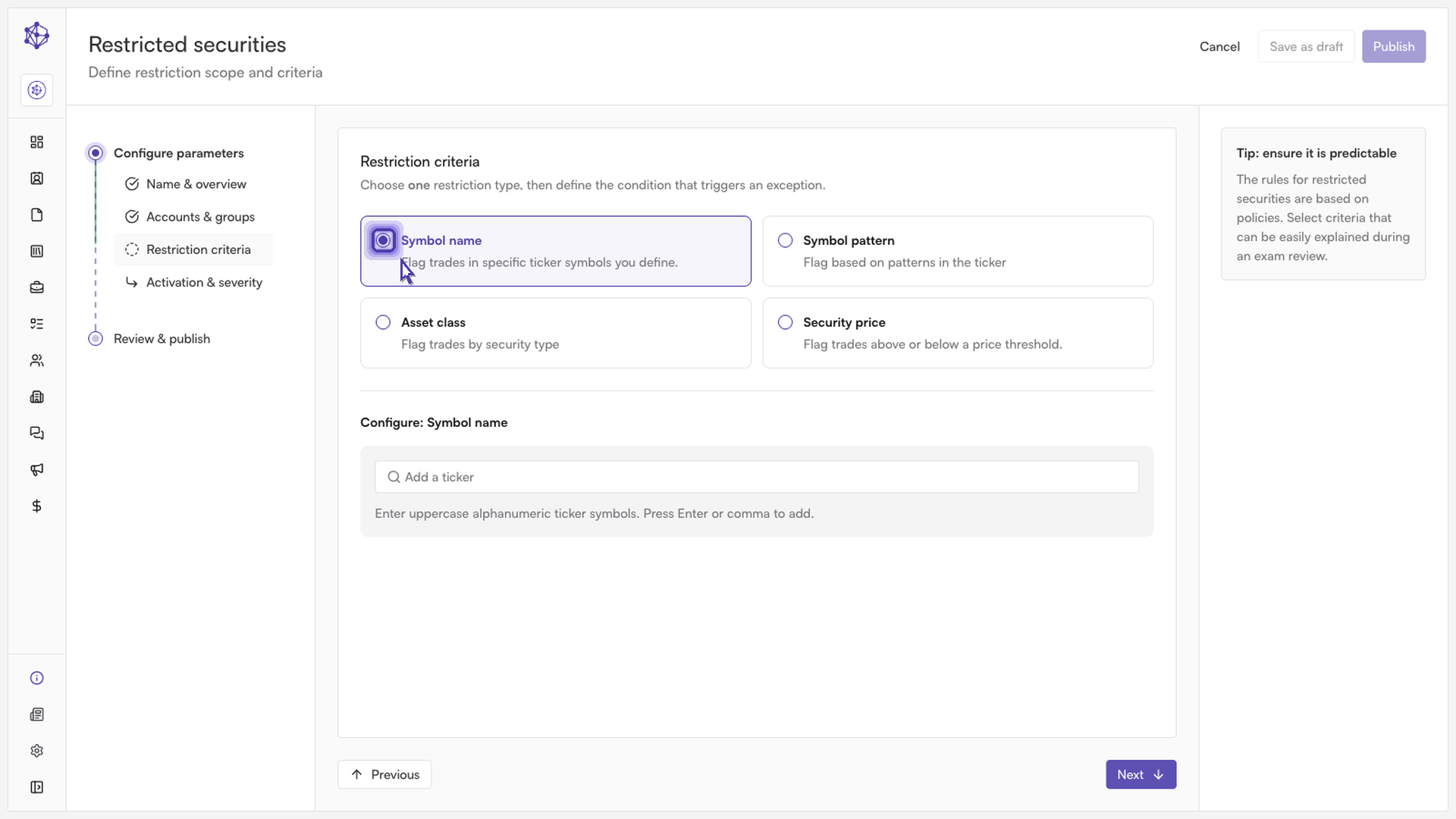
Choosing the accounts and restriction criteria
Next, choose which account types the rule should evaluate (employee personal accounts, client accounts, or firm accounts), and which employee groups, if any, should be excluded. Then select how the rule should identify restricted securities. You can match by symbol name, a pattern in the ticker, asset class, or a security price threshold. For a straightforward restricted-list rule, matching by symbol name is the most common choice — add the ticker (or tickers) you want flagged whenever it appears in a trade.
Setting the initial status and severity
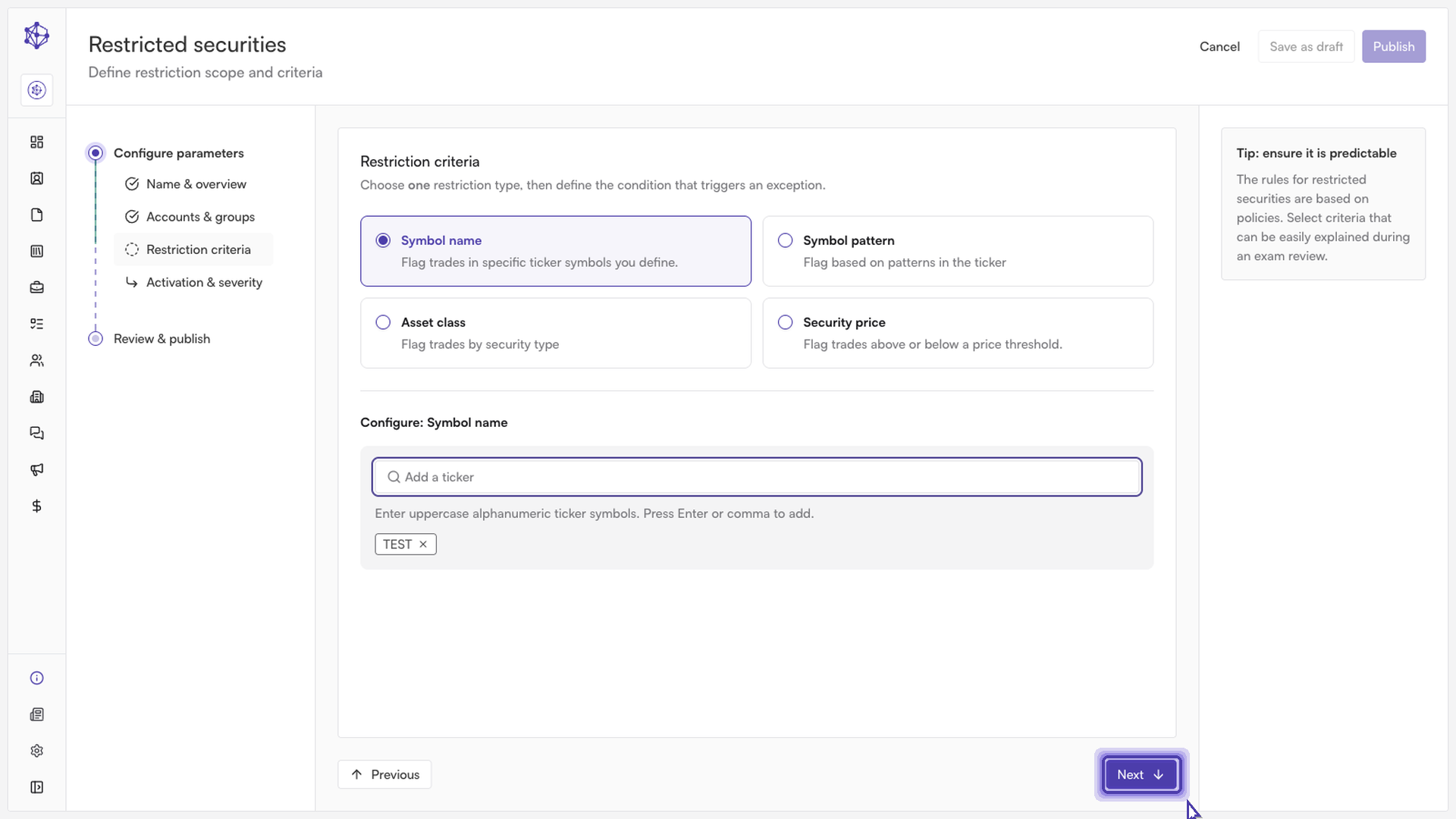
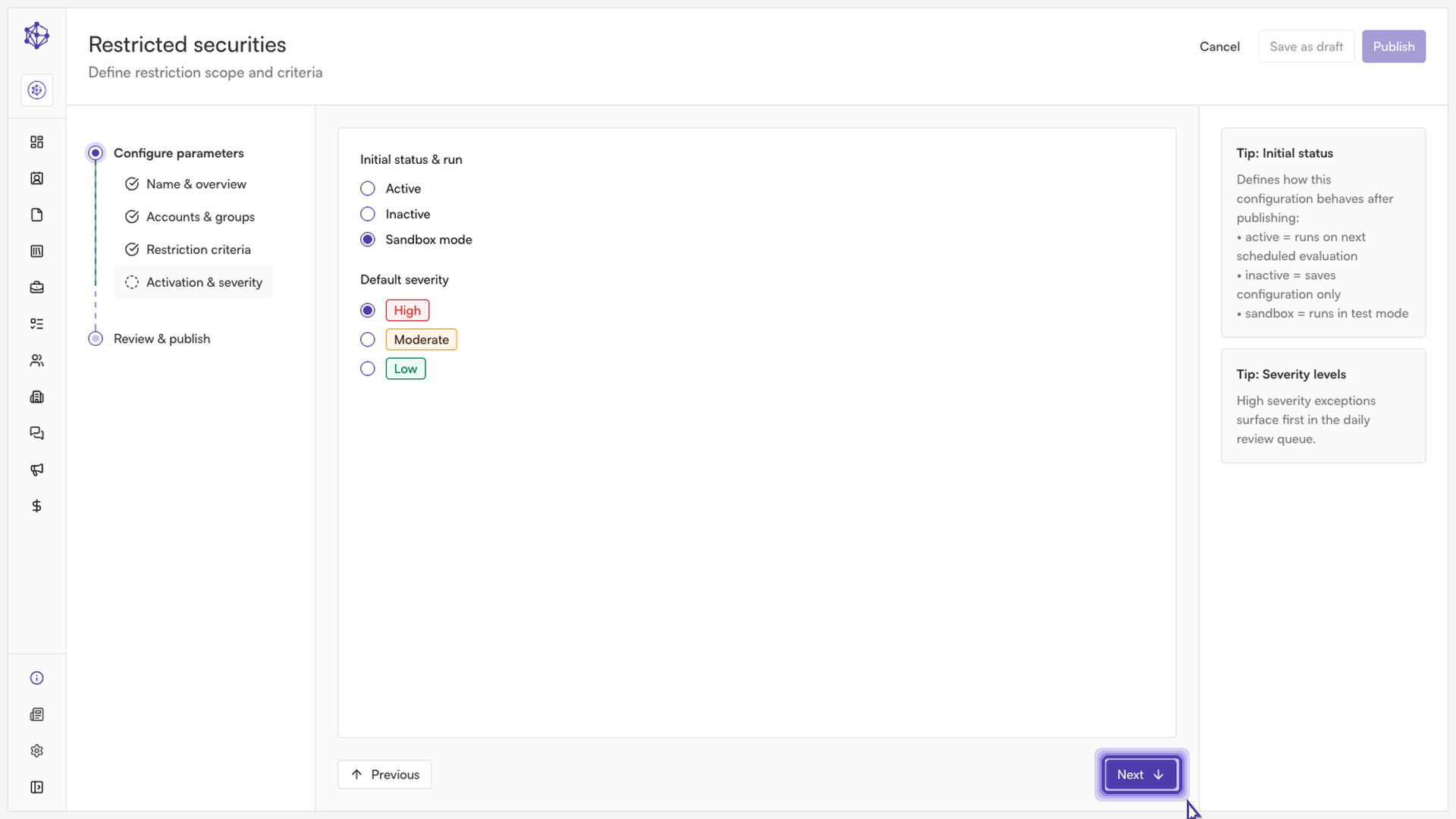
The next step controls how the rule behaves once it's published:
Initial status — choose Active to have the rule run on its next scheduled evaluation and generate live exceptions, choose Inactive to save the configuration without running it, or choose Sandbox mode to run the rule in the background and surface what it would have flagged, without generating active alerts or taking enforcement action. Sandbox mode is the safest way to validate a new or adjusted rule before it goes live.
Default severity — set the severity that exceptions from this rule will carry (High, Medium, or Low). Restricted-trading hits should typically be set to High, since high-severity exceptions surface first in the daily review queue.
Reviewing and publishing
The final step summarizes everything you've configured — the rule name, description, and the status and severity you selected — so you can verify the details before they go live. If anything needs to change, go back to the relevant step rather than editing after publishing. Once everything looks correct, click "Publish" to turn the rule on and put it to work monitoring trades.
What happens next
A rule published in sandbox mode will begin evaluating trades on its normal schedule and recording what it would have flagged, giving you a chance to review the results and adjust the criteria or severity before switching it to Active. You can find the rule at any time in the rule library and change its status from there.