Switching Between Admin and Employee View
Last updated: September 23, 2026
Administrators on the Hadrius platform can switch into the employee view at any time to see the platform exactly as their staff see it. This is useful when you're answering a question about a task you've assigned, confirming what an employee is being asked to complete, or walking a new hire through their responsibilities. This article covers how to switch into the employee view and how to return to your administrator view.
The ability to switch views is limited to users who hold administrator access at your firm, and it's only offered when you also have an employee record at that firm. If you don't see the option described below, your account doesn't have administrator access in the firm you're currently viewing.
Switching to the employee view
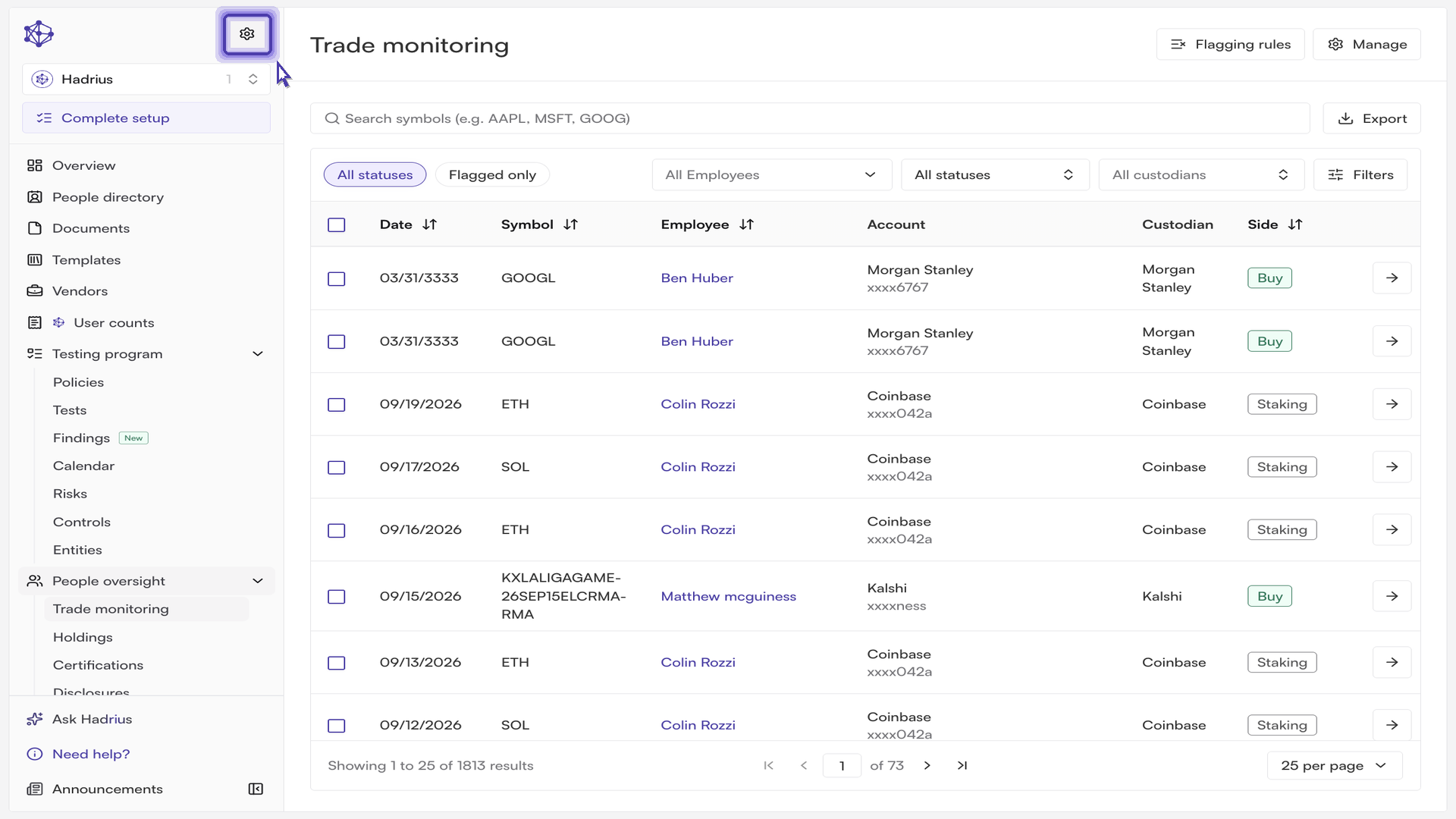
From any page in the platform, open Settings using the gear icon in the left-side navigation panel. The admin side of the platform — where you complete all of your review activities — is where you'll normally be working, and the switch is available from the Settings page regardless of where you start.
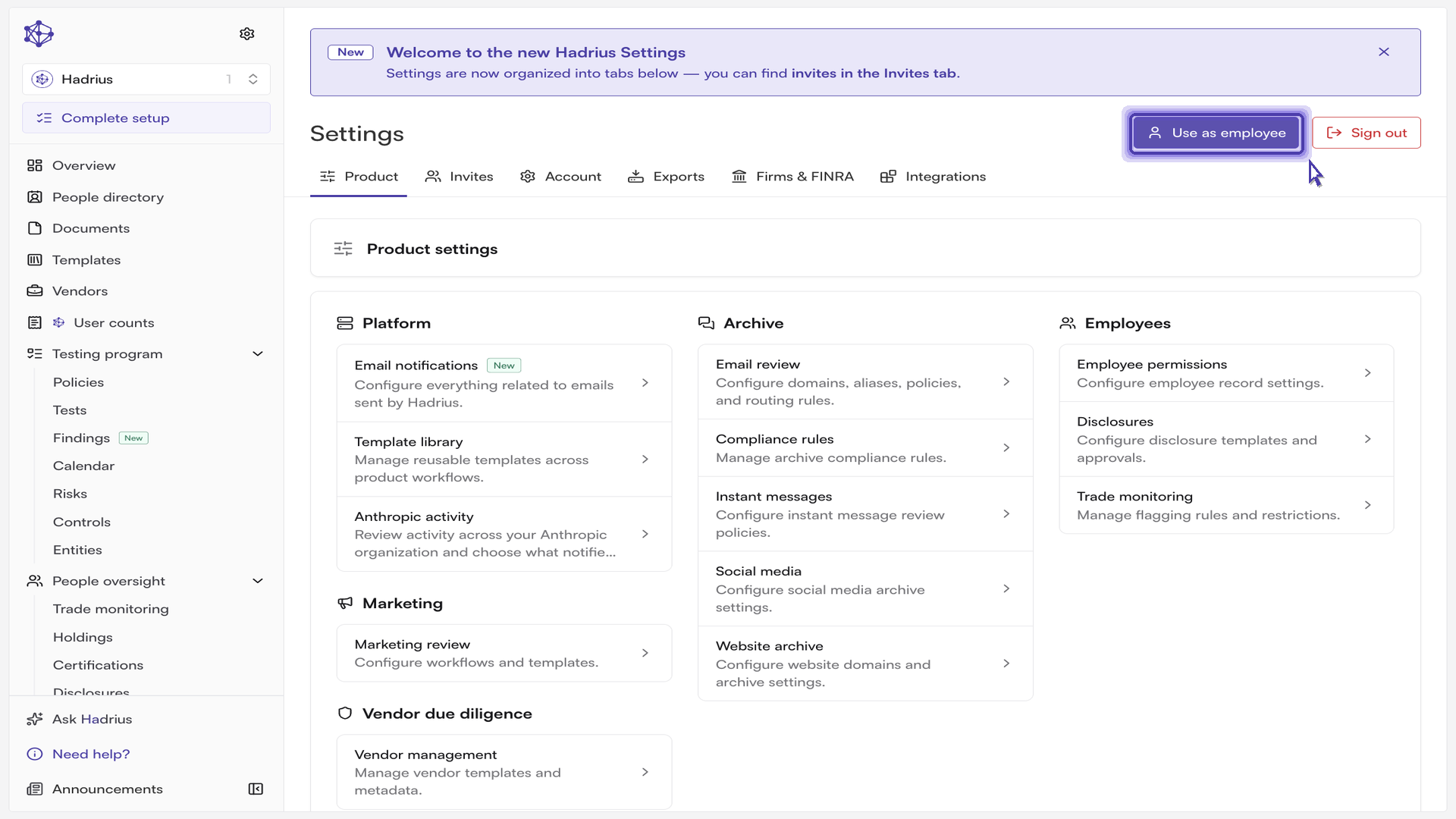
In the header of the Settings page, click "Use as employee". The platform reloads into the employee experience.
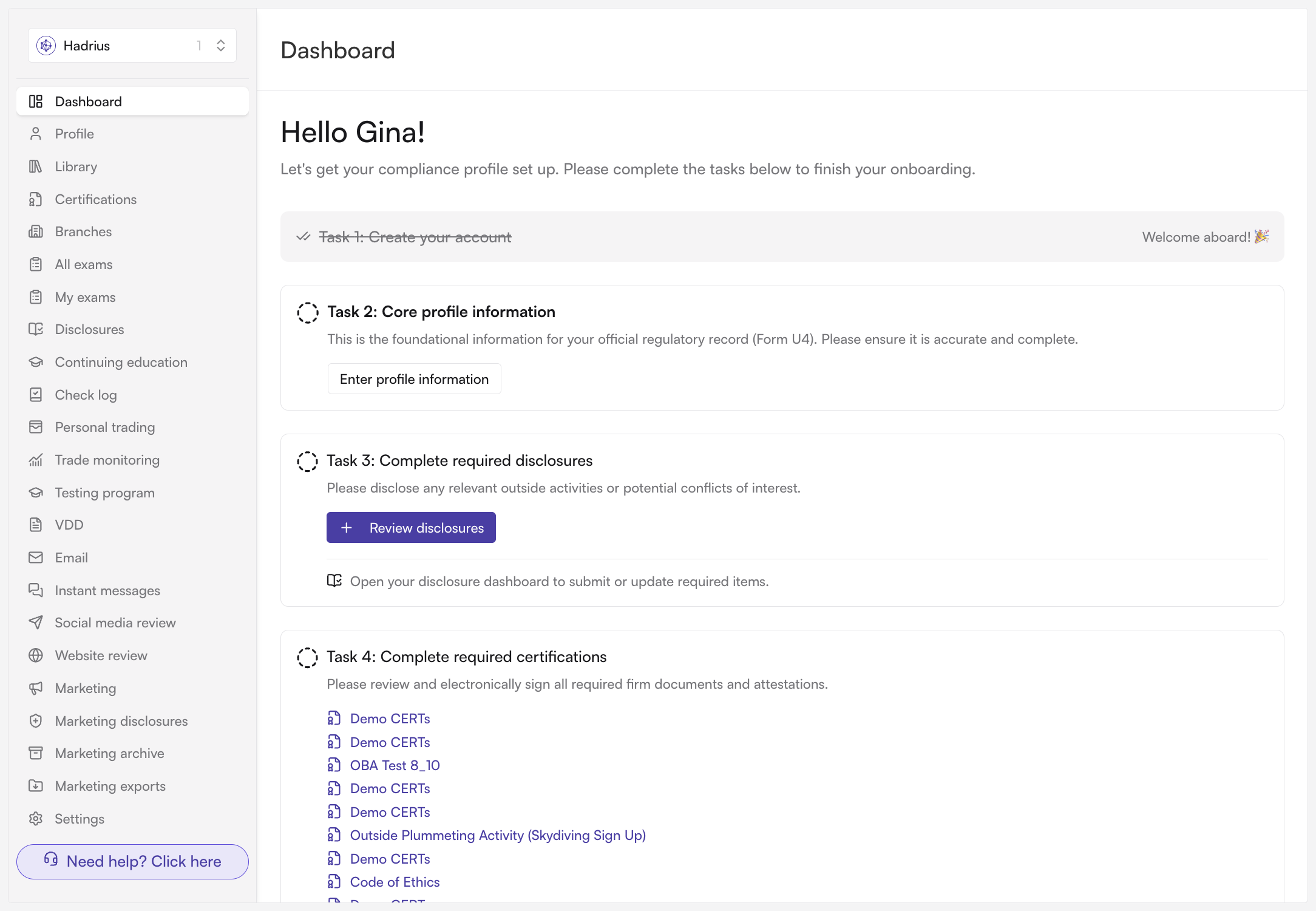
Review the employee view. The dashboard is now scoped to you as an employee, showing only the tasks assigned to you. This is exactly what your staff see when they log in. Employees can only see their own personal data — never anyone else's at the firm — so the employee view will not expose firm-wide review activity or other individuals' records.
Returning to the administrator view
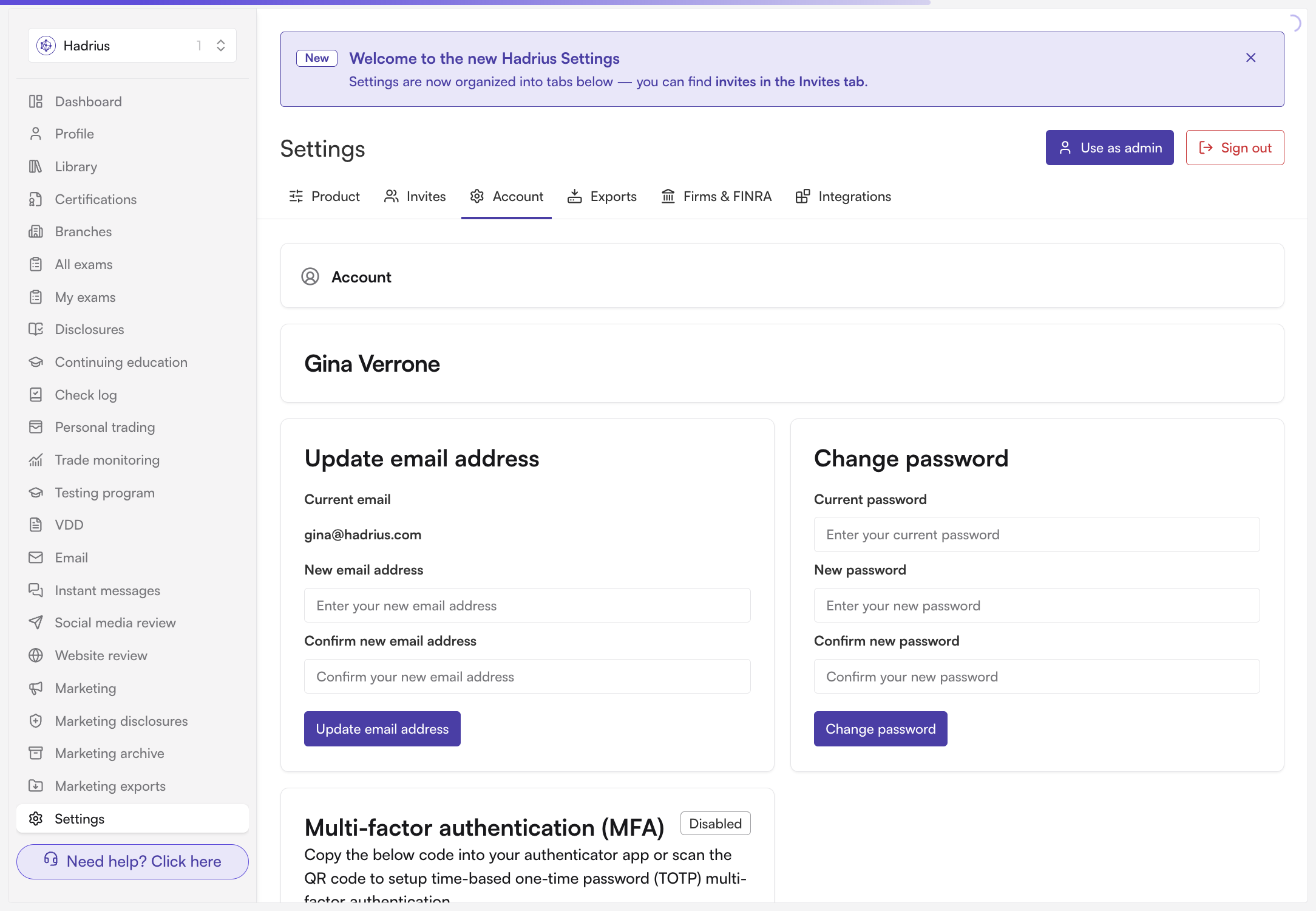
To switch back, open Settings again from the bottom of the left-side navigation panel and click "Use as admin" in the page header. You'll be returned to the administrator view with full oversight restored, including your review queues and firm-wide data.
What to expect
Your view selection is remembered, so if you leave the platform while in the employee view, you'll return to the employee view the next time you log in. If the platform looks unexpectedly limited, check Settings and confirm which view you're in — clicking "Use as admin" will restore your full administrator access.